Sleep app onboarding
10 Sleep App Onboarding Examples
Ask for bedtime, wake time, and goal only when the product can explain how each answer will be used.
Sleep apps often need schedule context before they can recommend a bedtime, alarm, wind-down routine, or tracking window. The risk is turning onboarding into a health questionnaire whose benefit is delayed or unclear. Every requested time should have a visible effect in the next state.
These ten recorded examples set sleep goals, compare schedules with target duration, ask for ideal and typical bedtime, capture wake time, calculate sleep debt, create an alarm, and offer a customizable wake window. The strongest screens explain the consequence of the answer before asking for it.
Use ordinary language and support irregular reality. Not everyone has one bedtime, a weekday schedule, or control over wake time. Let customers skip, edit, create multiple schedules, and use the product without accepting reminders or an alarm.
Read meditation app onboarding examples for the adjacent product state and its handoff into this decision.
01. Goal and schedule
Explain how the schedule powers the product.
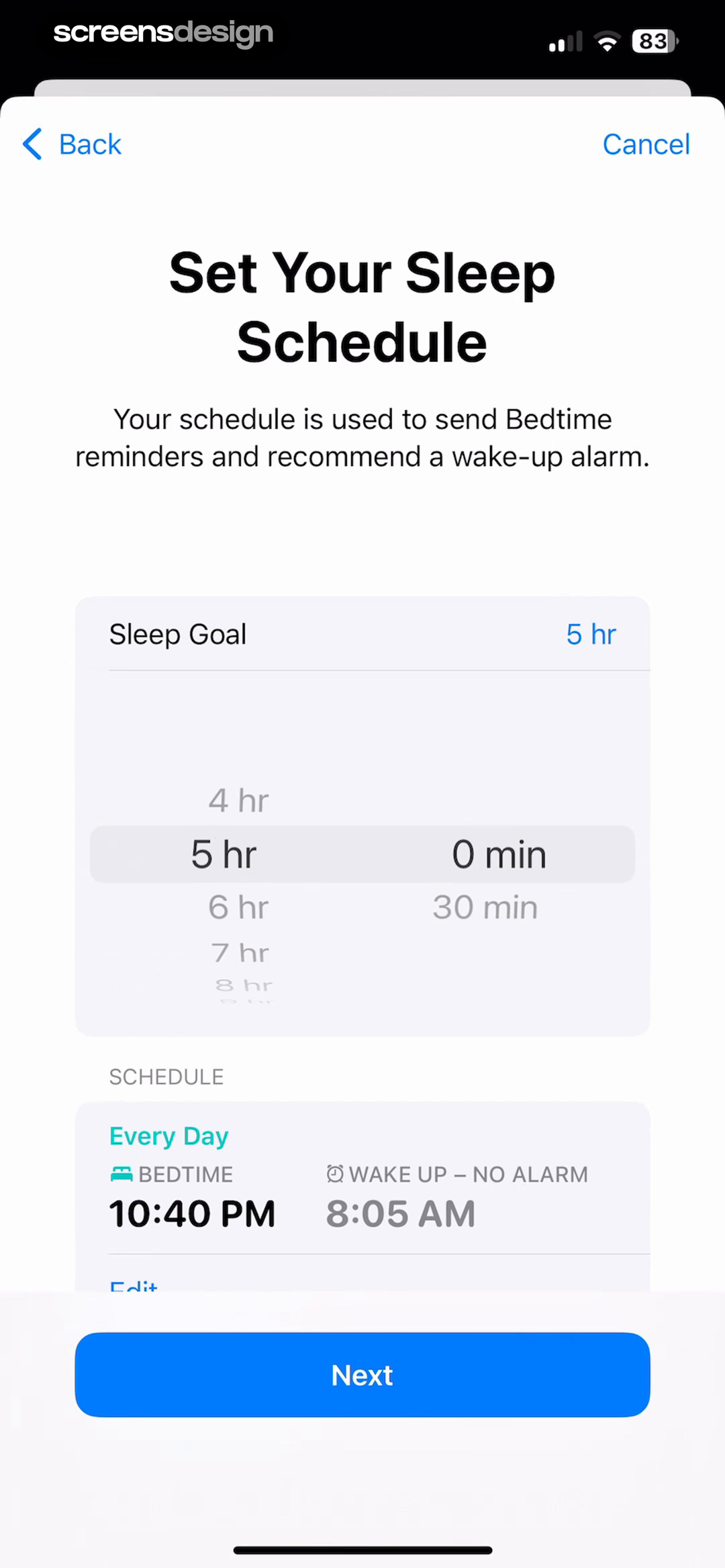
A sleep goal should connect to reminders, alarms, or analysis.
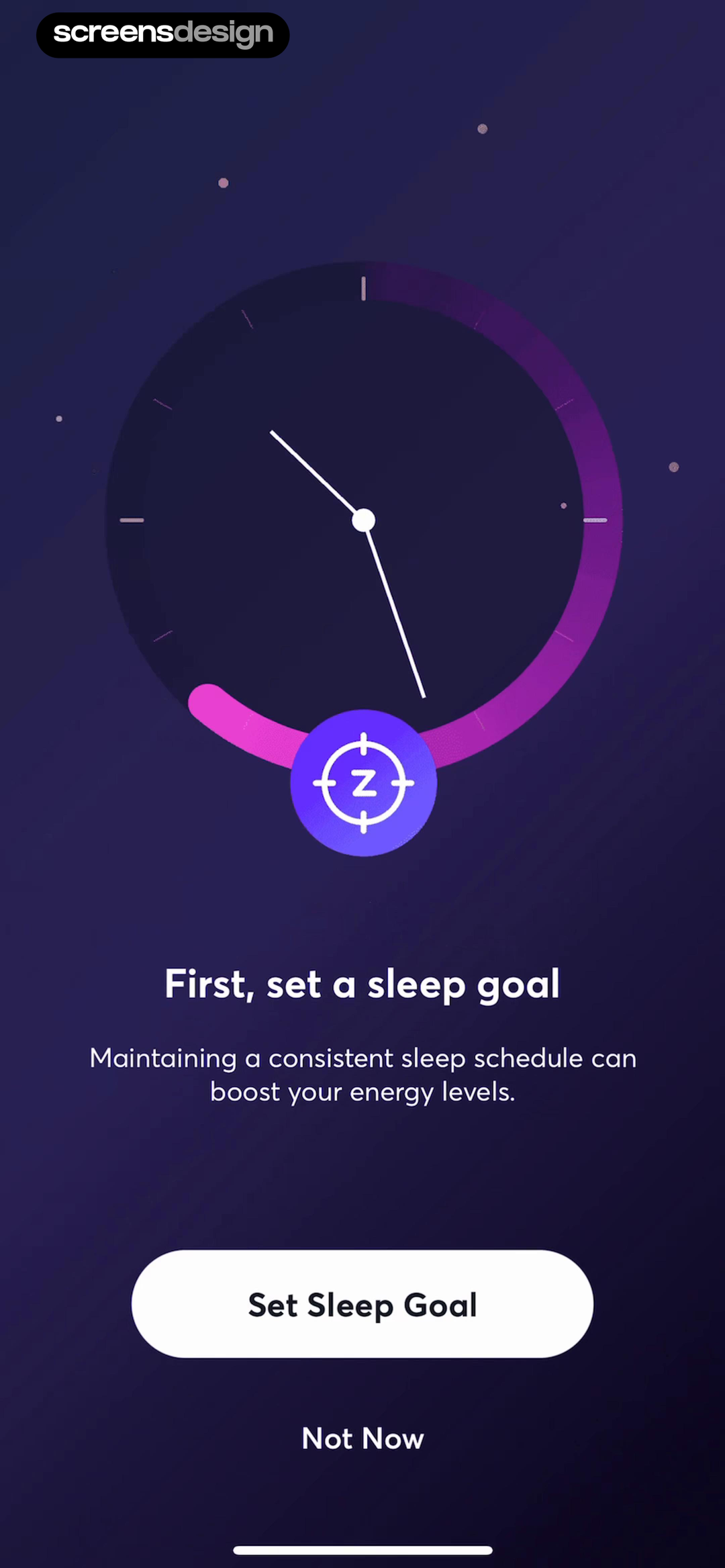
Apple Health shows that sleep goal and schedule are tied to bedtime reminders and a recommended wake-up alarm. BetterSleep: Relax and Sleep takes a different but compatible approach: the first sleep goal is connected to energy and a consistent schedule, with Not Now still available. Together, the examples reveal which details must stay visible at the decision point rather than being deferred to support or legal copy.
Ask for the minimum set of times needed for the next feature. Show Not now or Cancel and avoid implying that the app knows a medically correct goal from one answer.
Test the normal path, dismissal, back navigation, interruption, app relaunch, slow network, stale account data, and the state after completion. The primary label, confirmation, saved data, and next destination should describe the same outcome. Check large text, screen readers, keyboard focus, translated copy, and reduced motion so the decision remains understandable without relying on layout or color alone.
02. Mismatch feedback
Show the calculated duration immediately.
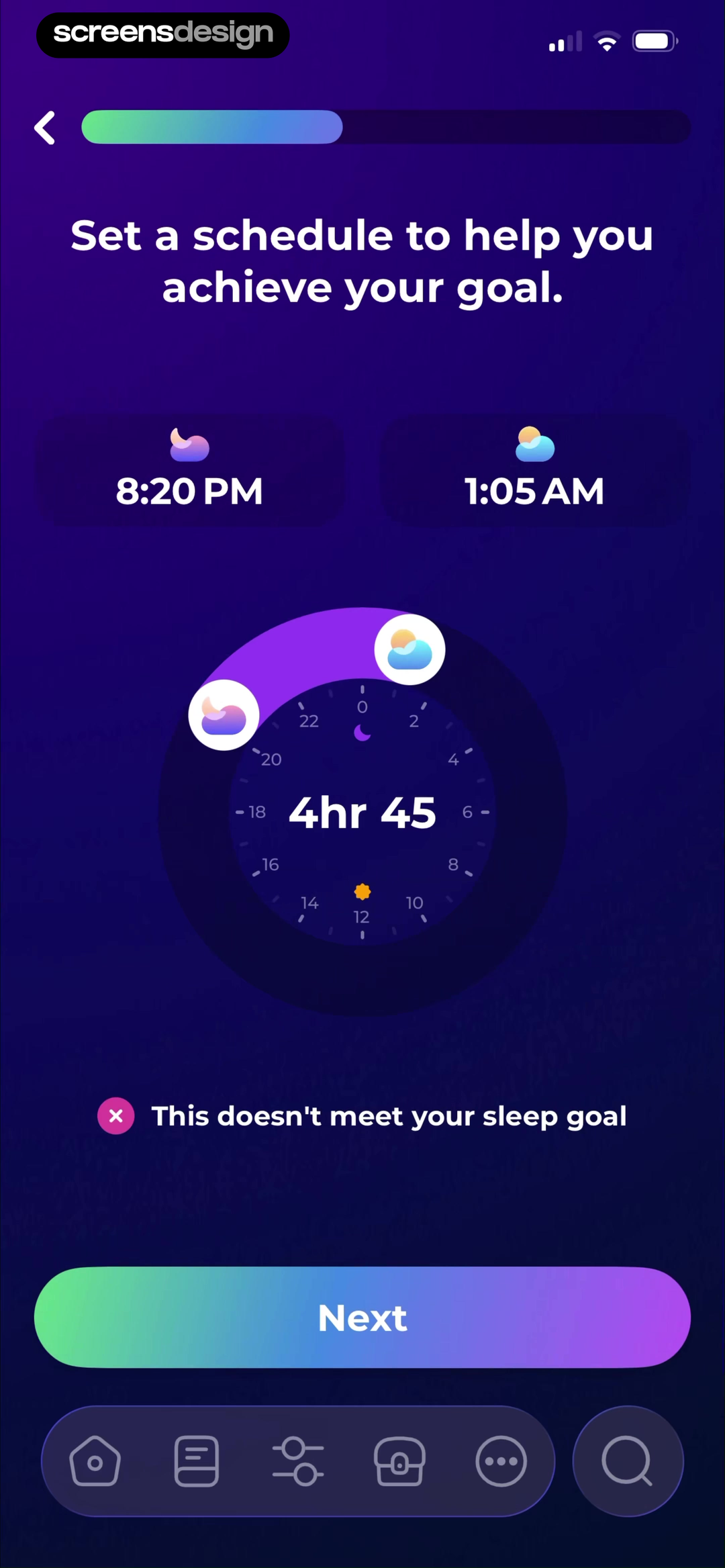
Feedback helps people understand the relationship between bedtime, wake time, and goal.
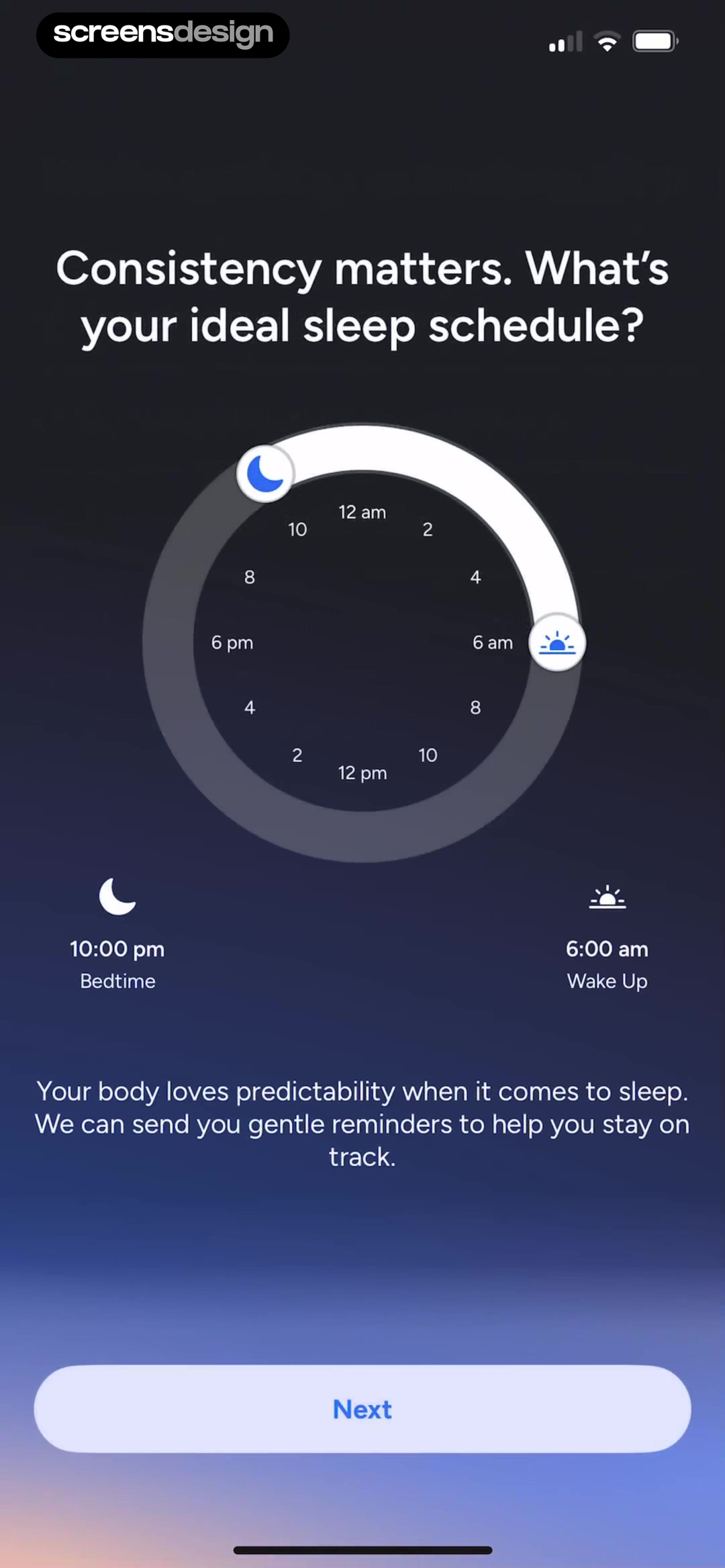
Sleepiest: Sleep Meditation shows that bedtime, wake time, and calculated duration show immediately when the schedule misses the chosen sleep goal. Calm Sleep - Rest & Relax takes a different but compatible approach: ideal sleep schedule is asked on a full-day timeline after a short explanation about consistency. Together, the examples reveal which details must stay visible at the decision point rather than being deferred to support or legal copy.
Display the resulting hours and whether the schedule meets the selected target. Let the person adjust either input without restarting the step.
Test the normal path, dismissal, back navigation, interruption, app relaunch, slow network, stale account data, and the state after completion. The primary label, confirmation, saved data, and next destination should describe the same outcome. Check large text, screen readers, keyboard focus, translated copy, and reduced motion so the decision remains understandable without relying on layout or color alone.
03. Bedtime anchor
State whether you need an ideal or typical time.
Ideal and usual schedules answer different product questions.
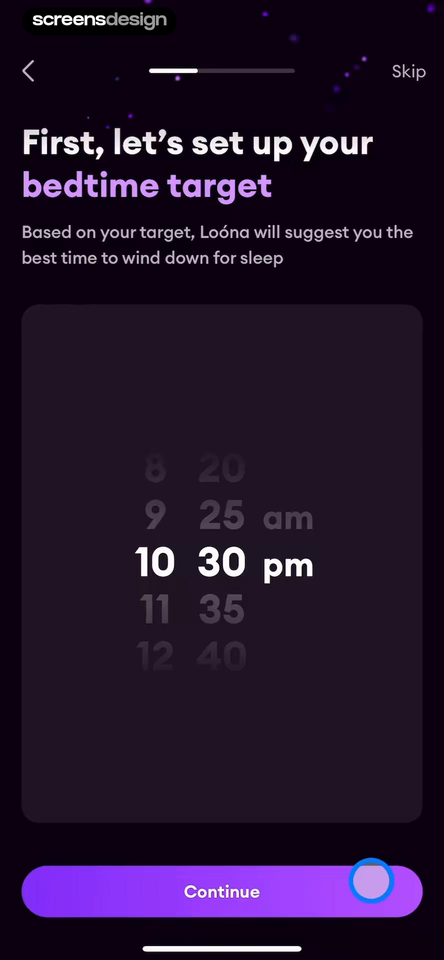
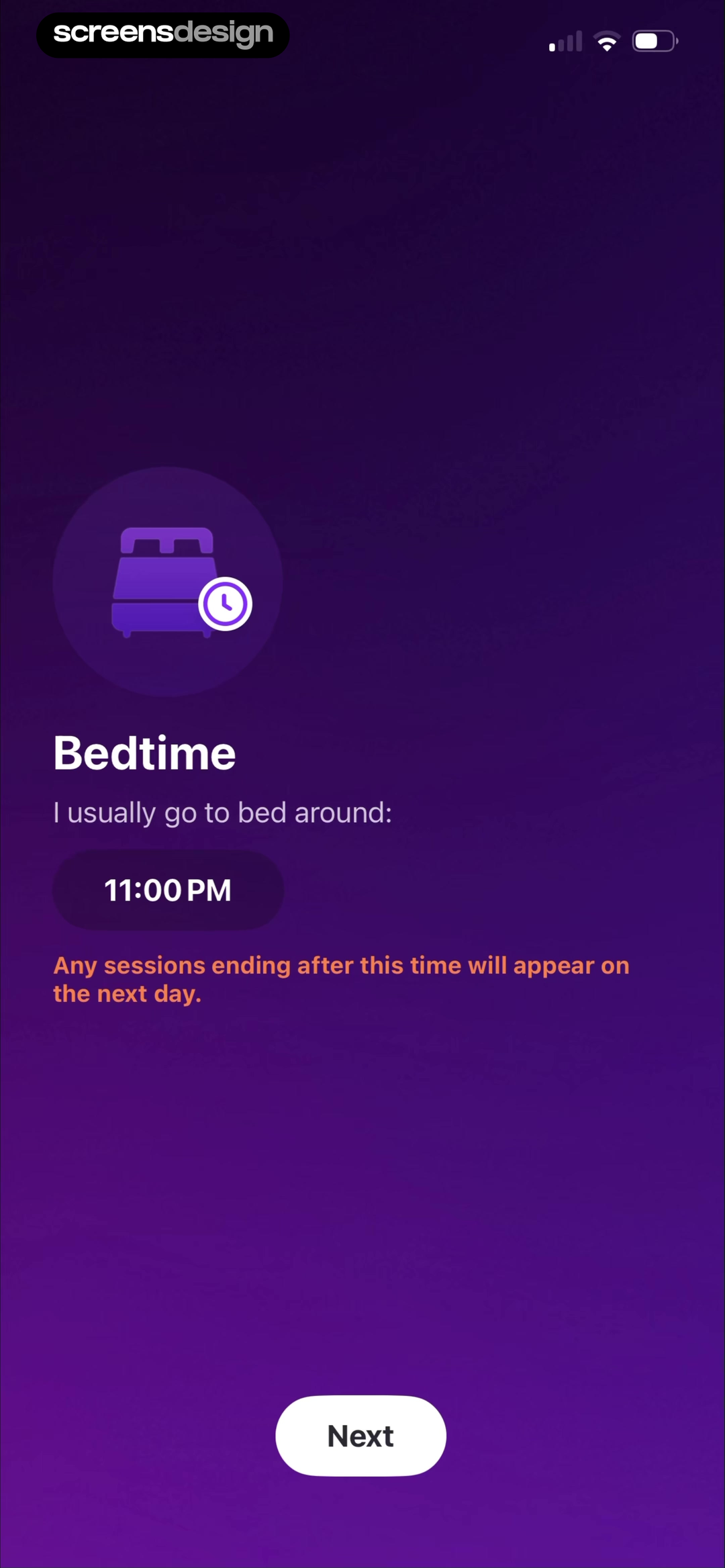
Loóna: Sleep, reduce anxiety shows that a bedtime target is used to promise a more relevant wind-down suggestion, with Skip visible. Pillow: Sleep Tracker takes a different but compatible approach: typical bedtime has a concrete effect: sessions ending after it appear on the next day. Together, the examples reveal which details must stay visible at the decision point rather than being deferred to support or legal copy.
Use the chosen bedtime to explain wind-down suggestions, day boundaries, or tracking. Support shifts that cross midnight without confusing the date.
Test the normal path, dismissal, back navigation, interruption, app relaunch, slow network, stale account data, and the state after completion. The primary label, confirmation, saved data, and next destination should describe the same outcome. Check large text, screen readers, keyboard focus, translated copy, and reduced motion so the decision remains understandable without relying on layout or color alone.
04. Wake time
Give wake-time collection a concrete reason.
A smart alarm or sleep-debt estimate makes the request understandable.
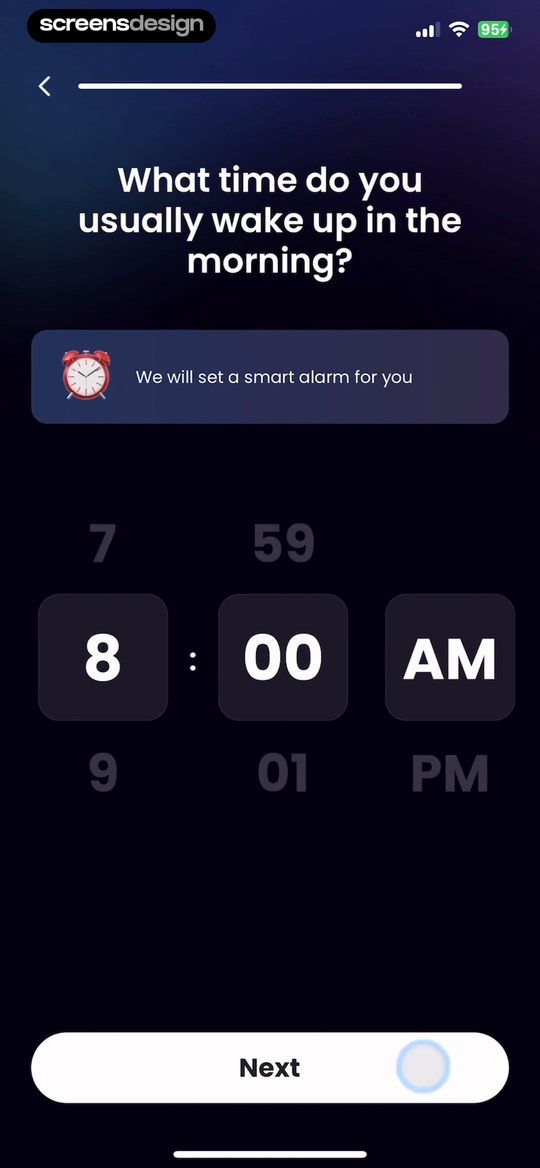
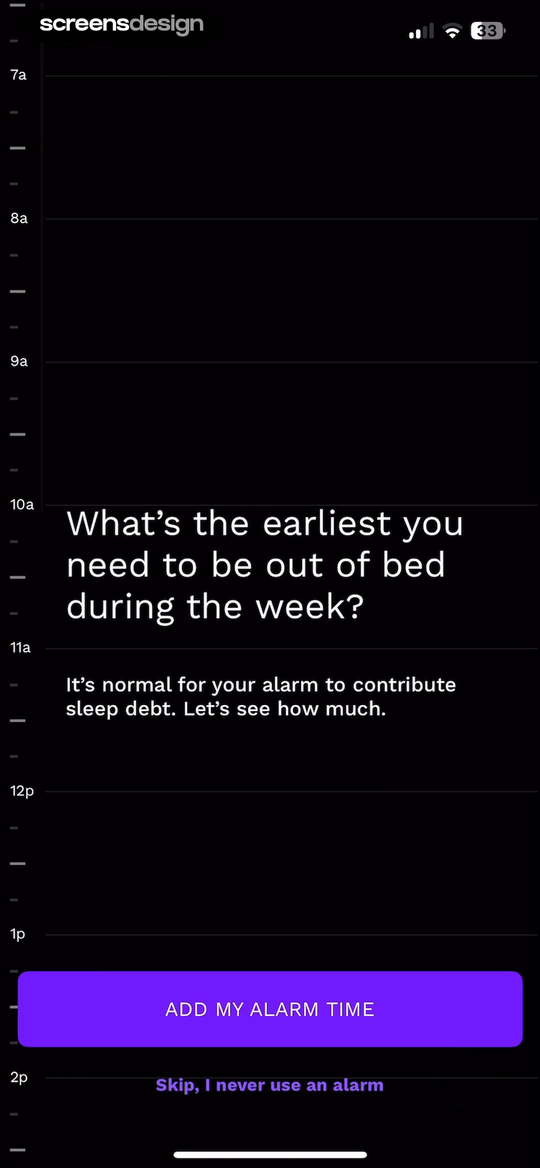
Sleep Tracker: Recorder, Sound shows that the app asks for usual wake time and explains that the answer will configure a smart alarm. RISE: Sleep Tracker takes a different but compatible approach: earliest weekday wake time is captured on an easy-to-scan timeline for sleep-debt calculation. Together, the examples reveal which details must stay visible at the decision point rather than being deferred to support or legal copy.
Ask for earliest, usual, or required wake time precisely. Provide different weekday and weekend schedules when the product uses them.
Test the normal path, dismissal, back navigation, interruption, app relaunch, slow network, stale account data, and the state after completion. The primary label, confirmation, saved data, and next destination should describe the same outcome. Check large text, screen readers, keyboard focus, translated copy, and reduced motion so the decision remains understandable without relying on layout or color alone.
05. Alarm result
Turn the answers into a reviewable first alarm.
Automation should produce a visible proposal, not a hidden setting.
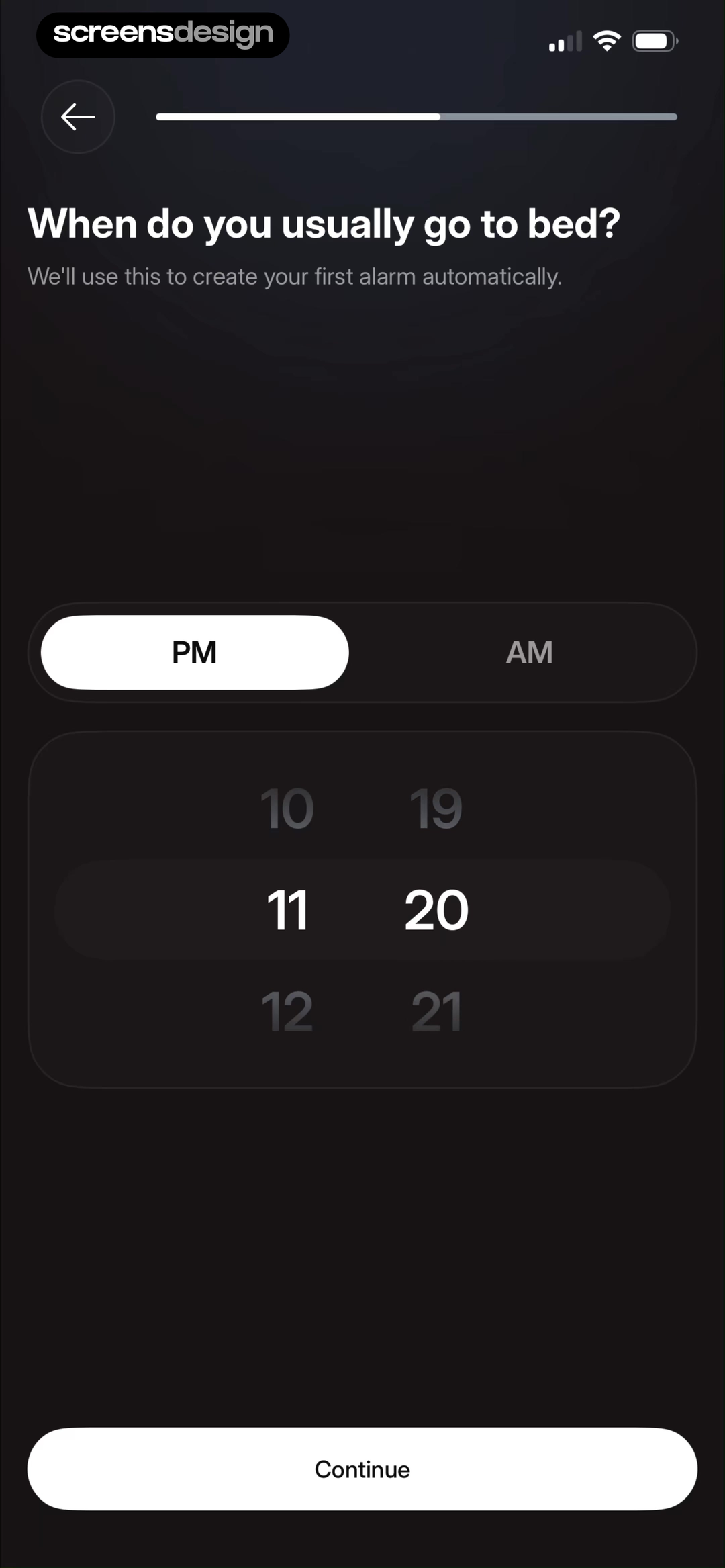
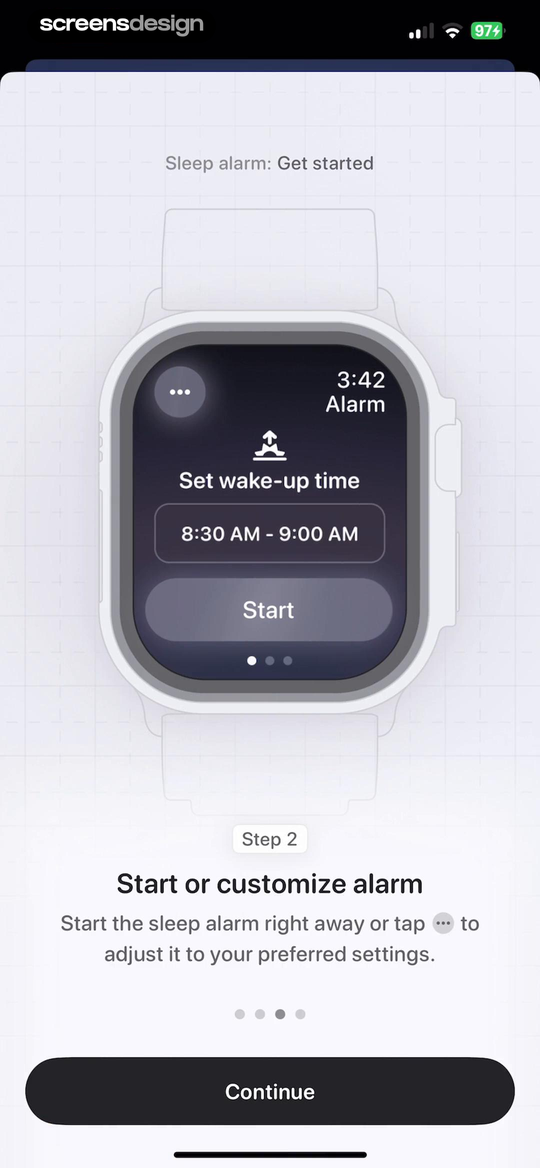
Flow - Wake Up shows that usual bedtime is explicitly used to create the first alarm automatically. Bevel: AI Health Coach takes a different but compatible approach: the proposed wake-up window can start immediately or be customized before the sleep alarm is active. Together, the examples reveal which details must stay visible at the decision point rather than being deferred to support or legal copy.
Show the created time or window, explain what Start activates, and keep Customize available. Do not enable sound, notifications, health data, or background tracking without the required consent.
Test the normal path, dismissal, back navigation, interruption, app relaunch, slow network, stale account data, and the state after completion. The primary label, confirmation, saved data, and next destination should describe the same outcome. Check large text, screen readers, keyboard focus, translated copy, and reduced motion so the decision remains understandable without relying on layout or color alone.
Implementation
Build the state model before polishing the screen.
Interface quality depends on entitlement, account, billing, content, and analytics state agreeing.
Store local time, timezone, weekdays, effective dates, cross-midnight rules, schedule type, goal duration, and whether each time is ideal, typical, earliest, or required. Recalculate when travel, daylight saving time, or schedule edits change the relationship between bedtime and wake time.
Separate preference from permission. Choosing an alarm or reminder does not grant notification, audio, health-data, microphone, motion, or background access. Explain each capability at the moment it is needed and provide a useful reduced experience when permission is declined.
Test late and early shifts, overnight work, split sleep, weekends, several schedules, travel, daylight saving changes, silent mode, headphones, notification denial, alarm disabled, health data unavailable, manual tracking, no goal, large text, and editing after the first night.
- Every requested time has an explained product effect.
- Ideal, typical, earliest, and required times are not mixed.
- Calculated sleep duration updates immediately.
- Cross-midnight and multiple schedules work correctly.
- Alarm and reminder preferences are separate from system permissions.
- The generated schedule can be reviewed and edited before activation.
Measurement
Measure the completed outcome, not only the first tap.
A visible control is useful only when the customer reaches the expected state and can continue.
Track schedule completed, alarm reviewed, alarm activated, permission accepted, and schedule edited after first use. Define the successful product state before launch and verify it from server or platform truth where possible. A button tap without the promised entitlement, schedule, reward, survey result, or recovered access should be counted as an error, not conversion.
Segment by entry point, customer state, current plan or program, platform, app version, locale, accessibility settings, prior failures, and whether the person returned after leaving the flow. Compare immediate completion with what happens during the next relevant session so a short-term click does not hide confusion or regret.
Review guardrails alongside the primary metric: repeated attempts, backtracking, support contact, refund, cancellation, incorrect access, disabled reminders, abandoned tasks, and manual corrections. Read open feedback and replay representative failures with sensitive information protected. The goal is a trustworthy customer outcome, not a higher number produced by obscuring alternatives.
Review checklist
Test the content, the control, and the resulting account state.
Create accounts for the new, active, returning, expired, interrupted, unsupported, and already-completed states. Verify copy, available actions, confirmation, account data, navigation, and the destination for each one.
Run the flow with slow and failed network calls, app relaunch, another device, large text, screen reader, localization, denied permissions where relevant, and a customer who changes their mind. Every path should preserve data and provide a clear way forward.
- Every requested time has an explained product effect.
- Ideal, typical, earliest, and required times are not mixed.
- Calculated sleep duration updates immediately.
- Cross-midnight and multiple schedules work correctly.
- Alarm and reminder preferences are separate from system permissions.
- The generated schedule can be reviewed and edited before activation.
Questions and answers
Sleep app onboarding questions
What should sleep app onboarding ask?
Ask only for schedule and goal information needed to create the first alarm, wind-down recommendation, tracking window, or sleep analysis.
Should a sleep app ask for ideal or typical bedtime?
Use the one the feature requires and label it precisely. Ideal supports planning, while typical may support tracking and current-state analysis.
How should overnight schedules be handled?
Show the calculated duration and next-day relationship clearly, and test schedules that cross midnight, shifts, travel, and daylight saving changes.
When should notification permission be requested?
After the person chooses a reminder or alarm and understands what the permission enables. Keep preference and system consent separate.
Should the app create an alarm automatically?
It can propose one from the supplied schedule, but show the result and let the person customize or decline before activation.
Apps referenced in this page
Open the products behind the examples.
 Apple HealthView recorded app flows
 BetterSleep: Relax and SleepCalm Sounds, Meditation Music
 Sleepiest: Sleep MeditationStories to Sleep Adults & Kids
 Calm Sleep - Rest & RelaxStories, Sounds & Tracking
 Loóna: Sleep, reduce anxietyBedtime Games, Relaxing Sounds
 Pillow: Sleep TrackerSmart Alarm & Snore Recorder
 Sleep Tracker: Recorder, SoundSnore Recorder, Cycle Monitor
 RISE: Sleep TrackerBecome a morning person
 Flow - Wake UpThe alarm you can't ignore
 Bevel: AI Health CoachExercise, Sleep & Nutrition
2,715 apps in the top charts.Ask them anything.
Search real app flows, compare the screens around each decision, and turn stronger references into your own product.