Notification pre-permission design
10 Push Notification Pre-Permission Examples for Mobile Apps
A pre-prompt should name the event, preview the alert, and keep a useful path for Not now.
Notification permission is durable and easy to deny, so the request needs a concrete product reason. The best timing follows a user choice such as scheduling medication, selecting study time, configuring bedtime, tracking a job application, or asking for a trial reminder.
This review uses ten exact recorded notification screens from ten apps. It covers pre-prompts, example alerts, configured times and days, the iOS system dialog, Maybe later routes, trial reminders, and multiple notification purposes. The examples do not prove opt-in performance.
For camera, microphone, tracking, and other permissions, use the mobile app permission screen examples.
01. Purpose and preview
Preview the exact event the alert supports.
A sample notification is more useful than a generic Stay updated promise.
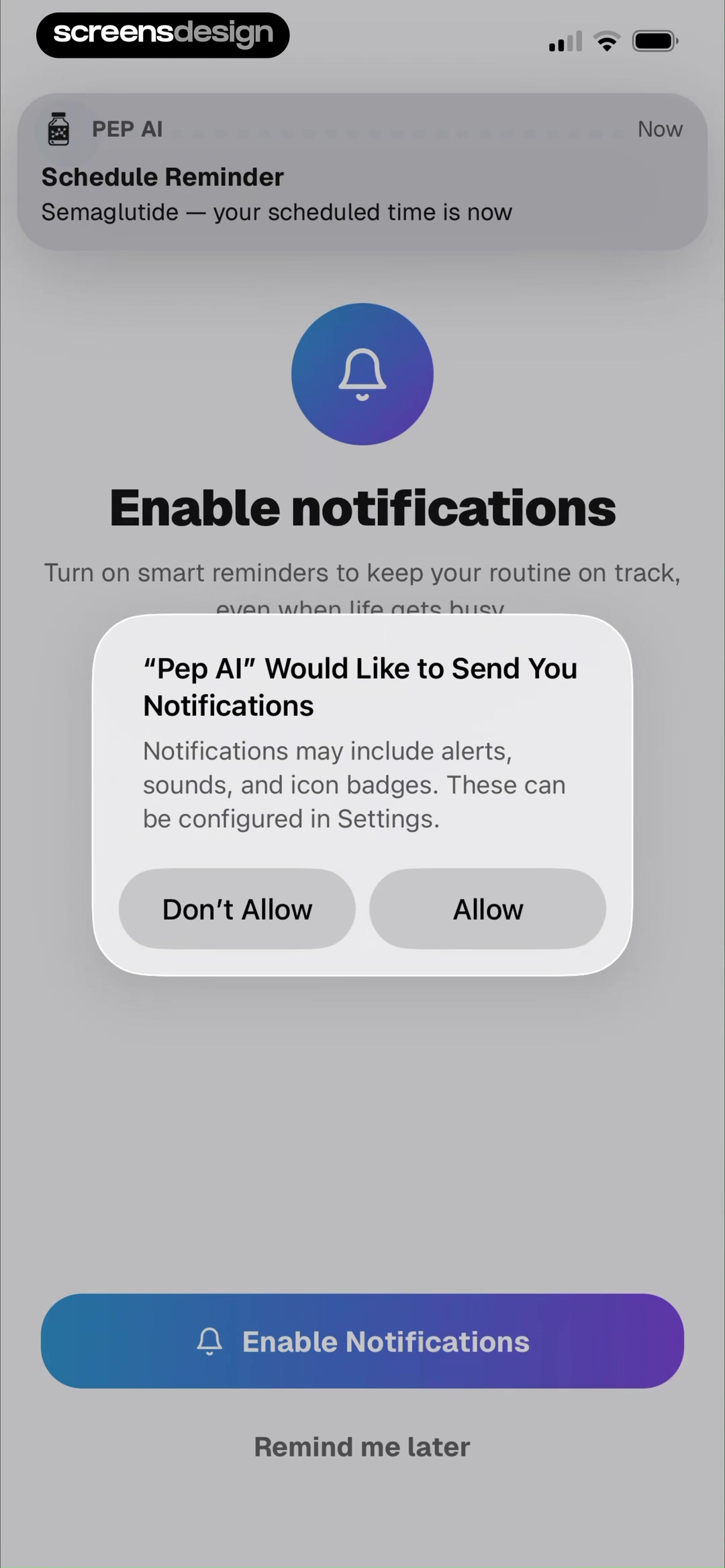
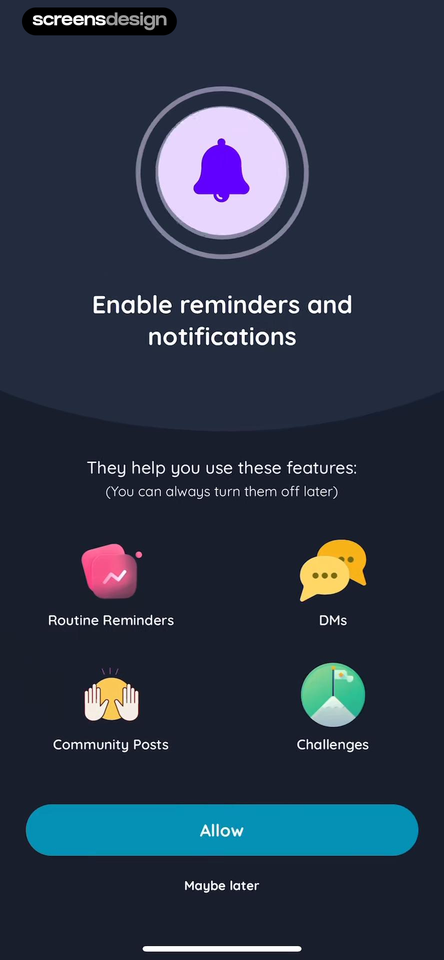
Pep AI previews a scheduled Semaglutide reminder and explains smart routine support before the system request. Shmoody names routine reminders, direct messages, community posts, and challenges and says they can be turned off later.
Use the sender and wording a user will actually see. If several notification types exist, let people select them rather than treating one permission as consent to every marketing and social alert.
Health reminders must avoid exposing sensitive details on a lock screen without user control. Test notification previews disabled, scheduled events removed, and content that changes after setup.
02. Configured timing
Let time and days come before authorization.
A chosen schedule gives the permission a real job.
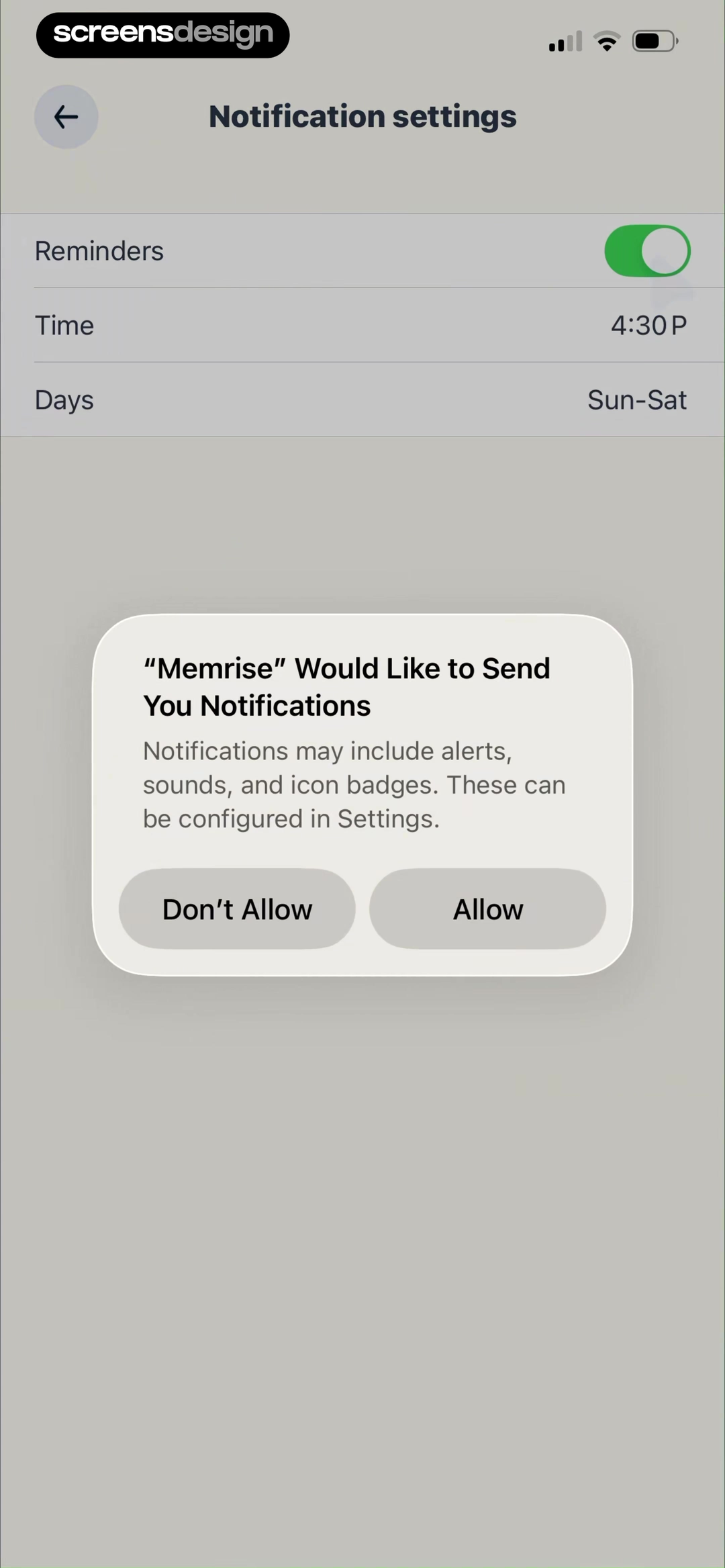
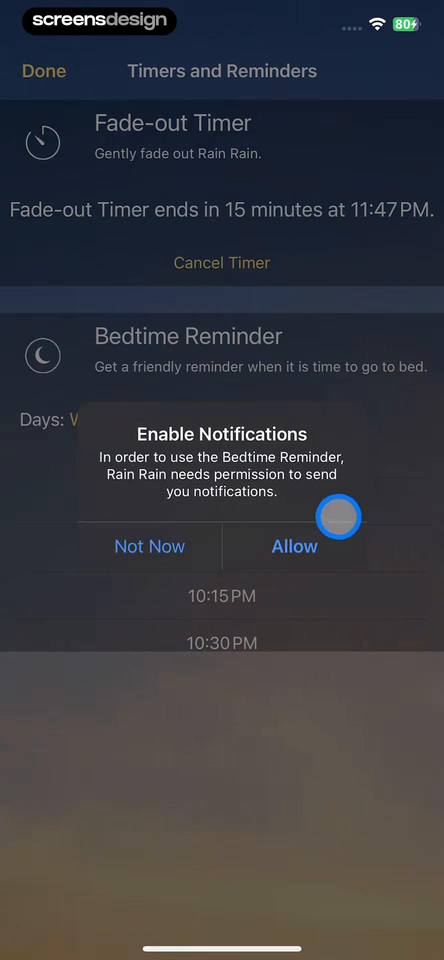
Memrise shows a 4:30 reminder across selected days while the system dialog is visible. Rain Rain places bedtime reminder settings beside its fade-out timer and a direct Enable Notifications action.
Collect the smallest schedule needed, then request permission. Preserve the configuration if permission is denied so activation later does not require setup again. Keep timezone and quiet-hour behavior understandable.
Handle daylight saving, travel, notification summaries, focus modes, and reminders scheduled in the past. A denied prompt should become a clear inactive state rather than silently losing the schedule.
03. Status and interruption
Use alerts for information the user cannot see while away.
Job status and temporary app access can justify timely notification better than generic engagement.
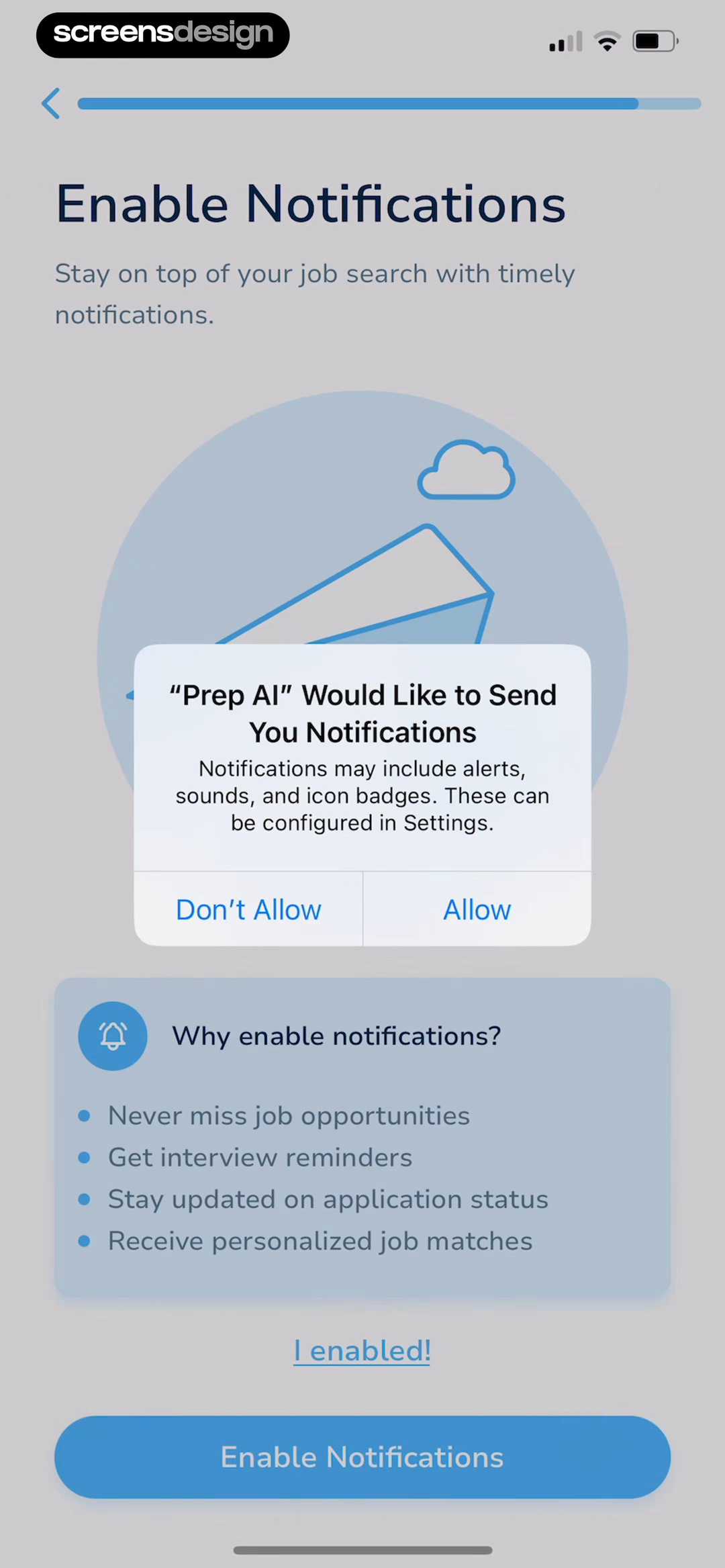
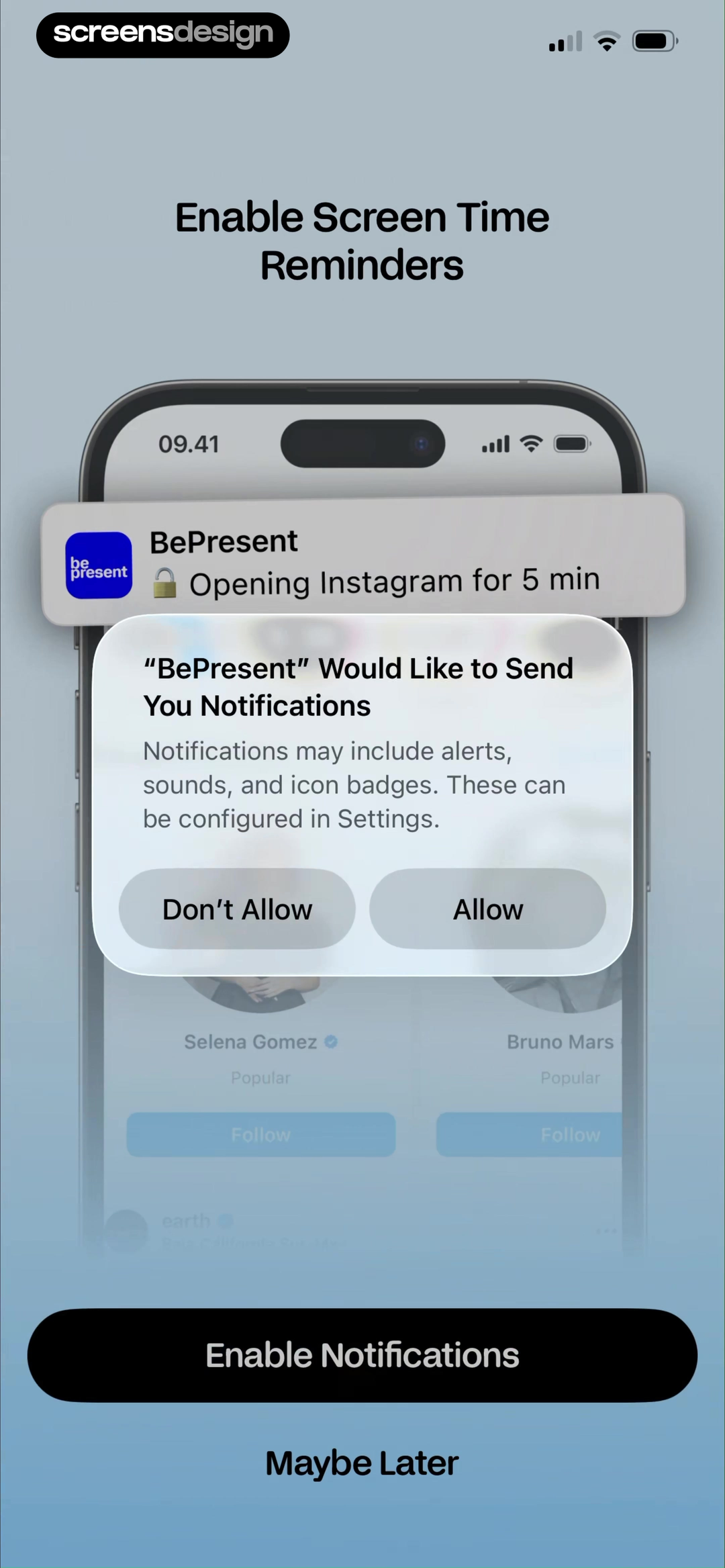
Sprout lists job opportunities, interview reminders, and application-status updates before asking. BePresent previews a five-minute Instagram access event and pairs the system prompt with Enable Notifications and Maybe Later.
State which lifecycle events trigger an alert and whether they are transactional or optional. Do not mix critical status changes with unrelated promotions under one vague benefit.
Avoid sending stale alerts after an interview, application, access session, or blocker state changes. Deduplicate notifications across devices and link each alert to the correct destination.
04. Trial and routine
Make reminder claims operational.
A promised trial or routine reminder must map to a real scheduled event.
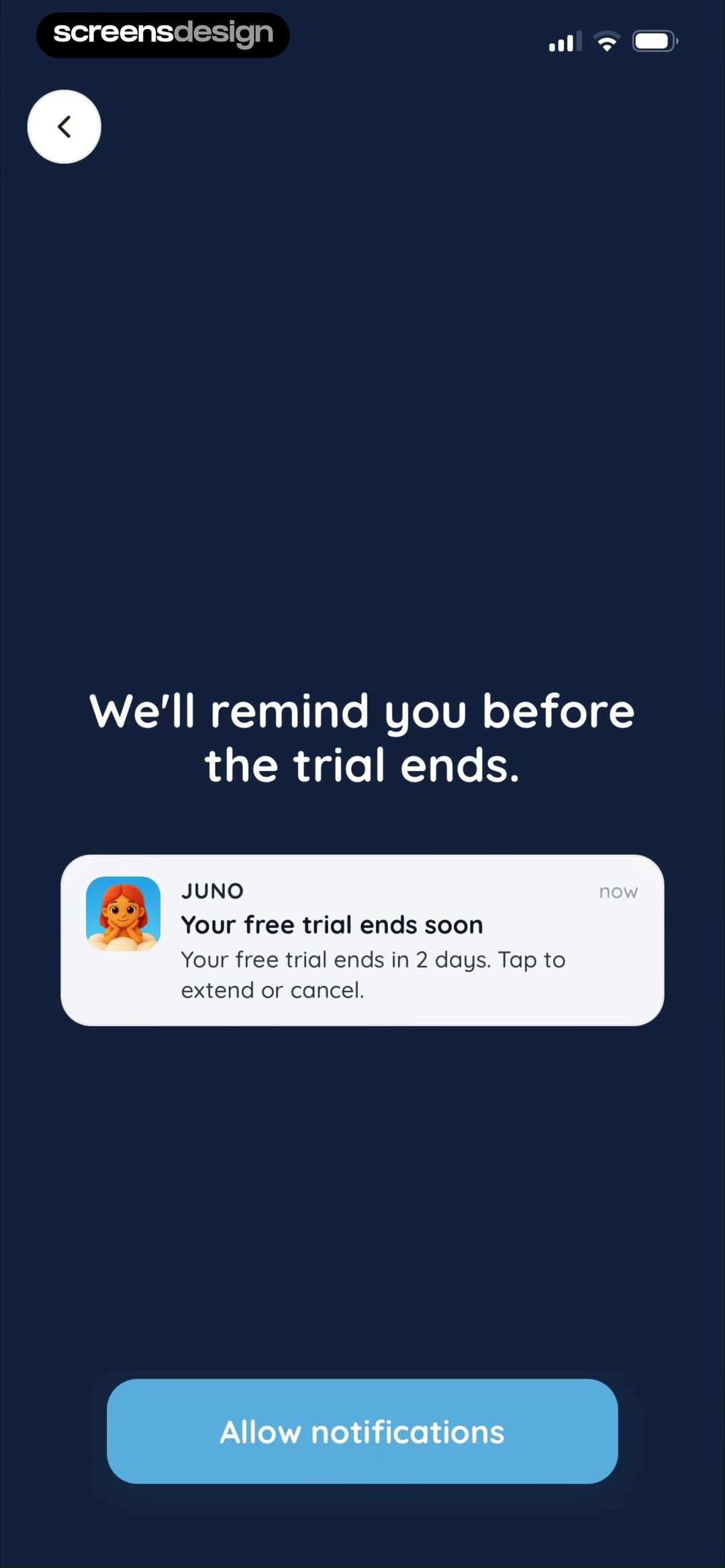
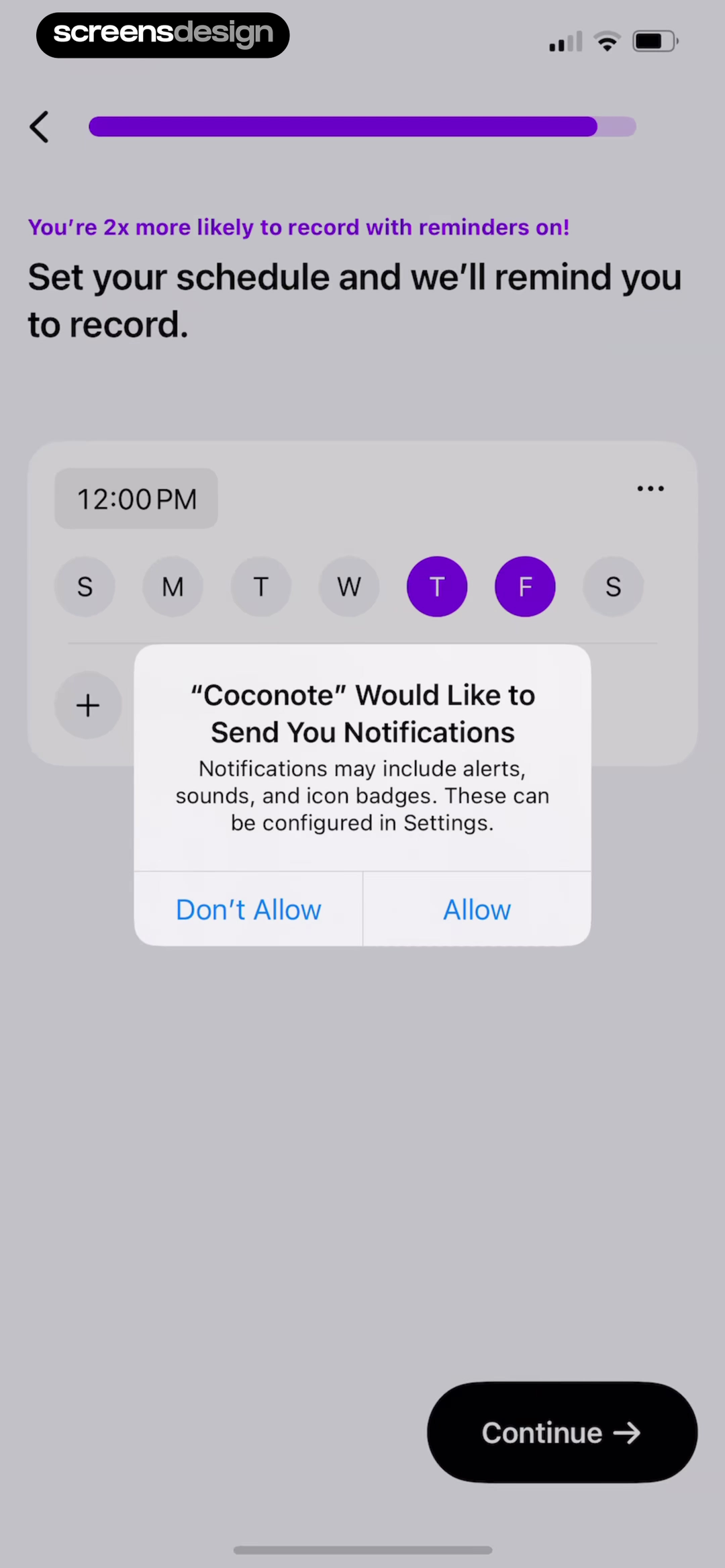
Juno previews a trial-ending alert two days before expiry and asks for notification access. Coconote lets users select a recording schedule and then shows the system prompt, connecting permission to an explicit routine.
State reminder date and channel before the system prompt. If push is denied, keep billing information available and use only another channel the user has agreed to. For routines, allow later edits and skip completed tasks.
A trial reminder cannot replace price and renewal disclosure. Test canceled trials, changed schedules, completed recordings, muted notifications, and notification delivery after reinstall.
05. Deferral and settings
Keep Not now useful and make later activation easy.
Declining the prompt should not become an onboarding dead end.
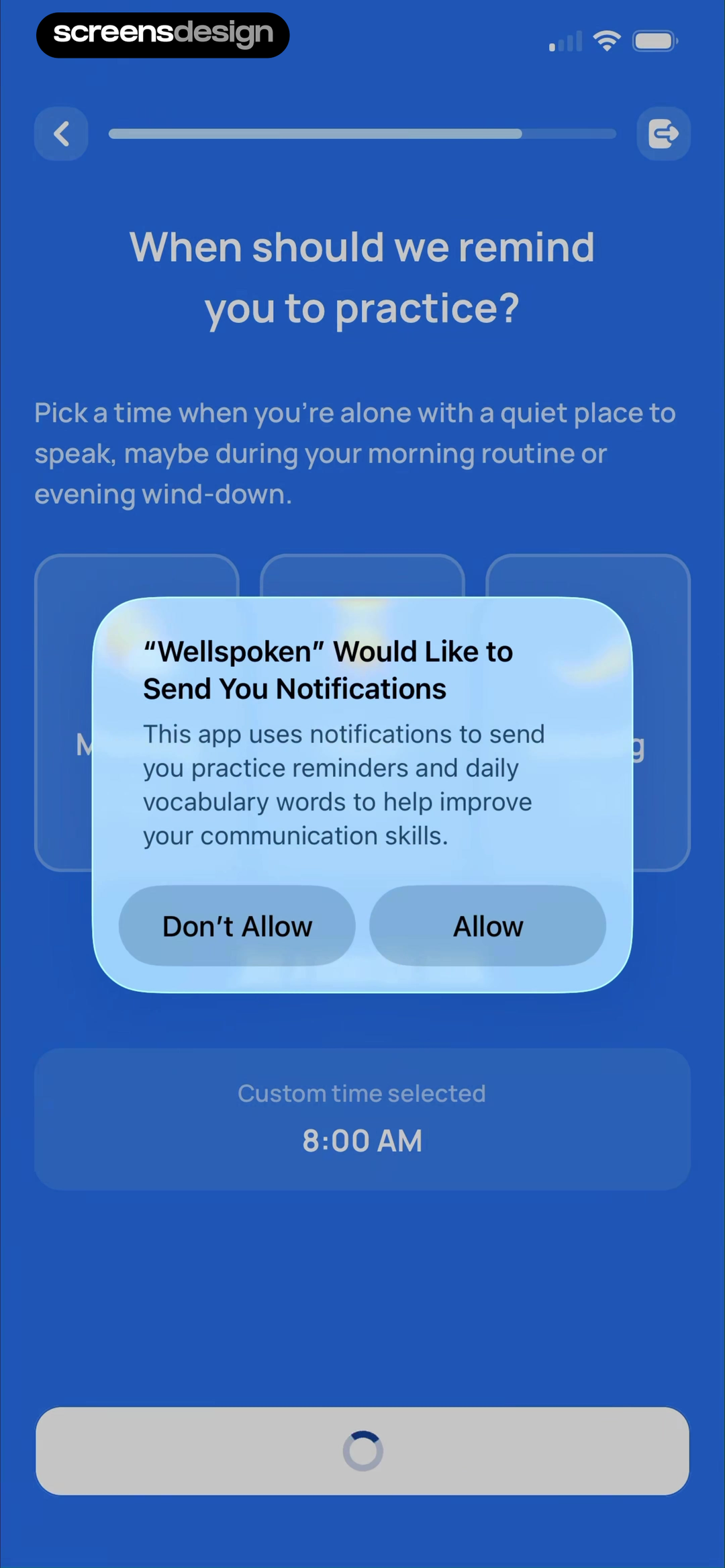
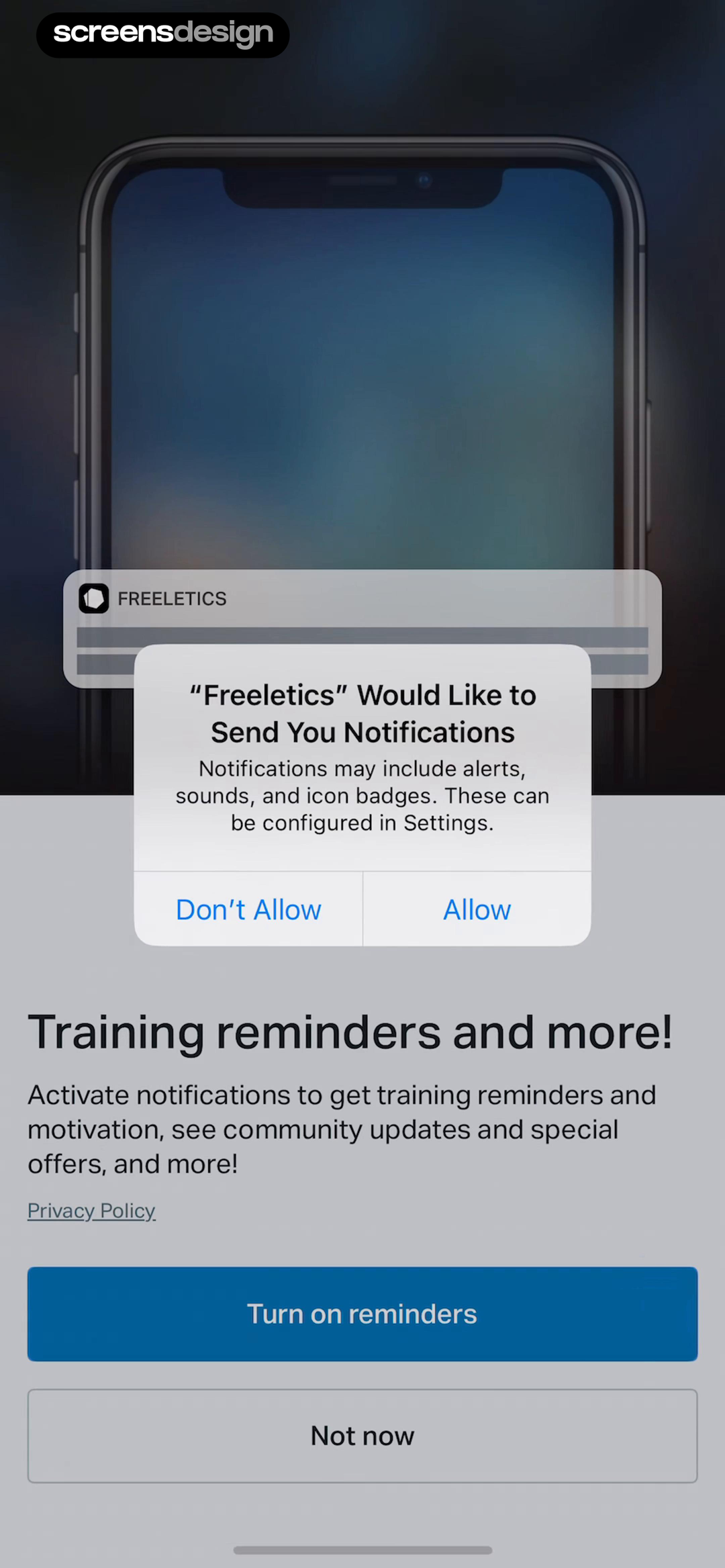
Wellspoken asks when practice should happen, explains the quiet setting the activity needs, and keeps the selected 8:00 time in view. Freeletics describes training reminders, community updates, and special offers with Turn on reminders and Not now.
Separate necessary and optional notification categories. Provide a clear later route from settings and avoid reopening the system prompt on every launch. If the operating system has permanently denied access, link to the correct settings page.
Marketing consent, community alerts, and task reminders may have different legal or user expectations. ScreensDesign Pro can help teams inspect pre-prompt, system permission, first alert, settings, and denied states across complete recordings.
Permission lifecycle
Design notification permission as a state machine.
The pre-prompt, native dialog, denied state, settings route, and notification destination must agree about the same user-selected value.
Begin with the event the user wants to hear about: a medication time, lesson reminder, delivery change, price movement, completed export, or message. Ask for any schedule, threshold, or category first. Then the pre-prompt can preview a concrete notification instead of claiming that alerts will generally improve the experience.
Treat Not now as a valid state. Preserve the user's configured reminder and explain where notifications can be enabled later. If the system permission was denied, do not show the native request again as though it were available. Offer a settings route only when the user attempts a notification-dependent action and explain what will happen after returning.
After permission is granted, verify token registration, category preferences, quiet hours, time zone, deep link, and the destination state. A reminder is only useful if it opens the promised lesson, order, task, or report. Test reinstall, token rotation, multiple devices, logged-out sessions, revoked permission, scheduled summaries, and notification previews on locked devices.
Compare the broader permission lifecycle in the mobile permission screen examples, then design the return destination with the learning re-engagement examples.
- The pre-prompt names a notification the user just configured or requested.
- Not now preserves work and does not trigger repeated immediate prompts.
- Denied and revoked states use an accurate settings recovery path.
- Notifications deep-link to the exact promised object and current state.
- Prompt views, native decisions, settings recovery, delivery, open, disable, and task completion are measured separately.
Measurement
Measure permission, delivery, and usefulness as separate systems.
An accepted native prompt does not guarantee that a token registered, a message arrived, or the destination helped the user.
Log pre-prompt context, Not now, native prompt shown, allow or deny, token registration, category preference, scheduled message, provider acceptance, device delivery when available, open, deep-link resolution, and completion of the promised task. Keep the system permission state authoritative when analytics events are missing.
Segment by the user-selected notification purpose rather than comparing all prompts together. Medication, delivery, collaboration, learning, and marketing alerts have different urgency and expected frequency. Monitor disable rates, quiet-hour changes, category opt-outs, uninstall proxies, and support complaints beside open rate.
Test copy only after delivery and deep links are reliable. A persuasive pre-prompt can raise acceptance while exposing more people to irrelevant or broken messages. Review the first several notifications after opt-in and stop campaigns that fail to match the reason permission was granted.
Repeat the audit after adding a notification category because one accepted permission can still produce unwanted messages when preferences are bundled too broadly.
Review checklist
Test permission as a complete notification lifecycle.
Record pre-prompt, system dialog, allowed, denied, later-enabled, scheduled, delivered, opened, edited, disabled, and deleted states. Verify that every alert opens the correct object.
Test timezones, quiet hours, notification summaries, multiple devices, stale events, sensitive previews, trial cancellation, and repeated launches. Confirm that Not now does not block core product use.
- The request follows a user-selected notification job.
- A representative alert or event is described.
- Time, days, topics, and frequency are configurable where relevant.
- The system dialog is not shown before the explanation.
- Not now preserves a useful product path.
- Denied schedules remain recoverable in settings.
- Transactional and promotional alerts are distinguished.
- Delivered notifications open the correct current state.
Questions and answers
Push notification pre-permission questions
What is a notification pre-permission screen?
It is an in-app explanation shown before the operating system permission dialog. It should explain a specific notification job and provide a safe deferral path.
When should an app ask for notification permission?
Ask after the user configures or encounters a useful event such as a reminder, status change, message, trial alert, or background completion.
Should a pre-prompt include a sample notification?
A representative preview can clarify sender, timing, and content. It must not imply that permission was already granted or that the alert has already occurred.
What happens when users choose Not now?
Keep the product useful, preserve any configured schedule, and provide a later settings route without showing the prompt on every launch.
Can trial reminders rely only on push?
No. Users may deny or disable push. Accurate trial end, price, and renewal information should remain visible inside subscription settings.
Apps referenced in this page
Open the products behind the examples.
 Pep AIPeptide Wegovy Zepbound GLP1
 ShmoodySelf-Care & Positive Change
 Memrise Easy Language LearningLearn Spanish, Japanese & More
 Rain Rain Sleep SoundsWhite Noise & Calm Tinnitus
 SproutLand Your Dream Job
 BePresentBlock apps, focus & rewards
 JunoYour Personal Health Assistant
 CoconoteLecture Recorder, Minutes
 WellspokenView recorded app flows
 FreeleticsHome & Gym AI Coach, Planner
2,715 apps in the top charts.Ask them anything.
Search real app flows, compare the screens around each decision, and turn stronger references into your own product.