AI note-taking research
13 AI Note-Taking App Design Examples
An AI note is useful when people can see how audio became transcript, how transcript became summary, and where uncertainty remains.
AI note-taking is not one screen. It is a chain of consent, capture, processing, review, correction, organization, retrieval, and sharing. A polished summary cannot repair uncertainty about whether recording is active, whose words were captured, or whether an action item exists in the source. Product design should preserve those relationships instead of replacing the original material with a confident block of generated text.
This review uses thirteen recorded screens from AI Summary, Blinq, Voice Recorder, and Claude. They cover meeting capture, audio memos, embedded AI notes, microphone permission, transcript and summary tabs, search, folders, and failure. The examples are interface evidence only. They do not establish transcription accuracy, privacy compliance, meeting productivity, or retention.
Use the mobile app permission screen examples for contextual microphone access, and the mobile app empty state review for first-note and no-result states. Use the mobile app UI design guide for the shared hierarchy and interaction system.
01. Consent and permission
Explain recording before the system prompt.
Microphone permission is only one part of informed capture.
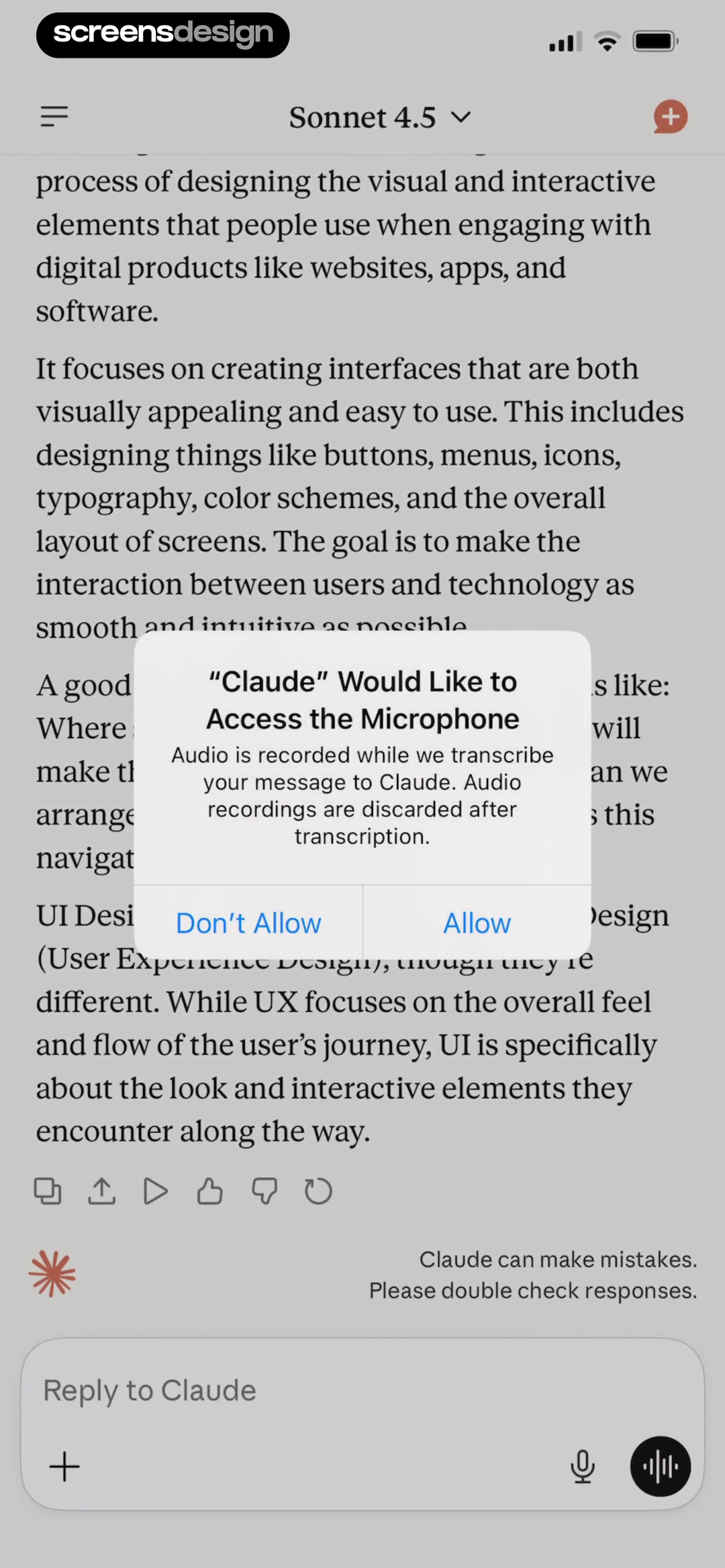
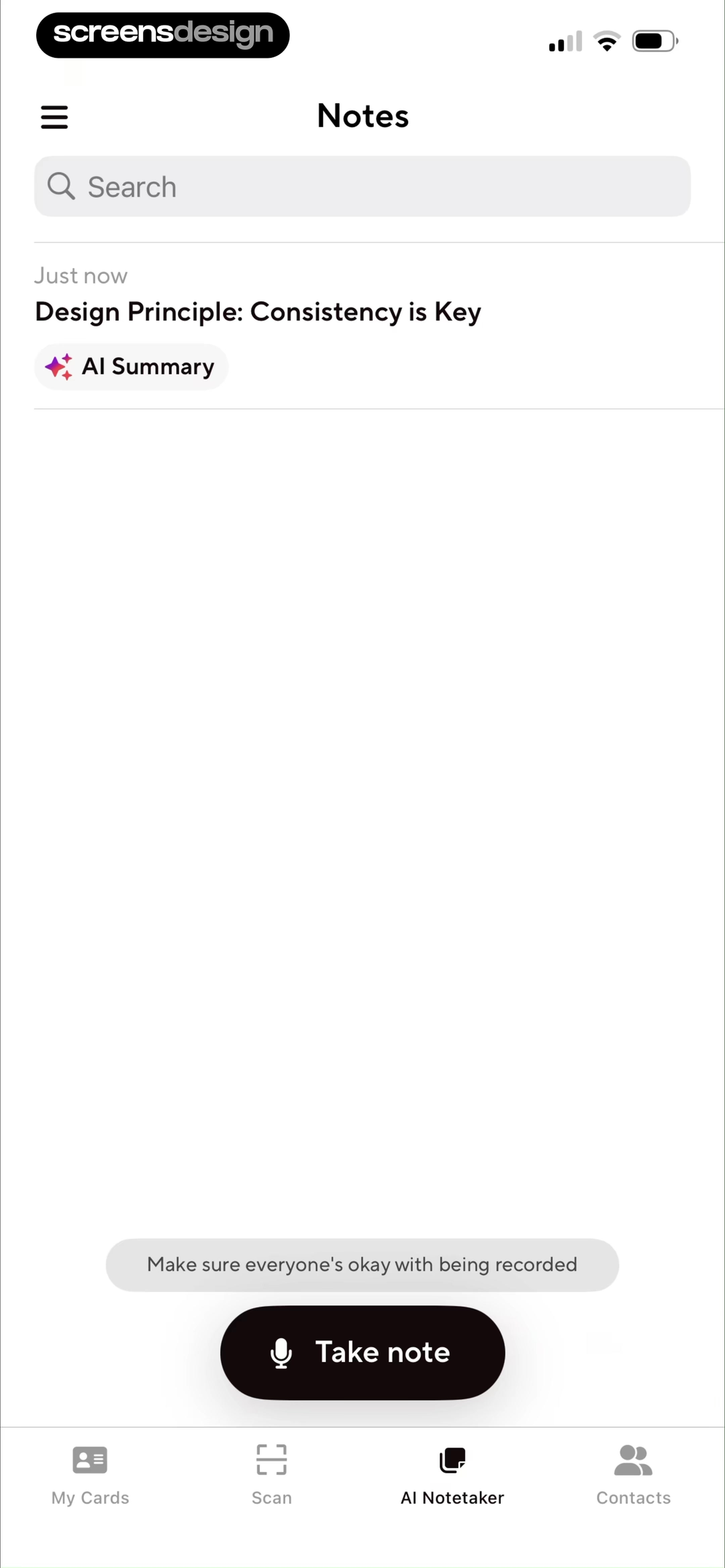
Claude's permission request states that audio is recorded while the message is transcribed and discarded after transcription. Blinq places a reminder to make sure everyone is comfortable with recording near the note action. These screens address different audiences: operating-system permission concerns the device owner, while in-room consent concerns everyone whose voice may enter the note.
Design a short pre-permission screen that names the immediate task, what data is collected, whether audio or only transcript remains, and what works without access. Trigger the system request after the user taps Record or Take note. If permission is denied, return to a useful text-note path and explain how to enable audio later without repeated nagging.
Consent can change during a meeting. Keep a visible indicator, pause and end controls, and a way to discard the current capture. For remote meetings, identify the connected service and participants. For in-person notes, do not imply the app can determine whether every participant has agreed. Teams should review jurisdiction-specific recording obligations with qualified counsel.
02. Capture state
Make recording status impossible to misunderstand.
A user should know whether the app is listening without interpreting animation or color alone.
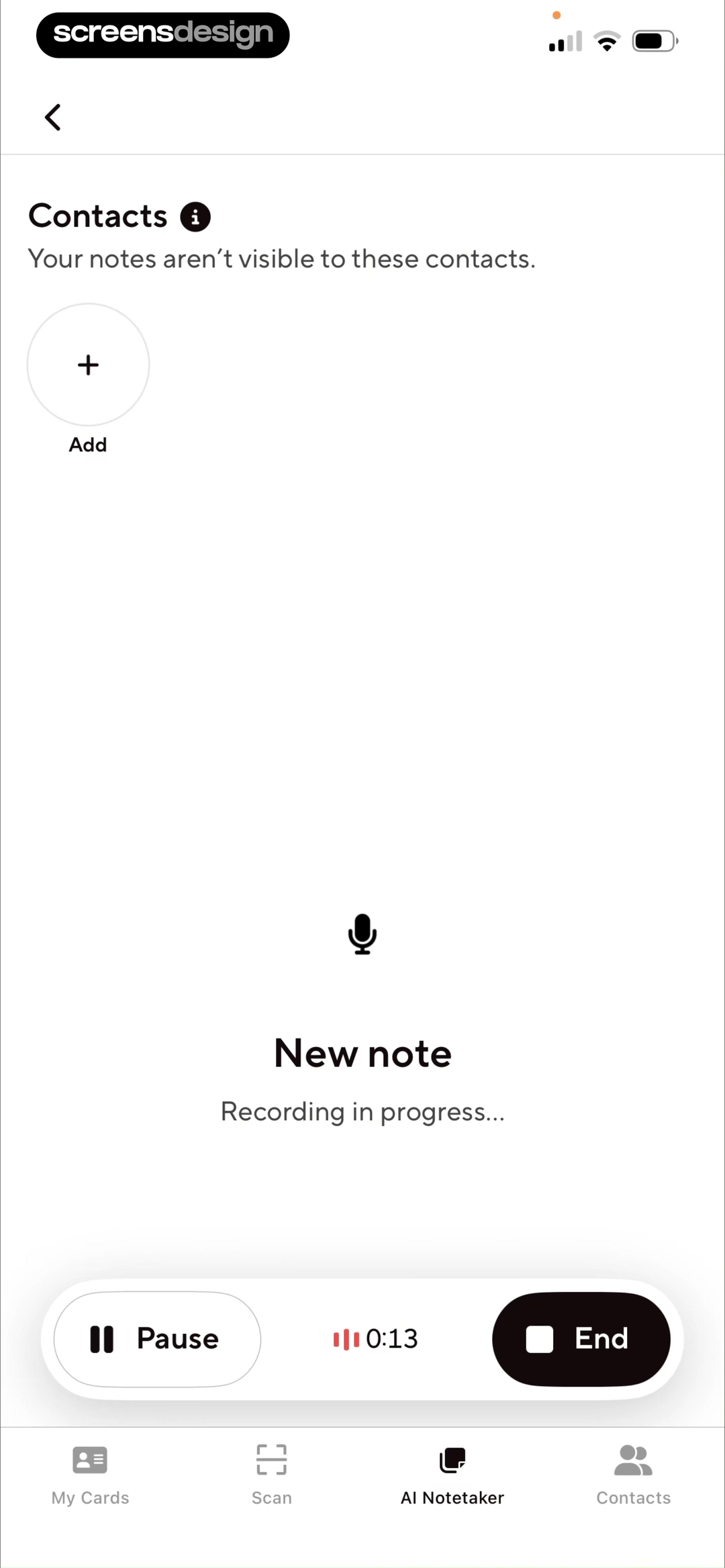
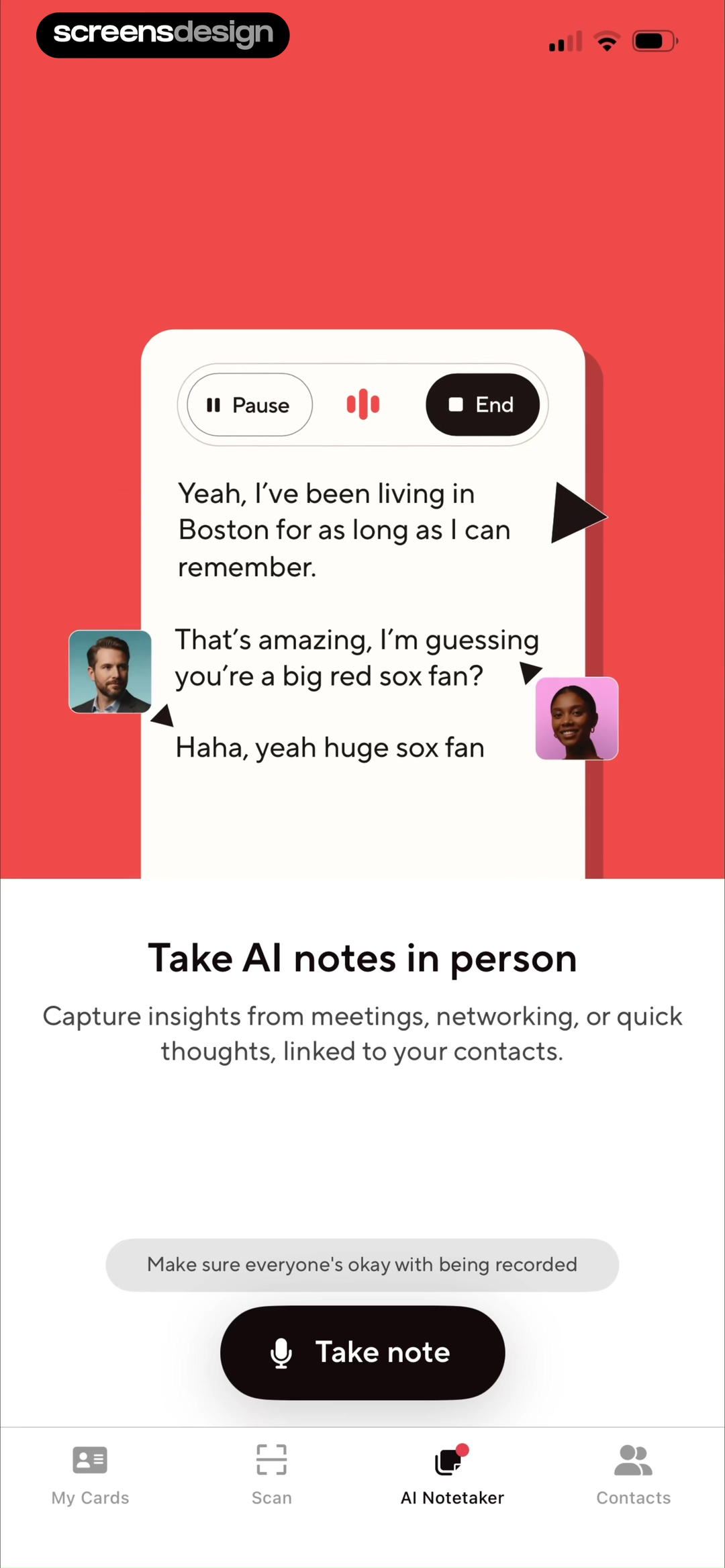
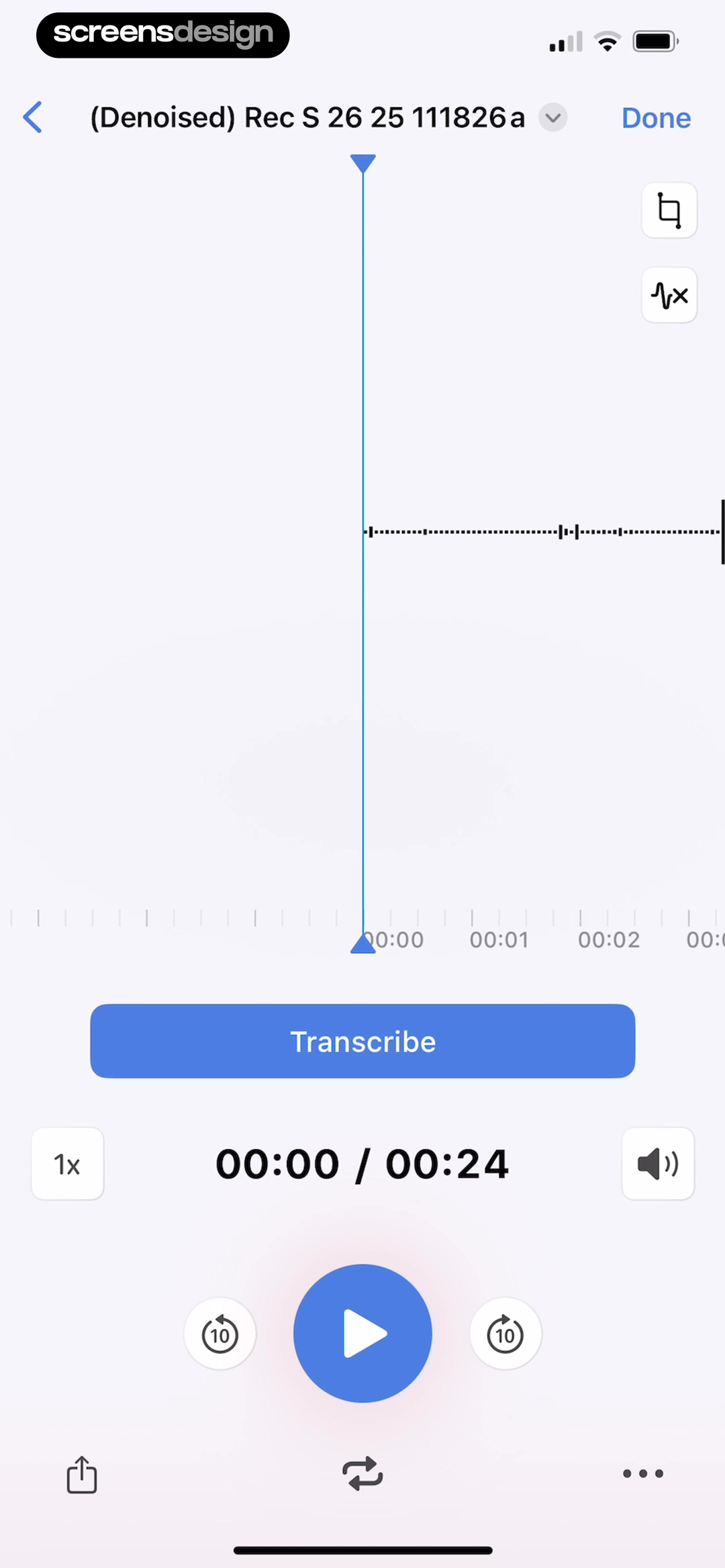
Blinq uses Recording in progress, elapsed time, Pause, and End inside the working note. Another capture view shows live conversation text and repeats the consent reminder. Voice Recorder keeps the audio item, playback position, and transcription controls in a conventional editor. The visible source makes later AI actions feel attached to a real object rather than an invisible background service.
Use explicit labels for ready, recording, paused, reconnecting, processing, and ended. Color and waveform motion can reinforce state, but should not carry it. Put Pause and End far enough apart to prevent errors and define what each does. Ending should not delete; discarding should require a separate confirmation that names what will be lost.
Plan for interruptions. Calls, route changes, low storage, permission revocation, and connectivity can break capture. Preserve locally where appropriate, state which portion was saved, and show how to resume. If the product can capture only while the app is open, say so before the user leaves the screen.
03. Transcript and summary
Keep generated layers visibly connected to the source.
Transcript, summary, decisions, and actions are different objects and should not overwrite one another.
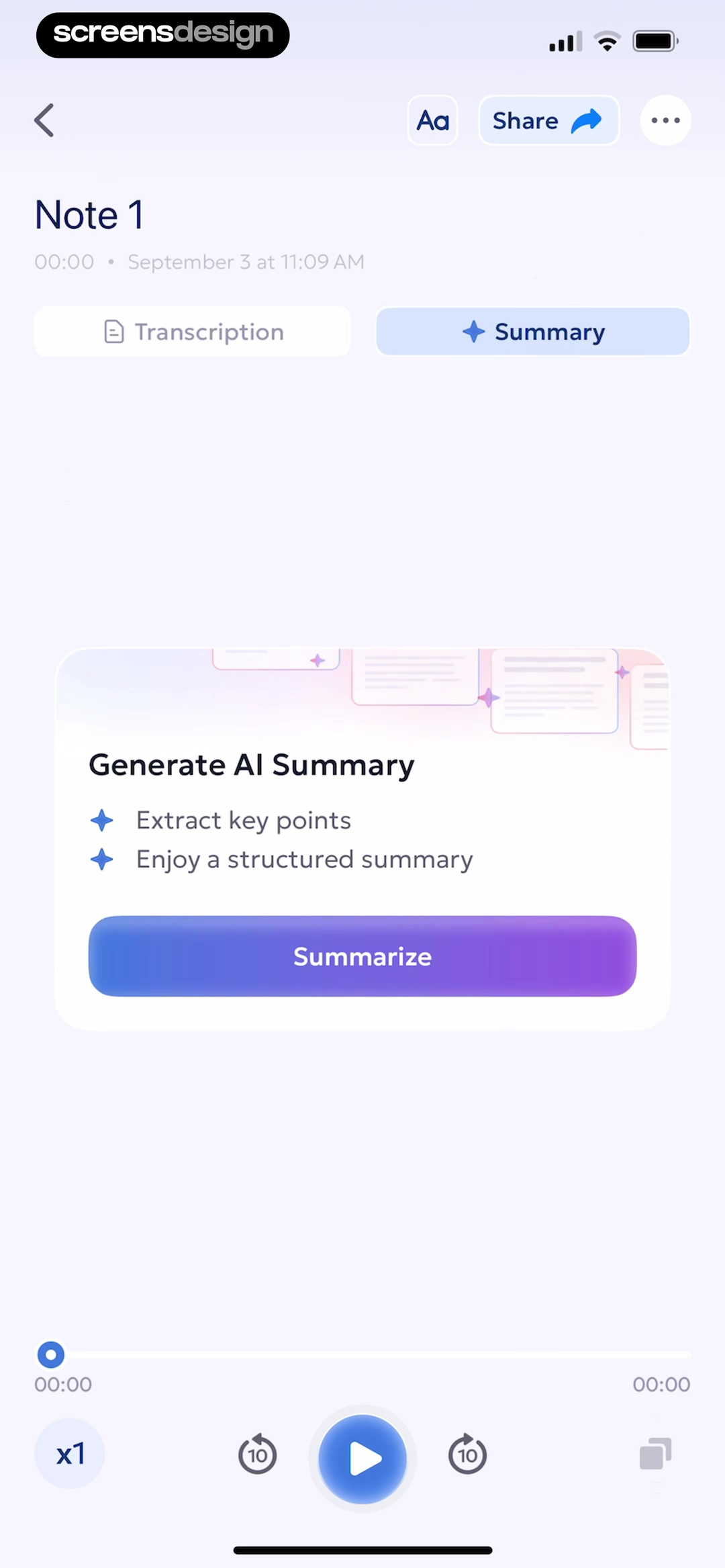
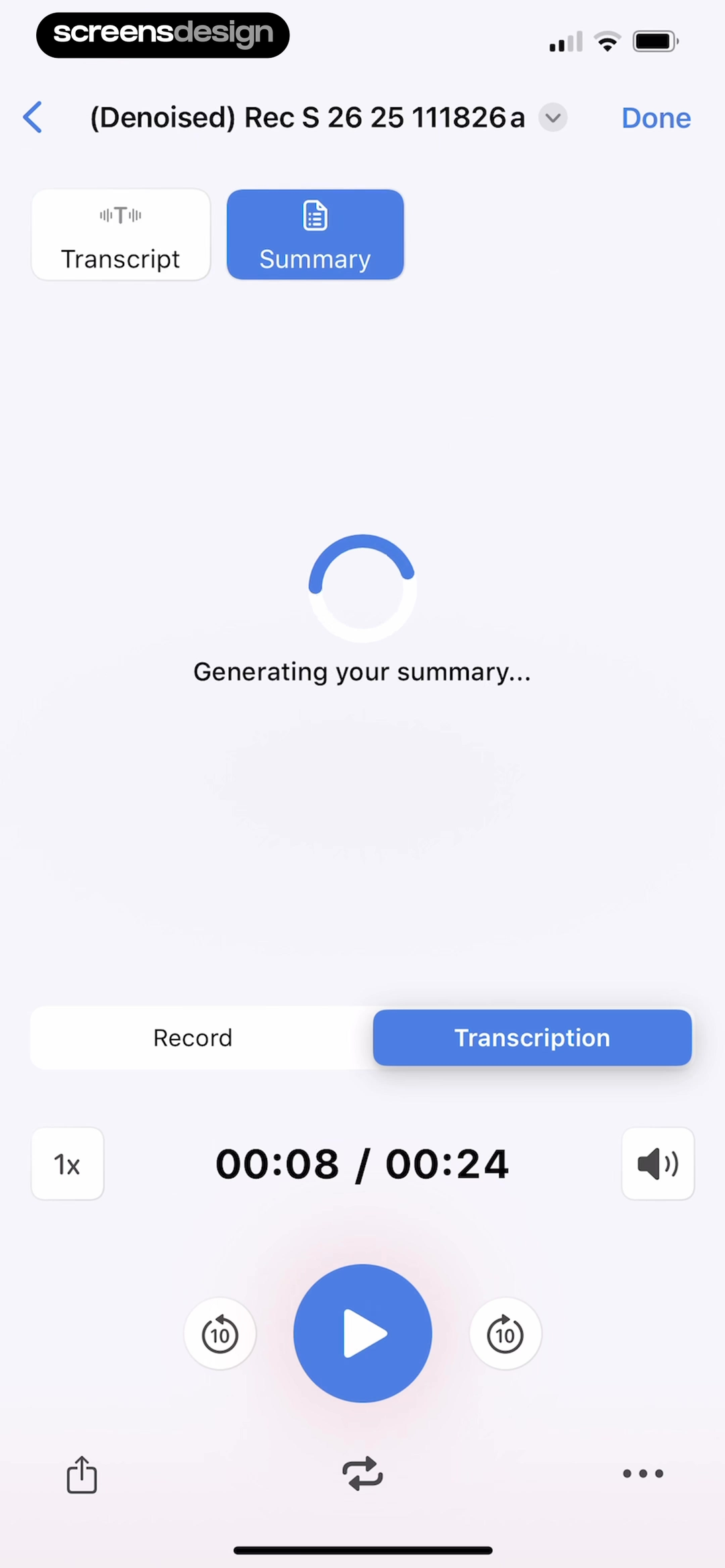
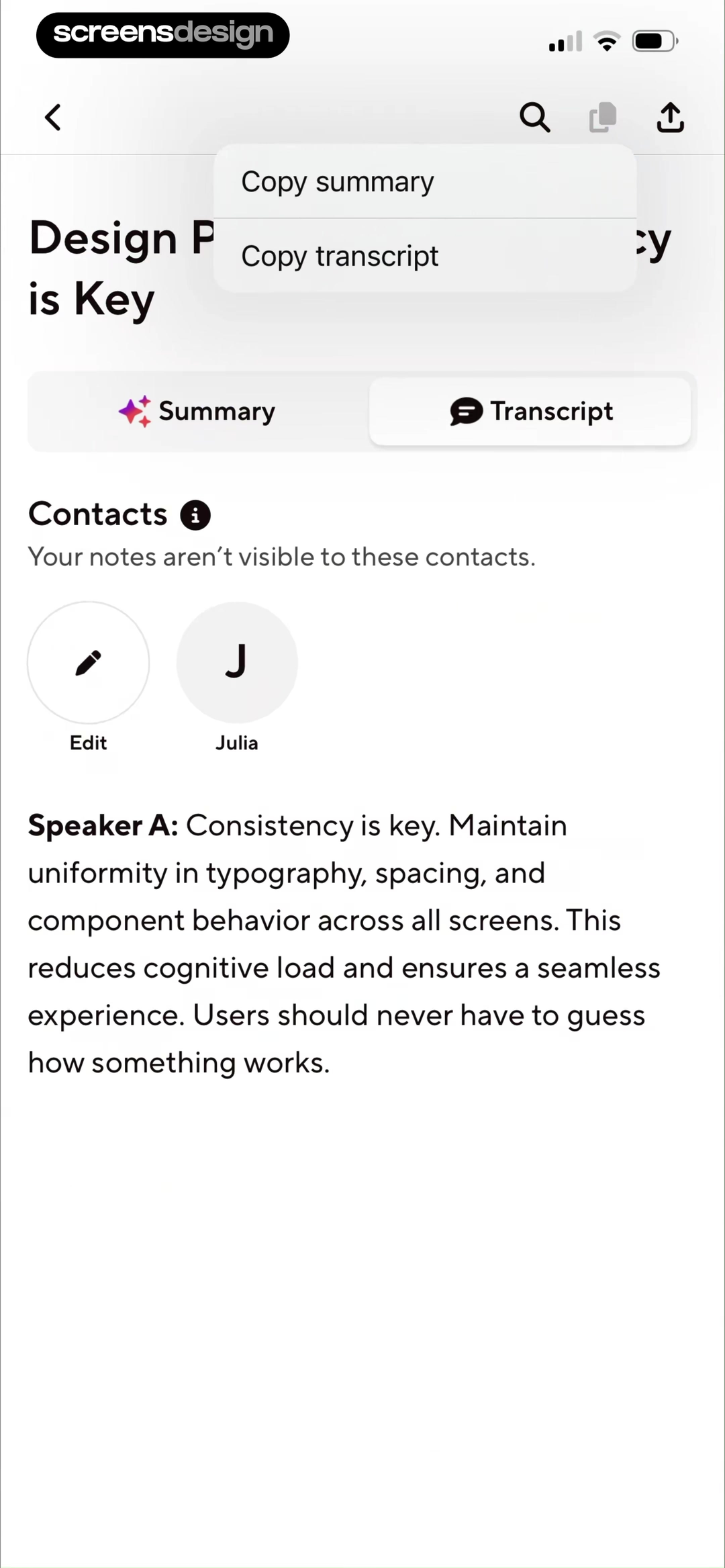
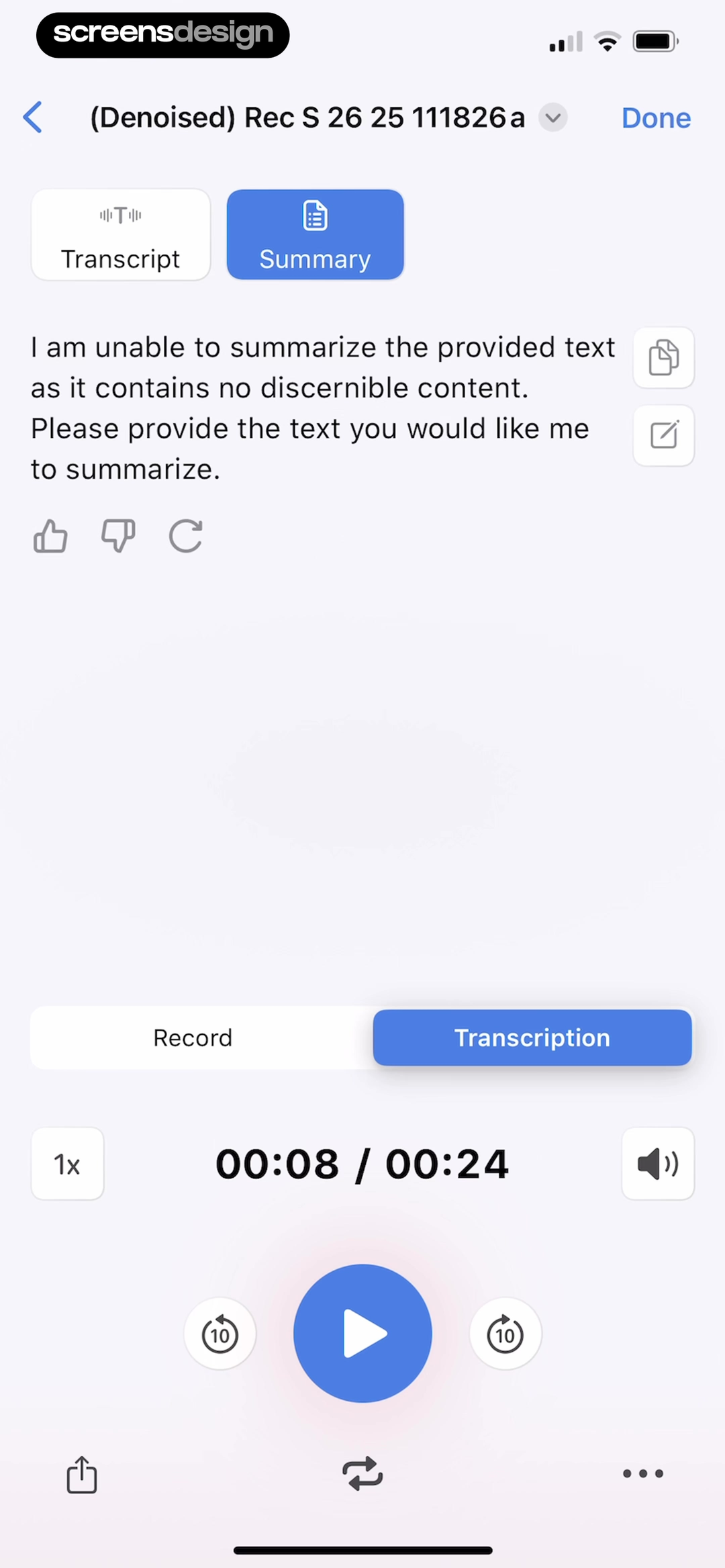
AI Summary separates Transcription and Summary, then explains the summary action as extracting key points. Voice Recorder also uses transcript and summary tabs and shows an explicit generating state. Blinq lets users switch between summary and transcript and copy either. These patterns make the transformation inspectable, although source-linked citations or timestamps would strengthen confidence further.
Give each layer a stable label. An action item should identify the supporting passage, speaker when available, and due date only when stated or confirmed. Generated headings and topic groups should remain editable. If speakers are uncertain, show that uncertainty and allow correction rather than assigning confident names.
Do not make the summary the only searchable representation. Users often remember exact wording, names, or numbers. Search should include transcript, title, participants, summary, tags, and actions while indicating where the match occurred. When the model changes, preserve previously approved notes or explain regeneration rather than silently rewriting them.
04. Organization and retrieval
Make the note findable after the novelty is gone.
The durable product is the library, not the recording button.
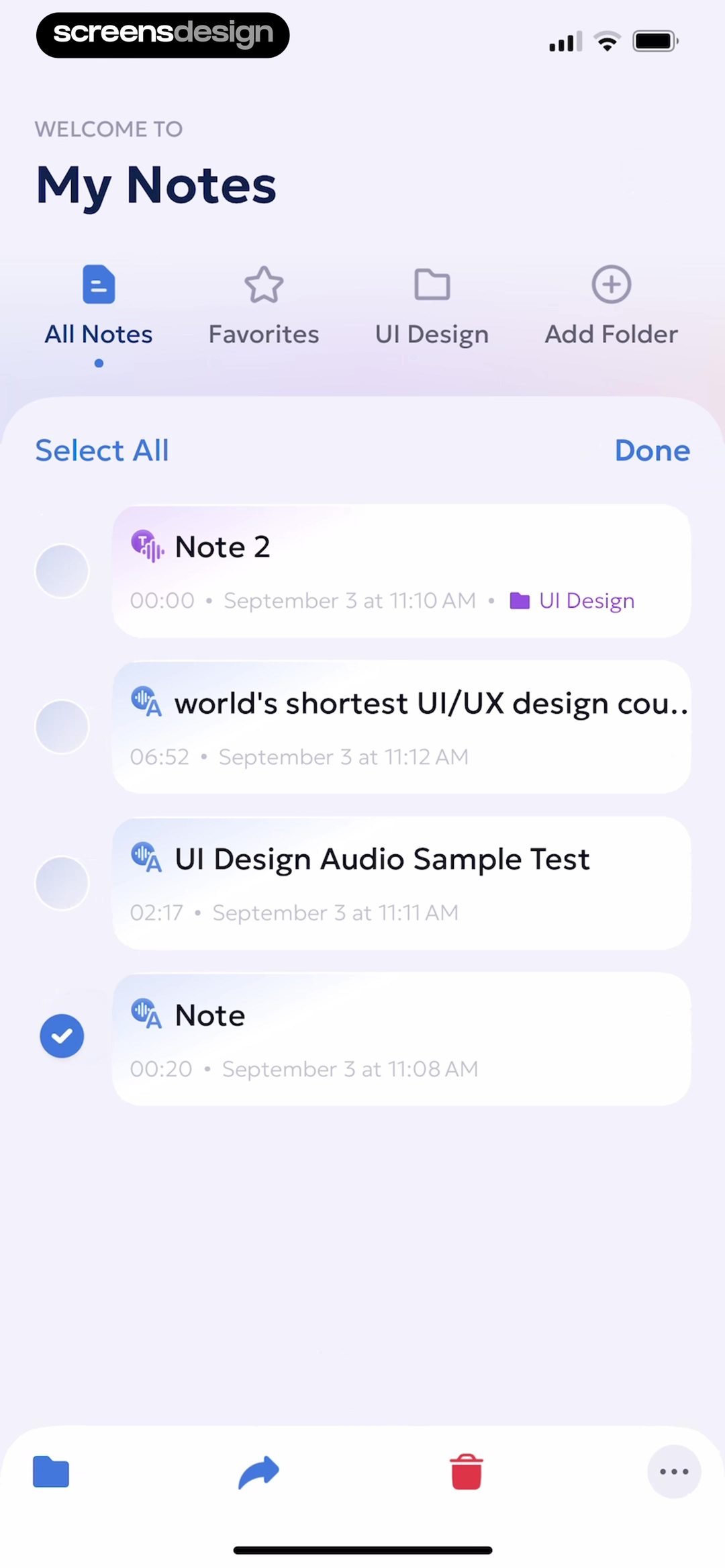
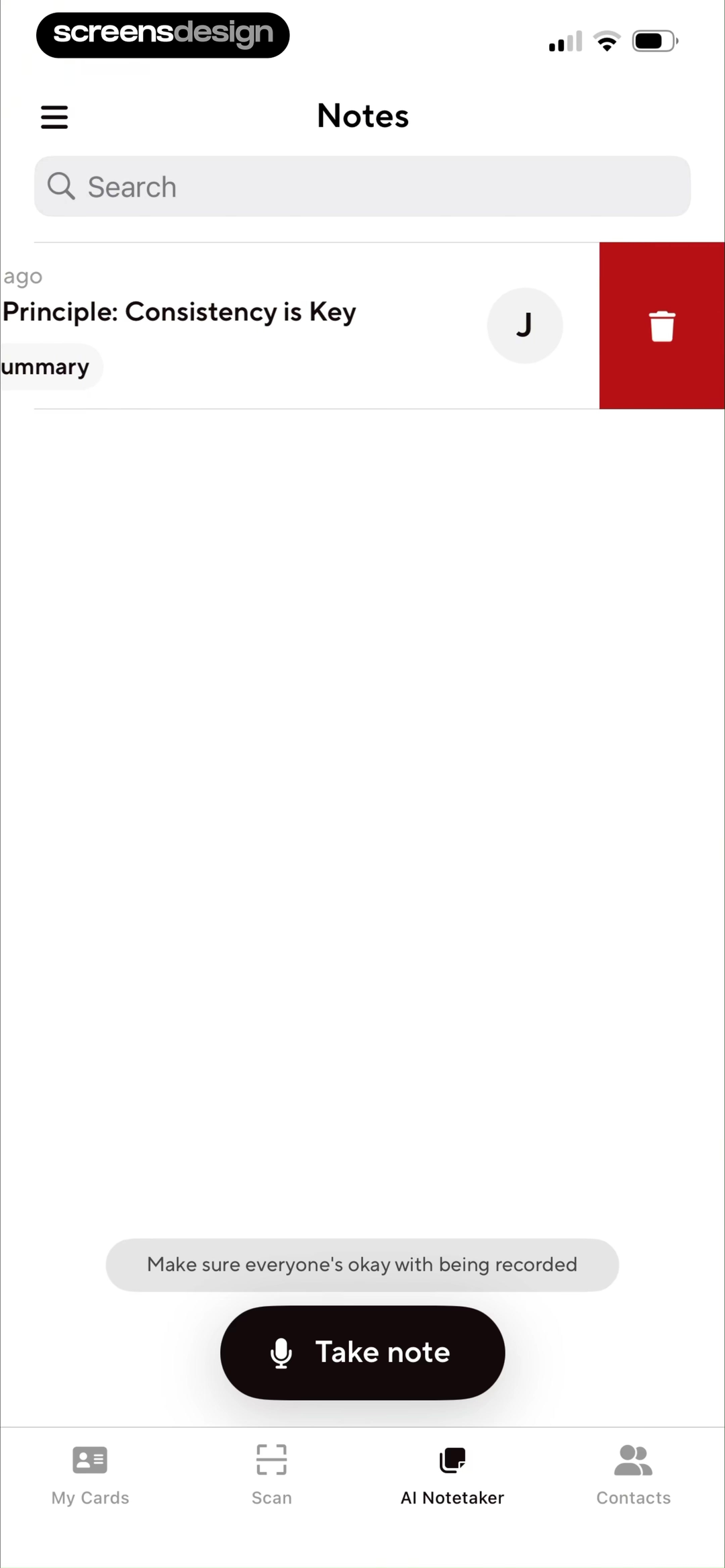
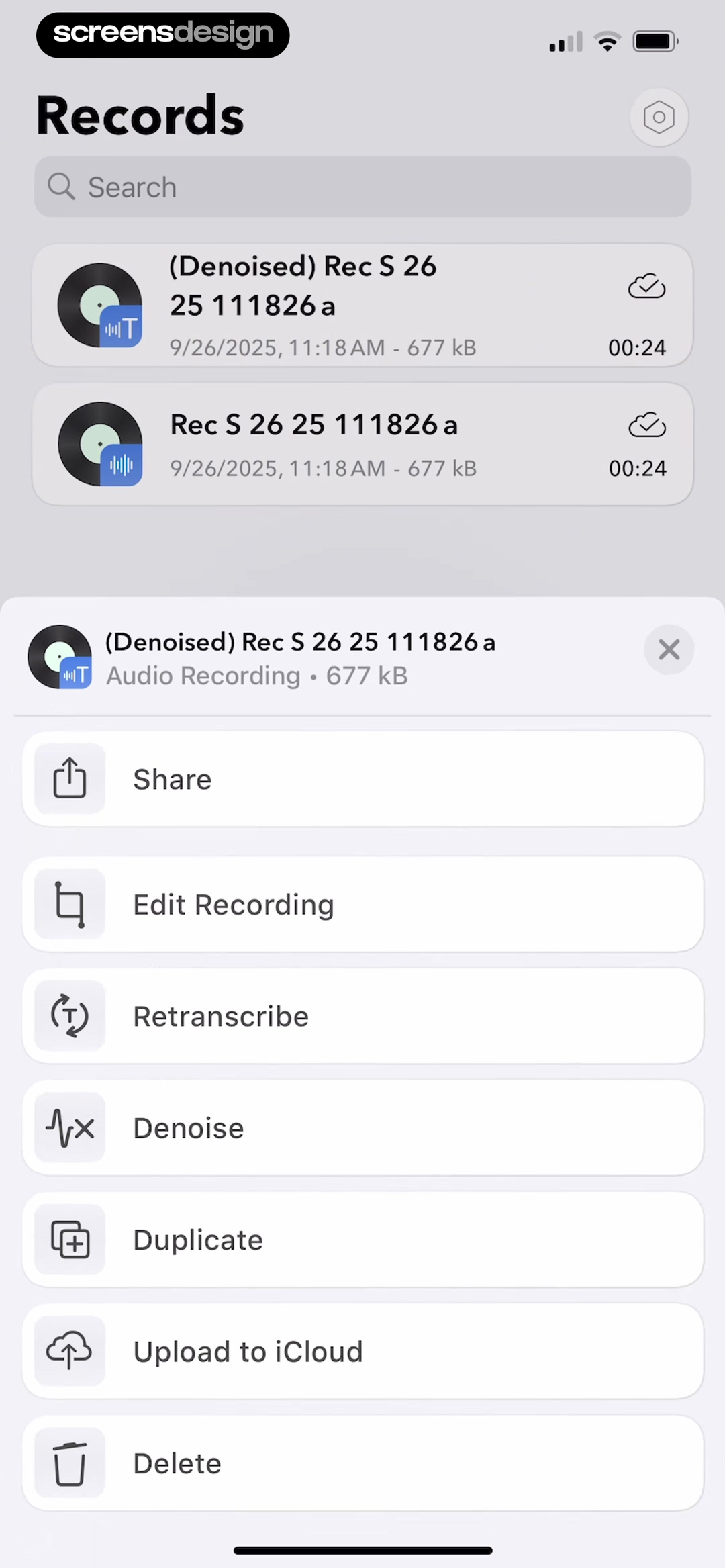
AI Summary provides All Notes, Favorites, a named folder, Add Folder, selection controls, and dated note rows. Blinq combines search with a chronological note list and an explicit AI Notetaker destination. Voice Recorder lists recordings with dates, durations, file sizes, search, import, and sharing. Each library exposes different metadata because its retrieval job differs.
Choose default titles that can be distinguished without opening every note. Date alone is weak; use meeting title, participant, source, or a short editable topic. Show processing, failed, shared, and private states in the list. Keep folders optional and support search before asking users to build a taxonomy.
Sharing needs audience clarity. Distinguish exporting a file, copying generated text, sharing a collaborative note, and linking a contact. Show whether recipients can see audio, transcript, summary, or edits. A Pro upgrade for unlimited transcription, exports, integrations, or longer recordings should appear beside the relevant limit and never make existing notes inaccessible without warning.
05. Empty and failure states
Preserve the source when AI has nothing useful to add.
A failed summary should not make a successful recording look lost.
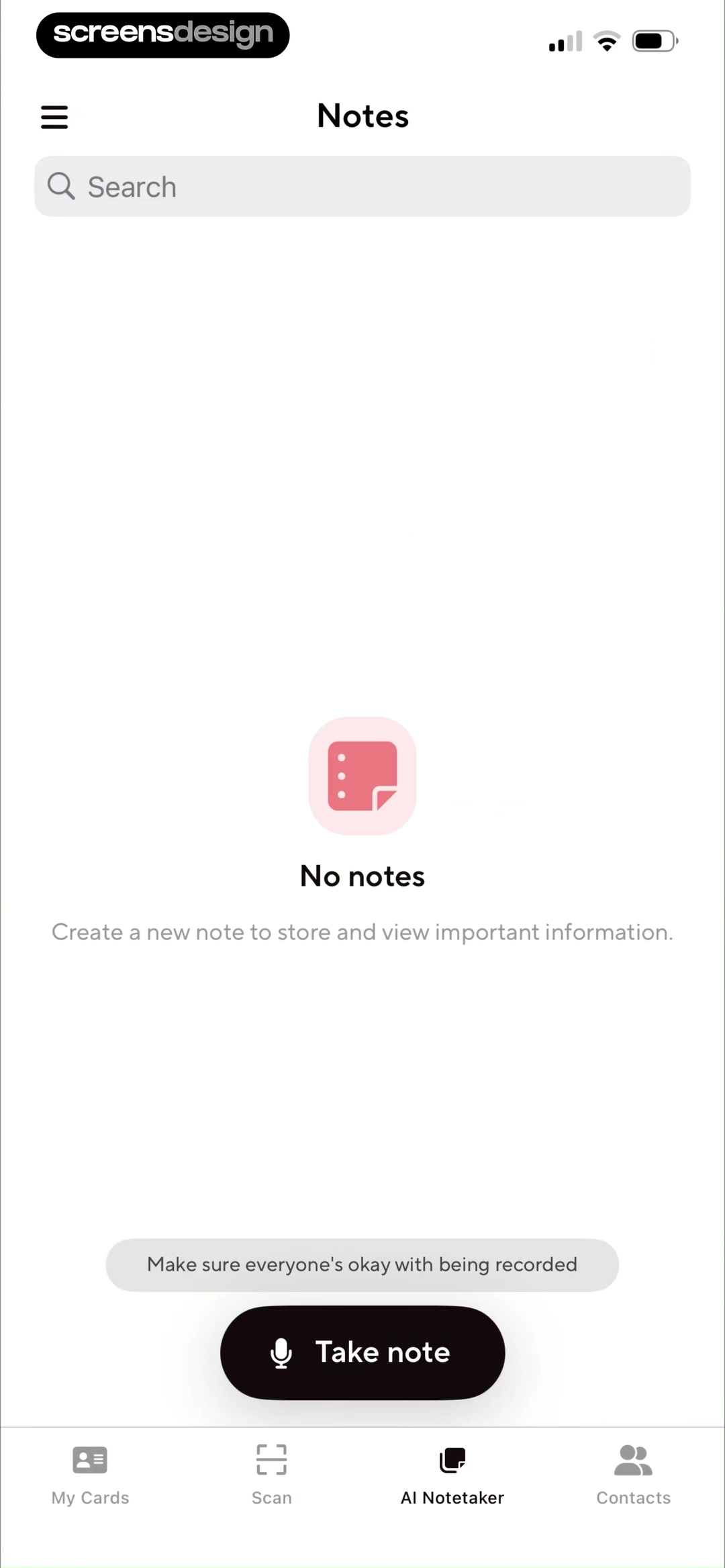
Blinq's empty state explains that a new note will store important information and keeps the consent reminder beside the creation action. Voice Recorder shows a summary failure that explicitly says the source contained no discernible content. The latter is more useful than a blank result, but recovery should still indicate whether to review the transcript, re-record, or add text manually.
Separate capture failure, transcription failure, and summary failure. The user may have a valid audio file even when later processing fails. Keep every completed layer accessible, show which operation can be retried, and avoid charging another credit when the failure was technical. If the source is too short or silent, explain the minimum needed before retry.
Empty states should teach the real object and privacy behavior. A sample note can demonstrate structure, but it must be labeled and removable. ScreensDesign Pro can help teams inspect how note, transcript, summary, error, and upgrade states connect across real replays instead of reviewing only a polished dashboard.
Review checklist
Audit every layer of the note lifecycle.
Test permission allowed and denied, participant consent, pause, interruption, offline capture, short audio, multiple speakers, correction, failed transcription, failed summary, search, sharing, export, deletion, and subscription expiry. Verify that the audio or original text remains distinguishable from generated layers throughout.
Review all retention and deletion language against actual system behavior. Check that account deletion, note deletion, audio deletion, transcript deletion, and model-training choices are not presented as the same operation. Make destructive actions specific and recoverable where appropriate.
- Recording begins only after a clear user action and contextual permission request.
- Participant consent and device-owner permission are treated as separate responsibilities.
- Ready, recording, paused, reconnecting, processing, and ended states use explicit text.
- Transcript, summary, actions, and original audio remain separate and attributable.
- Users can edit speaker labels, generated text, titles, and organization.
- Search covers source and generated layers while showing where a match occurred.
- Failures preserve completed work and recommend a specific recovery.
- Pro limits explain what changes without unexpectedly locking existing notes.
Questions and answers
AI note-taking app design questions
What should an AI note-taking app show while recording?
Show an explicit recording label, elapsed time, pause, end, source context, and any connectivity problem. Do not rely on a waveform or red color alone.
How should an AI meeting notes app handle consent?
Explain device permission and participant consent separately, make recording visible, provide pause and discard controls, and review applicable laws and policies with qualified experts.
Should the summary replace the transcript?
No. Keep the transcript and original audio or text accessible, and connect generated claims, decisions, and actions back to source passages or timestamps.
How can AI notes be easier to search?
Index titles, participants, dates, transcript, summary, actions, folders, and tags. Show whether a match came from source text or generated content.
How do AI note apps recover from a failed summary?
Preserve the recording and transcript, identify why summarization failed, allow correction or another source, and avoid consuming another paid credit for a technical failure.
How can an AI note-taking app improve retention?
Make notes reliable to capture, easy to correct, easy to retrieve, and useful in follow-up workflows. Respectful reminders and integrations are stronger than locking users into unclear storage or cancellation rules.
Apps referenced in this page
Open the products behind the examples.



2,715 apps in the top charts.Ask them anything.
Search recorded AI note-taking screens, inspect the full capture-to-summary sequence, and ask ScreensDesign Pro how leading apps handle the exact consent, transcript, organization, failure, or upgrade state you are designing.