AI chat onboarding research
11 AI Chat App Onboarding Examples
AI chat onboarding should teach what to ask, what the assistant can access, and how to judge an answer without delaying the first conversation.
A blank message field looks simple, but it asks a new user to invent the product experience. They may not know the assistant's scope, which information is safe to share, whether a response is current, how tools or memory work, or how much detail a good prompt needs. Onboarding should provide a small amount of structure while keeping agency with the user.
This review uses eleven recorded screens from Claude, ChatGPT, Google Gemini, Nerd AI, Planner 5D, and Hypelist. The set includes general assistants and focused chat surfaces because the contrast reveals an important choice: broad assistants need to establish boundaries and breadth, while embedded assistants can start with the object or job already on screen. The screens do not prove answer quality, retention, or commercial performance.
Start with the AI app onboarding examples for the wider category. Use the mobile app permission screen review when a chat feature needs microphone, photo, location, calendar, or notification access. Use the mobile app design guide to keep the conversation hierarchy consistent with the rest of the product.
01. Scope and safety
State capabilities and limitations in the same visual system.
Trust is stronger when possibility and uncertainty are both legible before the first answer.
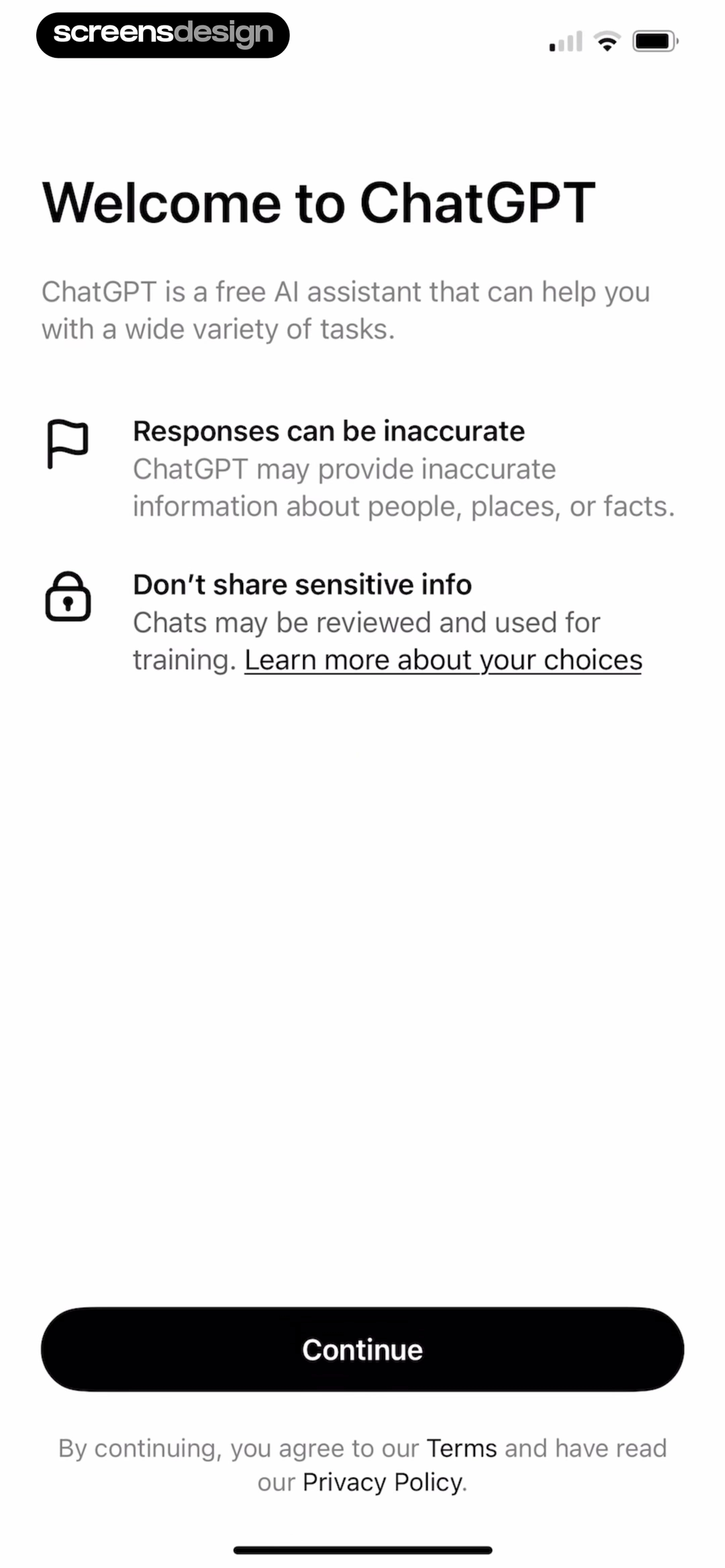
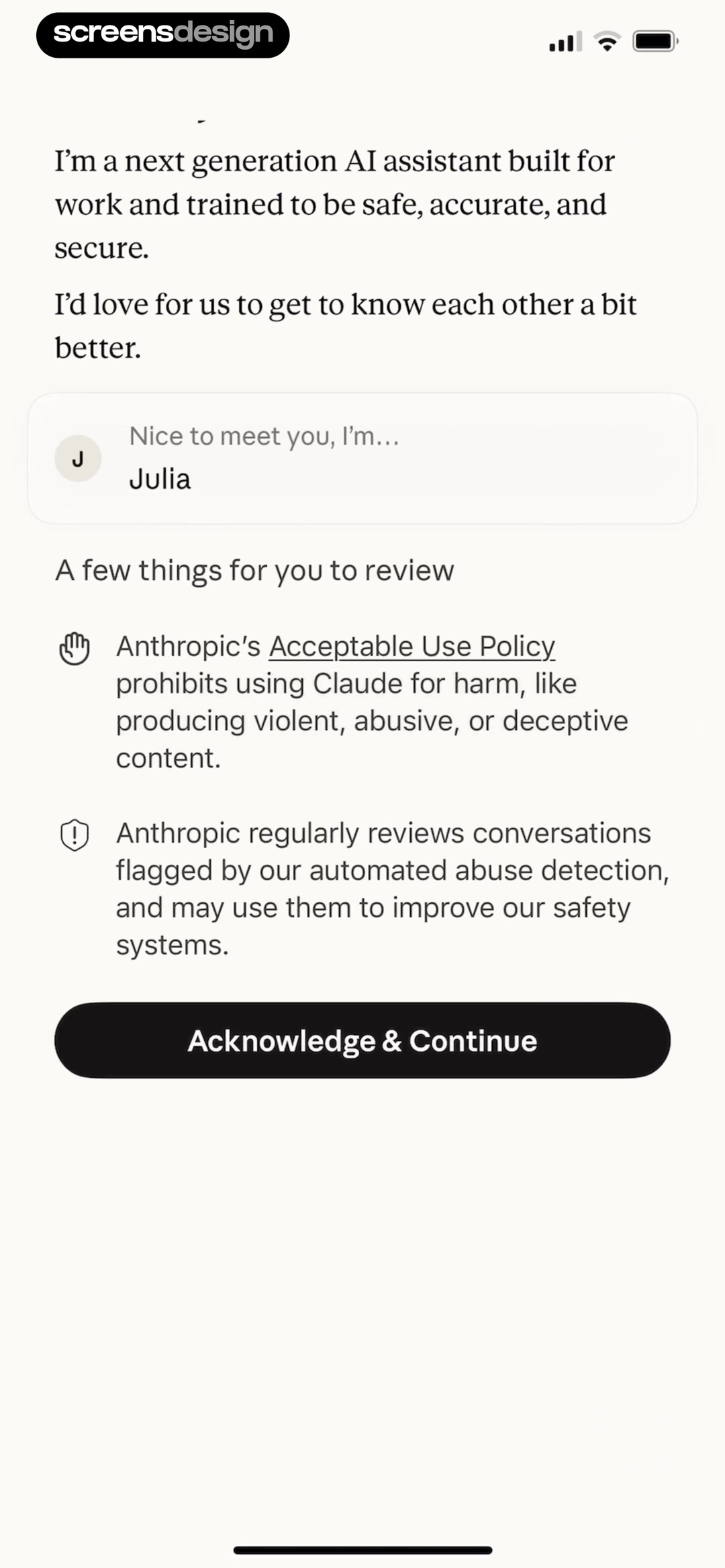
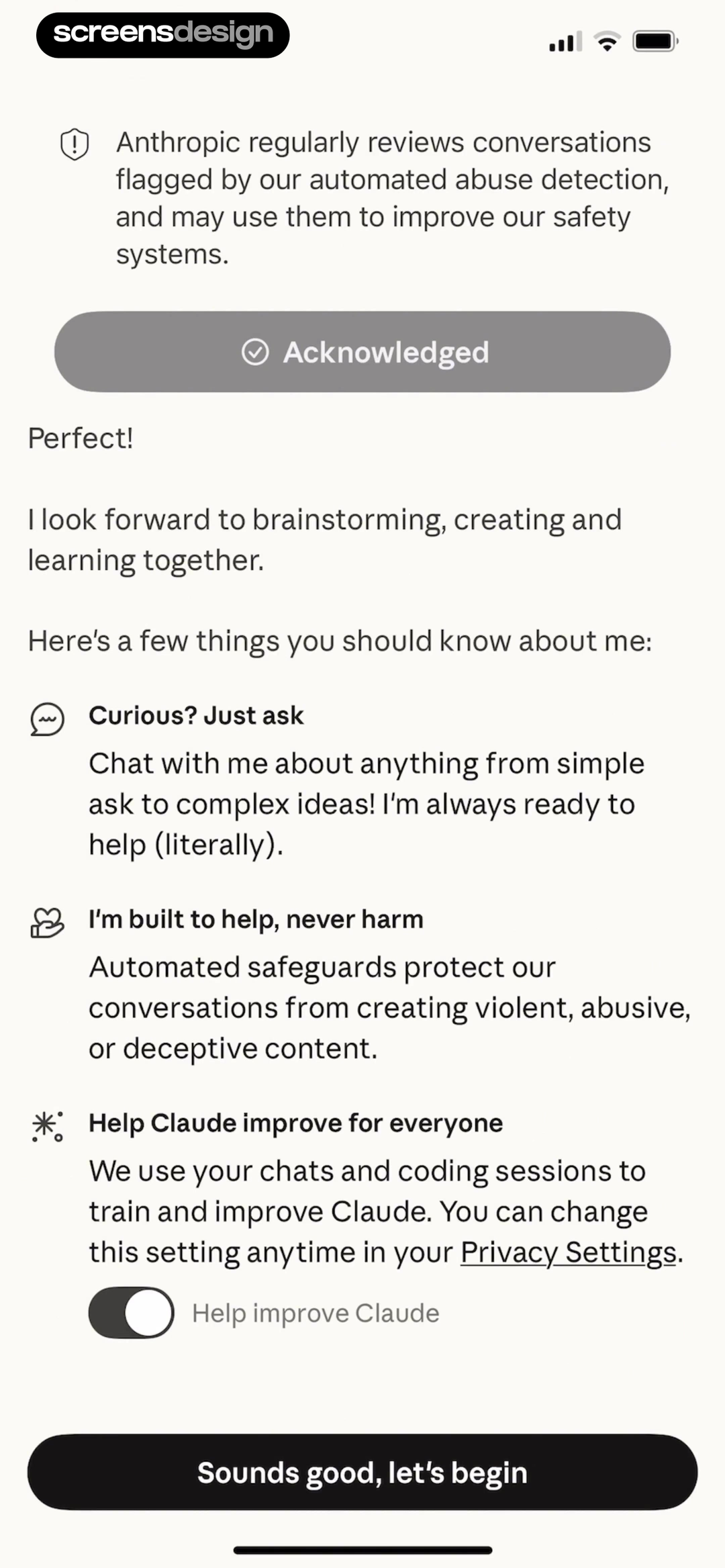
ChatGPT introduces itself as a general assistant, then places inaccuracy and sensitive-information guidance beside that promise. Claude explains its work-oriented positioning, safety policy, and review practices before the conversation. Neither pattern removes the need for contextual reminders, but both establish that the interface is not a conventional deterministic search box.
Do not hide limitations in a terms link while using absolute capability claims in the hero. Use short, specific language: answers can be wrong, verify important information, do not share secrets, and controls exist for data use. Put detailed settings behind clear links, but keep the consequence of the current choice visible on the current screen.
The first safety screen should not become a wall of legal text that users dismiss automatically. Group information by decision, use progressive disclosure, and let people revisit it. If the assistant can act on external systems, distinguish suggesting from executing and preview the exact action before confirmation.
02. Prompt starters
Offer prompts that teach the product, not generic inspiration.
A starter is useful when it reveals an input shape, a likely output, and the assistant's role.
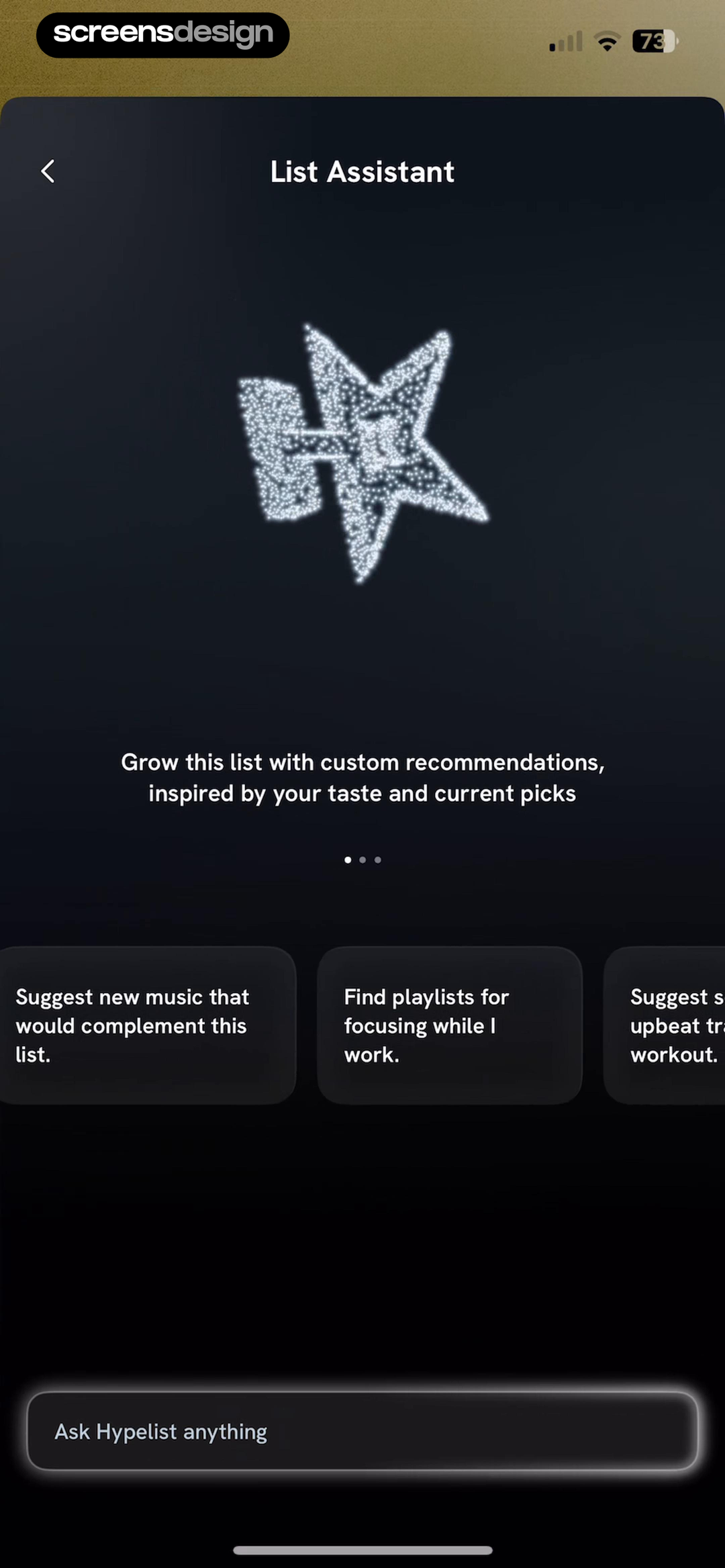
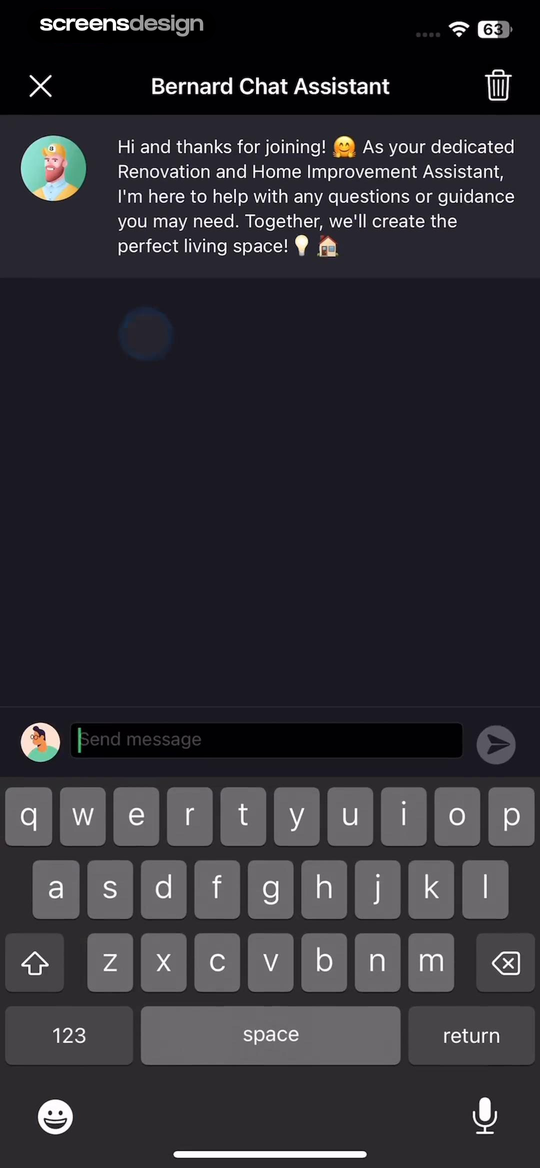
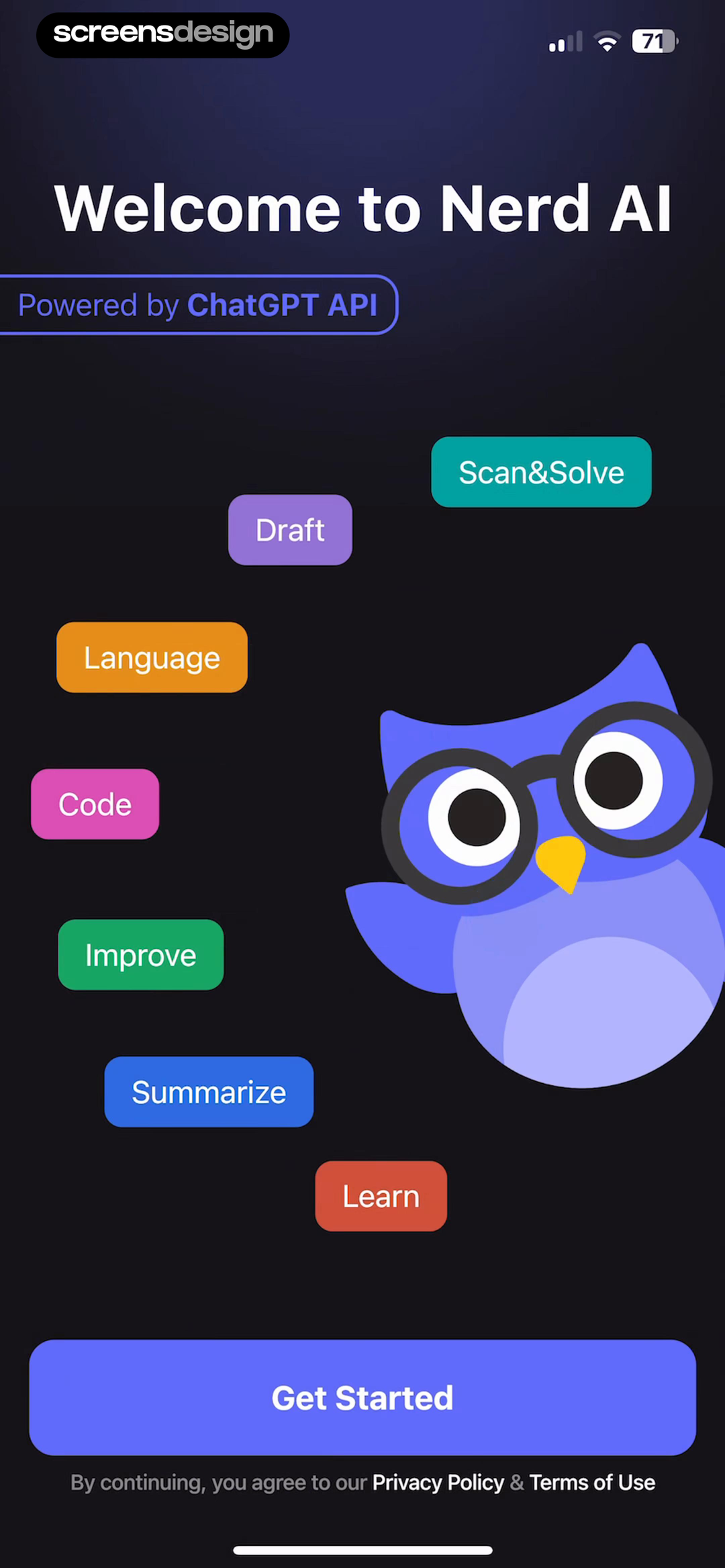
Hypelist uses the current list to suggest complementary music, focus playlists, and workout tracks. Planner 5D opens with a renovation assistant already anchored to home improvement. Nerd AI displays concrete tools such as Scan and Solve, Draft, Language, Code, Improve, and Summarize. These focused surfaces reduce the distance between a suggestion and a task the product can actually complete.
Avoid chips such as inspire me or surprise me unless experimentation is the primary product. Prefer verbs, objects, and constraints: summarize this meeting into actions, compare these plans, rewrite this paragraph for a customer, or suggest tracks that fit this list. Tapping a starter should populate an editable composer rather than sending an invisible prompt immediately.
Use the first response to teach revision. Show how to add context, change format, cite sources, or narrow scope. A single impressive demo can mislead people into expecting the same result from any short prompt. A short exchange that visibly improves after one clarification creates a more durable mental model.
03. First response
Make answer state, sources, and next actions explicit.
The first response teaches how the assistant behaves more effectively than a feature tour.
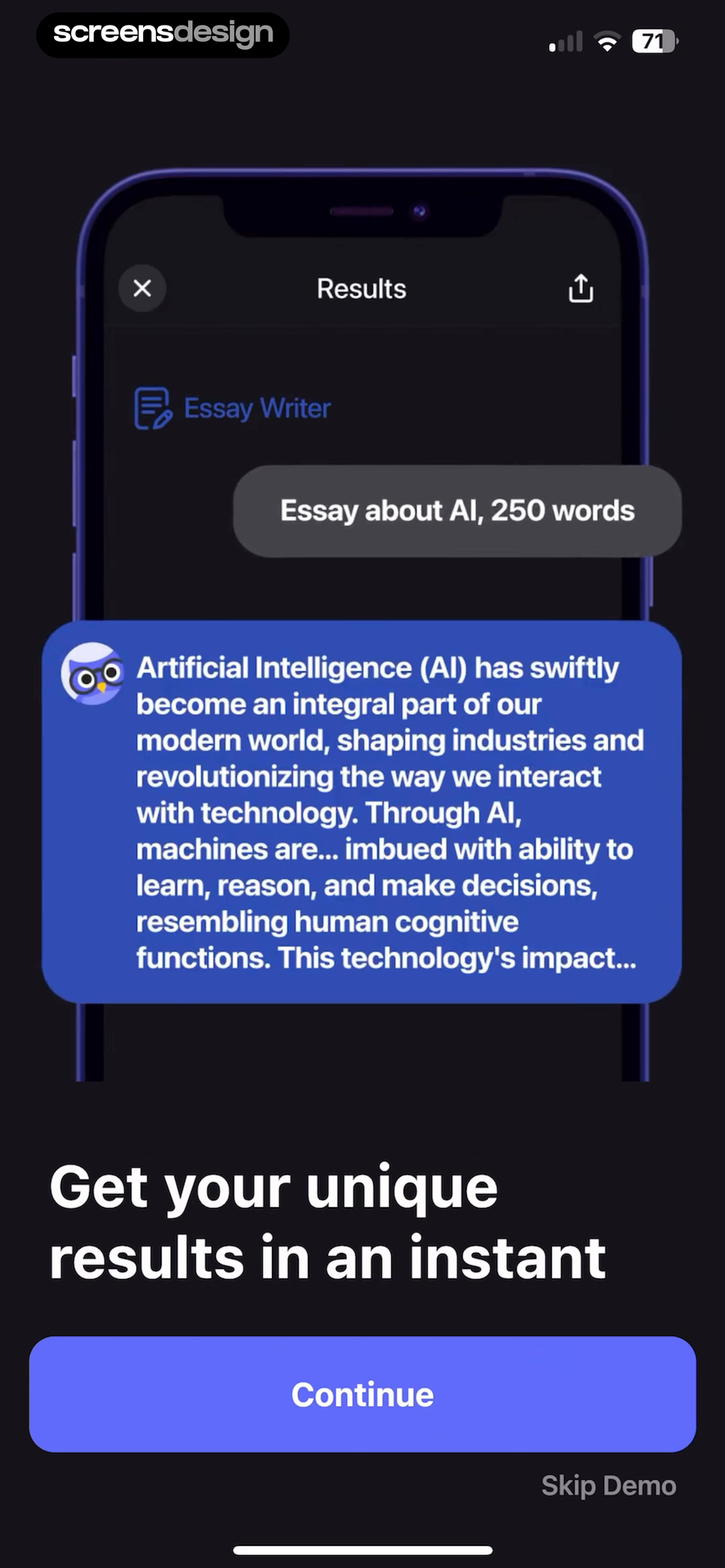
Nerd AI demonstrates a generated essay result and keeps Continue and Skip Demo available. Claude's onboarding moves from policy acknowledgement into a conversational introduction. These patterns use output to explain the product, but the demonstration must be clearly marked. Sample content should never be mistaken for a response generated from the user's data.
During generation, distinguish waiting, streaming, tool use, and failure. Keep Stop visible if the user can interrupt, and make Retry preserve the prompt. After the answer, surface the actions that matter for this context: copy, cite, regenerate, edit, share, save, or continue. Do not show every capability under every answer.
If factual confidence matters, sources and timestamps should be inspectable. If the assistant uses uploaded files or connected services, identify the input. Feedback controls need a meaningful consequence and an undo path for accidental reports. A small disclaimer at the bottom cannot carry the full burden of an interface that otherwise presents uncertain output as settled fact.
04. Voice
Explain identity, listening, and recording as separate choices.
Voice selection is a preference; microphone access and data retention are permissions.
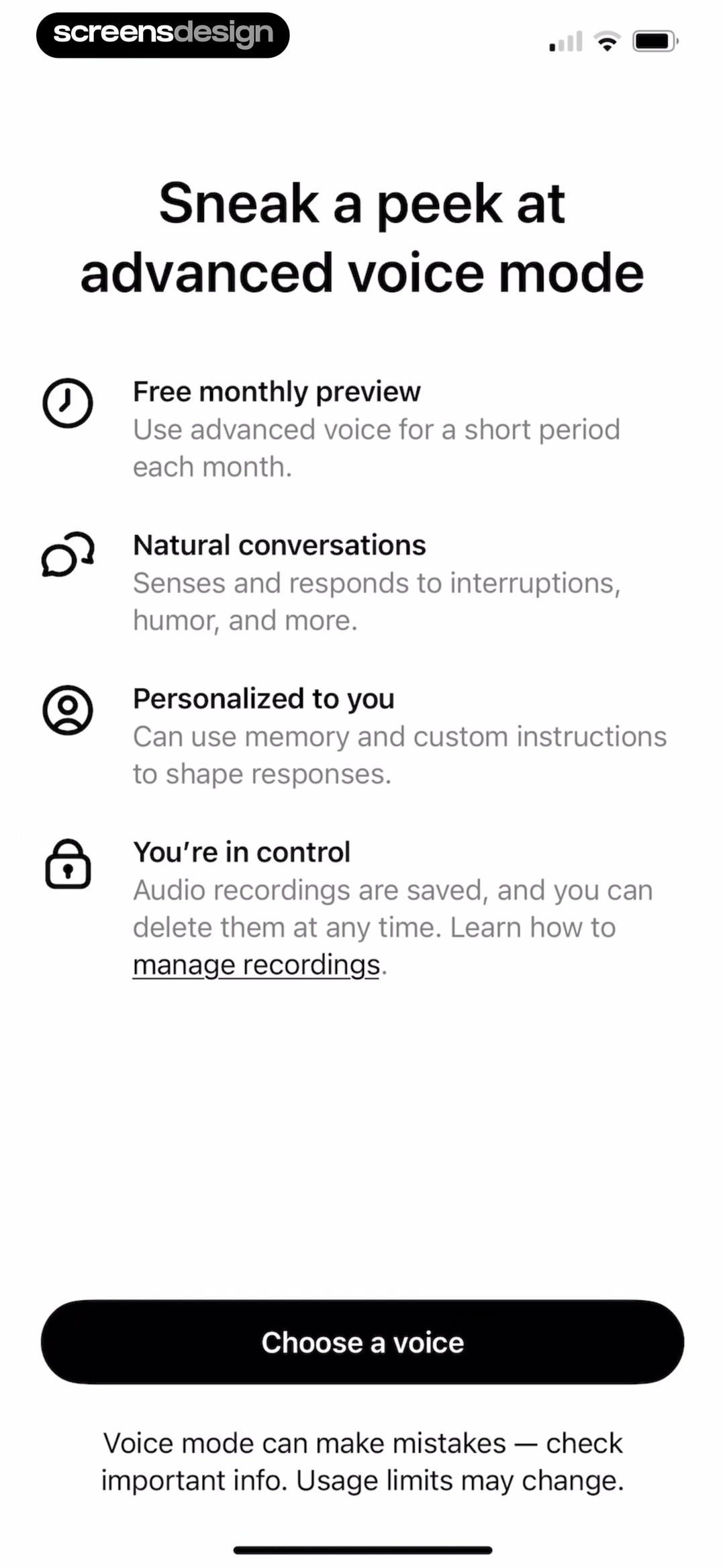
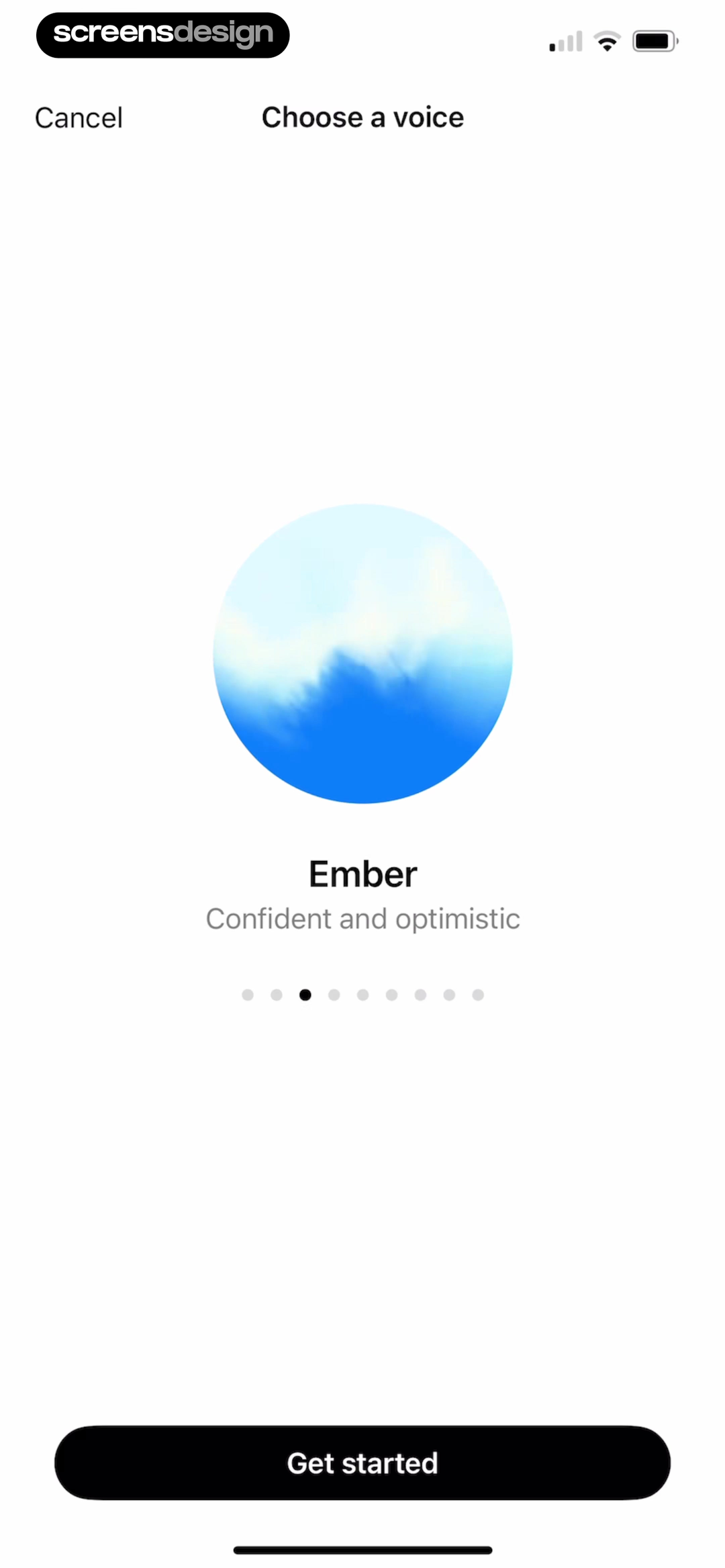
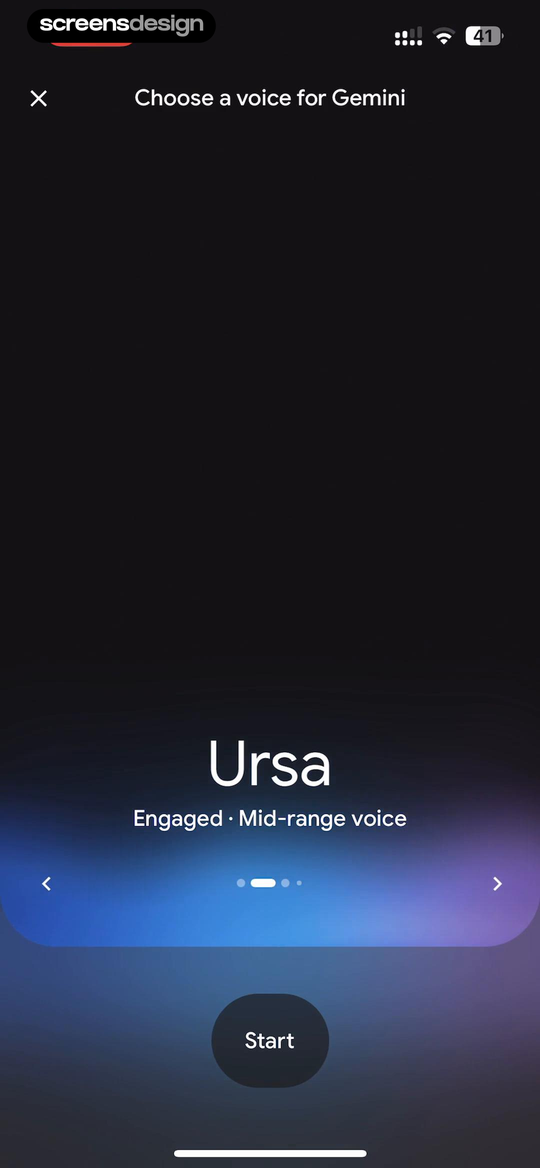
ChatGPT and Gemini both allow a user to choose a named voice with a short tonal description. ChatGPT also introduces advanced voice through benefits and control language before moving to the selector. This can make an unfamiliar mode approachable, but personality labels should not imply professional expertise or emotional understanding the system does not possess.
The listening state needs more than an animated orb. Label when the microphone is on, when the assistant is processing, when audio is being played, and how to hold or end. Explain whether audio, transcript, or both are retained. Ask for microphone access only after the person chooses voice, then provide a text path if they decline.
Voice onboarding should account for interruptions, background noise, accessibility, and public settings. Captions and an editable transcript can make the mode easier to verify. If usage has a free monthly limit or belongs to Pro, show the limit before a long conversation begins and preserve the text thread when voice access ends.
05. Permissions and personalization
Request one data source for one chosen job.
An assistant does not need blanket access merely because it can use many tools.
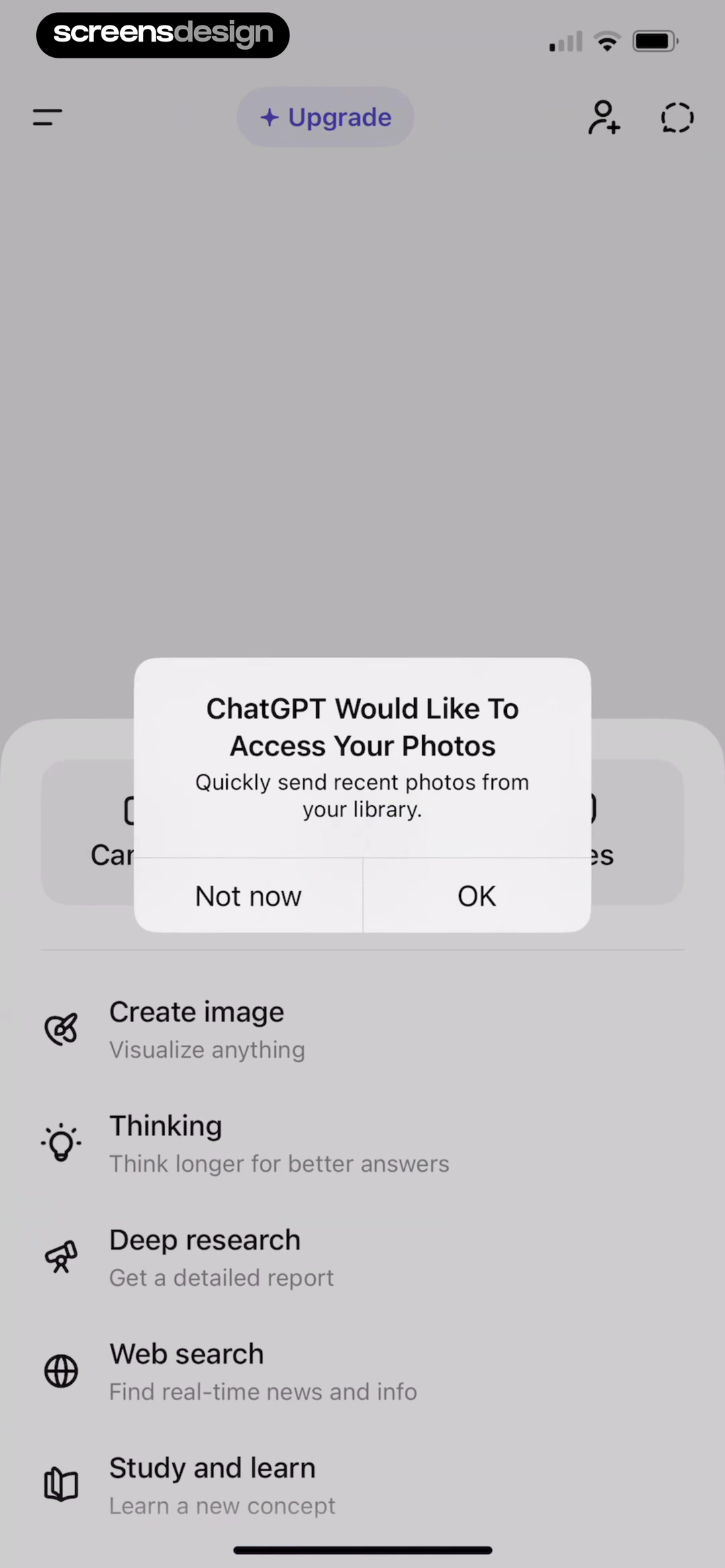
ChatGPT's photo permission pre-prompt explains the immediate purpose of quickly sending recent images. The strongest sequence starts when a user taps attach photo, create event, use location, or start voice. A custom explanation can prepare the decision, followed by the system request. Denial should return to the composer with the unavailable action explained, not trap the user in settings.
Memory and personalization deserve their own controls. State what the assistant can remember, show where memories can be reviewed or deleted, and distinguish account history from model training choices. Do not make a friendly persona a substitute for explaining data behavior.
Monetization should be equally contextual. A Pro reminder can appear when the user selects a paid model, exceeds a usage limit, needs a connected tool, or wants longer context. Explain the capability, current limit, renewal, and fallback. ScreensDesign Pro lets product teams ask how top apps place these moments across the full conversation rather than copying a single paywall screenshot.
Review checklist
Test the first conversation from prompt to correction.
Record a new account using a starter, original prompt, failed response, stopped generation, denied microphone, denied photo access, and declined upgrade. Verify that the user always knows what the assistant is doing, which inputs are in scope, and how to recover without rewriting work.
Review safety copy with the same care as marketing copy. Test it at device width, confirm controls are reachable later, and inspect whether the visual hierarchy contradicts the caution. Then evaluate the second turn: onboarding succeeds when a person can refine an answer, not only receive one impressive demo.
- The welcome screen names representative jobs and important limitations.
- Prompt starters are contextual, editable, and tied to supported output.
- Generation distinguishes waiting, streaming, tool use, stop, and failure.
- Answers show relevant sources, inputs, timestamps, or uncertainty when needed.
- Voice mode labels listening, processing, playback, hold, and end states.
- Each permission follows a user-selected action and has a usable denied path.
- Memory, history, and model-training choices are explained separately.
- Pro prompts preserve the conversation and name the paid capability or limit.
Questions and answers
AI chat app onboarding questions
What should AI chatbot onboarding include?
Include representative jobs, limitations, privacy choices, contextual prompt starters, generation states, answer actions, and a clear route to settings. Let the user reach a real conversation quickly.
How do you avoid an empty AI chat screen?
Use prompts based on the current product context, recent object, or common job. Make starters editable and show the kind of output they produce.
When should an AI assistant ask for microphone access?
Ask after the user chooses voice input. Explain recording and retention behavior, then keep text input available if access is denied.
How should an AI app explain inaccurate answers?
State the limitation in onboarding, repeat it where stakes are high, provide inspectable sources when possible, and give users a direct way to correct, regenerate, or report an answer.
How can an AI chat app improve retention?
Help users reach repeatable jobs, preserve context responsibly, make refinement easy, and reconnect them to unfinished work. Do not rely on vague notifications or obstructive subscription flows.
Where should an AI chat app promote Pro?
Use moments where the paid model, longer context, tool, voice limit, upload capacity, or generation speed is directly relevant. Explain the fallback and keep the existing thread intact.
Apps referenced in this page
Open the products behind the examples.






2,715 apps in the top charts.Ask them anything.
Search recorded AI chat screens, inspect the complete first-conversation flow, and ask ScreensDesign Pro how leading assistants handle the exact prompt, permission, response, voice, or upgrade state you are designing.