

 See the flow
  Tiny Scanner - PDF Scanner App
Top navigation bar, followed by a title, a secondary toolbar with search and sorting, and a vertical list of document items, with a floating action button at the bottom right.
 See the flow
  CamScanning: AI Measure & Scan
Top navigation bar, central canvas area with card design, bottom toolbar with three action buttons.
 See the flow
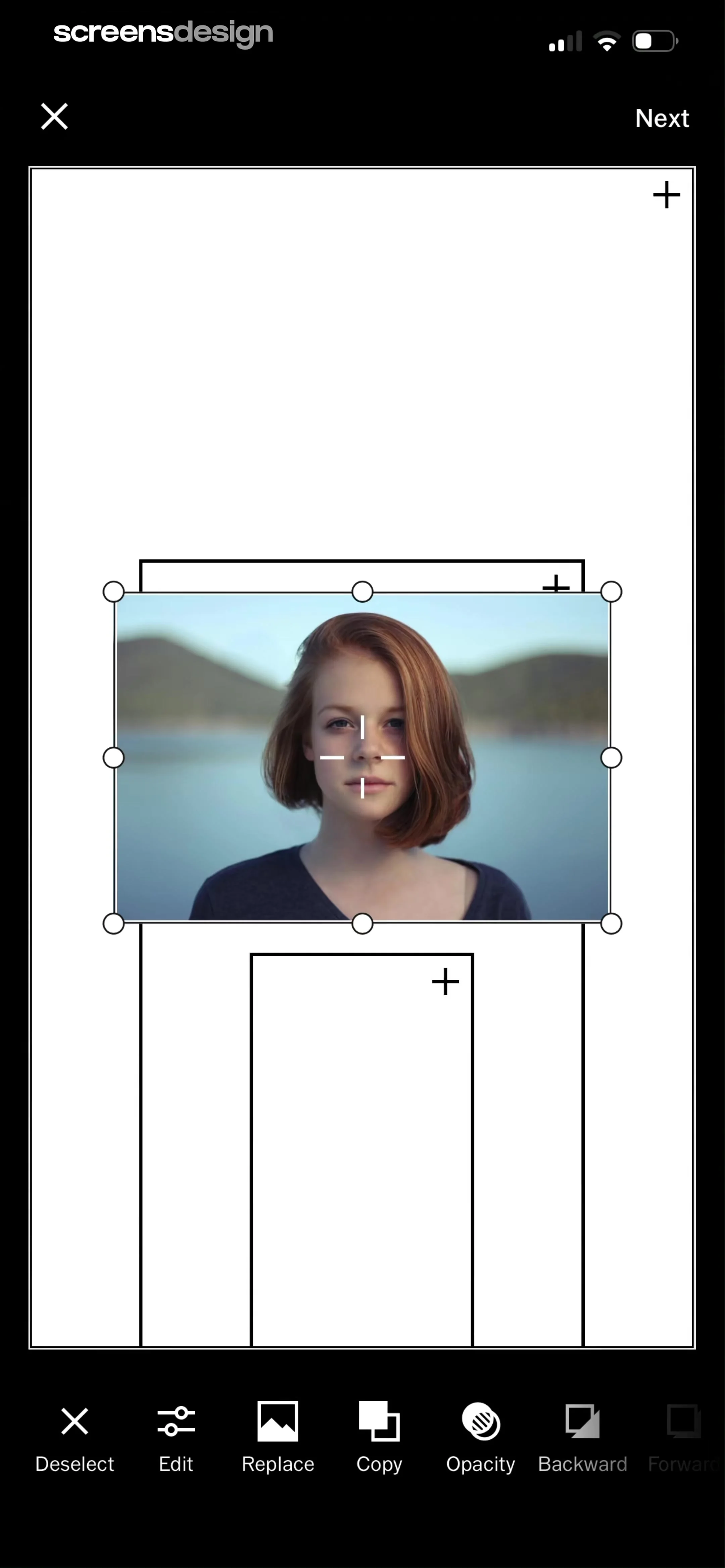
  VSCO: Photo & Video Editor
The bottom toolbar provides editing controls including 'Deselect', 'Edit', 'Replace', 'Copy', 'Opacity', 'Backward', and 'Forward'.
 See the flow
  Windy.app — Wind, Tides, Radar
Map-centric view with a top status bar, a central information modal, a right-hand vertical toolbar, and a bottom informational banner.
 See the flow
  Everlook- Face & Body Editor
This screen is an image editing interface within the Everlook app, specifically focused on facial retouching tools.
 See the flow
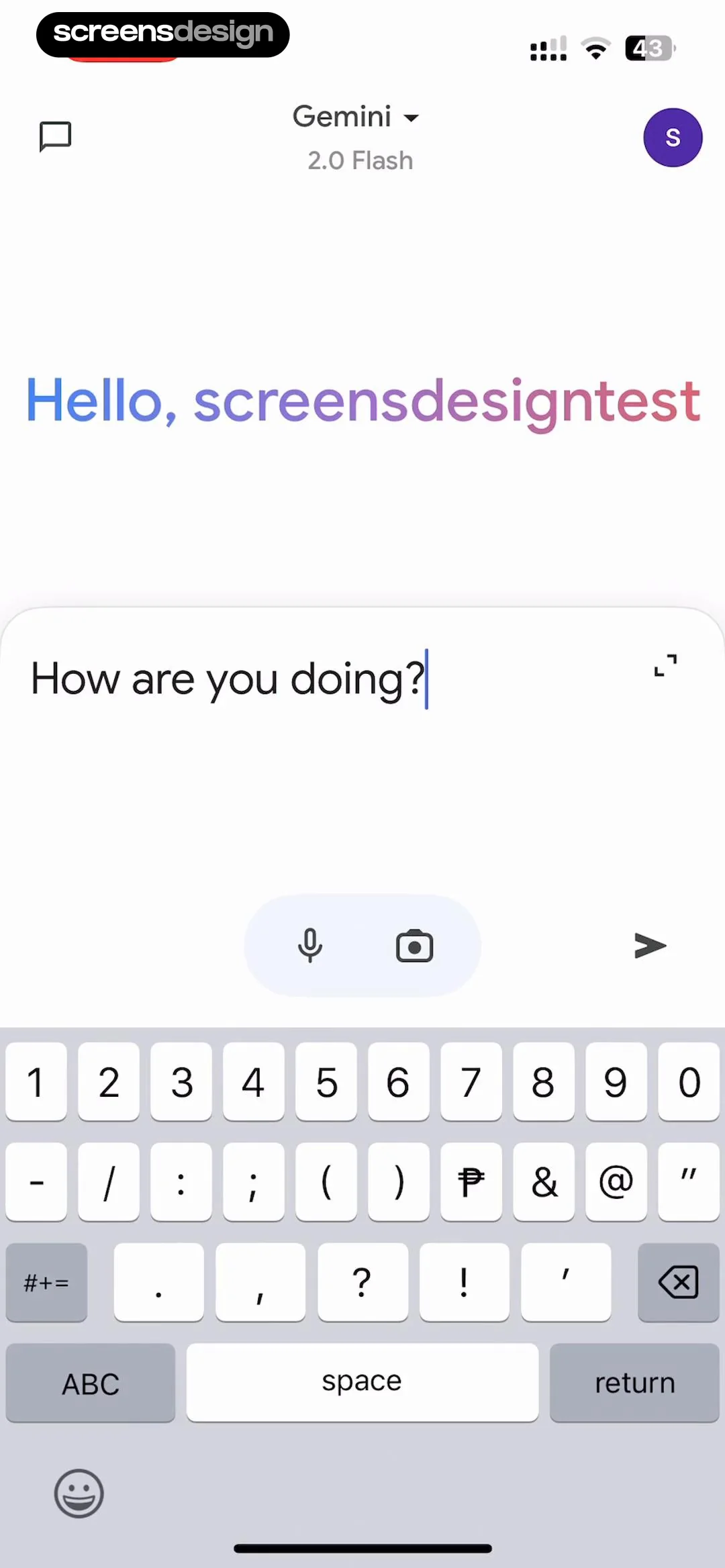
  Google Gemini
Beneath the input field, there is a horizontal toolbar containing voice input and camera icons, followed by a send arrow button.
 See the flow
  Layout for Instagram・Inpreview
The bottom toolbar provides editing actions: Filter, Crop, Share, and Delete.
 See the flow
  Yik Yak
Below the image is a toolbar containing icons for search, text formatting, a drawing tool, and image selection.
 See the flow
  FLYP - Fashion Design Studio
The bottom section features a horizontal toolbar with a layer/asset preview card on the left and five main editing tools: AI, Text, Photos, Camera, and Shapes.
 See the flow
  Calculator₊
At the bottom, a floating toolbar provides drawing and editing tools, including a selection of pens, a highlighter, an eraser, and a color picker.
 See the flow
  PDF Scanner AI: Scan Documents
At the bottom of the screen, a toolbar provides editing controls, including a line thickness slider with a circular handle, a 'Color' label, and a color picker button showing a dark circle.
 See the flow
  Precious - Baby Photo Art
The bottom section features a horizontal scrolling menu of editing tools, including 'Props & Stickers', 'Cutouts', 'Templates', 'Text', and 'Collage Borders'.
 See the flow
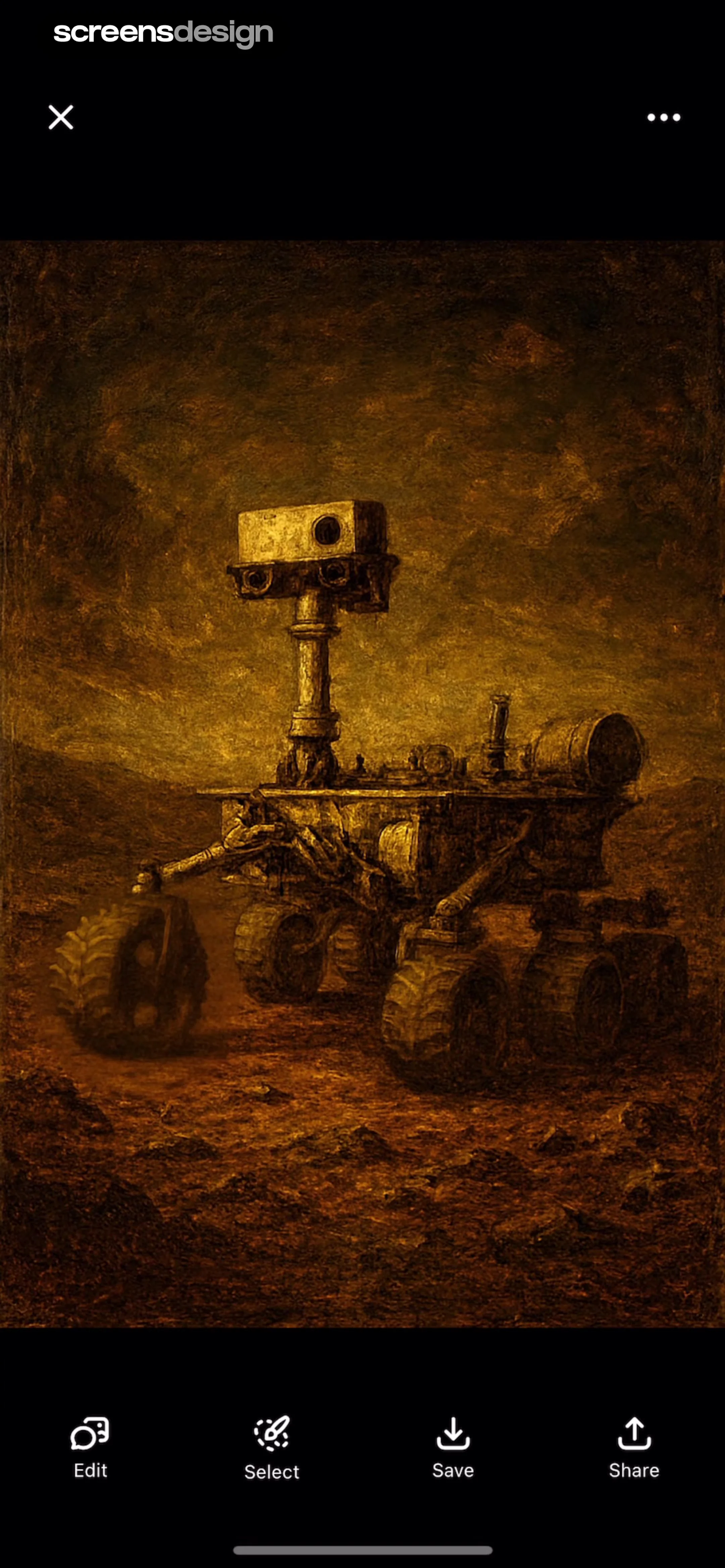
  ChatGPT
At the bottom, a horizontal toolbar provides four primary actions: Edit, Select, Save, and Share, each represented by a corresponding icon and text label.
 See the flow
  Scanner App: Genius Scan
Document preview at top, followed by editing tools, filter carousel, toggle, and bottom action modal.
 See the flow
  ScanAny-PDF Scanner App
At the bottom, a horizontal toolbar provides five primary editing tools: 'Crop', 'Revolve', 'Filter', 'Anti-theft', and a blue 'Finish' button.
 See the flow
  WebNovel - Read Novels & Manga
Below the input area, there is a toolbar containing icons for adding images, GIFs, and emojis, followed by a prominent 'ADD' button on the right.
 See the flow
  The Guardian - US & World News
Below this, a secondary toolbar shows a menu icon, a timer (00:10), a user profile icon, a hint icon with a dropdown, an info icon, and a settings gear.
 See the flow
  Blinq: Digital Business Card
Below this, there is a bottom toolbar containing a gallery/image picker icon on the left, a large circular shutter button in the center, and a flashlight toggle icon on the right.
 See the flow
  Wikiloc - Trails of the World
At the very bottom, there is a horizontal toolbar containing 'Search', 'Undo', and a primary 'Save' button.
 See the flow
  Tattoo AI - Tattoo Design
The screen features a large central image area with a crop overlay, and a bottom navigation bar containing action buttons.


