AI video generator research
12 AI Video Generator App Design Examples
AI video interfaces work better when source, motion, format, duration, audio, cost, and output rights remain visible as separate decisions.
Video generation combines several uncertain systems: media upload, prompt interpretation, model selection, animation, voice, music, rendering, moderation, and export. Compressing everything into one text field may look simple, but it hides the variables that explain a result. A good mobile flow progressively builds a brief and lets the user inspect it before spending time or credits.
This review examines twelve recorded screens from Menace, invideo AI, GoPhoto, Photo to Video, Pollo AI, Shots, AI Studio, Flashloop, and SelfyzAI. Every example comes from a product that explicitly creates AI video. These screens show how current interfaces handle sources, prompts, production settings, credits, and results, but they do not prove generation quality, originality, speed, conversion, or revenue.
For source-image onboarding, compare the AI photo editor onboarding examples. For the shared product hierarchy, use the mobile app UI design guide.
01. Source selection
Show the exact media the video will inherit.
The source determines identity, composition, motion possibilities, and failure risk.
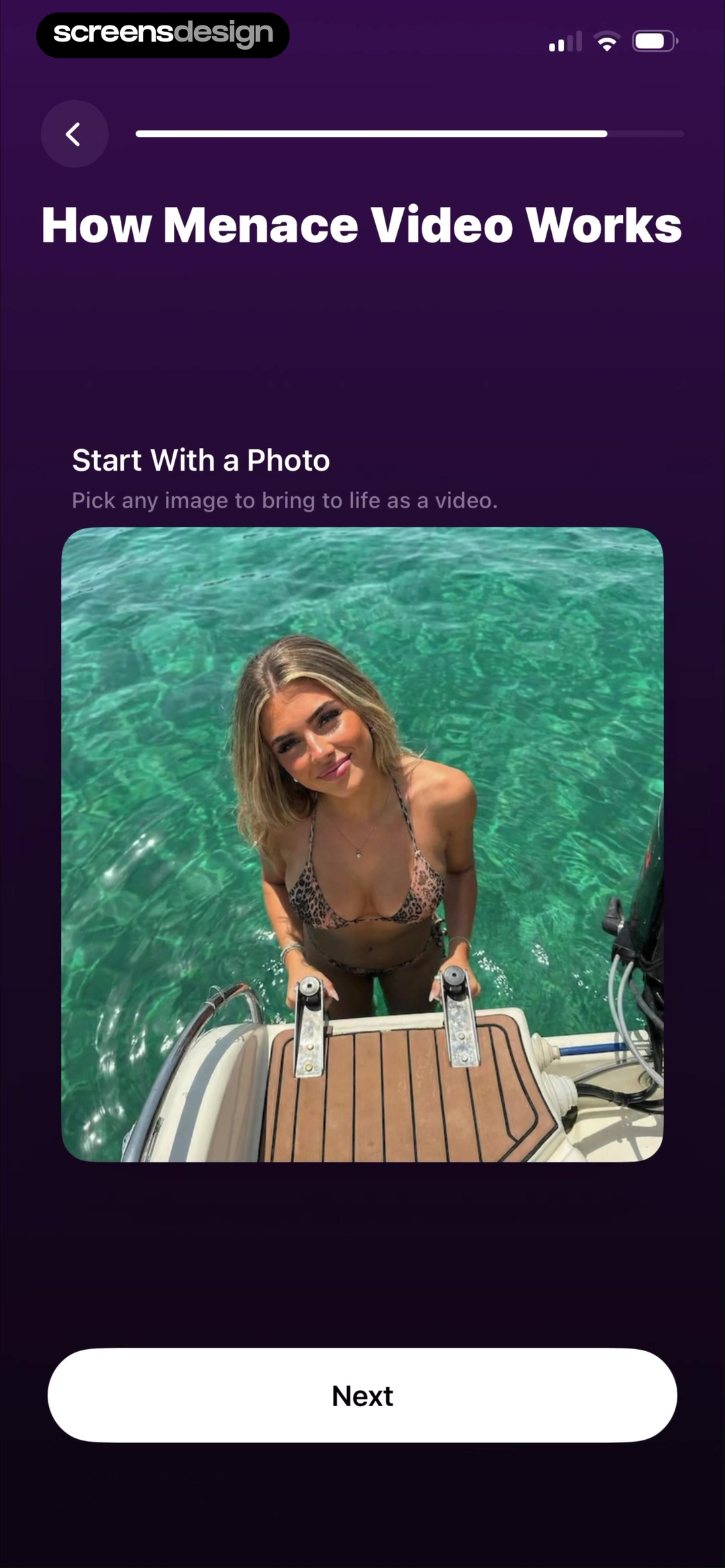
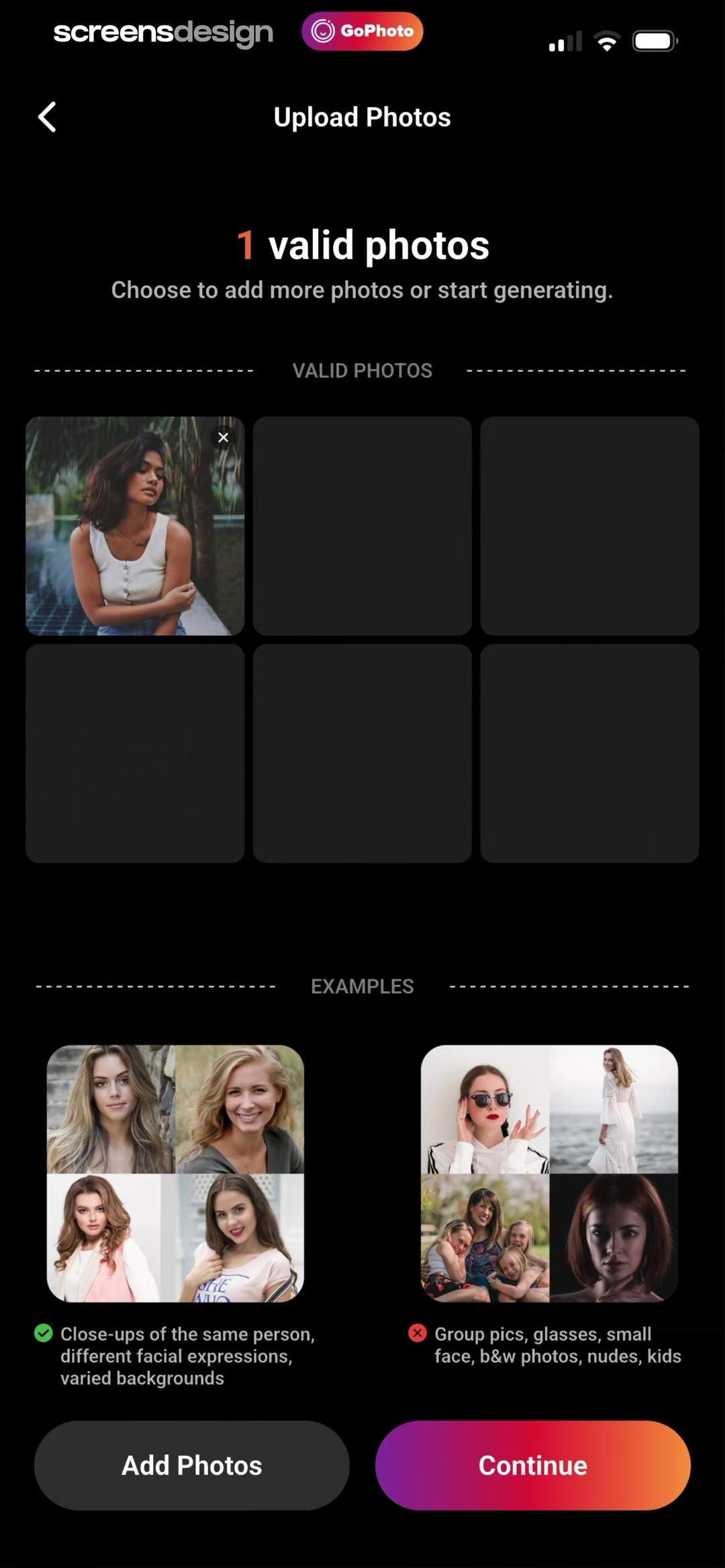
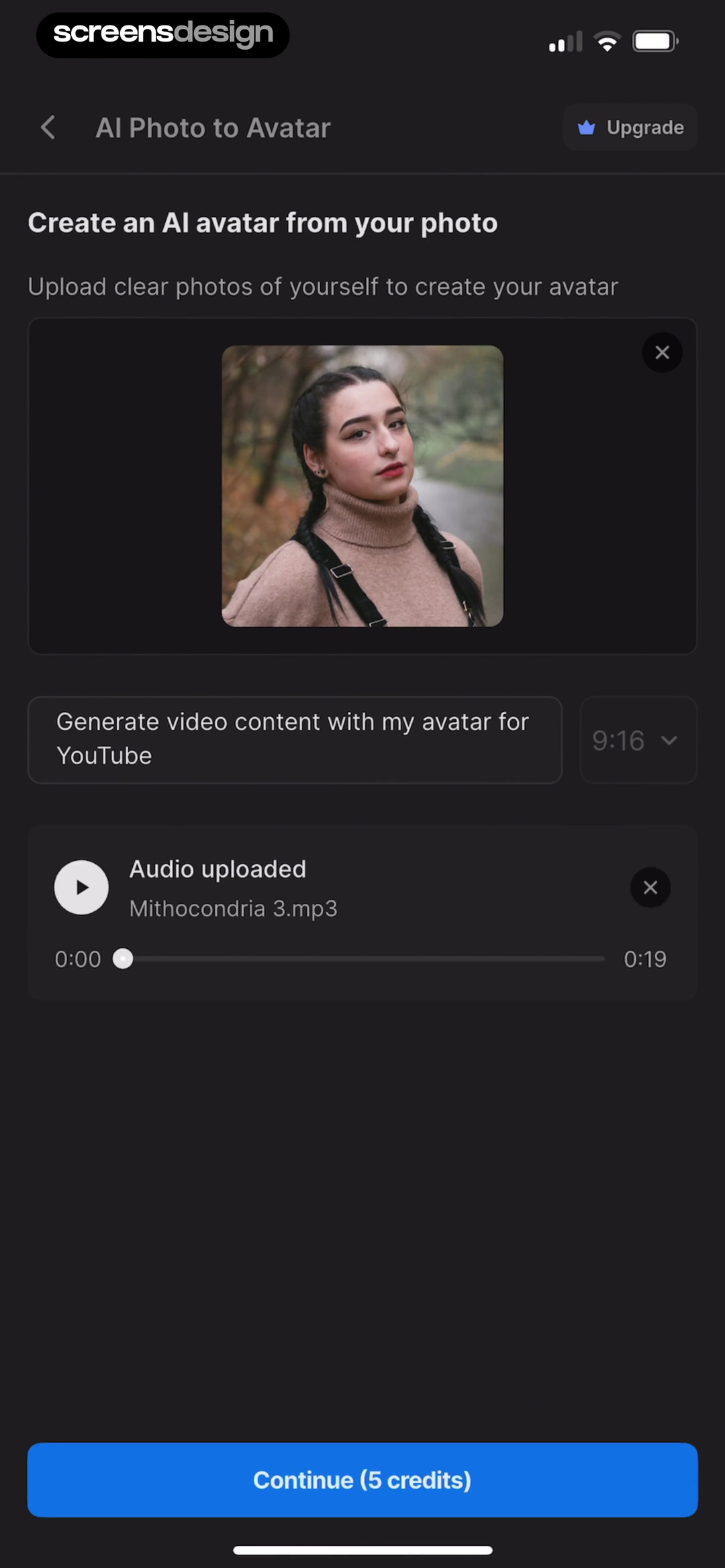
Menace explains that its video starts with a photo. GoPhoto shows a source-upload screen with valid and invalid portrait examples. invideo AI asks for clear photos to create an avatar and places the selected format and audio in the same editor. These flows reveal different source contracts, but each can make the input more legible than a generic upload button.
State quantity, accepted format, minimum quality, subject requirements, and whether the source can be replaced. Show a thumbnail or contact sheet after selection. If several assets play different roles, label them as avatar, background, product, reference style, or audio rather than leaving users to remember upload order.
Permissions should follow an explicit camera, library, or file action. Explain how uploads are processed, how long they remain, whether they train models, and how deletion works. When likeness is involved, ask the user to confirm rights and consent without suggesting that a checkbox solves all legal or ethical obligations.
02. Prompt and direction
Ask for motion in language the result can reflect.
A video prompt needs action and camera context, not only a subject.
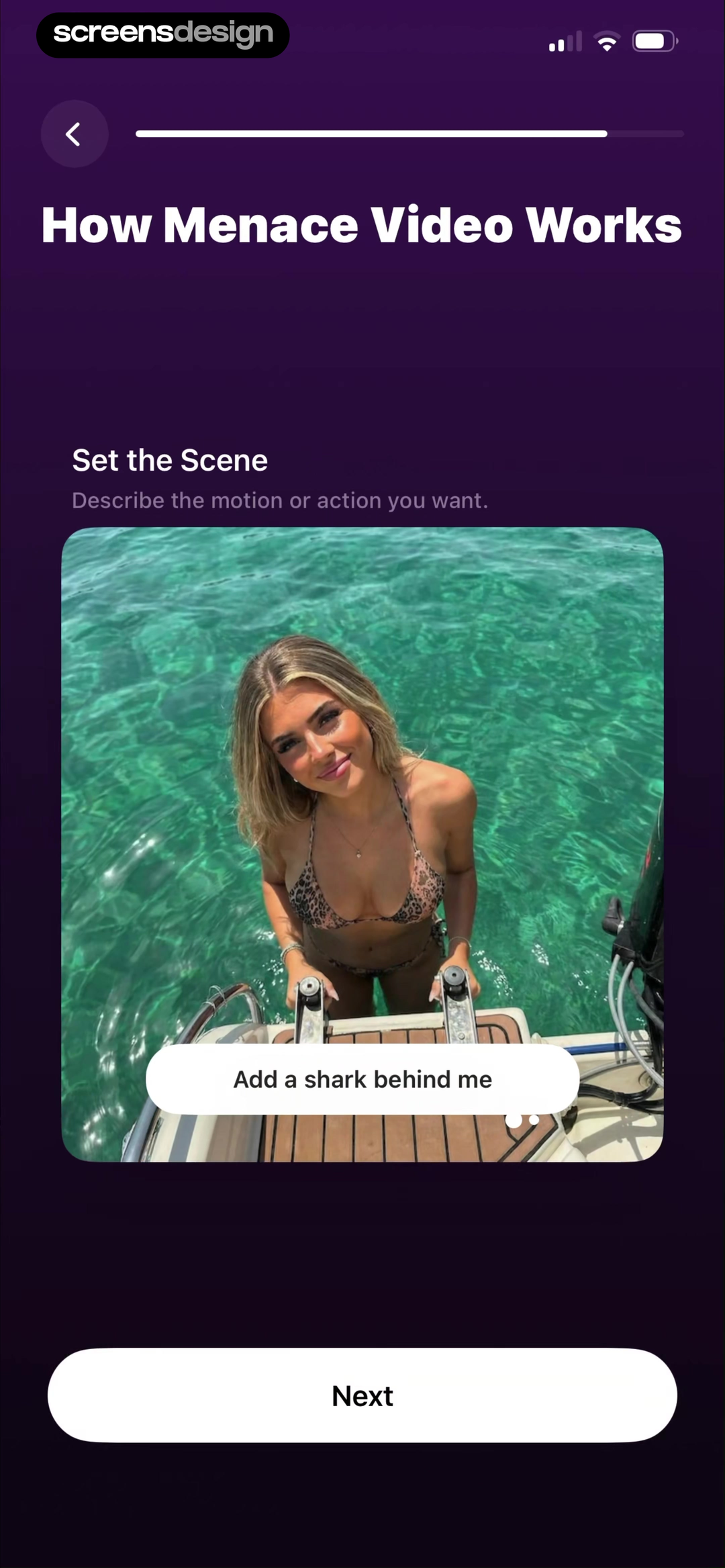
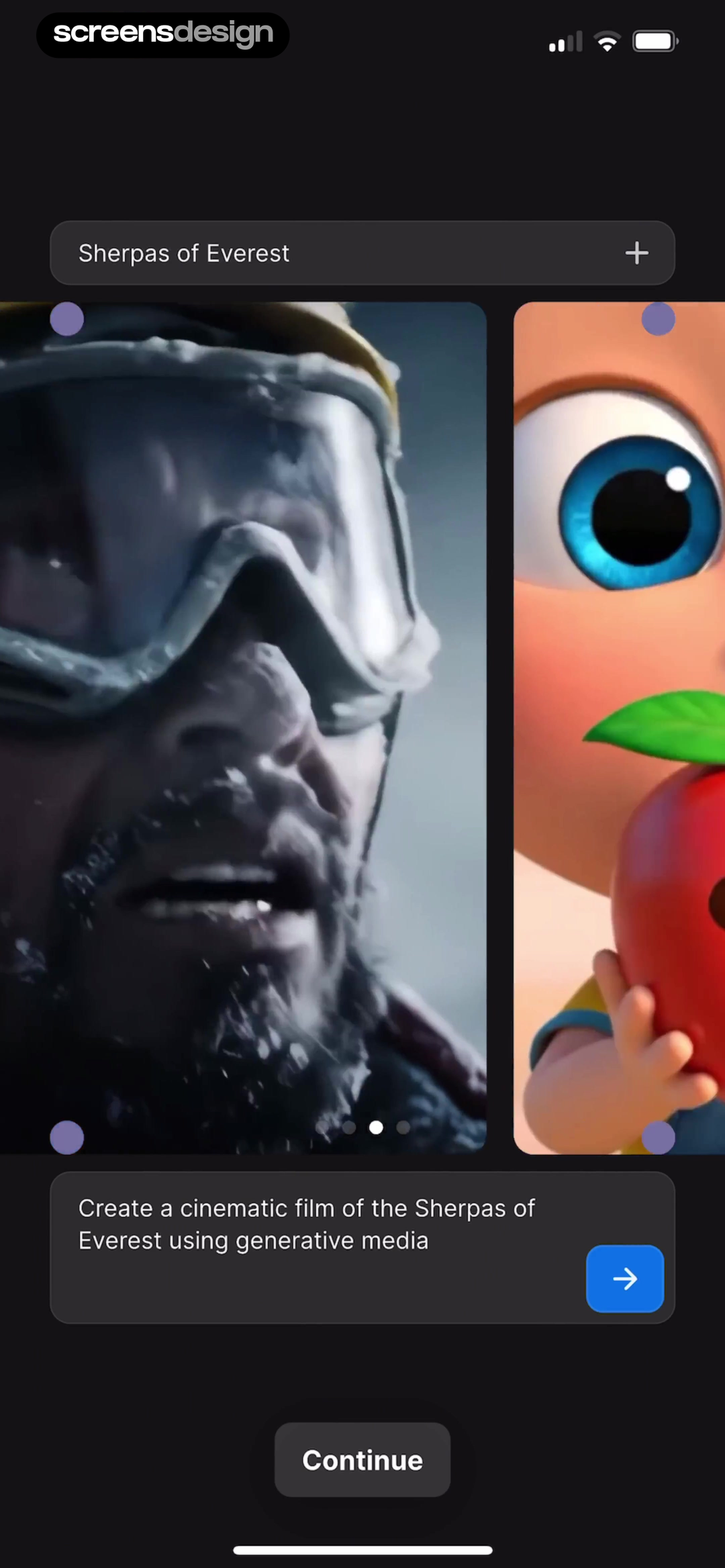
Menace follows source selection with Set the Scene and a concrete motion example. invideo AI uses a compact brief to create a cinematic film about the Sherpas of Everest. These prompts show the value of outcome-oriented examples, but a production interface should let users distinguish subject, movement, camera, style, pace, and narration where the model supports those controls.
Use prompt starters as editable scaffolds. A suggestion can include a verb, setting, visual treatment, and duration, then place the cursor in the composer. Avoid sending a costly generation immediately after a starter is tapped. Preserve revisions and let users compare the brief that produced each output.
Moderation should be specific and recoverable. If a request is unsupported, identify the relevant part where possible, keep the remaining prompt, and suggest a compliant revision. Do not expose internal policy text as the only explanation. For high-risk likeness or deceptive content, make consent and labeling requirements part of the product flow.
03. Format and expectation
Choose the destination before rendering.
Aspect ratio, duration, audio, captions, and resolution shape the composition, not merely the export.
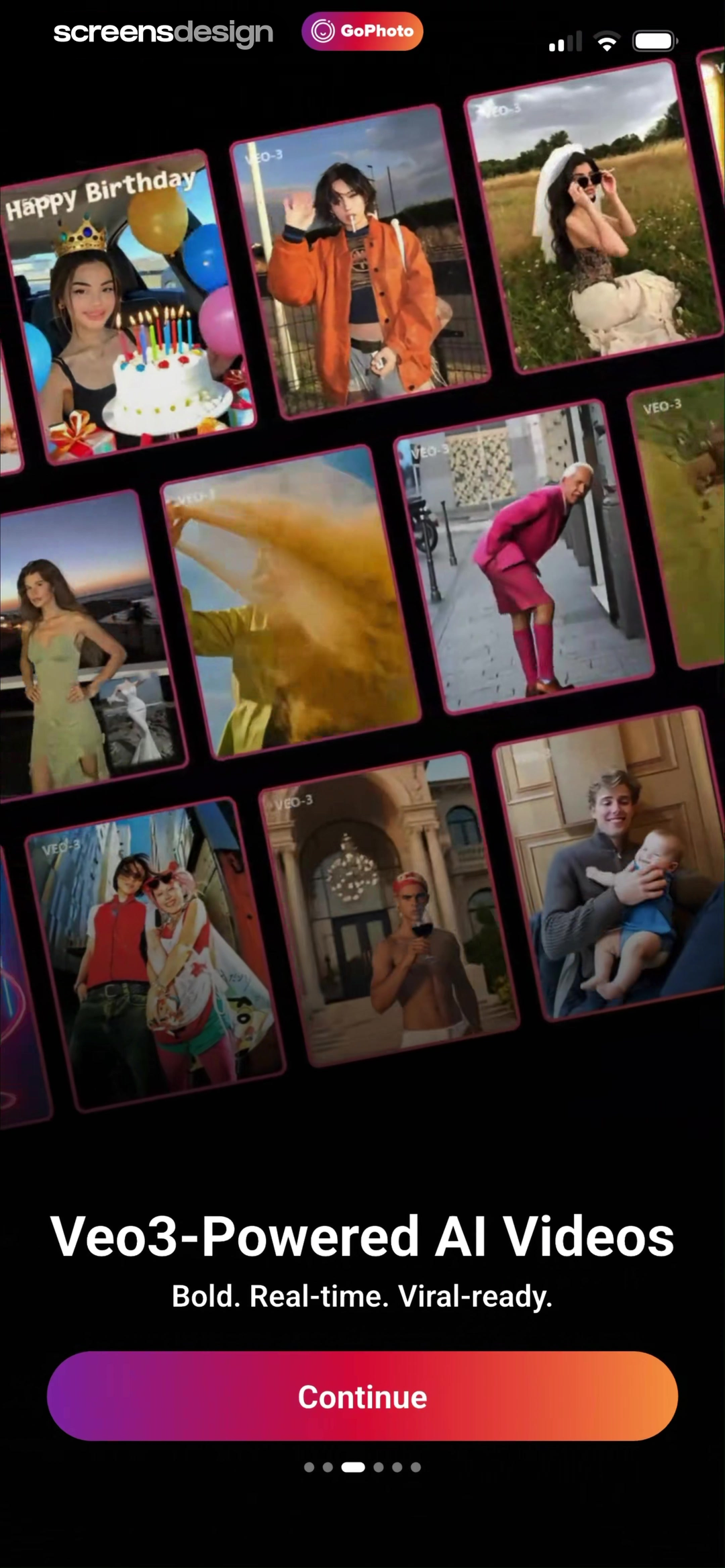
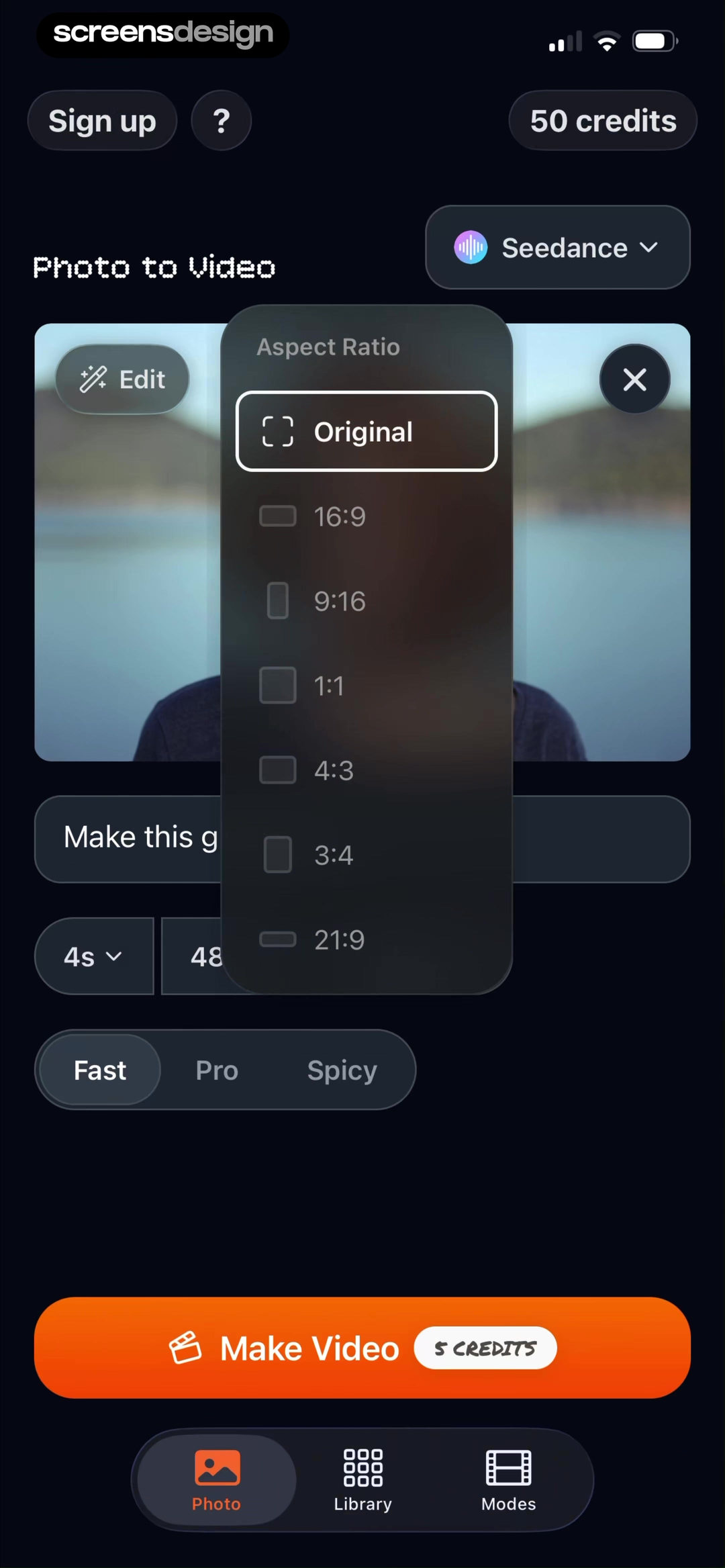
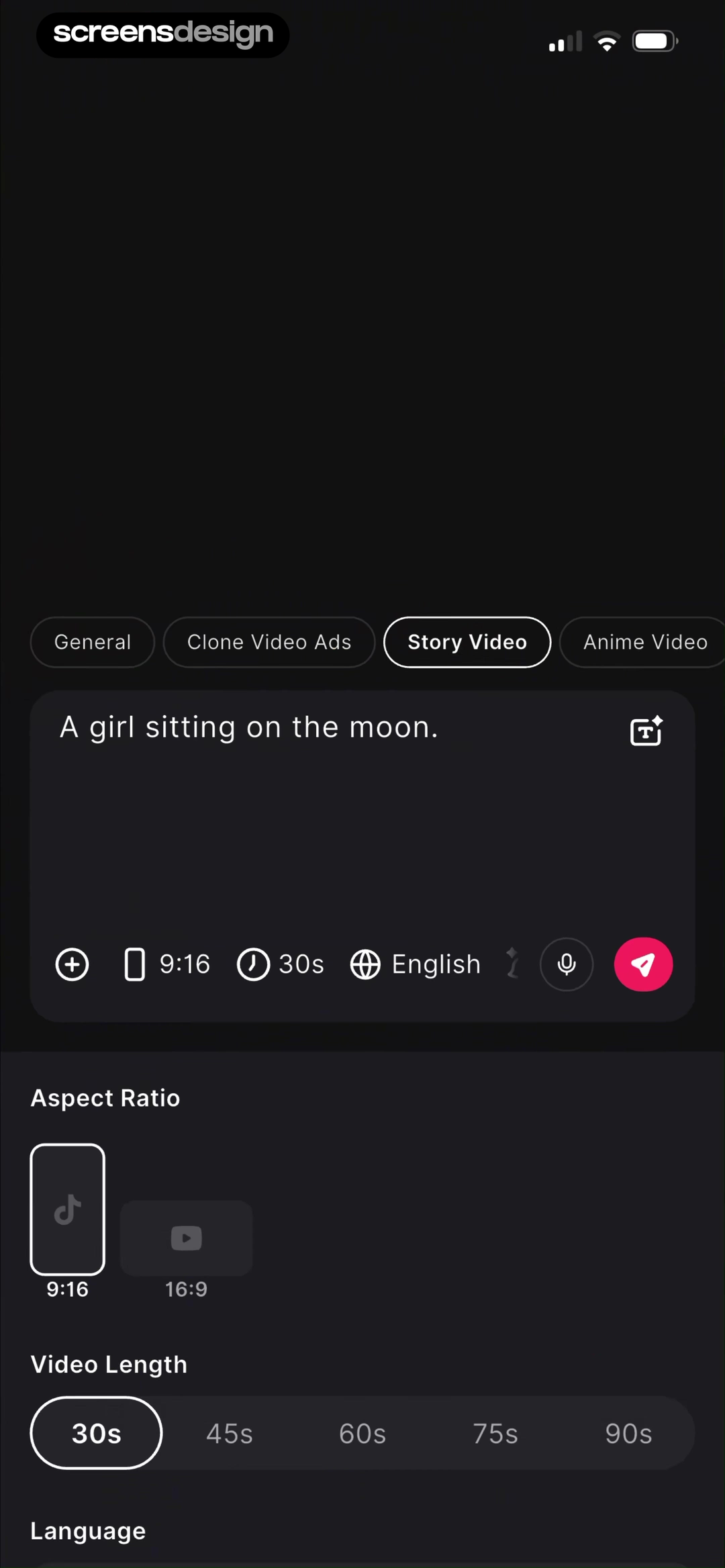
GoPhoto introduces its video capability with a concrete birthday example and names the model. Photo to Video exposes exact aspect ratios beside the source, model, duration, mode, and credit cost. Pollo AI connects story type, prompt, language, video length, and vertical or horizontal format in one production surface. Together they show that destination choices belong in the brief, before rendering begins.
Ask where the video will be used, then offer a small set of meaningful formats. Use visual ratio previews and exact dimensions or platform labels. State whether changing format crops, regenerates, or reframes the output. Captions, safe areas, and audio should be inspectable before the render rather than fixed in a separate export wizard.
Example outputs must be labeled and plausible for the selected model. Do not use a polished reference that suggests every user source will achieve the same realism. Explain synthetic media labels, watermarks, or metadata at the point where they affect distribution.
04. Generation and recovery
Keep the brief, cost, and progress available during the wait.
Rendering time is easier to trust when the product explains what remains editable and what has been consumed.
Generation may take longer than a conventional mobile task. The progress state should show the source, brief, selected model, format, estimated range, credits committed, and whether the user can leave. If processing continues in the background, name the destination and offer an optional notification after explaining its purpose.
Distinguish queued, uploading, generating, composing audio, rendering, and failed. A percentage should reflect real progress or be replaced with named stages. Preserve every input after failure and identify whether retry will consume credits. If only one component fails, such as voice or captions, let the user recover that component rather than regenerate the entire video.
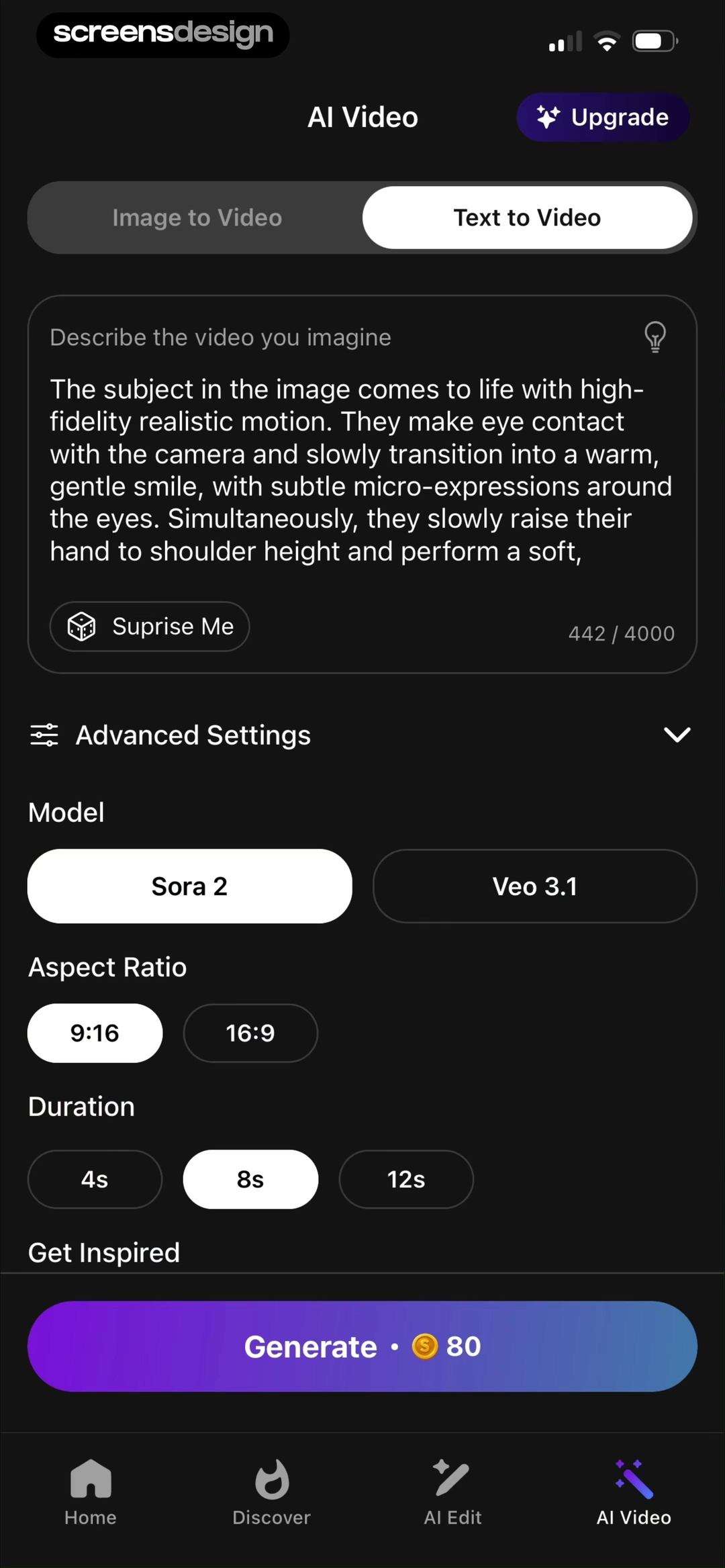
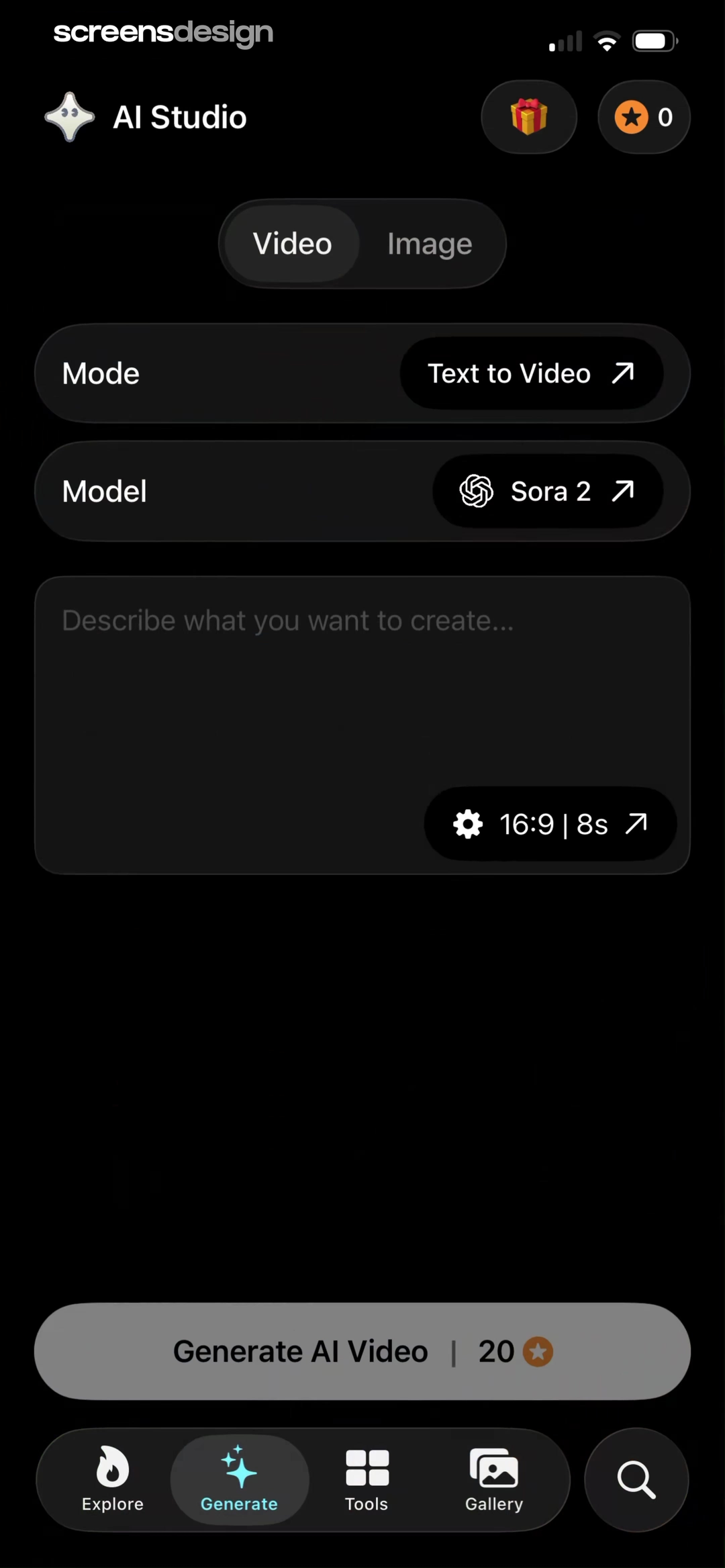
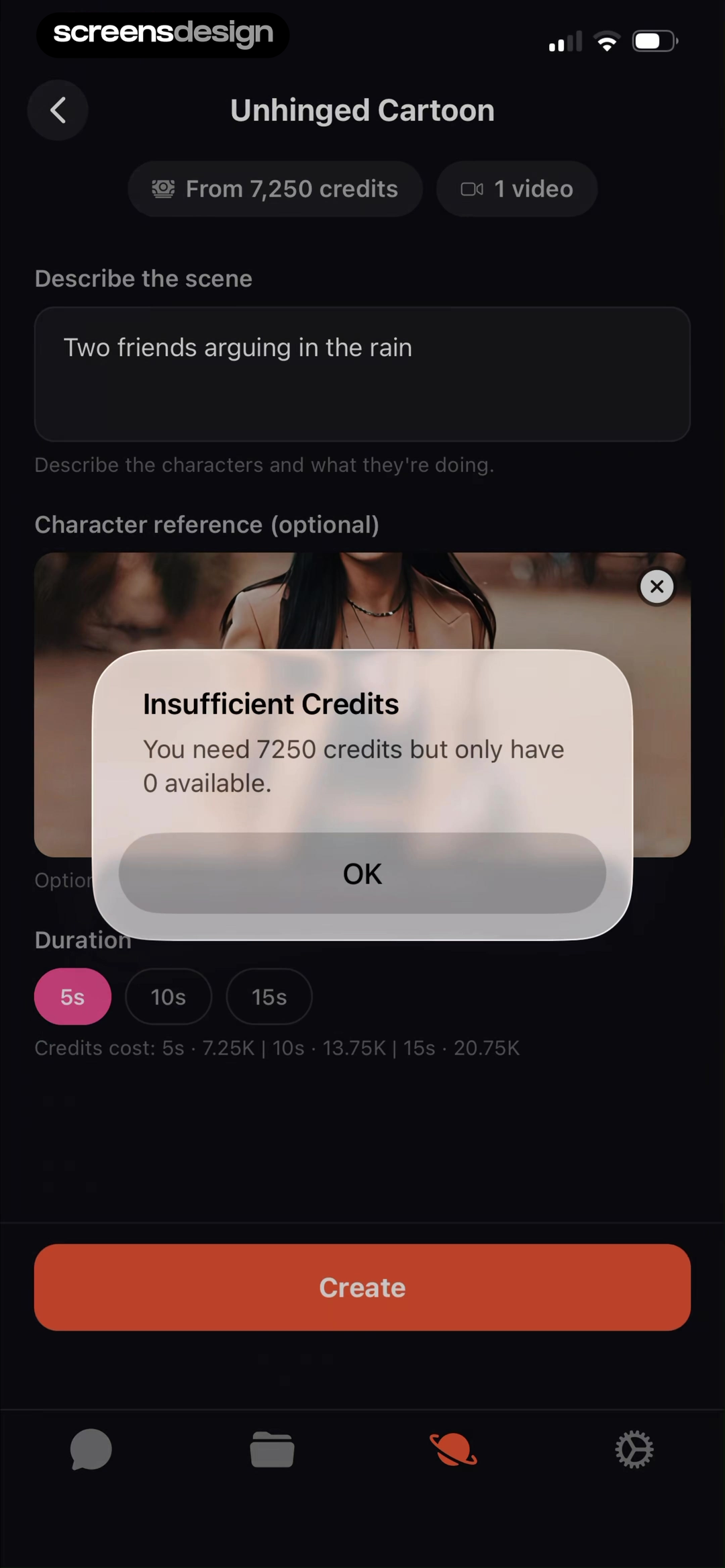
Shots exposes image-to-video and text-to-video modes with model, ratio, duration, and generation cost. AI Studio reduces the same brief to mode, model, prompt, format, length, and credits. Flashloop demonstrates the recovery case: its insufficient-credit message states the required and available balance without deleting the prompt, character reference, or duration choice.
05. Result, credits, and Pro
Make refinement safer than starting over.
A useful result screen connects the output to its brief and offers targeted changes.
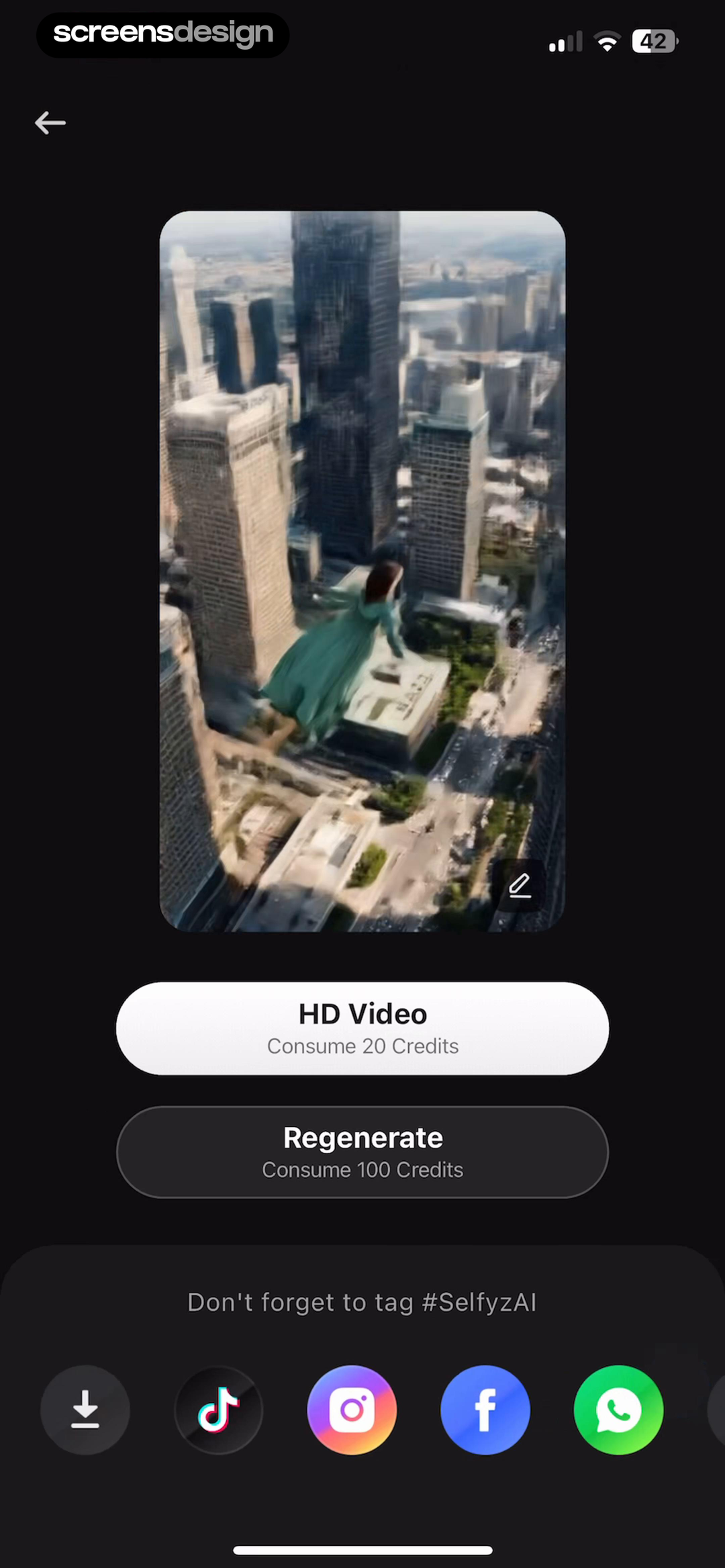
The result should support playback, mute, scrub, full-screen review, source comparison, version history, and export. Offer refinements such as shorten, change voice, replace scene, edit captions, or regenerate one segment before a generic generate again action. Keep the original brief and identify which version is selected.
Credits and paid access should be understandable before the action that consumes them. Show balance, cost, what counts as a retry, watermark, export resolution, commercial-use terms, and expiry. A Pro reminder can appear when selecting a premium model, longer duration, avatar, larger export, or additional versions. Preserve the current project if the user declines.
Do not claim that a model output is copyright-safe or commercially usable unless the actual terms support that statement. Give users access to the relevant license and model information. ScreensDesign Pro can help teams compare upgrade, generation, and result states across complete recorded flows, including what happens after users close an offer or return to an unfinished project.
Review checklist
Audit one complete project, including the failed render.
Test a valid source, weak source, denied permission, unsupported prompt, changed aspect ratio, interrupted upload, background generation, failed component, low-credit state, declined upgrade, and export. Verify that the brief and source survive every recoverable state.
Review examples, likeness consent, model labels, synthetic-media disclosure, licensing, and data retention with the appropriate experts. Check the interface at real device width and test long prompts, multiple assets, right-to-left text, captions, and muted playback.
- Every source has a role, quality rule, preview, replacement path, and data explanation.
- Prompts separate supported variables and remain editable before generation.
- Format, duration, audio, captions, and destination are selected before rendering.
- The review screen summarizes source, direction, constraint, time, and credit cost.
- Progress uses real stages and explains background behavior and notifications.
- Failures preserve the project and identify whether retry consumes credits.
- Results support targeted refinement, comparison, versioning, and clear export.
- Pro and licensing language matches actual limits, rights, renewal, and fallback.
Questions and answers
AI video generator app design questions
What inputs should an AI video generator collect?
Collect only the supported source media, direction, format, duration, audio, captions, style, and exclusions needed for the selected model, and summarize them before generation.
How should an AI video app show generation progress?
Use real stages such as upload, queue, generation, audio, captions, and render. Keep the source, brief, time range, credit cost, and background behavior visible.
How can an AI video app reduce failed generations?
Validate source quality and prompt support before charging, preserve inputs after failure, identify the failed component, and offer a specific correction or partial retry.
When should an AI video app show a paywall?
Show paid access when a premium model, duration, avatar, generation count, resolution, watermark, or version feature is selected. Preserve the project if the offer is declined.
How should an AI video app explain credits?
Show balance, generation cost, what counts as a retry, whether failures are refunded, expiration, and the relationship between credits and a subscription before the final action.
How can an AI video app improve subscriber retention?
Make projects reliable to resume, results easy to refine, limits predictable, and paid value recurring. Use transparent renewal and cancellation rather than trapping unfinished work behind surprise charges.
Apps referenced in this page
Open the products behind the examples.
 MenaceMake & Edit AI Photos & Videos
 GoPhotoDance, Viral Effects & Trends
 invideo AICreate & edit videos with AI
 Photo to VideoImage to Video AI Generator FX
 Pollo AIMarketing, Story & Design
 ShotsAI Image, Text to Video Editor
 AI StudioDance, Photo & Text to Video
 FlashloopText to Video AI Creator
 SelfyzAIPhoto to Video,Text to Video
2,715 apps in the top charts.Ask them anything.
Search recorded AI video and generative-media screens, inspect the complete source-to-export flow, and ask ScreensDesign Pro how leading apps handle the exact prompt, progress, credit, result, or upgrade state you are designing.