Before-and-after photo UX: make the comparison worth trusting
Ten recorded editing results show comparison sliders, versions, strength controls and export choices, with guidance for honest inspection and safe saving.
A before-and-after view helps people decide whether an edit did what they wanted. It should not merely make the output look dramatic. Keep the original and edited image comparable, let the user inspect details, and separate approving a result from saving or sharing it.
For restoration, a person may look for retained facial detail or removed damage. For a creative transformation, they may be deciding whether a new style suits the image. Those are different judgments. The interface should name the operation and show the selected version without assuming every change is an improvement.
The ten recorded examples show split comparisons, result variants, strength controls and export actions. They establish the visible interface, not the accuracy of an AI reconstruction or its effect on user satisfaction. Use the examples to make inspection clear and reversible, then test the comparison with the actual image-processing behavior of your product.
Match the framing before drawing the divider
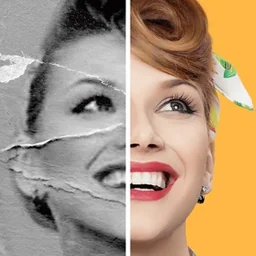
Evoke shows Before and After labels over a portrait with a comparison divider and Save and Share actions. Pixelup also uses a labeled portrait comparison within a Result view, alongside edit categories. The useful part of this pattern is not the divider alone: it is the ability to relate the same area of the source to the same area of the output.
Render both images with the same crop, scale and alignment. A different zoom can make the edited side seem sharper even when the image has not improved. A changed crop can conceal lost content. If the operation intentionally changes composition, use a clearly explained side-by-side or toggle view rather than pretending both images share identical geometry.
Keep labels attached to their respective states when the divider moves. Do not swap Before and After based on drag direction. Maintain a neutral default split that exposes both sides, and allow a full-original and full-result view when inspection needs more space. The comparison should support judgment, not force the original into a tiny unfavorable sliver.


Separate approving the edit from writing a file
Bazaart’s Enhance result offers Cancel and Done around an Original and Enhanced comparison, with transparency visible behind part of the image. Master Cleaner’s Photo Enhancer pairs a Before and After view with Save. Done and Save can reasonably mean different things, but the product must make that distinction consistent.
Done may apply an enhancement to an editing project without exporting it. Save may write an image to a library or device. Define those effects before choosing the label. A person should not discover that Done overwrote their original, or that Save only dismissed a preview with no file created.
Keep the original recoverable through the editing workflow. If accepting an effect creates a project version, make its identity stable so Undo and later comparisons refer to the right source. If saving requires permission, request it at the relevant moment and return a denied request to the same result. Do not regenerate an image because the first export attempt failed.


Name the transformation being judged
AI Photo & Video labels an Enhance result and provides Change, while Lynsify shows a landscape result with Like, Dislike and Try another photo. These controls support different responses: changing the source, judging the output and starting another task. They should not be collapsed into one vague Continue button.
Describe the selected operation in everyday terms. Enhance, colorize, remove scratches and apply a creative style imply different kinds of change. For a restoration, a sharp-looking face can still contain invented detail. Avoid copy that asserts fidelity merely because the result has more contrast or resolution. Give the user enough inspection control to make their own decision.
Keep feedback separate from accepting or discarding a result. A Like action should not secretly save the image, and Dislike should not automatically delete it unless that consequence is explained. If feedback starts a revision, preserve the current version and state what input the next attempt uses. Changing the source should likewise be distinct from adjusting the same result.


Give every result variant a stable identity
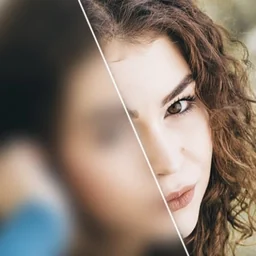
Scanner+ groups comparison with Colorize and Enhance choices, plus Delete, Add Photo, Save and Share. BlurBuster exposes V1, V2 and V3 beside editing and export options, including Save HD marked Pro. Once a product offers several effects or variants, Before and After alone no longer identify which output will be saved.
Show the selected version near the comparison and keep its selection visible after opening export. Preserve the relationship between the original, effect settings and generated output. A thumbnail index can help, but a selected border alone may be unclear with large text or assistive input. Use readable version labels and selection state.
Do not change the inspected version when the user upgrades export quality. If Save HD starts a new processing job, explain that it may produce a new result and let the user review it. If it exports the same result at higher resolution, keep that meaning clear. A paywall should preserve the chosen version, not return the user to a default variant when they leave it.


Let people adjust the edit without losing the baseline
PhotoApp uses a central comparison control between Before and After labels. Eraser’s Unblur Photo screen adds an intensity slider and separate Save, Cancel and Editor actions. The latter introduces another variable: the result depends not only on a generated output, but also on the strength currently being inspected.
Keep comparison position and effect strength independent. Moving the divider changes what is visible, not how much enhancement is applied. A nearby strength control should have a label that prevents those roles from being confused. When strength changes, retain the original baseline and update the displayed output without jumping the viewport unexpectedly.
Specify what Cancel restores. It might return to the previous intensity, leave the effect unapplied, or leave the result workspace entirely. A gesture dismissal should follow the same policy. If stronger output takes time to render, keep the last completed preview identifiable and avoid letting Save export an older strength while a new preview appears selected.


Support inspection beyond a drag gesture
A divider is a visual shortcut, not an adequate sole comparison method. Provide an accessible original/result toggle or named controls that expose each state. Support zoom where details matter, while synchronizing the same focal point across images. Keep the image labels readable against both bright and dark regions.
Resolve gesture conflicts deliberately. A horizontal divider inside a vertically scrolling page should not trap ordinary reading gestures. When zoomed, distinguish image panning from divider movement and provide a reset view. Handle rotation and layout resizing without changing the selected version or cropping one image differently from the other.
Store original asset, result asset, operation parameters, selected version and export state separately. If processing fails, keep the original and any completed result. If export fails, retry the export rather than charging for or starting another generation. Avoid success messages until the destination has confirmed the file write.
Ask people to find a flaw before they save
Use images with faces, fine text, edges, transparent regions and low-light detail. Ask testers to compare a specific area and identify an unwanted change. If they can only admire the overall transformation but cannot inspect the area that matters, the interface is not yet doing the comparison job.
Track comparison use, version changes, strength adjustments, export failures and returns from a paywall. Do not label every saved image a successful enhancement. A person may save to compare elsewhere or because the app offers no other exit. Collect an explicit task-level judgment when you need to understand whether the result met their intent.
Test denied photo-library permission, lost connectivity, an interrupted high-resolution export and leaving the app midway. The inspected result should remain available afterward. Check large text and accessible toggles as well as touch gestures. Trust comes from consistent comparison and safe saving, not from placing a dramatic divider over mismatched images.
Review comparison and export together
Use these checks on a working build, not only on the polished reference state.
- Do source and output use matched framing, zoom and alignment?
- Are Before, After, operation and selected version always identifiable?
- Can people inspect both states without dragging a fine control?
- Are comparison position and effect strength separate variables?
- Does Done apply an edit while Save clearly explains its destination?
- Do quality upgrades and paywall exits preserve the inspected version?
- Can failed export retry without losing or regenerating the result?
Questions and answers
Questions worth resolving before shipping
Is a split slider always the best comparison?
No. It is useful for aligned versions of the same composition. A toggle or side-by-side view may be clearer when the edit changes framing or when accessible input makes precise dragging difficult.
Should the original photo be overwritten?
Avoid making overwrite the hidden default. Keep the source recoverable, name the destination and distinguish project edits from exported files. If overwrite is supported, explain the consequence before committing it.
Can a sharper AI result be described as more accurate?
Not from appearance alone. Reconstruction can introduce details that were not present in the source. Describe the operation and let the user inspect the result without turning sharpness into an unsupported fidelity claim.
Apps referenced in this page
Open the products behind the examples.
 AI Photo Enhancer - EvokeGenerate your own AI portrait!
 Pixelup: AI Photo Enhancer AppUnblur, Colorize, Clear & Fix
 Bazaart AI Photo Editor DesignRemove background and objects
 Master Cleaner - Clean StorageDelete Photos&Contacts,Videos
 AI Photo Video Editor, EnhanceDance Generator,Restore,Filter
 AI Photo Editor: LynsifyHairstyle, Enhance, Collage
 PDF Scanner App: Scanner+ DocsSign Documents & Edit, Scan ID
 BlurBuster - AI Photo EnhancerFix & Enhance photo quality
 PhotoApp - AI Photo EnhancerEnhance, Unblur, Fix Image
 AI Background Remover - EraserEreasy・Remove Objects & Blur
2,805 apps in the top charts.Ask them anything.
Inspect real comparison, version-selection and export flows with ScreensDesign Pro before deciding how people will approve your own photo results.