
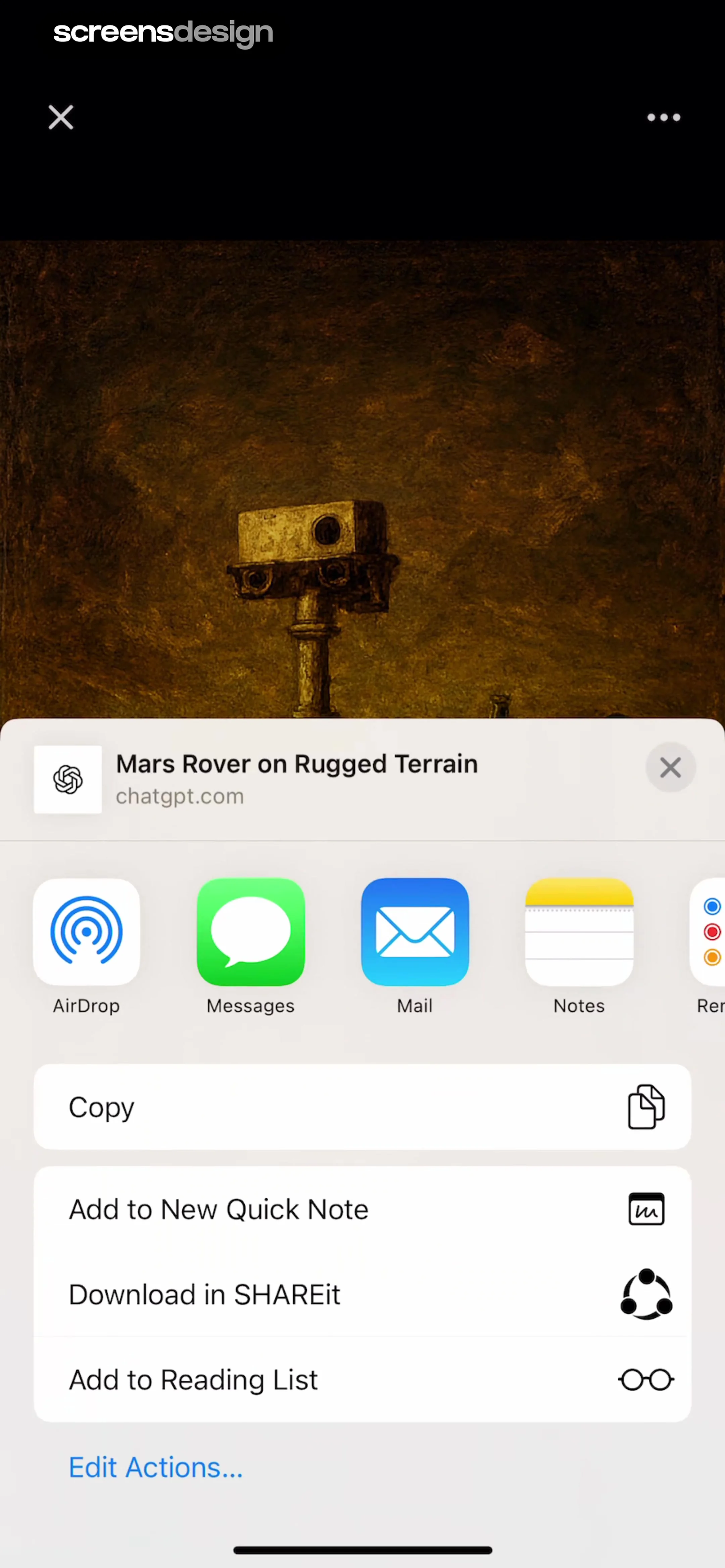
 See the flow
  Yard AI: Backyard Design
The screen features a centered, light-gray circular container holding a green camera-scanner icon, symbolizing the active processing of an image.
 See the flow
  v0
v0Top navigation bar, followed by a chat bubble user prompt, a vertical list of AI execution steps, and a fixed bottom input bar.
 See the flow
  Rork
RorkCentered content with a top-right close button and a top-center app branding pill.
 See the flow
  Tattoo AI - Tattoo Design
This screen displays a loading state for an AI-powered tattoo generation process, featuring a large '15%' progress indicator and the text 'Generating Ideas...' centered on a dark, textured background.
 See the flow
  AI Summary - Meeting Notes
This screen displays an AI processing state for a note-taking application, specifically showing the progress of generating a summary for a recording titled 'UI Design Audio Sample Test'.
 See the flow AI Summary - Meeting Notes
The center of the screen features a progress card showing four steps: 'Processing text', 'Analyzing key points', 'Generating summary', and 'Finalizing details', with the first three at 100% and the last at 50%.
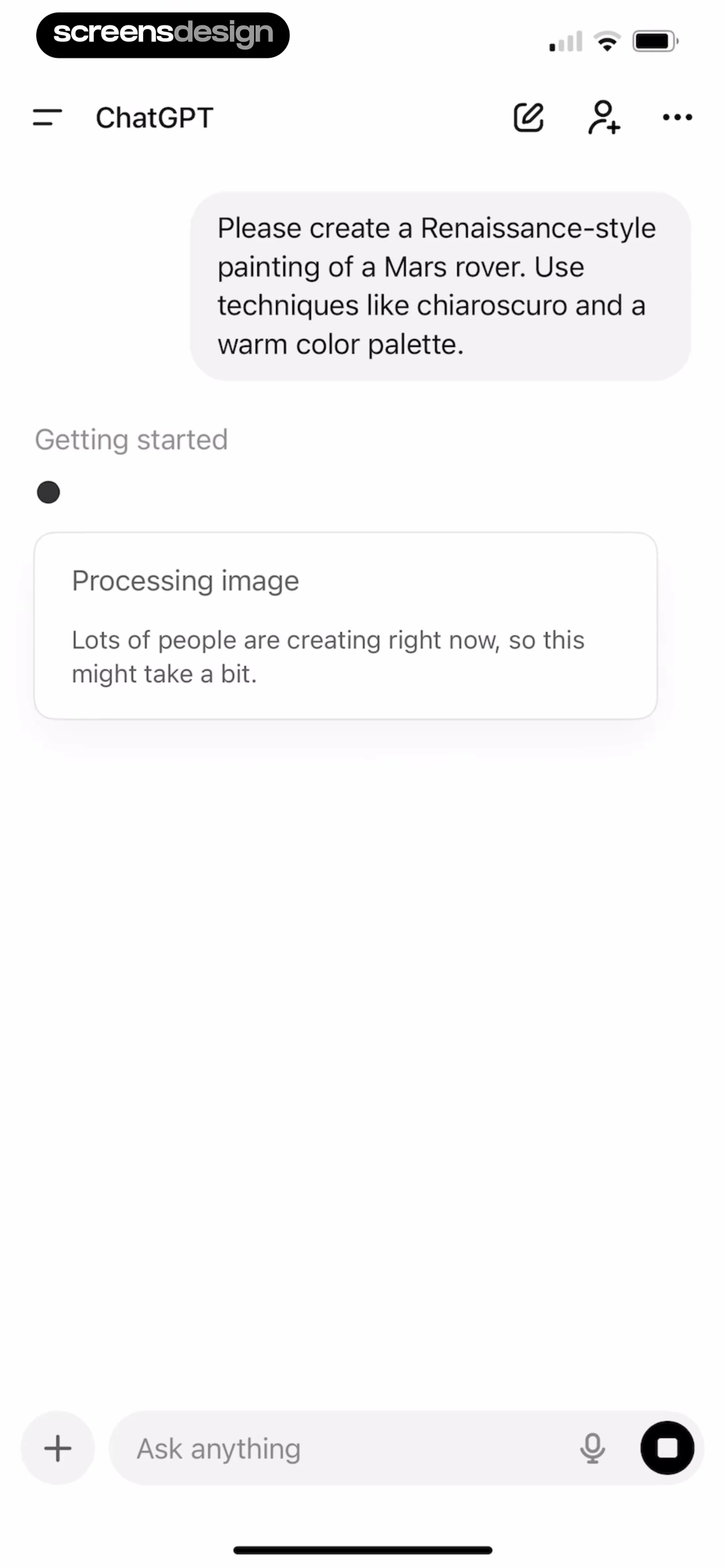 See the flow
  ChatGPT
Top navigation bar, central chat history area with user prompt and status card, bottom input bar.
 See the flow
  Fishbrain - Fishing App
This screen shows an 'Analyzing image...' state within the Fishbrain app's 'Fish ID' feature.
 See the flow
  Voice Recorder-Audio Memos Арр
The center of the screen features a loading spinner with the text 'Generating your summary...', indicating an ongoing AI process.
 See the flow Tattoo AI - Tattoo Design
This screen displays a loading or processing state for an AI tattoo design application.
 See the flow Tattoo AI - Tattoo Design
This screen displays a loading or processing state for an AI-powered tattoo placement guide.
 See the flow
  invideo AI: AI Video Generator
Top navigation bar, followed by a user prompt bubble, a vertical list of status updates, and a bottom navigation bar.
 See the flow Rork
Top-aligned header text, followed by a chat-style conversation flow in the middle, and a bottom-aligned progress button.
 See the flow
  AI Song Generator: Mozart
The screen is centered with a large logo in the middle, text above and below, and a back button in the top left corner.
 See the flow
  Planner 5D: AI Home Design
Top navigation bar, header text, centered modal with illustration and status text, bottom instruction text, and a bottom action button.
 See the flow Planner 5D: AI Home Design
Top navigation bar, central loading card, and bottom primary action button.
 See the flow AI Summary - Meeting Notes
The modal features a list of four steps: 'Analyzing text', 'Applying voice', 'Generating audio', and 'Finalizing details'.
 See the flow invideo AI: AI Video Generator
The main content area features a large, light-gray loading card with a spinner icon and the text 'Waiting...', accompanied by a progress bar currently at 0%.
 See the flow AI Song Generator: Mozart
This screen displays a loading or processing state for an AI music generation app.
 See the flow
  Refina: AI Plastic Surgery
This is a loading or processing screen in the Refina app, featuring a clean, minimalist design with a white background.


