screensdesign

Mobile save and organize flow examples

Scroll The Bible: Managing Saved Content

Open recorded flow
  1. Step 1 · 6:13

    Scroll The Bible: Top header with title and action button, followed by two categorized list sections containing cards.See the flow
    Scroll The Bible

    Top header with title and action button, followed by two categorized list sections containing cards.

  2. Step 2 · 6:15

    Scroll The Bible: Top navigation bar followed by a vertical list of study cards.See the flow
    Scroll The Bible

    Top navigation bar followed by a vertical list of study cards.

  3. Step 3 · 6:17

    Scroll The Bible: Top close button, title, verse container, followed by a vertical stack of meaning, trivia, and application cards.See the flow
    Scroll The Bible

    Top close button, title, verse container, followed by a vertical stack of meaning, trivia, and application cards.

  4. Step 4 · 6:20

    Scroll The Bible: Top navigation bar followed by a vertical list of individual verse cards.See the flow
    Scroll The Bible

    Top navigation bar followed by a vertical list of individual verse cards.

  5. Step 5 · 6:25

    Scroll The Bible: Top navigation bar followed by a vertical list of note cards.See the flow
    Scroll The Bible

    Top navigation bar followed by a vertical list of note cards.

  6. Step 6 · 6:27

    Scroll The Bible: Top navigation bar followed by a vertical list of note cards, with a centered modal dialog overlaying the content.See the flow
    Scroll The Bible

    Top navigation bar followed by a vertical list of note cards, with a centered modal dialog overlaying the content.


Litres: Audio: Browsing and Saving Content

Open recorded flow
  1. Step 1 · 0:20

    Litres: Audio: Top search bar, horizontal tab navigation, promotional banner, vertical scrollable list of book recommendations and new releases, bottom navigation bar.See the flow
    Litres: Audio

    Top search bar, horizontal tab navigation, promotional banner, vertical scrollable list of book recommendations and new releases, bottom navigation bar.

  2. Step 2 · 0:28

    Litres: Audio: Top header with back button and title, followed by a vertical list of audiobook cards, and a fixed bottom navigation bar.See the flow
    Litres: Audio

    Top header with back button and title, followed by a vertical list of audiobook cards, and a fixed bottom navigation bar.

  3. Step 3 · 0:35

    Litres: Audio: Top navigation bar followed by a vertical list of book cards, with a bottom-anchored modal overlaying the lower half of the screen.See the flow
    Litres: Audio

    Top navigation bar followed by a vertical list of book cards, with a bottom-anchored modal overlaying the lower half of the screen.

  4. Step 4 · 0:38

    Litres: Audio: Top navigation bar with close button and title, followed by a secondary action, a central empty state illustration with text, and a primary call-to-action button at the bottom.See the flow
    Litres: Audio

    Top navigation bar with close button and title, followed by a secondary action, a central empty state illustration with text, and a primary call-to-action button at the bottom.

  5. Step 5 · 0:46

    Litres: Audio: The screen is a modal with a header containing a title and close button, followed by a text input field and a primary action button.See the flow
    Litres: Audio

    The screen is a modal with a header containing a title and close button, followed by a text input field and a primary action button.

  6. Step 6 · 0:51

    Litres: Audio: Header with close button and title, followed by a 'New list' button, a list selection card, and a bottom 'Apply' button.See the flow
    Litres: Audio

    Header with close button and title, followed by a 'New list' button, a list selection card, and a bottom 'Apply' button.

VSCO: Photo & Video Editor: Sharing and Saving Media

Open recorded flow
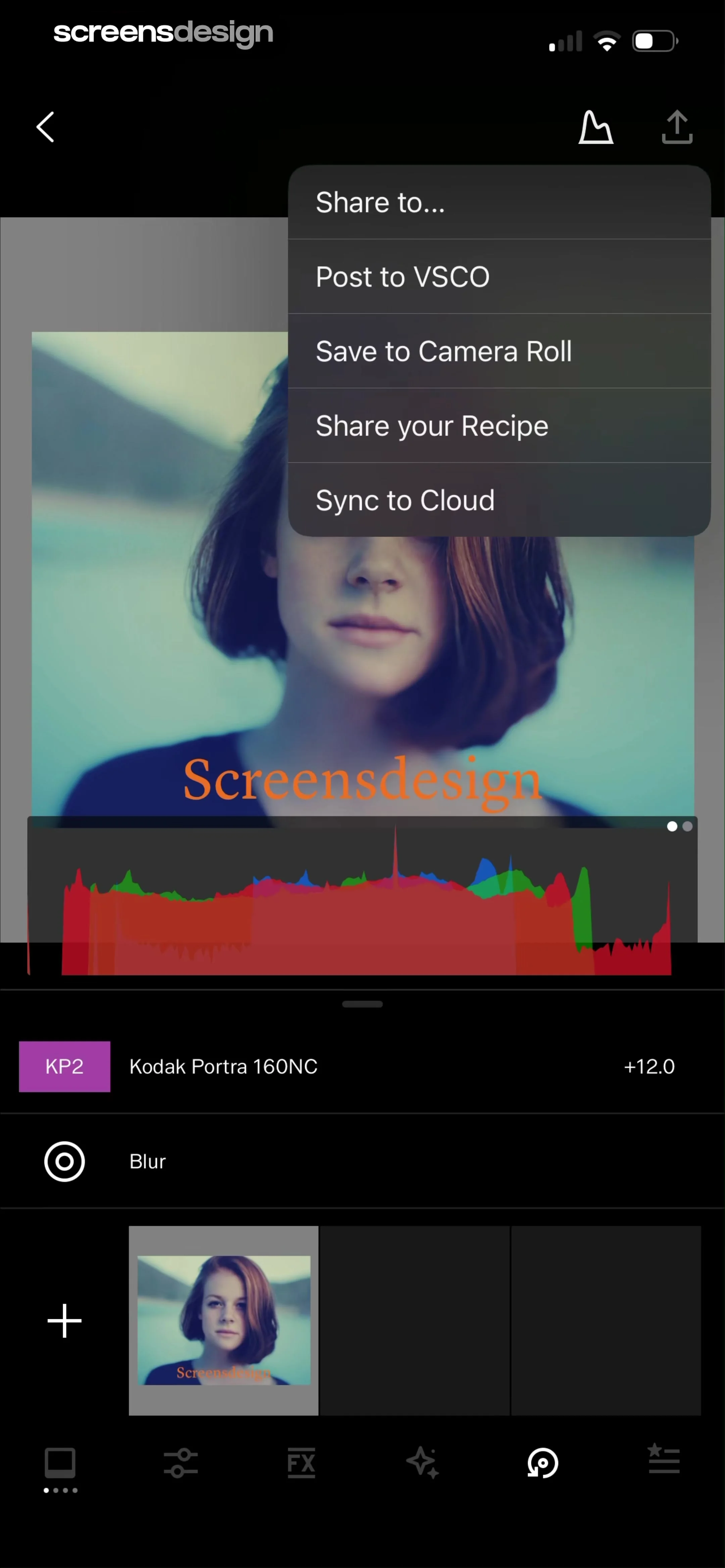
  1. Step 1 · 7:06

    VSCO: Photo & Video Editor: Top navigation bar with share menu, central photo preview with histogram, middle list of applied edits, and bottom navigation bar.See the flow
    VSCO: Photo & Video Editor

    Top navigation bar with share menu, central photo preview with histogram, middle list of applied edits, and bottom navigation bar.

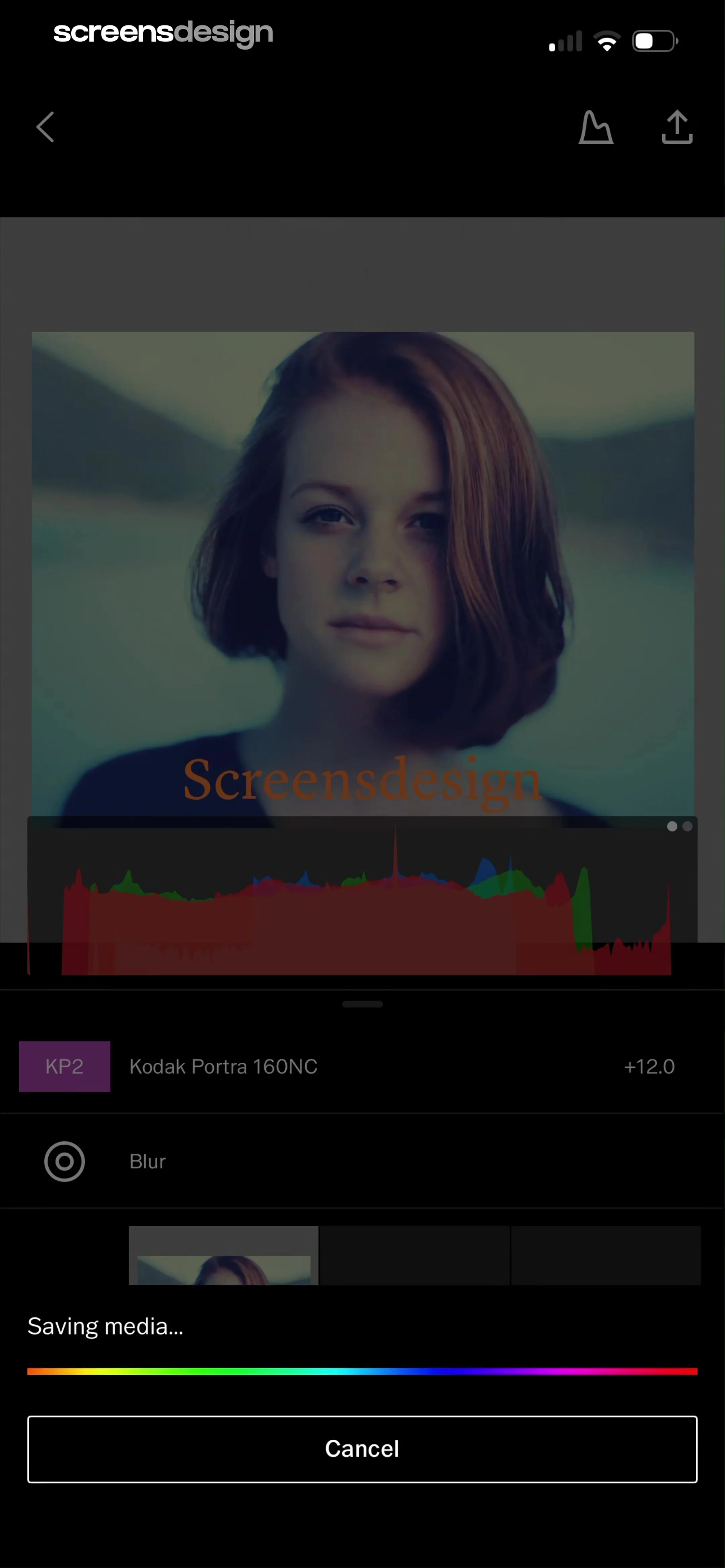
  2. Step 2 · 7:08

    VSCO: Photo & Video Editor: Top navigation bar, central image preview with histogram, list of applied filters/adjustments, bottom progress indicator, and a final cancel button.See the flow
    VSCO: Photo & Video Editor

    Top navigation bar, central image preview with histogram, list of applied filters/adjustments, bottom progress indicator, and a final cancel button.

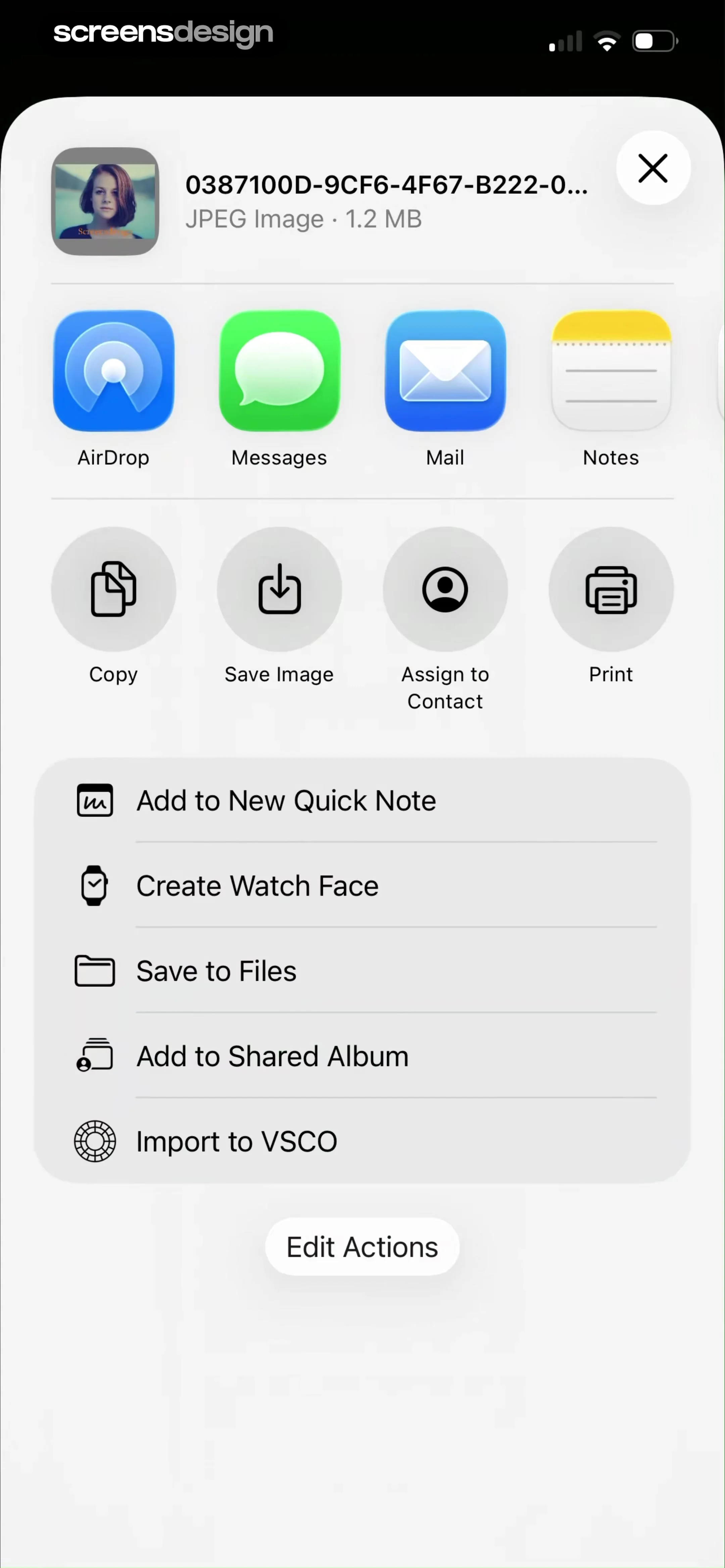
  3. Step 3 · 7:12

    VSCO: Photo & Video Editor: Top header with file info, horizontal app sharing row, grid of action icons, vertical list of secondary actions, and a bottom edit button.See the flow
    VSCO: Photo & Video Editor

    Top header with file info, horizontal app sharing row, grid of action icons, vertical list of secondary actions, and a bottom edit button.

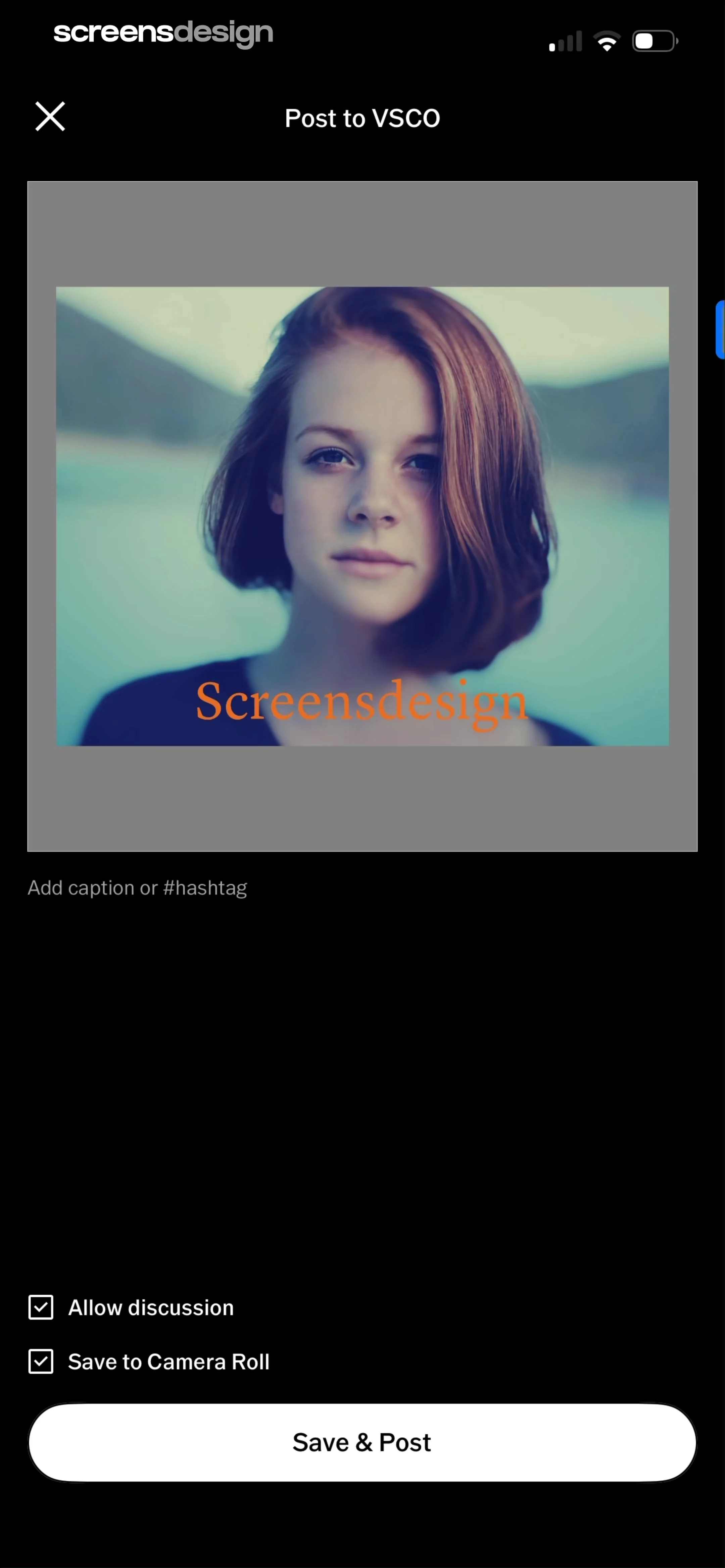
  4. Step 4 · 7:22

    VSCO: Photo & Video Editor: Top navigation bar, central image preview, text input field, checkbox list, and a large bottom action button.See the flow
    VSCO: Photo & Video Editor

    Top navigation bar, central image preview, text input field, checkbox list, and a large bottom action button.

  5. Step 5 · 7:31

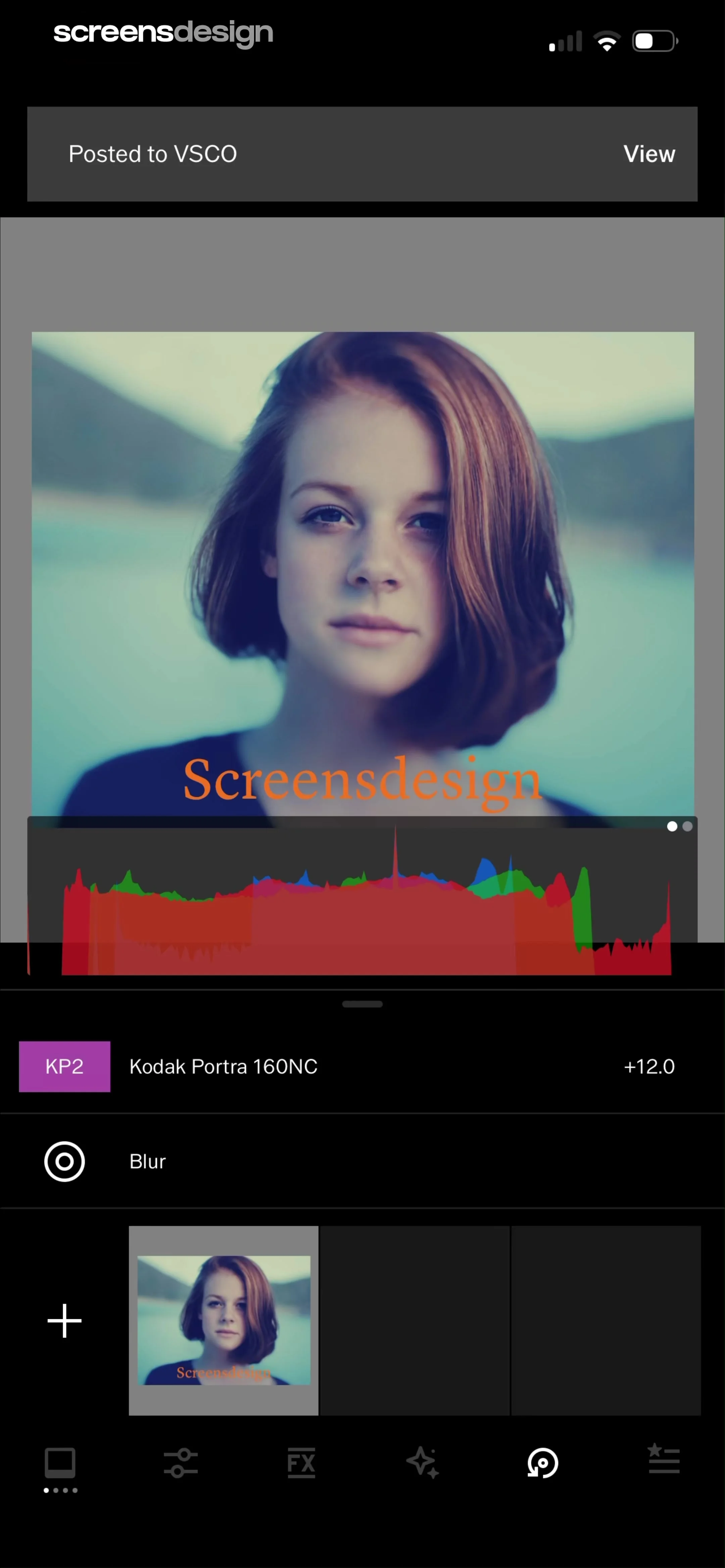
    VSCO: Photo & Video Editor: Top notification banner, central image preview with histogram, middle list of applied edits, bottom filmstrip, and bottom navigation bar.See the flow
    VSCO: Photo & Video Editor

    Top notification banner, central image preview with histogram, middle list of applied edits, bottom filmstrip, and bottom navigation bar.

  6. Step 6 · 7:34

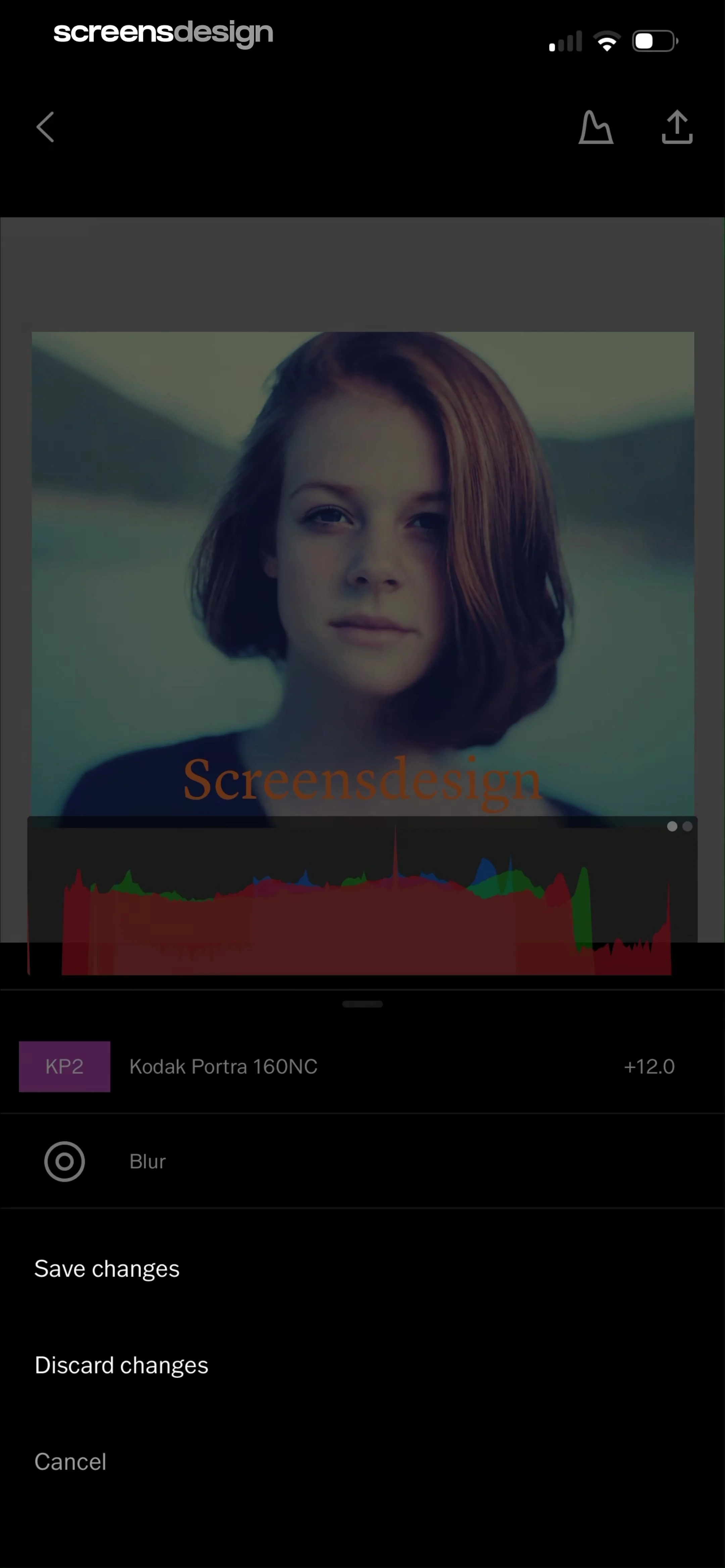
    VSCO: Photo & Video Editor: Top navigation bar, central image preview with histogram overlay, and a bottom list of action buttons.See the flow
    VSCO: Photo & Video Editor

    Top navigation bar, central image preview with histogram overlay, and a bottom list of action buttons.

Vrbo Vacation Rentals: Managing Saved Trips

Open recorded flow
  1. Step 1 · 3:42

    Vrbo Vacation Rentals: Top back button, central illustration, greeting text, primary CTA button, secondary wishlist card with CTA, and a bottom photo collage.See the flow
    Vrbo Vacation Rentals

    Top back button, central illustration, greeting text, primary CTA button, secondary wishlist card with CTA, and a bottom photo collage.

  2. Step 2 · 3:44

    Vrbo Vacation Rentals: Header with title and action button, followed by a 'Saved' trip card, a 'Wishlist' promotional card, and a bottom grid of inspirational travel photos.See the flow
    Vrbo Vacation Rentals

    Header with title and action button, followed by a 'Saved' trip card, a 'Wishlist' promotional card, and a bottom grid of inspirational travel photos.

  3. Step 3 · 3:46

    Vrbo Vacation Rentals: Top navigation bar with close button, followed by a header, two input fields, and a primary action button.See the flow
    Vrbo Vacation Rentals

    Top navigation bar with close button, followed by a header, two input fields, and a primary action button.

  4. Step 4 · 4:12

    Vrbo Vacation Rentals: Header with title and action button, followed by a list of saved trip cards, and a bottom section for wishlist creation.See the flow
    Vrbo Vacation Rentals

    Header with title and action button, followed by a list of saved trip cards, and a bottom section for wishlist creation.

  5. Step 5 · 4:16

    Vrbo Vacation Rentals: Top navigation bar, followed by trip header, tabbed navigation, empty state illustration/text, and a bottom feedback section.See the flow
    Vrbo Vacation Rentals

    Top navigation bar, followed by trip header, tabbed navigation, empty state illustration/text, and a bottom feedback section.

Found an example you like?See the whole story.