screensdesign

Mobile permission request flow examples

Hypelist: Create & Share Lists: Permissions Setup

Open recorded flow
  1. Step 1 · 2:13

    Hypelist: Create & Share Lists: Top navigation bar with progress indicator, centered title and subtitle, vertical list of three permission cards, and a large bottom action button.See the flow
    Hypelist: Create & Share Lists

    Top navigation bar with progress indicator, centered title and subtitle, vertical list of three permission cards, and a large bottom action button.

  2. Step 2 · 2:14

    Hypelist: Create & Share Lists: Header text at top, list of permission toggles in the middle, system modal overlay in the center, and a large button at the bottom.See the flow
    Hypelist: Create & Share Lists

    Header text at top, list of permission toggles in the middle, system modal overlay in the center, and a large button at the bottom.

  3. Step 3 · 2:17

    Hypelist: Create & Share Lists: Top section with contact avatars and count, middle section with explanatory text, bottom section with two primary action buttons.See the flow
    Hypelist: Create & Share Lists

    Top section with contact avatars and count, middle section with explanatory text, bottom section with two primary action buttons.

  4. Step 4 · 2:21

    Hypelist: Create & Share Lists: Header text at top, list of permission items in the center, system modal overlay, and a large button at the bottom.See the flow
    Hypelist: Create & Share Lists

    Header text at top, list of permission items in the center, system modal overlay, and a large button at the bottom.

  5. Step 5 · 2:27

    Hypelist: Create & Share Lists: Top navigation and progress bar, followed by a header, three permission cards, and a bottom primary action button.See the flow
    Hypelist: Create & Share Lists

    Top navigation and progress bar, followed by a header, three permission cards, and a bottom primary action button.


Plant Identifier, Care: Planty: Permissions Toggles Screen

Open recorded flow
  1. Step 1 · 1:19

    Plant Identifier, Care: Planty: Top progress bar, header text, central character illustration, two permission rows with toggles, and a bottom primary action button.See the flow
    Plant Identifier, Care: Planty

    Top progress bar, header text, central character illustration, two permission rows with toggles, and a bottom primary action button.

  2. Step 2 · 1:21

    Plant Identifier, Care: Planty: Top progress dots, header text, central illustration, system modal overlay, list of permission toggles, and a bottom primary action button.See the flow
    Plant Identifier, Care: Planty

    Top progress dots, header text, central illustration, system modal overlay, list of permission toggles, and a bottom primary action button.

  3. Step 3 · 1:23

    Plant Identifier, Care: Planty: Top progress indicator, header text, central illustration, system permission modal, list of permission toggles, and a bottom primary action button.See the flow
    Plant Identifier, Care: Planty

    Top progress indicator, header text, central illustration, system permission modal, list of permission toggles, and a bottom primary action button.

Map My Run GPS Running Tracker: Bluetooth Permission Prompt

Open recorded flow
  1. Step 1 · 0:00

    Map My Run GPS Running Tracker: A single centered icon on a solid color background.See the flow
    Map My Run GPS Running Tracker

    A single centered icon on a solid color background.

  2. Step 2 · 0:01

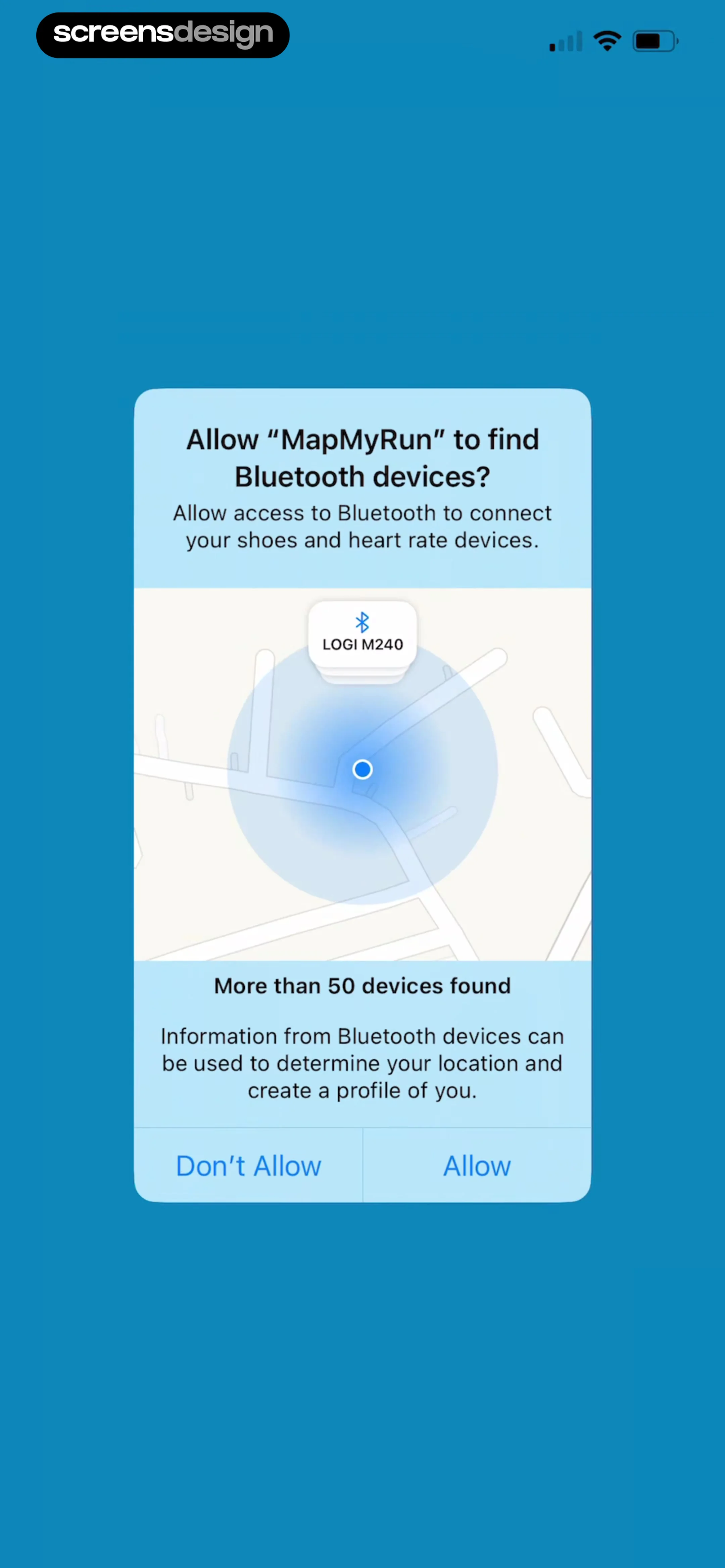
    Map My Run GPS Running Tracker: A centered modal window containing a header, a central map-based graphic, descriptive text, and a two-button footer.See the flow
    Map My Run GPS Running Tracker

    A centered modal window containing a header, a central map-based graphic, descriptive text, and a two-button footer.

  3. Step 3 · 0:05

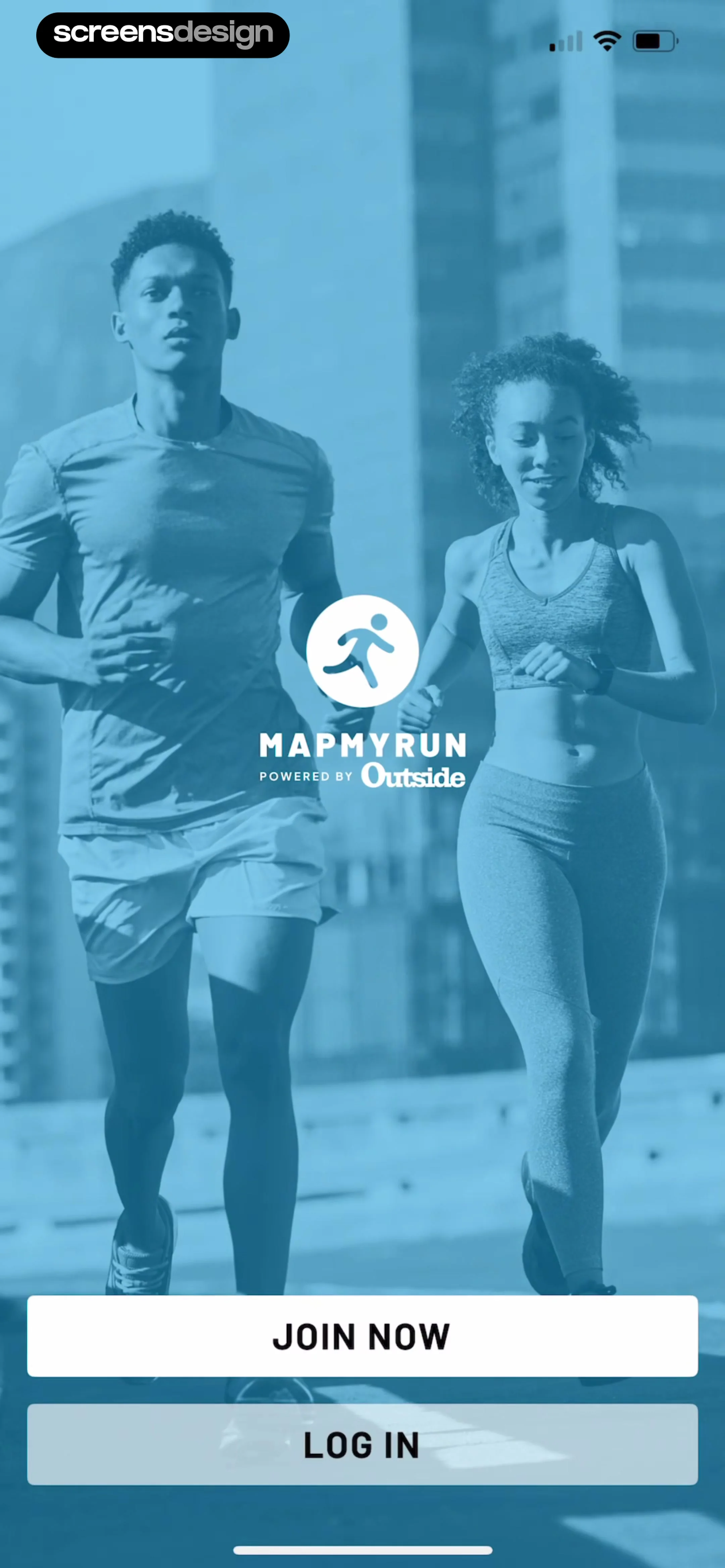
    Map My Run GPS Running Tracker: The screen features a full-bleed background image with a blue overlay, a centered logo, and two stacked buttons at the bottom.See the flow
    Map My Run GPS Running Tracker

    The screen features a full-bleed background image with a blue overlay, a centered logo, and two stacked buttons at the bottom.

Found an example you like?See the whole story.