screensdesign

Mobile messaging flow examples

Heyyyy: Stories that text back: Chatting with an AI Character

Open recorded flow
  1. Step 1 · 1:59

    Heyyyy: Stories that text back: Top navigation bar, progress indicator, large empty chat history area, bottom message input bar.See the flow
    Heyyyy: Stories that text back

    Top navigation bar, progress indicator, large empty chat history area, bottom message input bar.

  2. Step 2 · 2:10

    Heyyyy: Stories that text back: Top navigation bar, followed by a progress indicator, a central chat history area, and a bottom input bar with an integrated keyboard.See the flow
    Heyyyy: Stories that text back

    Top navigation bar, followed by a progress indicator, a central chat history area, and a bottom input bar with an integrated keyboard.

  3. Step 3 · 2:24

    Heyyyy: Stories that text back: Top navigation bar, progress bar, chat history area, bottom modal overlay, and bottom text input bar.See the flow
    Heyyyy: Stories that text back

    Top navigation bar, progress bar, chat history area, bottom modal overlay, and bottom text input bar.

  4. Step 4 · 2:28

    Heyyyy: Stories that text back: Top header with close button and tab switcher, followed by a multi-column image grid, and bottom floating action buttons.See the flow
    Heyyyy: Stories that text back

    Top header with close button and tab switcher, followed by a multi-column image grid, and bottom floating action buttons.

  5. Step 5 · 2:32

    Heyyyy: Stories that text back: Top navigation bar with close button, central image area, and bottom input bar with a currency-based action button.See the flow
    Heyyyy: Stories that text back

    Top navigation bar with close button, central image area, and bottom input bar with a currency-based action button.

  6. Step 6 · 2:50

    Heyyyy: Stories that text back: Top navigation bar, progress indicator, scrollable chat history, and bottom message input bar.See the flow
    Heyyyy: Stories that text back

    Top navigation bar, progress indicator, scrollable chat history, and bottom message input bar.

Yik Yak: Creating a Group Chat

Open recorded flow
  1. Step 1 · 7:20

    Yik Yak: Top navigation bar followed by a header text, a sub-header, and a vertical list of selectable options within a rounded container.See the flow
    Yik Yak

    Top navigation bar followed by a header text, a sub-header, and a vertical list of selectable options within a rounded container.

  2. Step 2 · 7:26

    Yik Yak: Top navigation bar, central image placeholder, text input field, large primary button, and bottom system keyboard.See the flow
    Yik Yak

    Top navigation bar, central image placeholder, text input field, large primary button, and bottom system keyboard.

  3. Step 3 · 7:29

    Yik Yak: Header with back button and title, followed by two sections of selectable list items, a footer disclaimer, and a primary action button at the bottom.See the flow
    Yik Yak

    Header with back button and title, followed by two sections of selectable list items, a footer disclaimer, and a primary action button at the bottom.

  4. Step 4 · 7:33

    Yik Yak: Top navigation, header text, profile icon, username input, shuffle button, disclaimer, primary action button, and keyboard.See the flow
    Yik Yak

    Top navigation, header text, profile icon, username input, shuffle button, disclaimer, primary action button, and keyboard.

  5. Step 5 · 7:37

    Yik Yak: Top warning banner, followed by instructional text, user identity preview (avatar and name), shuffle button, disclaimer, and a large primary action button above the keyboard.See the flow
    Yik Yak

    Top warning banner, followed by instructional text, user identity preview (avatar and name), shuffle button, disclaimer, and a large primary action button above the keyboard.

Vivino: Drink The Right Wine: Using Customer Support Chat

Open recorded flow
  1. Step 1 · 13:49

    Vivino: Drink The Right Wine: Header with title, system message text, empty chat area, and bottom input field with keyboard.See the flow
    Vivino: Drink The Right Wine

    Header with title, system message text, empty chat area, and bottom input field with keyboard.

  2. Step 2 · 13:55

    Vivino: Drink The Right Wine: Header, system message, chat history, topic selection card, bottom input bar.See the flow
    Vivino: Drink The Right Wine

    Header, system message, chat history, topic selection card, bottom input bar.

  3. Step 3 · 14:03

    Vivino: Drink The Right Wine: Top navigation bar followed by a search bar and a vertical list of action buttons.See the flow
    Vivino: Drink The Right Wine

    Top navigation bar followed by a search bar and a vertical list of action buttons.

  4. Step 4 · 14:05

    Vivino: Drink The Right Wine: Top navigation bar with back button and title, followed by centered confirmation text, and two stacked action buttons at the bottom.See the flow
    Vivino: Drink The Right Wine

    Top navigation bar with back button and title, followed by centered confirmation text, and two stacked action buttons at the bottom.

HelloBot - Astrology & Tarot: Training a Chatbot

Open recorded flow
  1. Step 1 · 4:11

    HelloBot - Astrology & Tarot: A chat interface with a centered modal overlaying the conversation history.See the flow
    HelloBot - Astrology & Tarot

    A chat interface with a centered modal overlaying the conversation history.

  2. Step 2 · 4:33

    HelloBot - Astrology & Tarot: Top navigation bar, followed by a yellow instruction banner, and a central chat conversation area.See the flow
    HelloBot - Astrology & Tarot

    Top navigation bar, followed by a yellow instruction banner, and a central chat conversation area.

  3. Step 3 · 4:36

    HelloBot - Astrology & Tarot: Top navigation bar, followed by a yellow instruction banner, a chat conversation area in the middle, and a large button at the bottom.See the flow
    HelloBot - Astrology & Tarot

    Top navigation bar, followed by a yellow instruction banner, a chat conversation area in the middle, and a large button at the bottom.

ChatGPT: Group Chat Creation

Open recorded flow
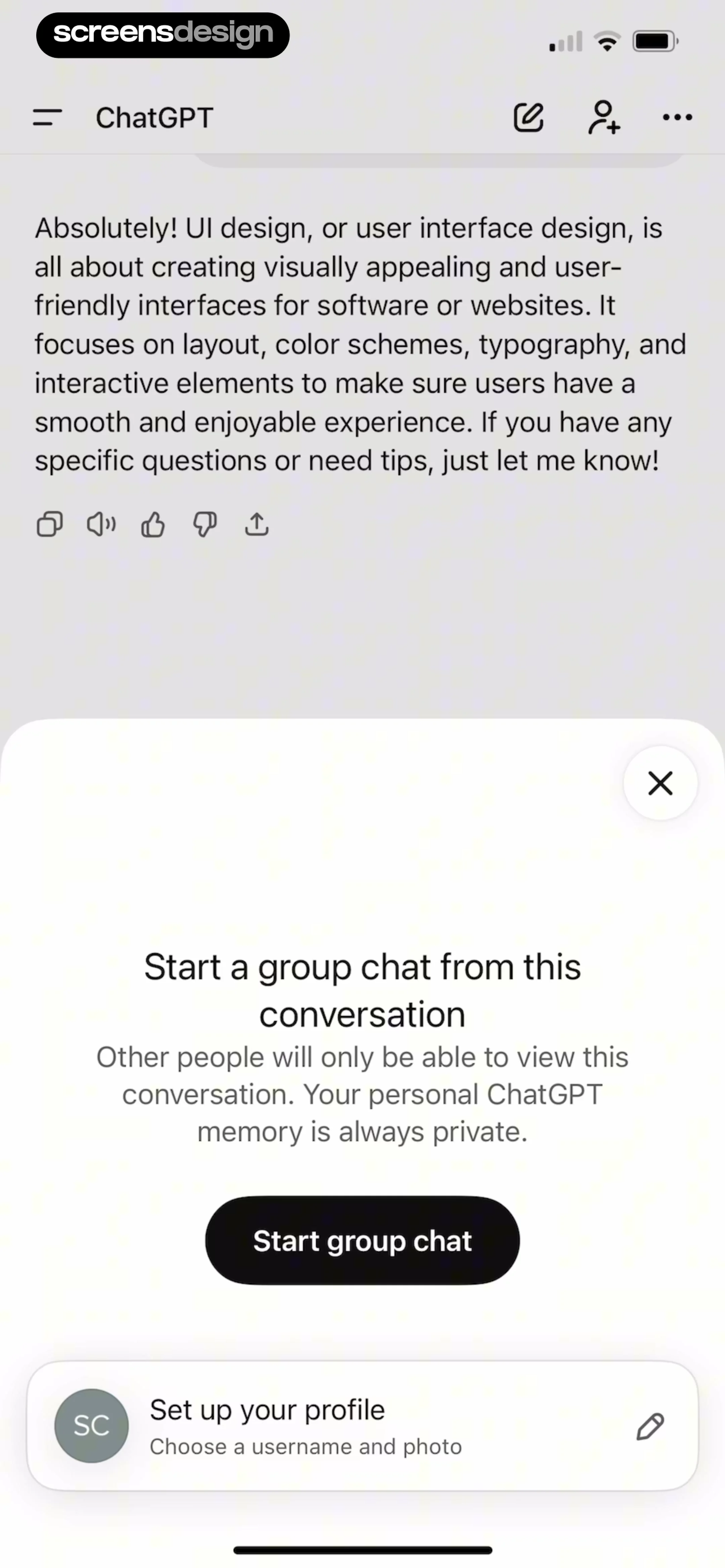
  1. Step 1 · 5:07

    ChatGPT: Top navigation bar, main chat content area, centered modal overlay, and a bottom profile setup card.See the flow
    ChatGPT

    Top navigation bar, main chat content area, centered modal overlay, and a bottom profile setup card.

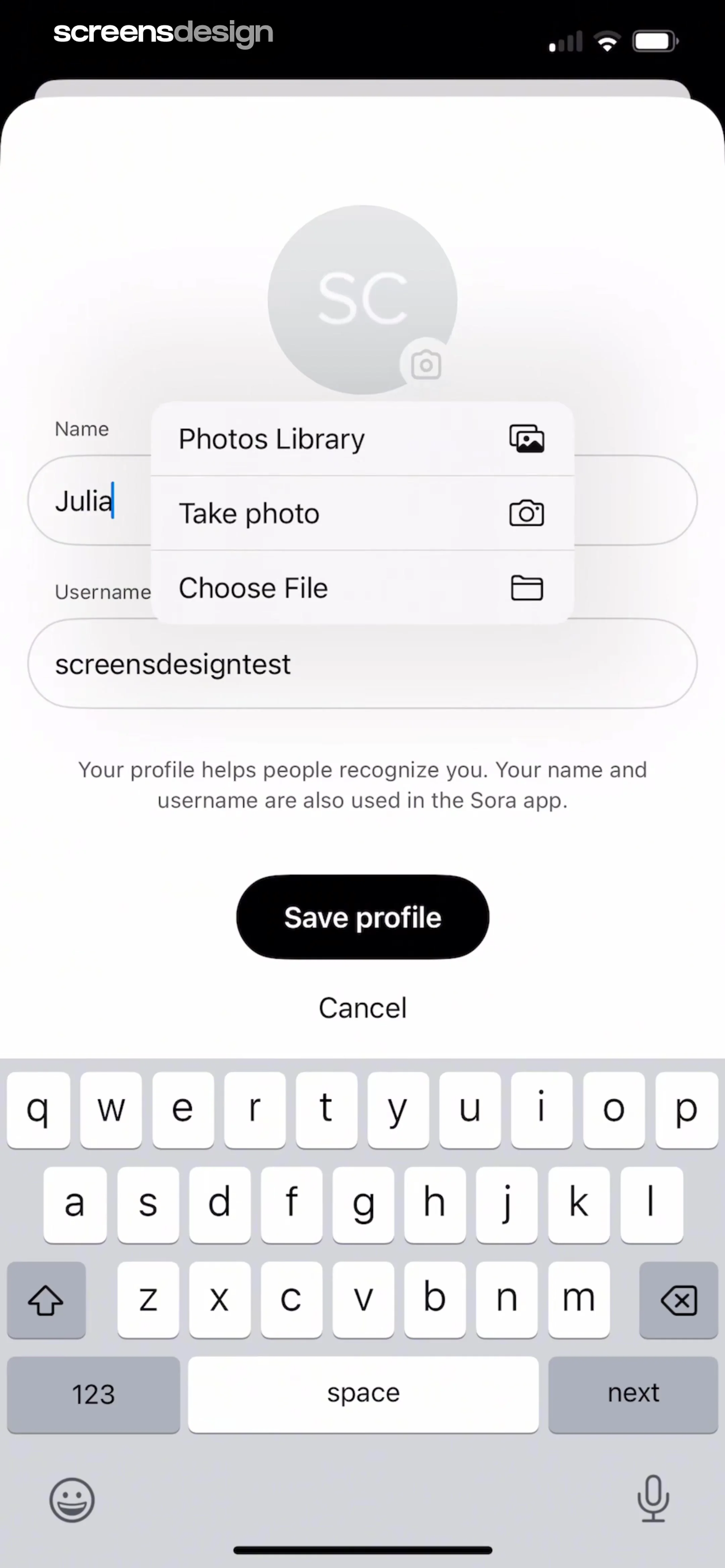
  2. Step 2 · 5:17

    ChatGPT: Avatar at top, followed by two input fields, a floating selection menu, descriptive text, a primary button, and a cancel link, with a keyboard at the bottom.See the flow
    ChatGPT

    Avatar at top, followed by two input fields, a floating selection menu, descriptive text, a primary button, and a cancel link, with a keyboard at the bottom.

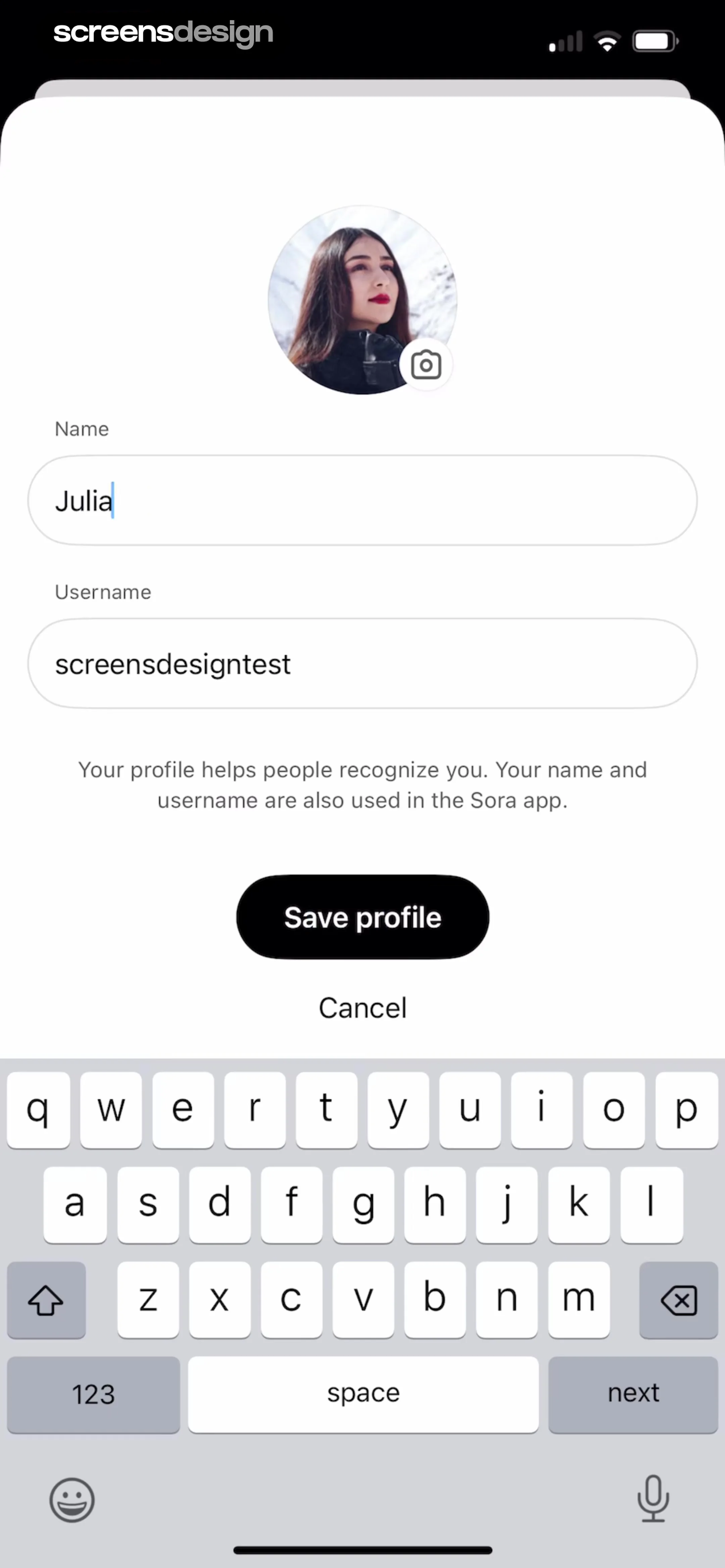
  3. Step 3 · 5:41

    ChatGPT: Avatar at top, followed by two input fields, descriptive text, primary button, secondary link, and system keyboard at the bottom.See the flow
    ChatGPT

    Avatar at top, followed by two input fields, descriptive text, primary button, secondary link, and system keyboard at the bottom.

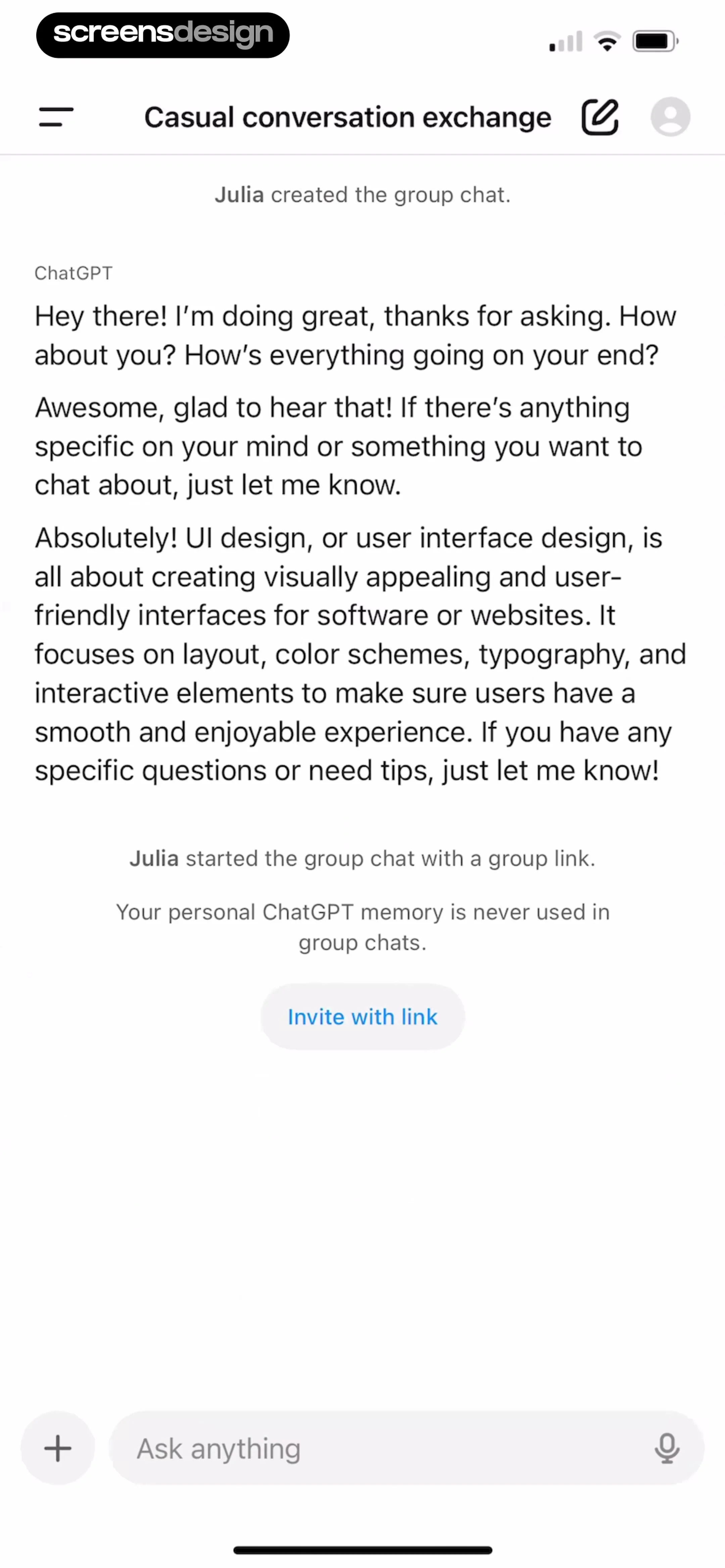
  4. Step 4 · 5:51

    ChatGPT: Top navigation bar, central chat history area with system messages and text bubbles, centered invite button, and bottom fixed input bar.See the flow
    ChatGPT

    Top navigation bar, central chat history area with system messages and text bubbles, centered invite button, and bottom fixed input bar.

  5. Step 5 · 6:01

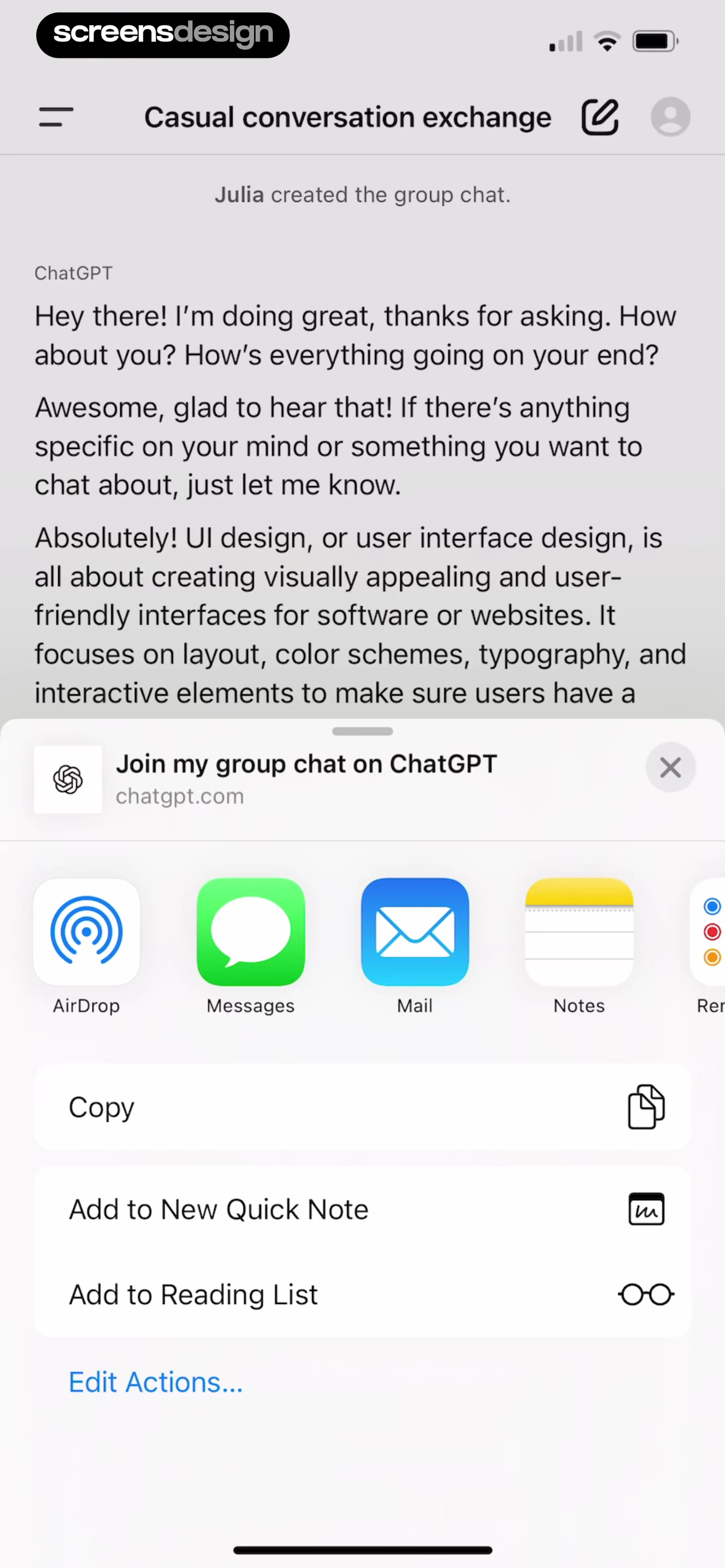
    ChatGPT: Top navigation bar, chat content area, and a bottom-anchored iOS share sheet modal.See the flow
    ChatGPT

    Top navigation bar, chat content area, and a bottom-anchored iOS share sheet modal.

  6. Step 6 · 6:06

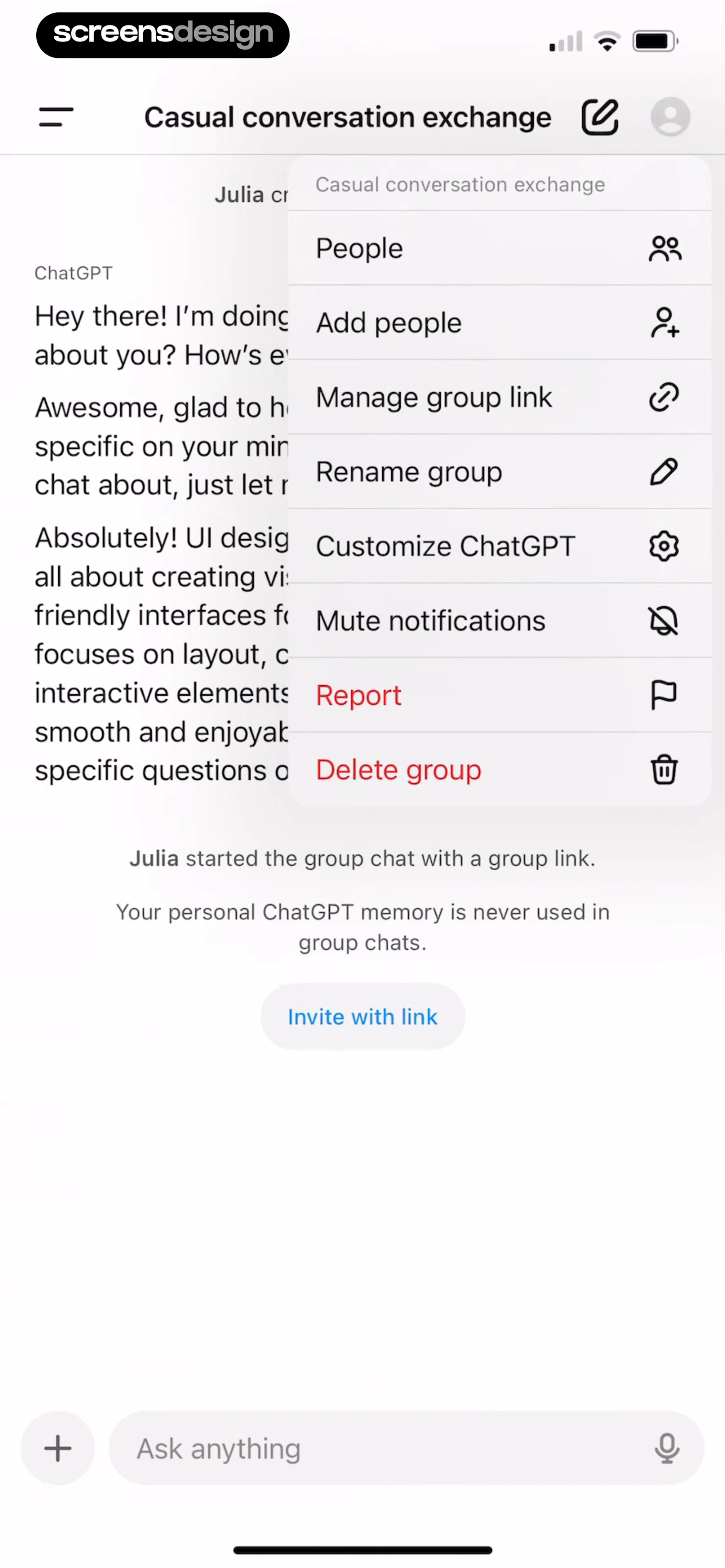
    ChatGPT: Top navigation bar, chat conversation area with a centered modal overlay, and a bottom input bar.See the flow
    ChatGPT

    Top navigation bar, chat conversation area with a centered modal overlay, and a bottom input bar.

  7. Step 7 · 6:07

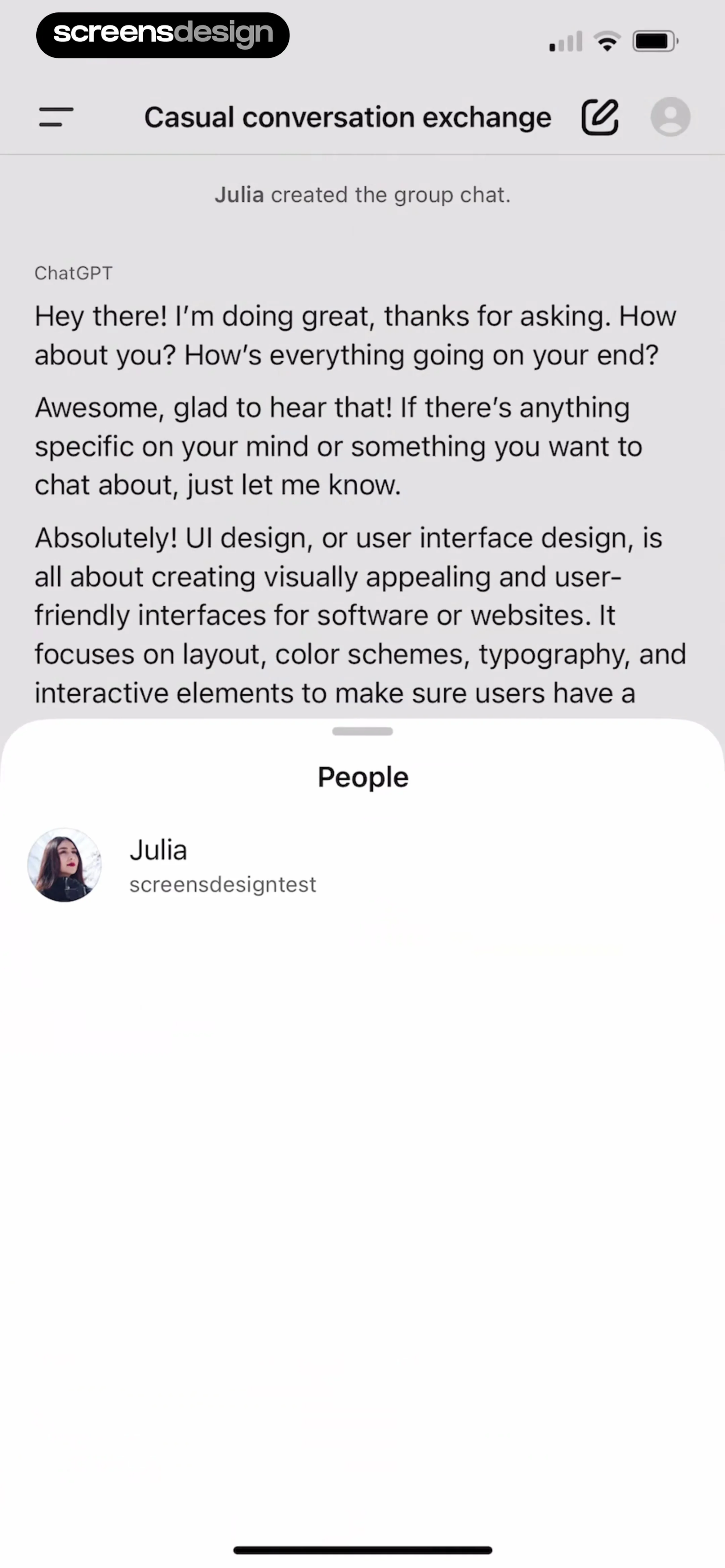
    ChatGPT: Top navigation bar followed by chat history, with a bottom sheet overlaying the lower half of the screen.See the flow
    ChatGPT

    Top navigation bar followed by chat history, with a bottom sheet overlaying the lower half of the screen.

Found an example you like?See the whole story.