screensdesign

Mobile history management flow examples

CamScanning: AI Measure & Scan: Browsing History

Open recorded flow
  1. Step 1 · 6:16

    CamScanning: AI Measure & Scan: Header with app name, followed by a 2x2 grid of feature cards, a 'Fun features' list, and a 'Recently Used' section with a tab filter and list items.See the flow
    CamScanning: AI Measure & Scan

    Header with app name, followed by a 2x2 grid of feature cards, a 'Fun features' list, and a 'Recently Used' section with a tab filter and list items.

  2. Step 2 · 6:18

    CamScanning: AI Measure & Scan: Header with logo and icons, followed by a horizontal tab bar, a vertical list of recent items, and a large floating-style action button at the bottom.See the flow
    CamScanning: AI Measure & Scan

    Header with logo and icons, followed by a horizontal tab bar, a vertical list of recent items, and a large floating-style action button at the bottom.

  3. Step 3 · 6:22

    CamScanning: AI Measure & Scan: Top navigation bar, followed by a horizontal category selector, a central empty state illustration with text, and a primary call-to-action button.See the flow
    CamScanning: AI Measure & Scan

    Top navigation bar, followed by a horizontal category selector, a central empty state illustration with text, and a primary call-to-action button.

  4. Step 4 · 6:26

    CamScanning: AI Measure & Scan: Header with logo and icons, followed by a filter tab bar, a list of recent scan items, and a large floating-style action button at the bottom.See the flow
    CamScanning: AI Measure & Scan

    Header with logo and icons, followed by a filter tab bar, a list of recent scan items, and a large floating-style action button at the bottom.

  5. Step 5 · 6:28

    CamScanning: AI Measure & Scan: Header with logo and icons, followed by a horizontal tab bar, a vertical list of measurement history cards, and a large bottom action button.See the flow
    CamScanning: AI Measure & Scan

    Header with logo and icons, followed by a horizontal tab bar, a vertical list of measurement history cards, and a large bottom action button.


Calculator₊: Managing History

Open recorded flow
  1. Step 1 · 4:40

    Calculator₊: Calculator background with a large modal overlay covering the bottom portion of the screen.See the flow
    Calculator₊

    Calculator background with a large modal overlay covering the bottom portion of the screen.

  2. Step 2 · 4:42

    Calculator₊: The screen is split between a background calculator view and a foreground modal overlay containing a search bar and a vertical list of calculation cards.See the flow
    Calculator₊

    The screen is split between a background calculator view and a foreground modal overlay containing a search bar and a vertical list of calculation cards.

  3. Step 3 · 4:44

    Calculator₊: Top navigation bar, search bar, followed by a vertical list of calculation history cards, with one card expanded to show an edit interface.See the flow
    Calculator₊

    Top navigation bar, search bar, followed by a vertical list of calculation history cards, with one card expanded to show an edit interface.

  4. Step 4 · 5:00

    Calculator₊: Top header with title and controls, followed by a search bar, and a scrollable list of calculation cards with an active keyboard overlay at the bottom.See the flow
    Calculator₊

    Top header with title and controls, followed by a search bar, and a scrollable list of calculation cards with an active keyboard overlay at the bottom.

  5. Step 5 · 5:07

    Calculator₊: Top search bar followed by a vertical list of calculation history cards, with a floating action menu overlaying the right side.See the flow
    Calculator₊

    Top search bar followed by a vertical list of calculation history cards, with a floating action menu overlaying the right side.

  6. Step 6 · 5:20

    Calculator₊: Top navigation bar followed by a list of calculation history cards.See the flow
    Calculator₊

    Top navigation bar followed by a list of calculation history cards.

  7. Step 7 · 5:25

    Calculator₊: A modal sheet appearing from the bottom, containing a file preview header, a grid of app icons, and a list of action buttons.See the flow
    Calculator₊

    A modal sheet appearing from the bottom, containing a file preview header, a grid of app icons, and a list of action buttons.

  8. Step 8 · 5:27

    Calculator₊: A modal overlay is centered over a list-based history screen.See the flow
    Calculator₊

    A modal overlay is centered over a list-based history screen.

  9. Step 9 · 5:29

    Calculator₊: A modal sheet overlaying a background, featuring a top navigation bar, a central dropdown filter menu, and a list of calculation history cards below.See the flow
    Calculator₊

    A modal sheet overlaying a background, featuring a top navigation bar, a central dropdown filter menu, and a list of calculation history cards below.

  10. Step 10 · 5:33

    Calculator₊: A modal overlay centered on the screen containing a vertical list of filter and sort options.See the flow
    Calculator₊

    A modal overlay centered on the screen containing a vertical list of filter and sort options.

  11. Step 11 · 5:38

    Calculator₊: Header with title and delete action, followed by a search bar, and a vertical list of calculation history cards.See the flow
    Calculator₊

    Header with title and delete action, followed by a search bar, and a vertical list of calculation history cards.

  12. Step 12 · 5:41

    Calculator₊: Header with title and delete action, search bar, list of calculation cards, and a bottom confirmation modal.See the flow
    Calculator₊

    Header with title and delete action, search bar, list of calculation cards, and a bottom confirmation modal.

Nerd AI - Math Problem Solver: Managing History & Settings

Open recorded flow
  1. Step 1 · 7:13

    Nerd AI - Math Problem Solver: Top navigation bar, horizontal filter chips, vertical list of history cards, bottom navigation bar.See the flow
    Nerd AI - Math Problem Solver

    Top navigation bar, horizontal filter chips, vertical list of history cards, bottom navigation bar.

  2. Step 2 · 7:25

    Nerd AI - Math Problem Solver: Top navigation bar, horizontal filter chips, vertical list of history cards, bottom navigation bar.See the flow
    Nerd AI - Math Problem Solver

    Top navigation bar, horizontal filter chips, vertical list of history cards, bottom navigation bar.

  3. Step 3 · 7:33

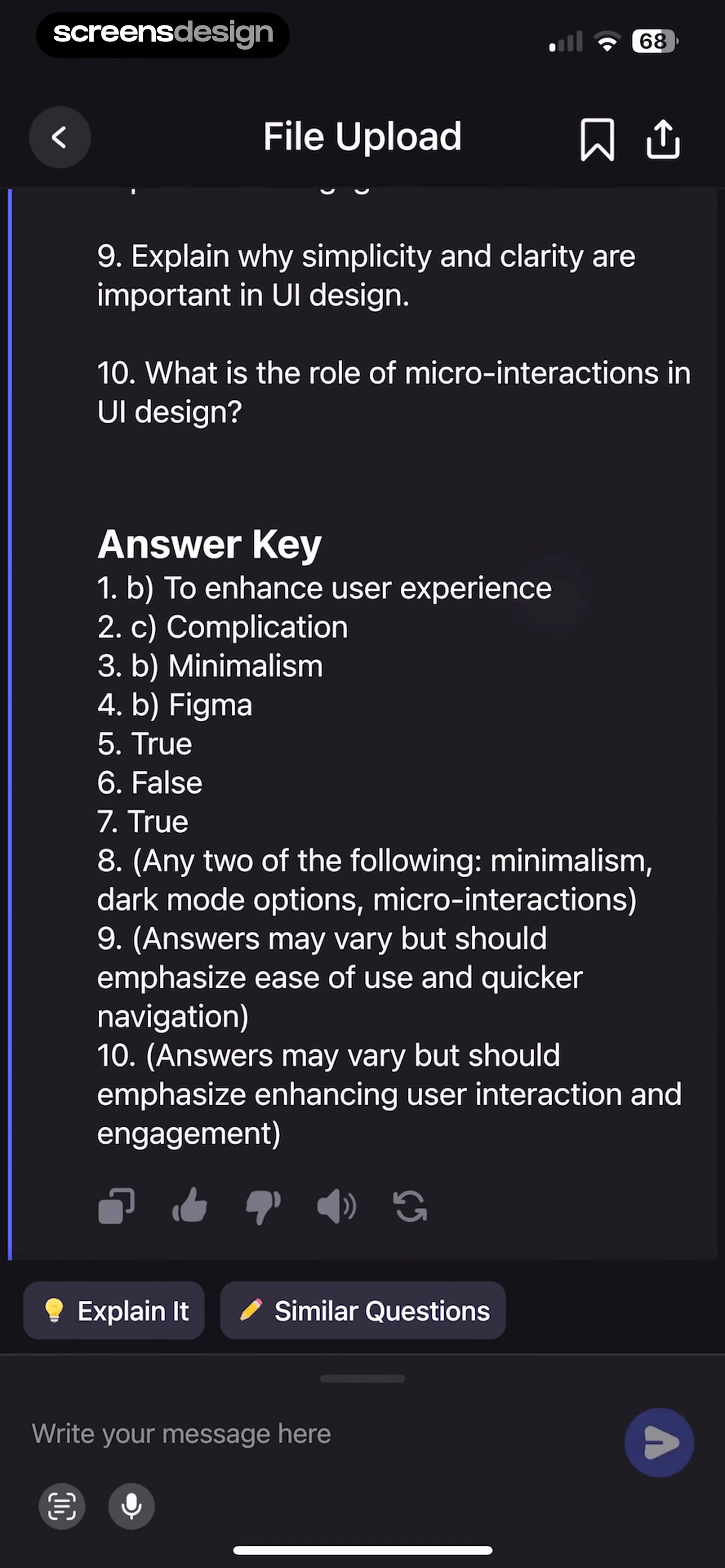
    Nerd AI - Math Problem Solver: Header at top, scrollable text content in the middle, action buttons, and input bar at the bottom.See the flow
    Nerd AI - Math Problem Solver

    Header at top, scrollable text content in the middle, action buttons, and input bar at the bottom.

  4. Step 4 · 7:38

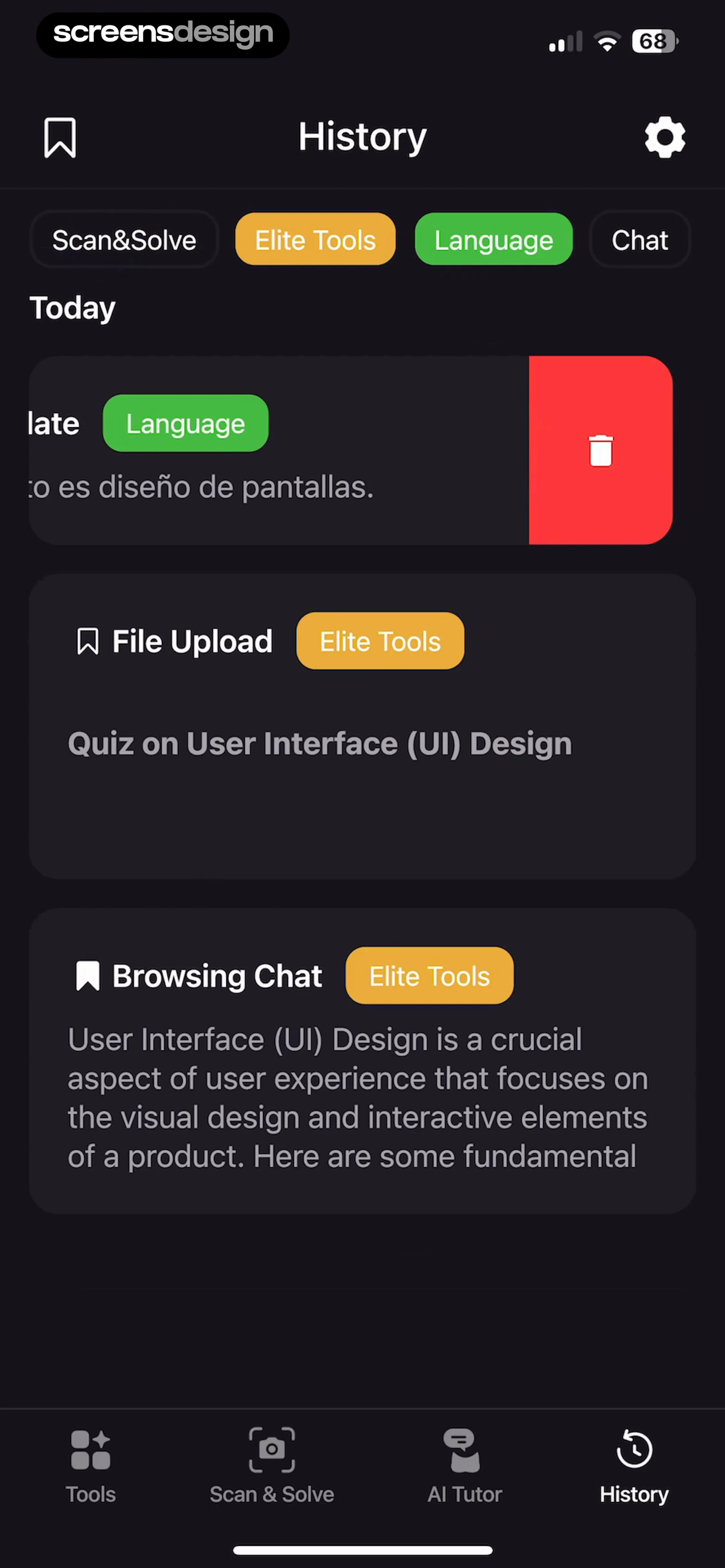
    Nerd AI - Math Problem Solver: Top navigation bar with title and settings, followed by filter chips, a 'Today' section header, and a vertical list of content cards, ending with a bottom navigation bar.See the flow
    Nerd AI - Math Problem Solver

    Top navigation bar with title and settings, followed by filter chips, a 'Today' section header, and a vertical list of content cards, ending with a bottom navigation bar.

  5. Step 5 · 9:06

    Nerd AI - Math Problem Solver: A centered modal dialog box appearing over a list-based settings page.See the flow
    Nerd AI - Math Problem Solver

    A centered modal dialog box appearing over a list-based settings page.

Found an example you like?See the whole story.