screensdesign

Mobile group management flow examples

Fishbrain - Fishing App: Manage Group

Open recorded flow
  1. Step 1 · 12:42

    Fishbrain - Fishing App: Top navigation tabs, followed by a create button, a section header, a horizontal list of group cards, and a bottom navigation bar.See the flow
    Fishbrain - Fishing App

    Top navigation tabs, followed by a create button, a section header, a horizontal list of group cards, and a bottom navigation bar.

  2. Step 2 · 12:46

    Fishbrain - Fishing App: Top navigation tabs, followed by a create button, a section header, a horizontal carousel of group cards, and a bottom navigation bar.See the flow
    Fishbrain - Fishing App

    Top navigation tabs, followed by a create button, a section header, a horizontal carousel of group cards, and a bottom navigation bar.

  3. Step 3 · 12:52

    Fishbrain - Fishing App: Top navigation bar followed by a photo upload area, text fields, list-style navigation rows, a privacy section with radio buttons, and a bottom action button.See the flow
    Fishbrain - Fishing App

    Top navigation bar followed by a photo upload area, text fields, list-style navigation rows, a privacy section with radio buttons, and a bottom action button.

  4. Step 4 · 12:53

    Fishbrain - Fishing App: Top navigation bar followed by a photo album dropdown and a grid of images.See the flow
    Fishbrain - Fishing App

    Top navigation bar followed by a photo album dropdown and a grid of images.

  5. Step 5 · 12:56

    Fishbrain - Fishing App: Top navigation bar, followed by a hero image upload area, a series of input fields, navigation rows, a privacy selection section, and a bottom call-to-action button.See the flow
    Fishbrain - Fishing App

    Top navigation bar, followed by a hero image upload area, a series of input fields, navigation rows, a privacy selection section, and a bottom call-to-action button.

  6. Step 6 · 13:03

    Fishbrain - Fishing App: Top navigation bar, followed by a hero image upload area, a series of input fields and navigation rows, a privacy selection section, and a bottom primary action button.See the flow
    Fishbrain - Fishing App

    Top navigation bar, followed by a hero image upload area, a series of input fields and navigation rows, a privacy selection section, and a bottom primary action button.

  7. Step 7 · 13:15

    Fishbrain - Fishing App: Top navigation bar with back button and search, followed by a list of suggested users, and a persistent bottom navigation bar.See the flow
    Fishbrain - Fishing App

    Top navigation bar with back button and search, followed by a list of suggested users, and a persistent bottom navigation bar.

  8. Step 8 · 13:22

    Fishbrain - Fishing App: Top navigation bar with back button and search, followed by categorized list sections (Admin, Members), and a persistent bottom navigation bar.See the flow
    Fishbrain - Fishing App

    Top navigation bar with back button and search, followed by categorized list sections (Admin, Members), and a persistent bottom navigation bar.

  9. Step 9 · 13:29

    Fishbrain - Fishing App: Header with hero image, followed by a list of group details, and a bottom-anchored action sheet modal.See the flow
    Fishbrain - Fishing App

    Header with hero image, followed by a list of group details, and a bottom-anchored action sheet modal.

  10. Step 10 · 13:33

    Fishbrain - Fishing App: Top navigation bar, search input, followed by three categorized list sections (Admin, Invited, Members), and a bottom navigation bar.See the flow
    Fishbrain - Fishing App

    Top navigation bar, search input, followed by three categorized list sections (Admin, Invited, Members), and a bottom navigation bar.

  11. Step 11 · 13:39

    Fishbrain - Fishing App: Top navigation bar, followed by a hero image area, then a vertical list of form fields, and a bottom-anchored primary action button.See the flow
    Fishbrain - Fishing App

    Top navigation bar, followed by a hero image area, then a vertical list of form fields, and a bottom-anchored primary action button.

  12. Step 12 · 13:45

    Fishbrain - Fishing App: Header with image, members list, group info, bottom action bar, and bottom navigation bar, with a centered modal overlay.See the flow
    Fishbrain - Fishing App

    Header with image, members list, group info, bottom action bar, and bottom navigation bar, with a centered modal overlay.


Yik Yak: Managing Communities and Chats

Open recorded flow
  1. Step 1 · 6:18

    Yik Yak: Search bar at the top, followed by a vertical list of community cards, and a fixed bottom navigation bar.See the flow
    Yik Yak

    Search bar at the top, followed by a vertical list of community cards, and a fixed bottom navigation bar.

  2. Step 2 · 6:27

    Yik Yak: Top search bar followed by categorized list sections (Group Chats, Communities) and a bottom keyboard.See the flow
    Yik Yak

    Top search bar followed by categorized list sections (Group Chats, Communities) and a bottom keyboard.

  3. Step 3 · 6:47

    Yik Yak: Top banner, back button, group header with avatar and title, action button row, member count header, vertical list of members, bottom navigation bar.See the flow
    Yik Yak

    Top banner, back button, group header with avatar and title, action button row, member count header, vertical list of members, bottom navigation bar.

  4. Step 4 · 6:55

    Yik Yak: Top navigation, header text, avatar, editable name field, shuffle button, disclaimer, and primary action button above the keyboard.See the flow
    Yik Yak

    Top navigation, header text, avatar, editable name field, shuffle button, disclaimer, and primary action button above the keyboard.

ChatGPT: Group Chat Creation

Open recorded flow
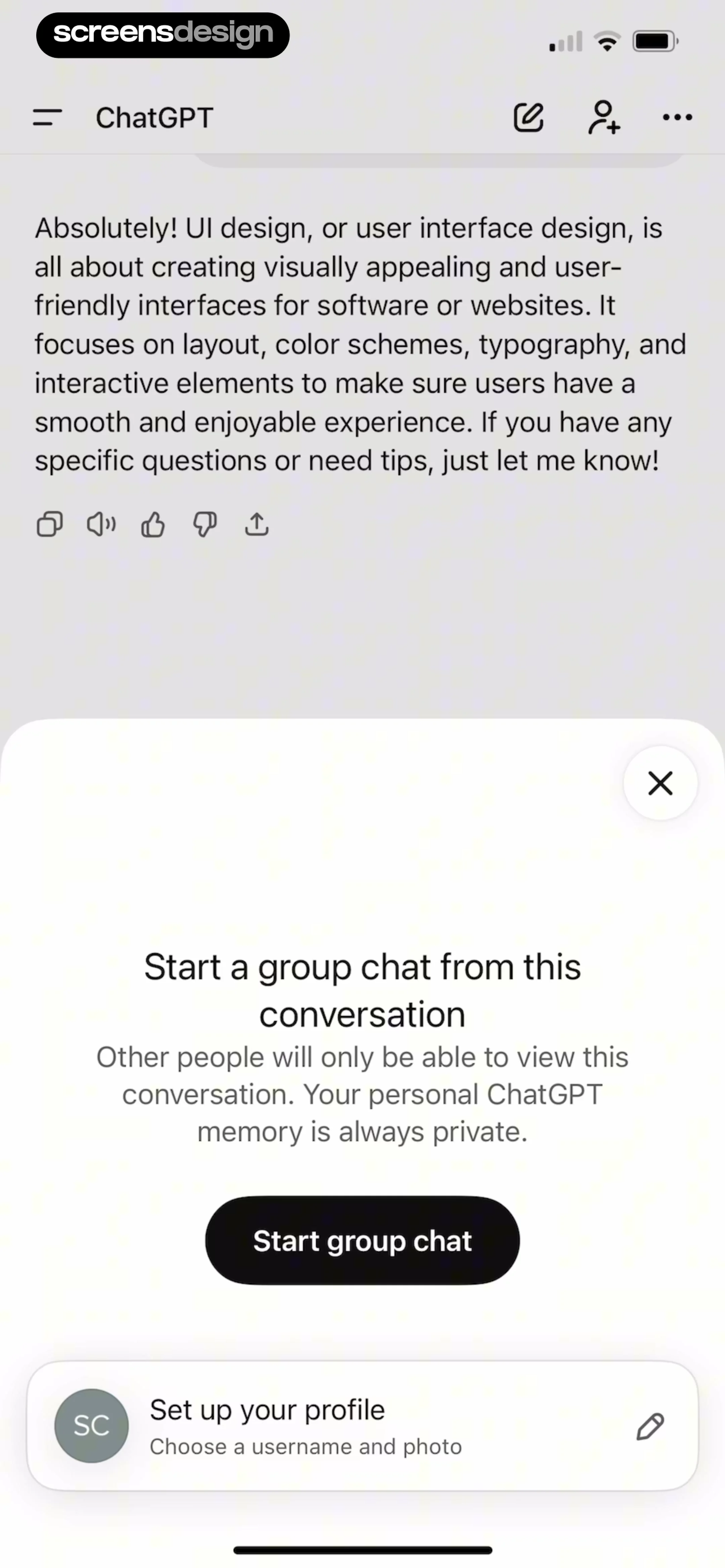
  1. Step 1 · 5:07

    ChatGPT: Top navigation bar, main chat content area, centered modal overlay, and a bottom profile setup card.See the flow
    ChatGPT

    Top navigation bar, main chat content area, centered modal overlay, and a bottom profile setup card.

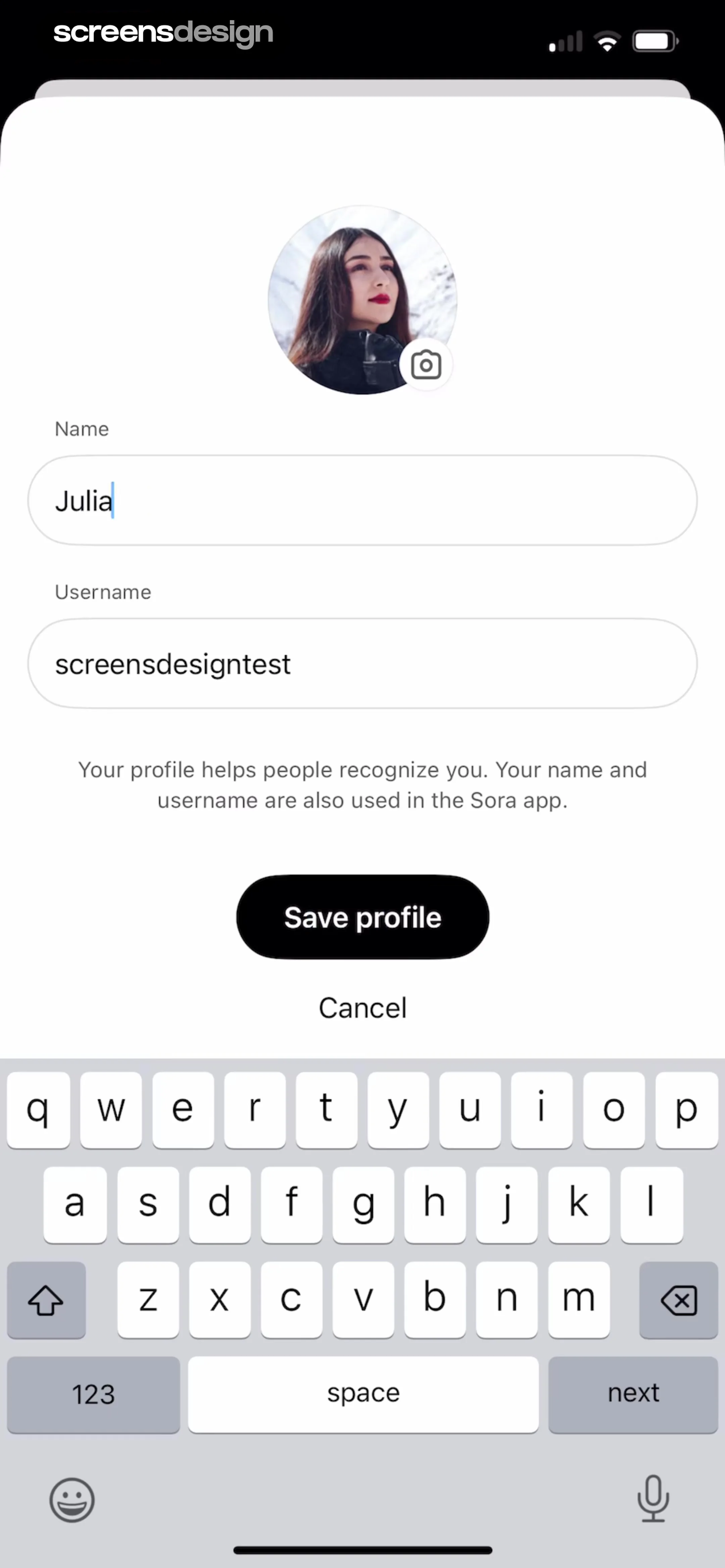
  2. Step 2 · 5:41

    ChatGPT: Avatar at top, followed by two input fields, descriptive text, primary button, secondary link, and system keyboard at the bottom.See the flow
    ChatGPT

    Avatar at top, followed by two input fields, descriptive text, primary button, secondary link, and system keyboard at the bottom.

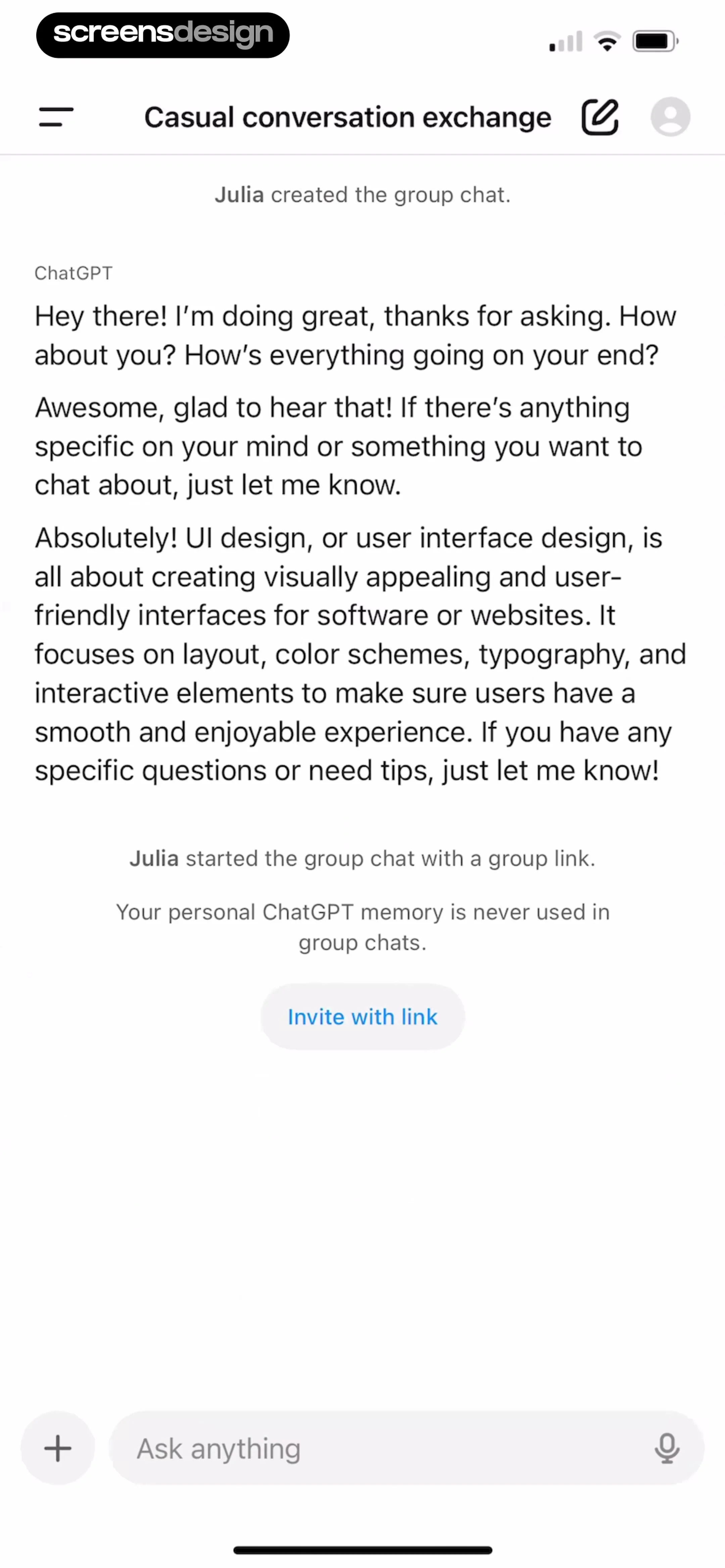
  3. Step 3 · 5:51

    ChatGPT: Top navigation bar, central chat history area with system messages and text bubbles, centered invite button, and bottom fixed input bar.See the flow
    ChatGPT

    Top navigation bar, central chat history area with system messages and text bubbles, centered invite button, and bottom fixed input bar.

  4. Step 4 · 6:01

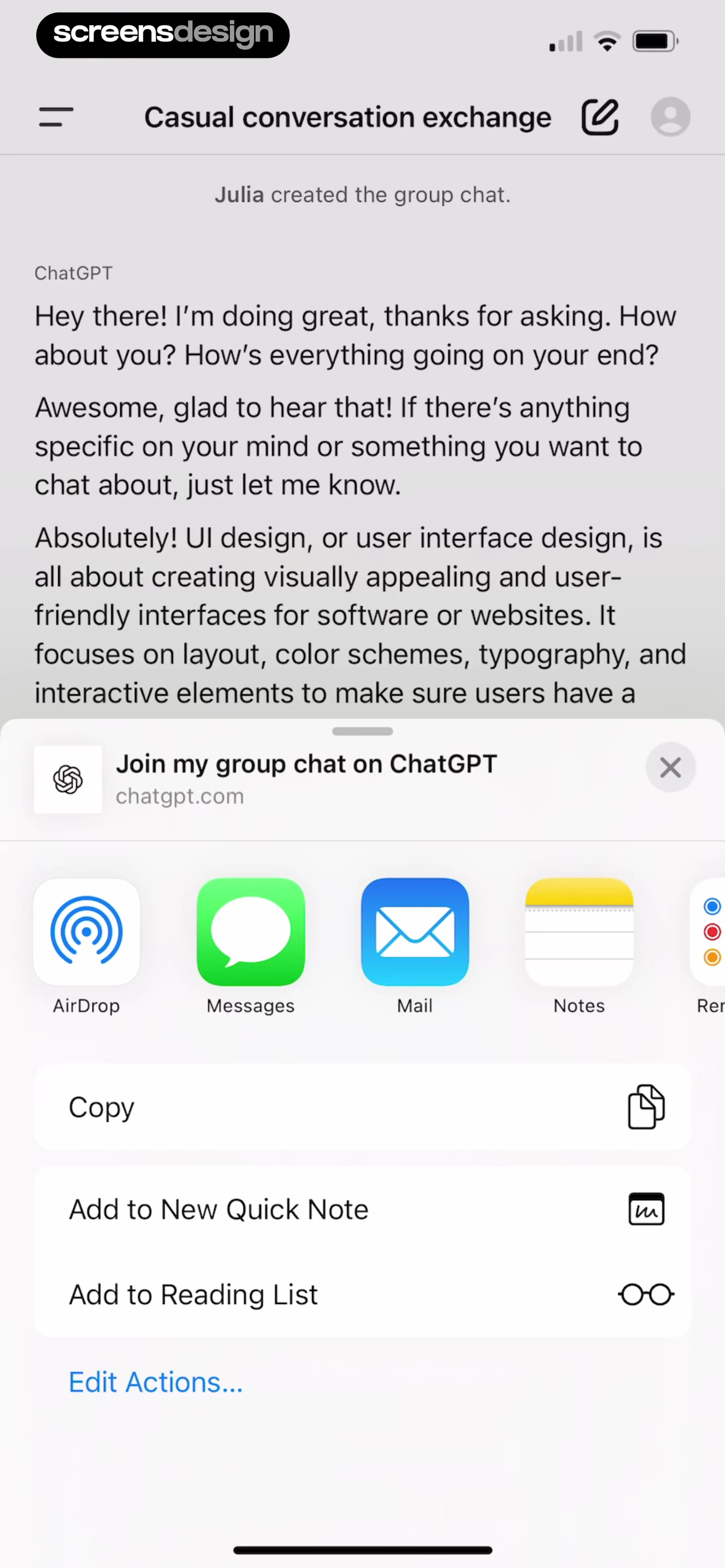
    ChatGPT: Top navigation bar, chat content area, and a bottom-anchored iOS share sheet modal.See the flow
    ChatGPT

    Top navigation bar, chat content area, and a bottom-anchored iOS share sheet modal.

  5. Step 5 · 6:06

    ChatGPT: Top navigation bar, chat conversation area with a centered modal overlay, and a bottom input bar.See the flow
    ChatGPT

    Top navigation bar, chat conversation area with a centered modal overlay, and a bottom input bar.

  6. Step 6 · 6:07

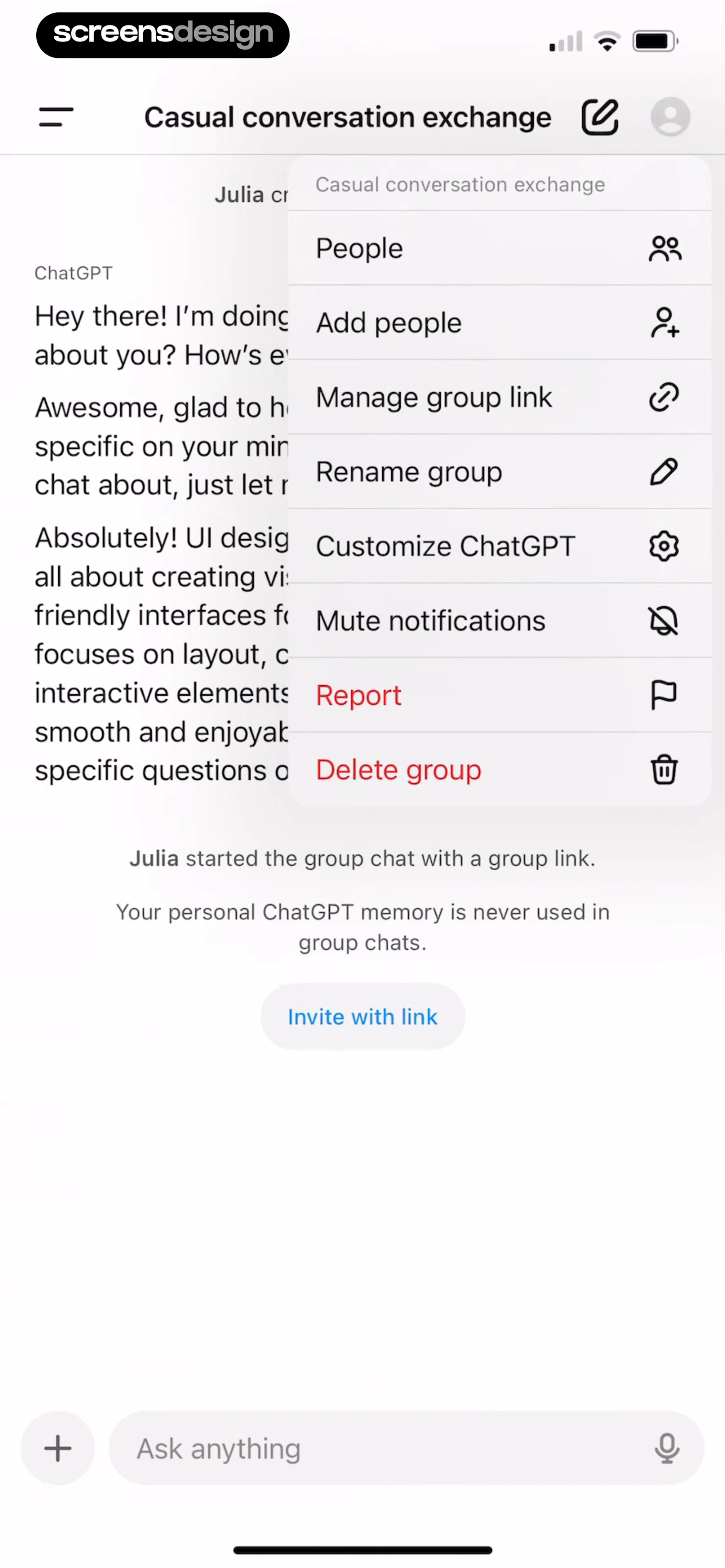
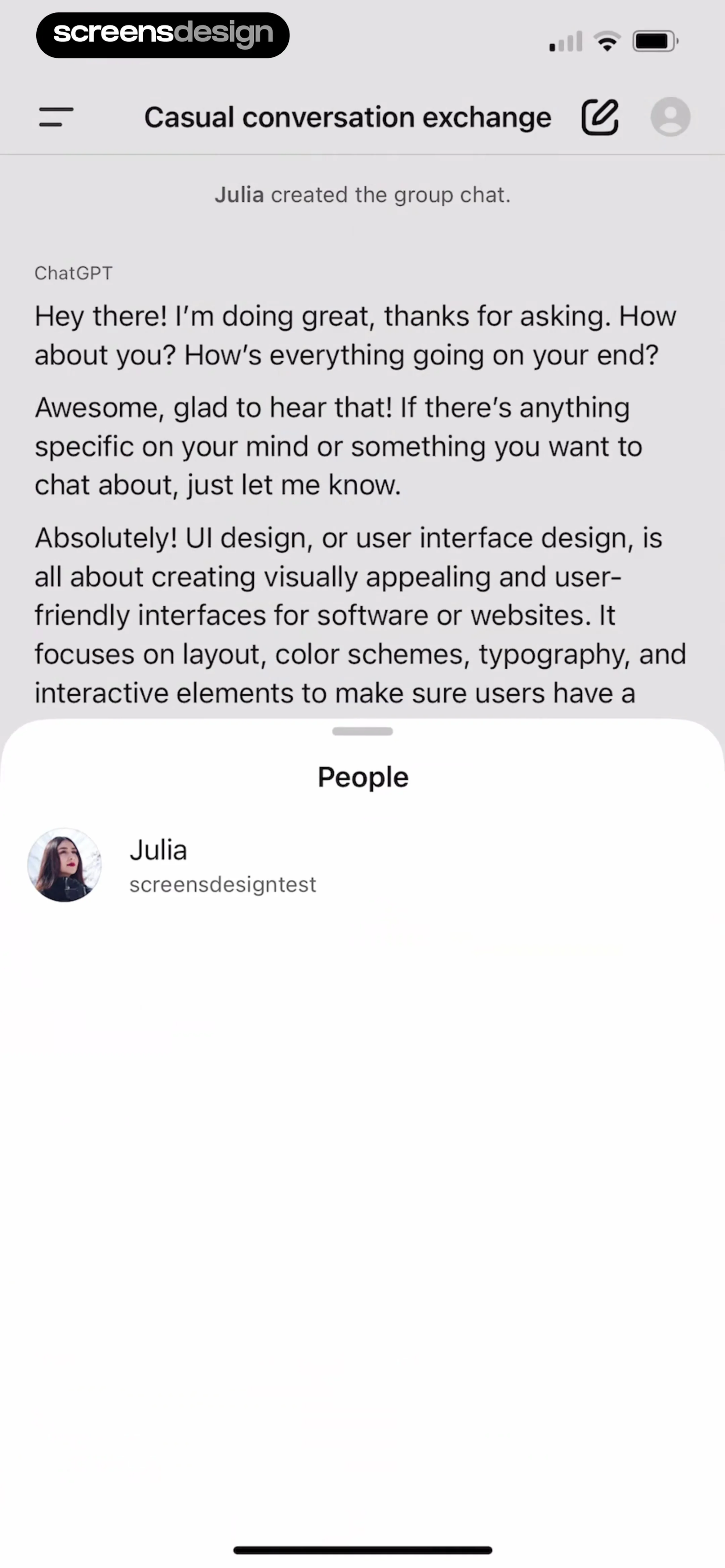
    ChatGPT: Top navigation bar followed by chat history, with a bottom sheet overlaying the lower half of the screen.See the flow
    ChatGPT

    Top navigation bar followed by chat history, with a bottom sheet overlaying the lower half of the screen.

Found an example you like?See the whole story.