VSCO: Photo & Video Editor: Creating a Collage
Step 1 · 11:49
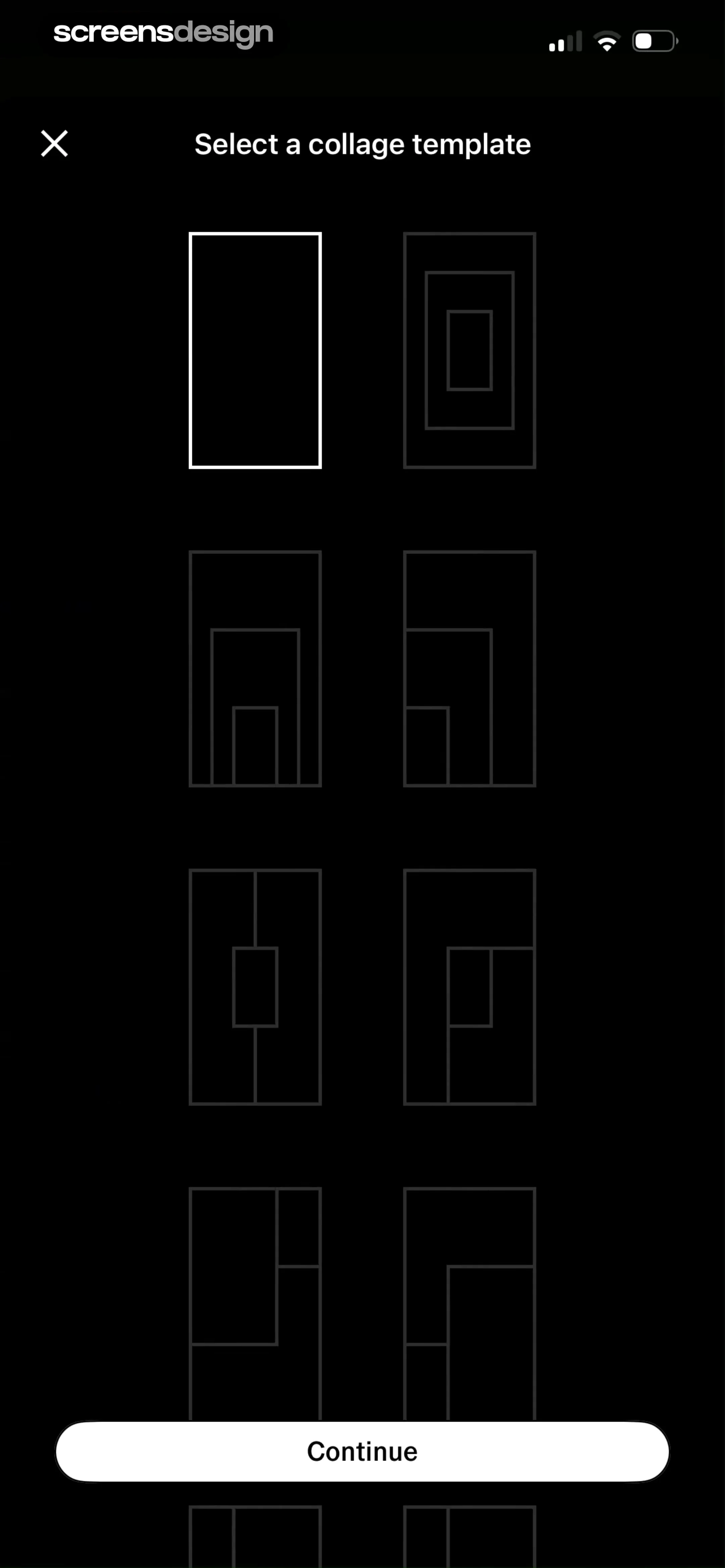 See the flow
  VSCO: Photo & Video Editor
Top header with close button, followed by a 2-column grid of collage template icons, and a bottom-aligned primary action button.
Step 2 · 11:53
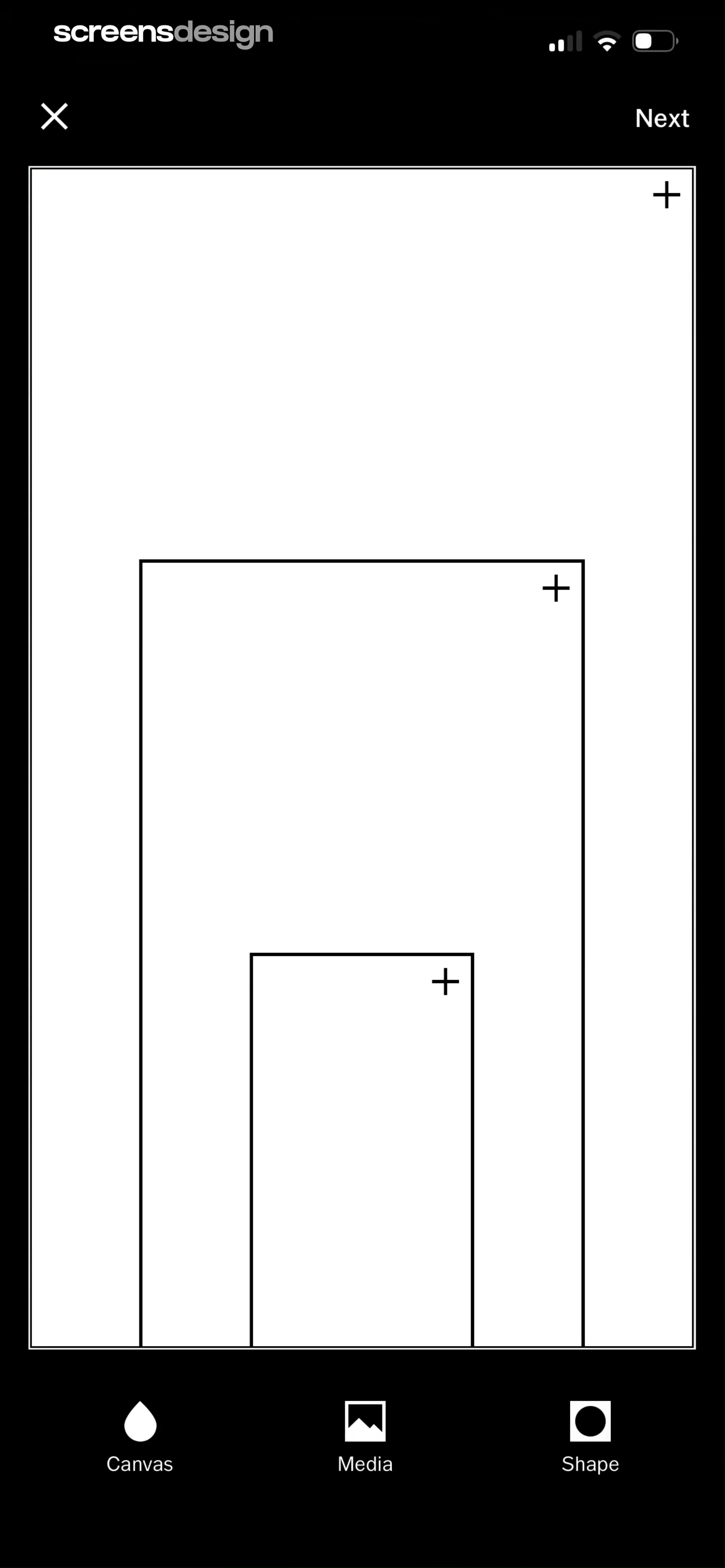 See the flow VSCO: Photo & Video Editor
Top navigation bar, large central canvas area with nested placeholders, and a bottom navigation bar with three icons.
Step 3 · 11:57
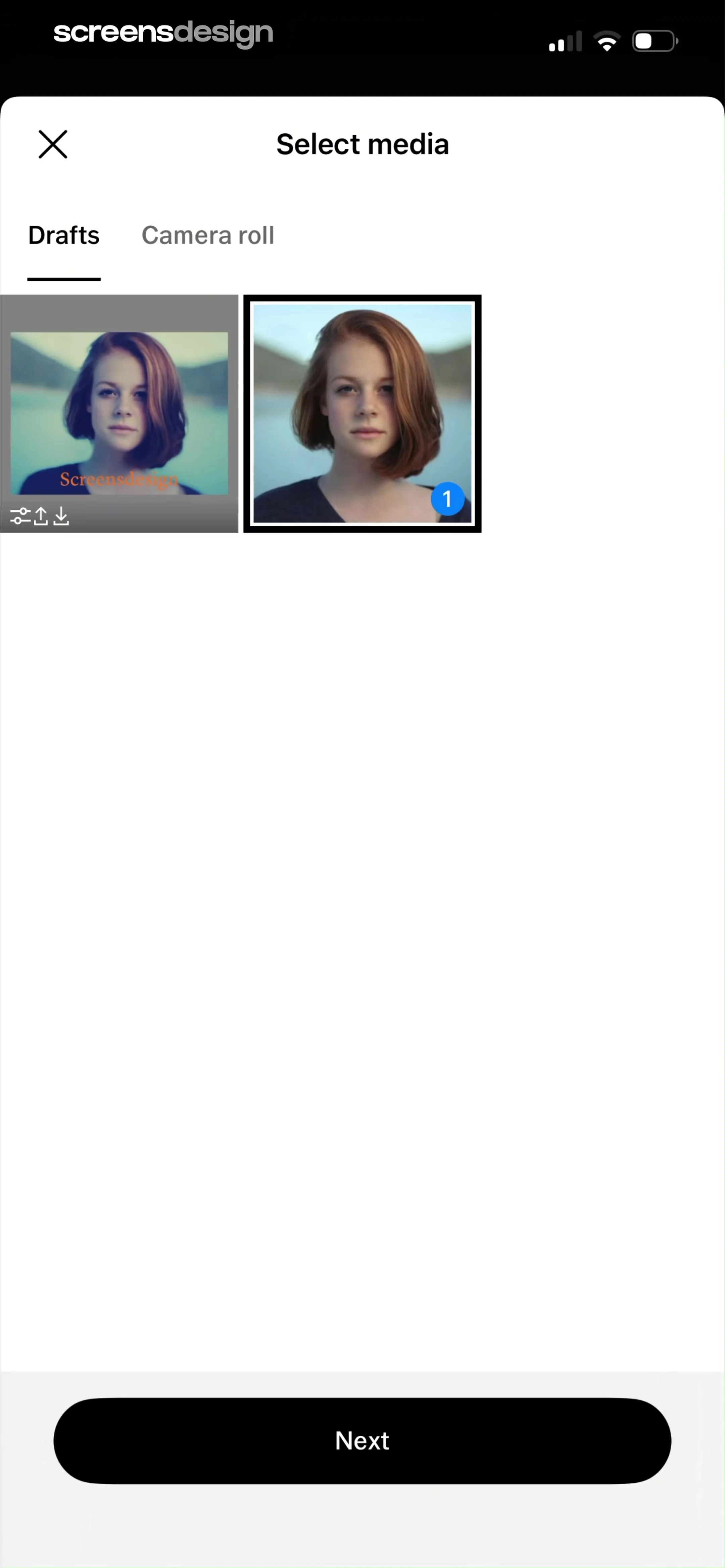 See the flow VSCO: Photo & Video Editor
Header with close button and title, followed by tab navigation, a grid of media thumbnails, and a bottom-anchored primary action button.
Step 4 · 11:59
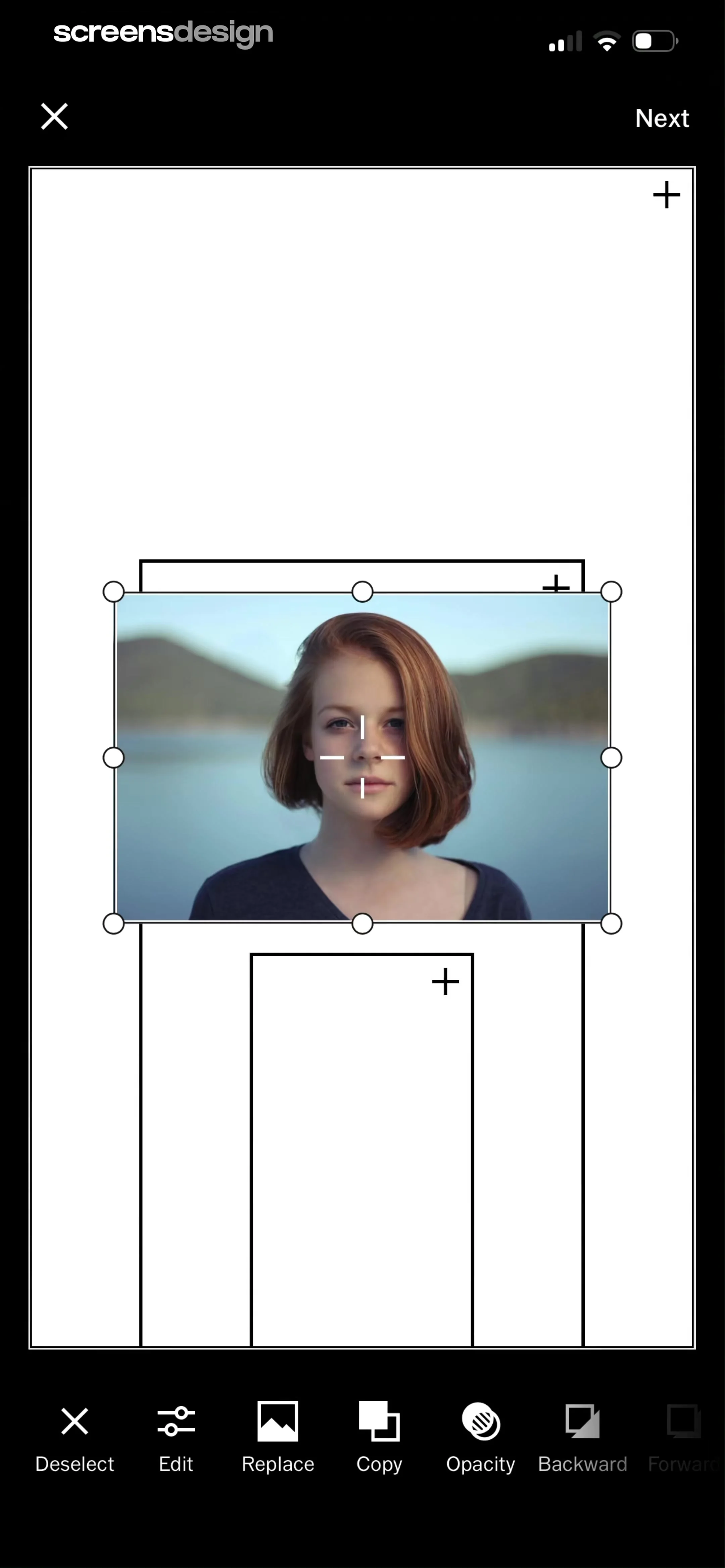 See the flow VSCO: Photo & Video Editor
Top navigation bar, central canvas with image and placeholders, bottom toolbar with editing options.
Step 5 · 12:18
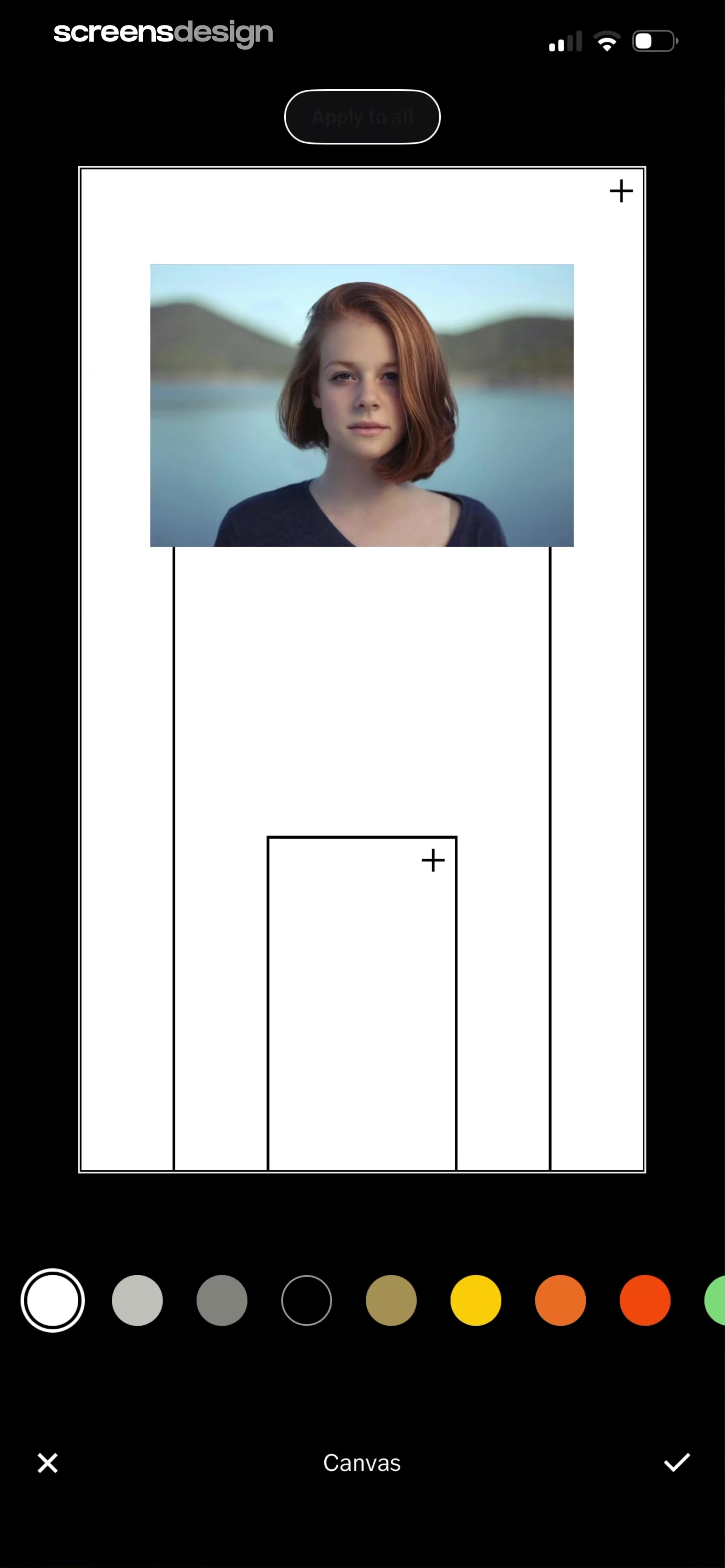 See the flow VSCO: Photo & Video Editor
Top action button, central canvas area with image and placeholder, bottom color picker carousel, and bottom navigation bar.
Step 6 · 12:24
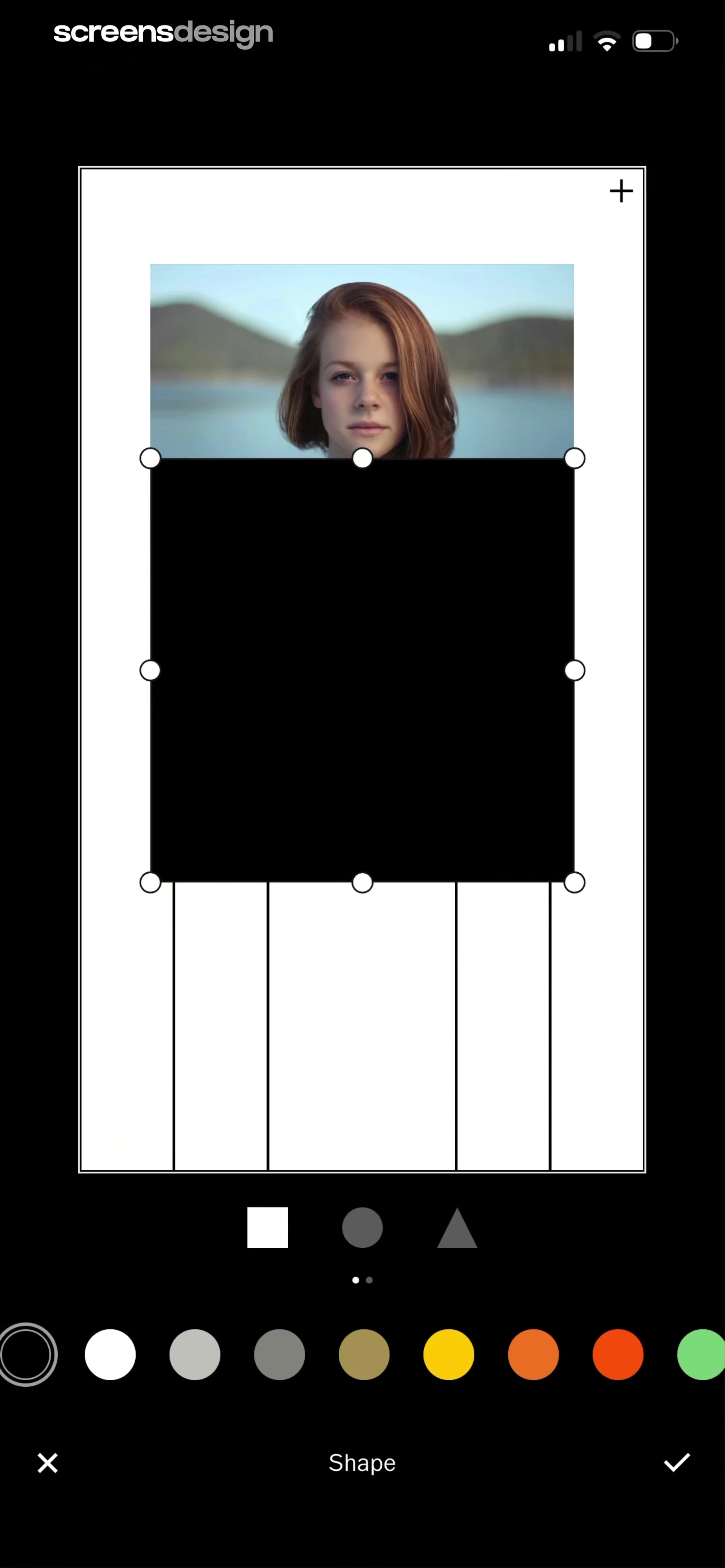 See the flow VSCO: Photo & Video Editor
Top bar with add button, central canvas with image and shape overlay, bottom shape selection, color palette, and bottom navigation bar.
Step 7 · 12:33
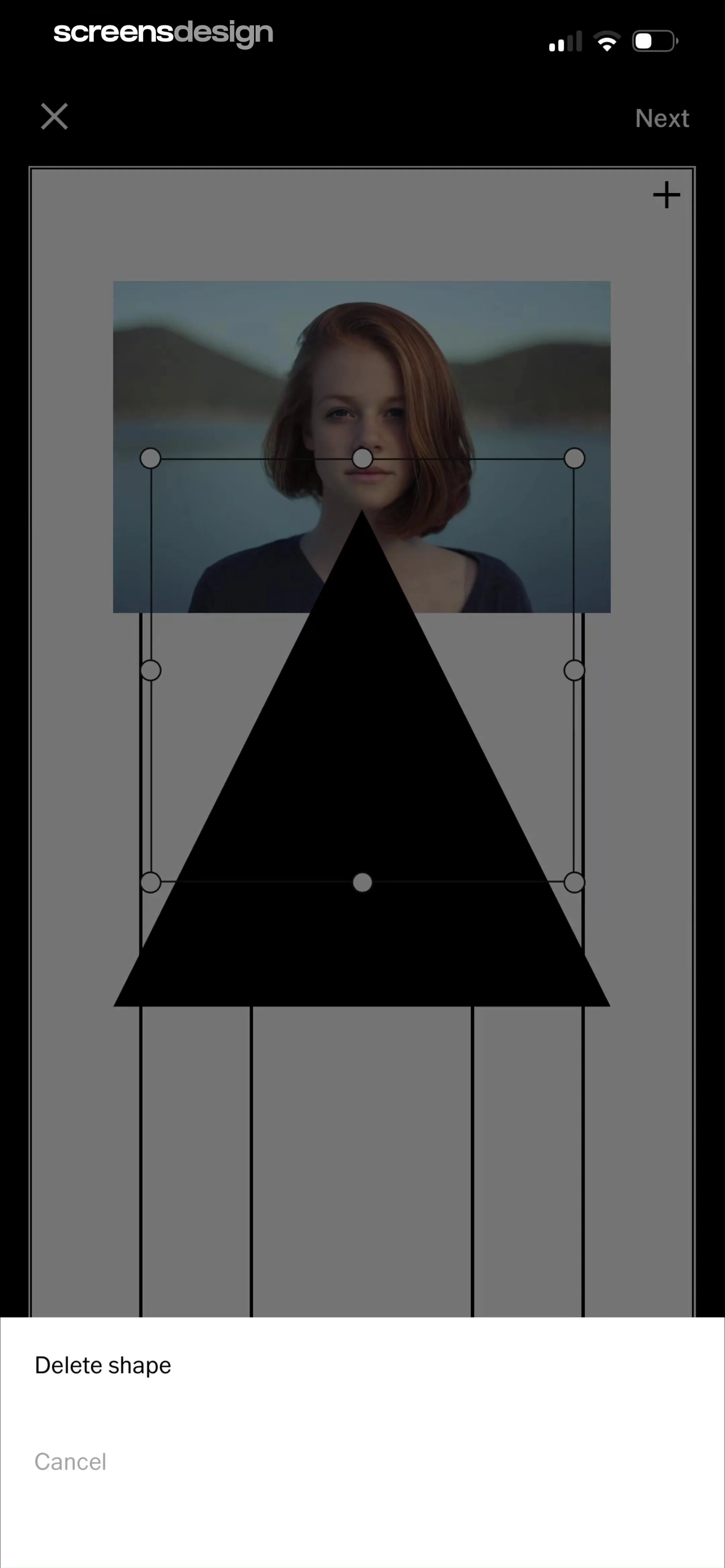 See the flow VSCO: Photo & Video Editor
Top navigation bar, central editing canvas with image and shape, bottom action modal.
Step 8 · 12:39
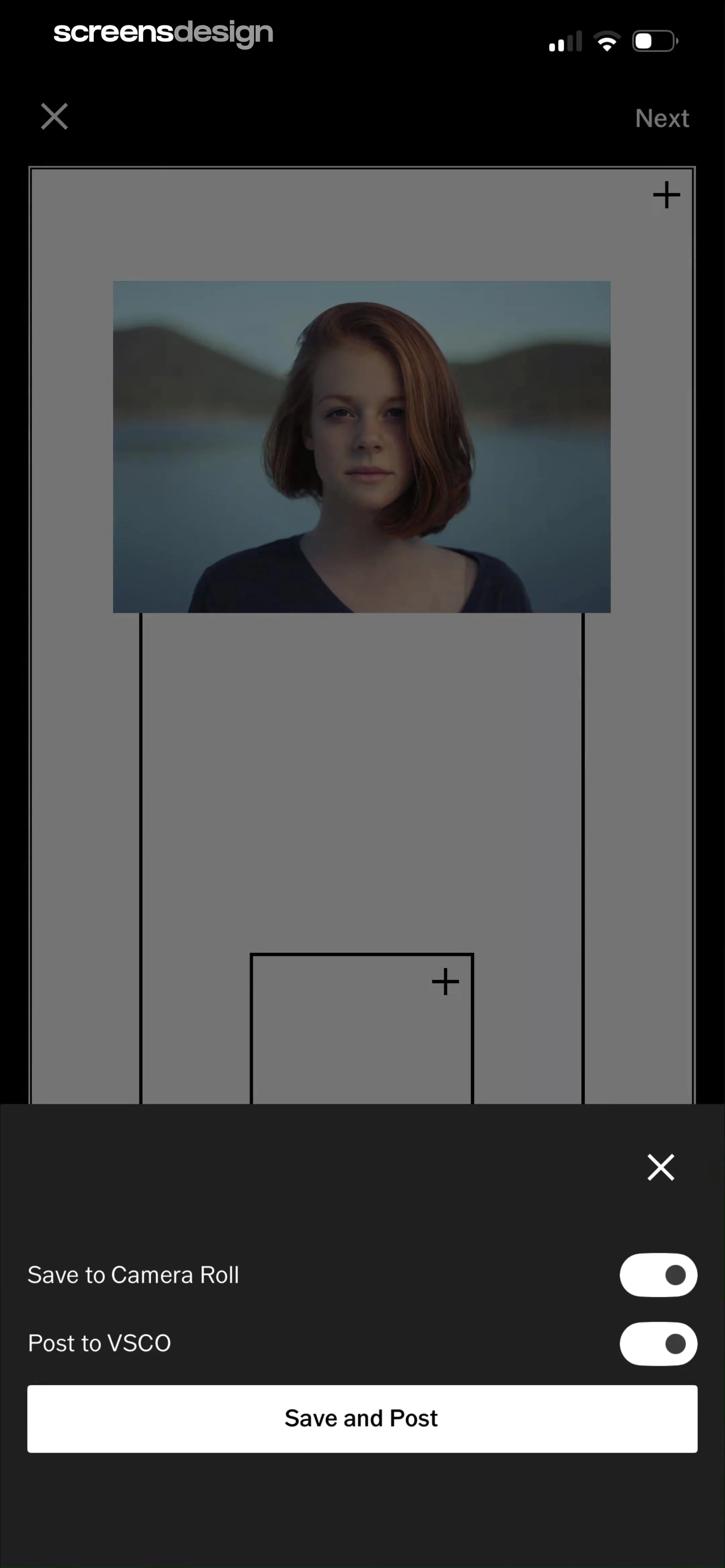 See the flow VSCO: Photo & Video Editor
Top navigation bar, central image preview area with placeholders, and a bottom modal overlay for export settings.
Step 9 · 12:42
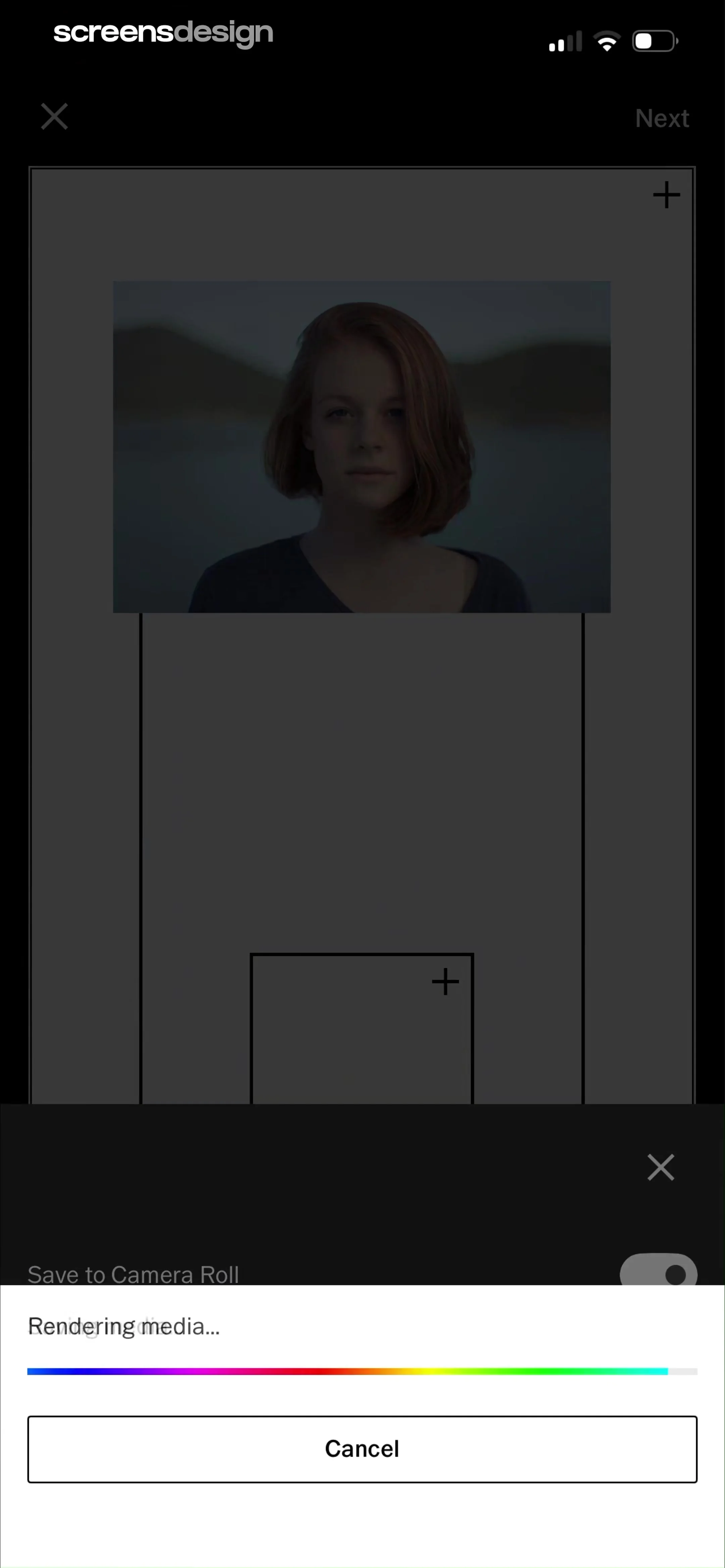 See the flow VSCO: Photo & Video Editor
A background editor view with a centered modal overlay containing a progress bar and a cancel button.
Step 10 · 12:45
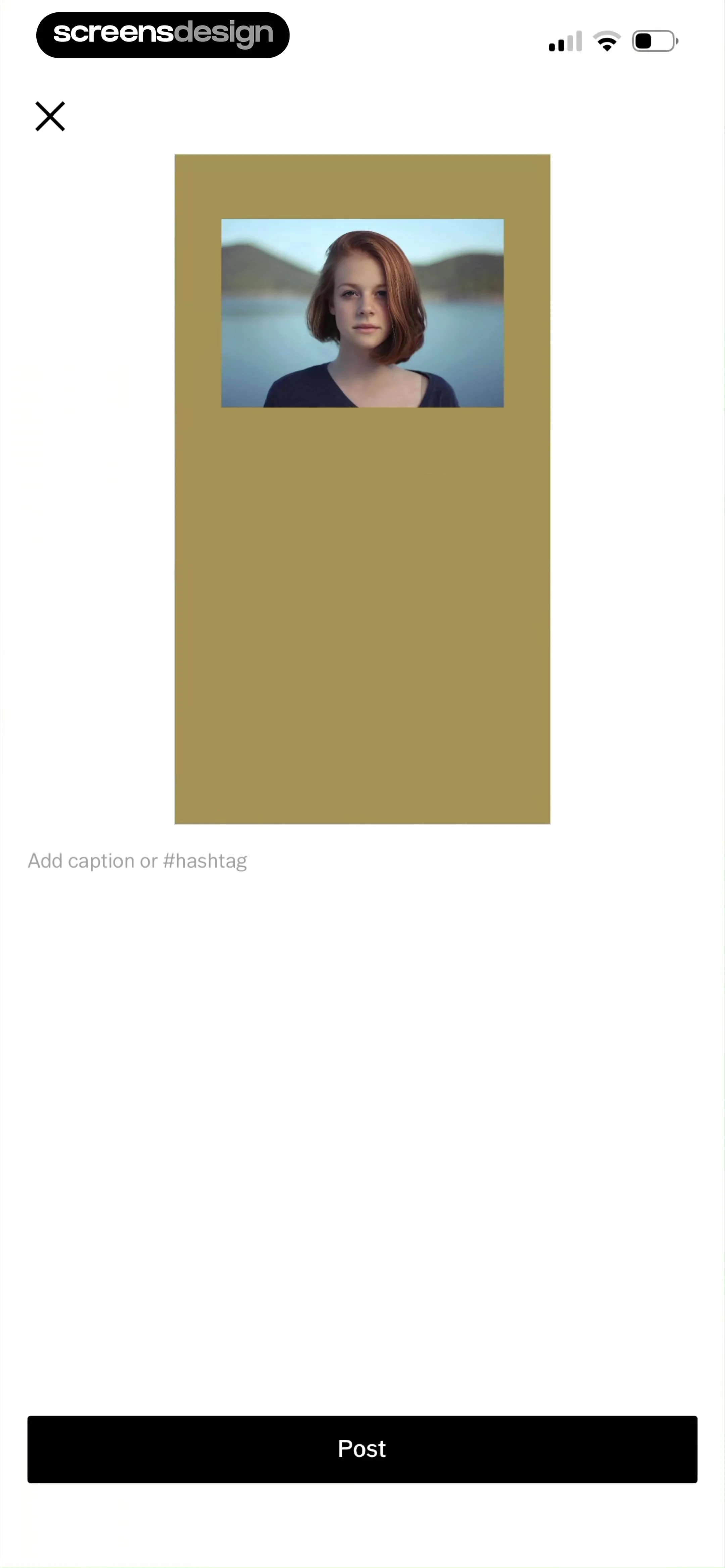 See the flow VSCO: Photo & Video Editor
Top navigation with close button, central image preview card, text input field below, and a bottom-aligned full-width post button.