Mobile app feature gating
10 Mobile App Feature Gating Examples for Free and Pro Plans
Users need to know what is unavailable, why it is gated, what Pro changes, and what useful action remains.
Feature gating determines where the free product ends and paid access begins. A lock icon alone does not explain whether the boundary is a plan, usage limit, model, quality level, history window, project count, or temporary entitlement problem.
This review examines ten exact recorded screens from ten apps. The examples include locked settings, paid search sources, generated results, export quality, historical data, playlist limits, podcast creation, meal-plan history, and app-allow lists. They show interface decisions, not proof of conversion.
For the full offer presentation after a gate, use the mobile app upsell screen examples.
01. Gate after intent
Show the boundary where the paid action was selected.
Context reduces the work needed to understand an upgrade.
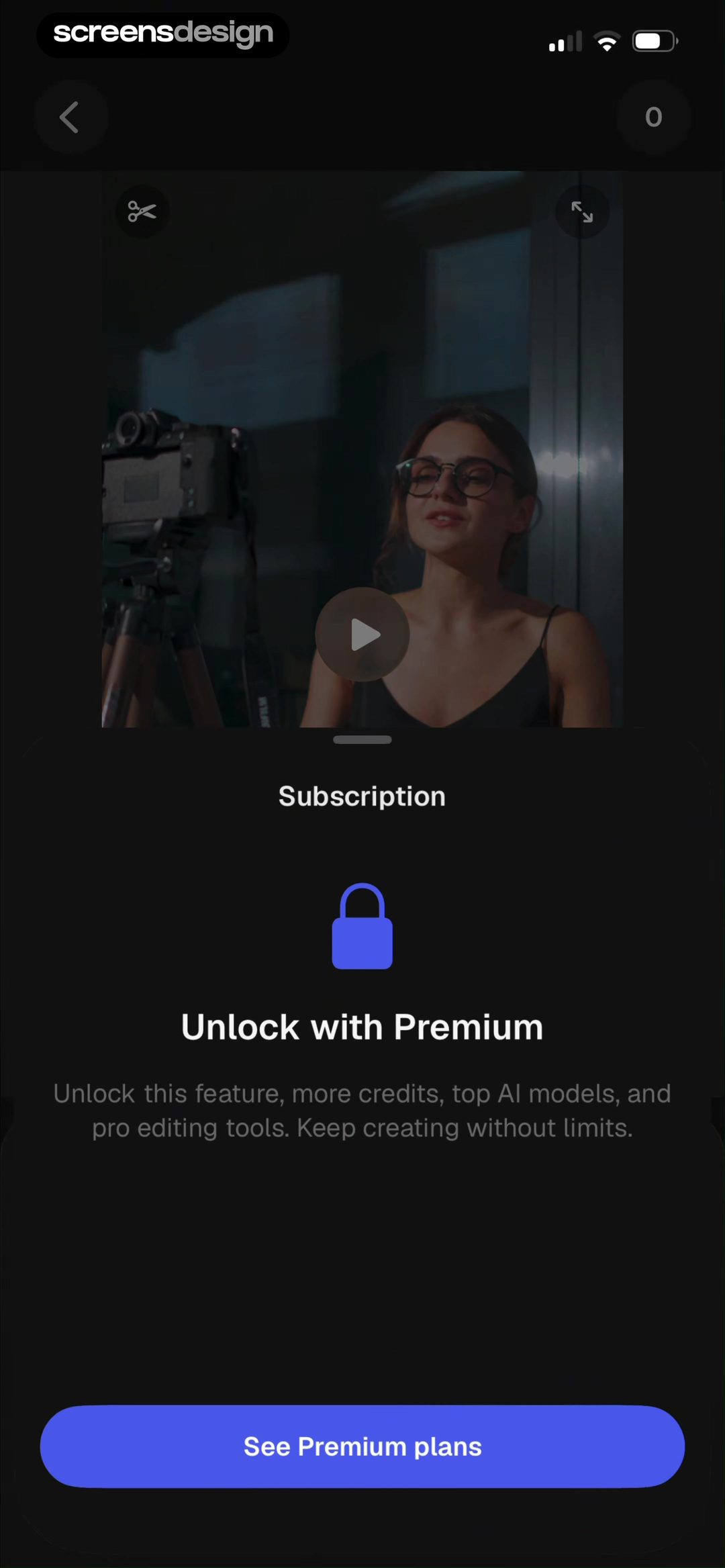
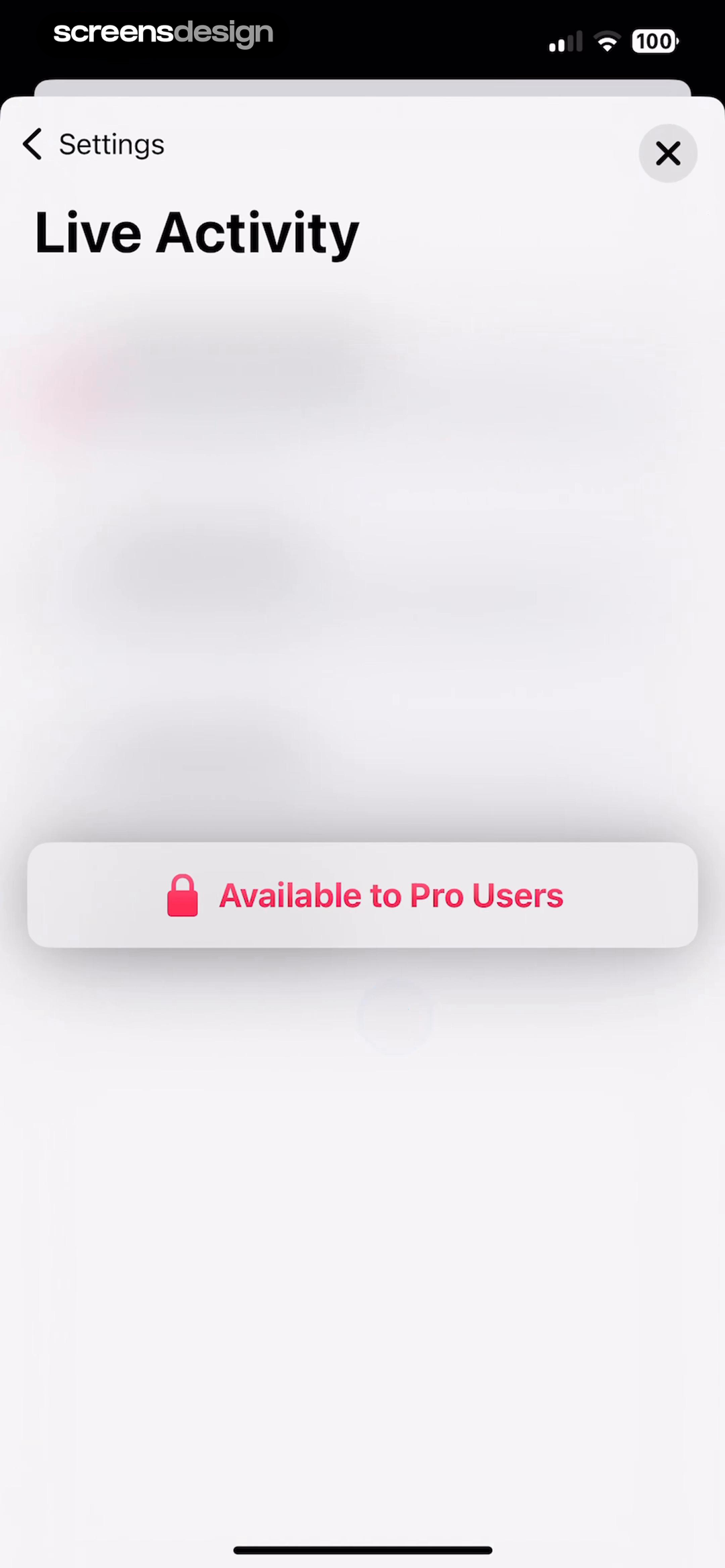
Magnific shows Unlock with Premium inside a selected generative feature and names credits, models, and editing tools. Timella marks Live Activity as Available to Pro Users inside settings rather than removing the row.
Keep the selected feature name and current object visible. Use the same language in settings, comparison, and checkout. If the user can preview the feature safely, offer that before purchase.
Test deep links and restored purchases so a paid user never lands on a stale gate. Do not expose confidential generated output behind a blurred preview unless access rules genuinely require it.
02. Gate scope
Explain the paid capability in task language.
Only available to Pro is a status, not a benefit explanation.
Inoreader says Facebook Page search is available only to Pro users and provides Upgrade to Pro. CozyAI reveals that the result is ready but requires Pro to access it, connecting the gate to the completed generation.
Describe what the feature does and whether the user's work already exists. If processing consumed credits or time before the gate, disclose that earlier and preserve the result after dismissal.
Avoid generating a result and only then revealing an unexpected paywall. Test canceled checkout, offline access, and a result that expires while the offer is open.


03. Free and Pro comparison
Show the free baseline and the paid change.
A comparison is useful when the quantities are accurate and current.
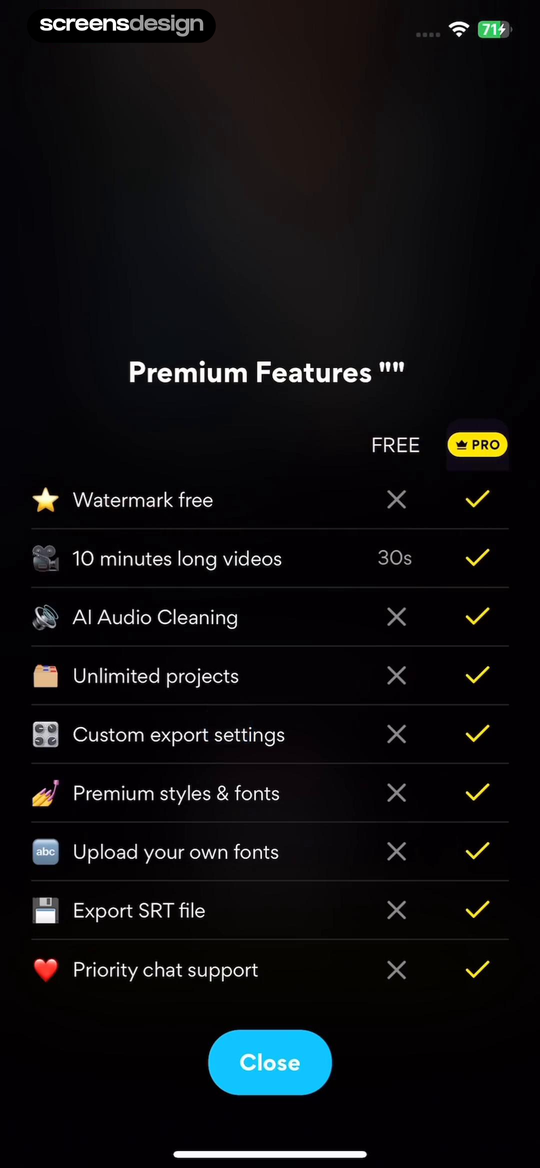
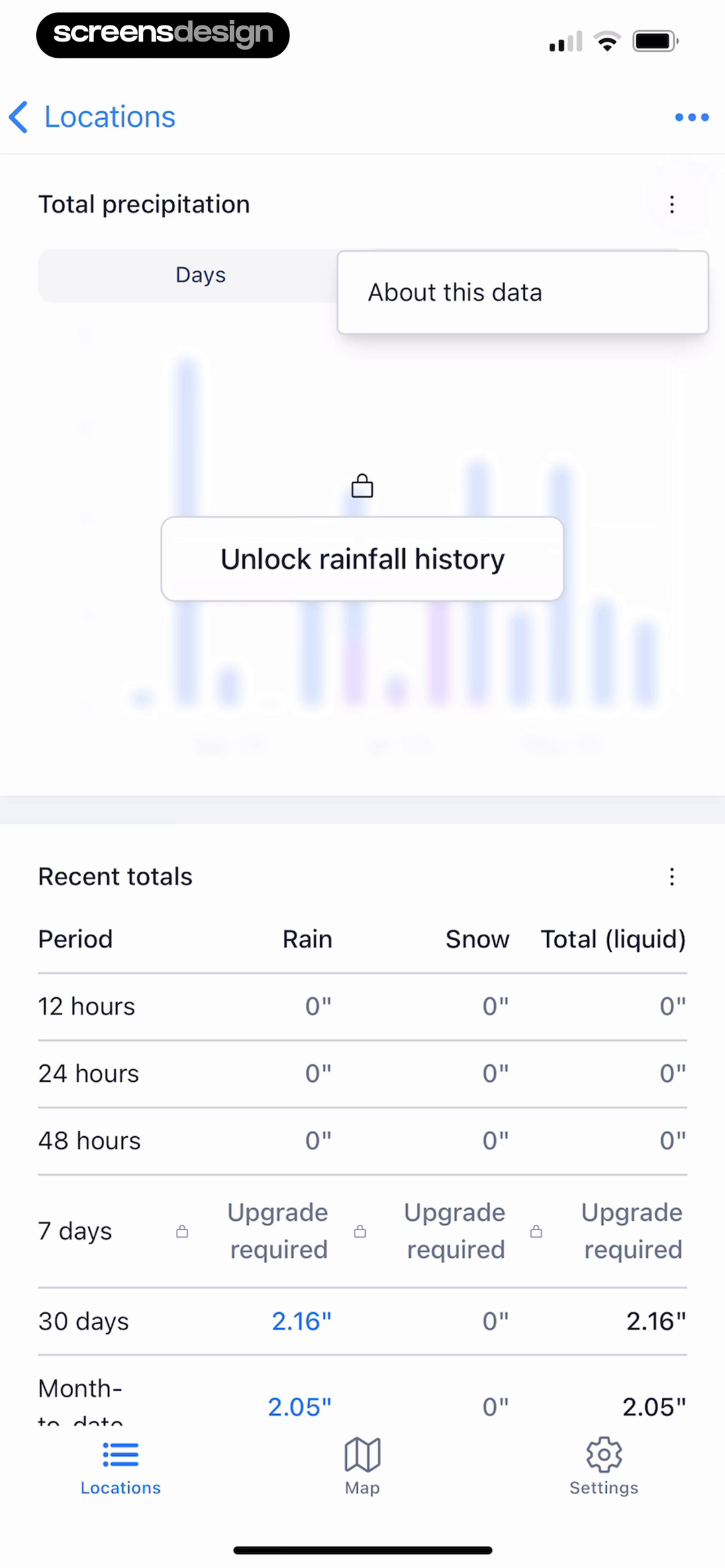
Liro compares Free and Pro across watermark, video length, audio cleaning, projects, export settings, styles, and fonts. Precip labels Unlock rainfall history while keeping recent totals, period controls, and current data visible.
Use exact limits and pair each with the same unit. Keep the current free capability usable. If history or export quality changes by plan, state the range or resolution before the user begins a task.
Dynamic entitlements must come from the account and purchase product. Check regional, legacy, educational, and family plans. Do not show a limit the user has already unlocked.
04. Usage limits
Distinguish a product limit from a broken state.
The interface should say what limit was reached and how it resets.
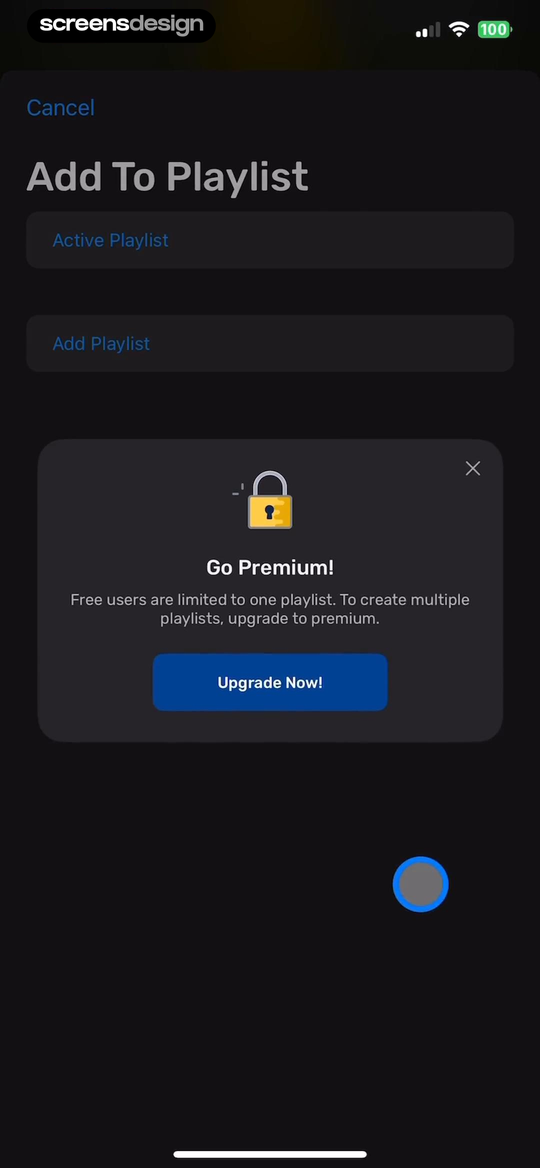
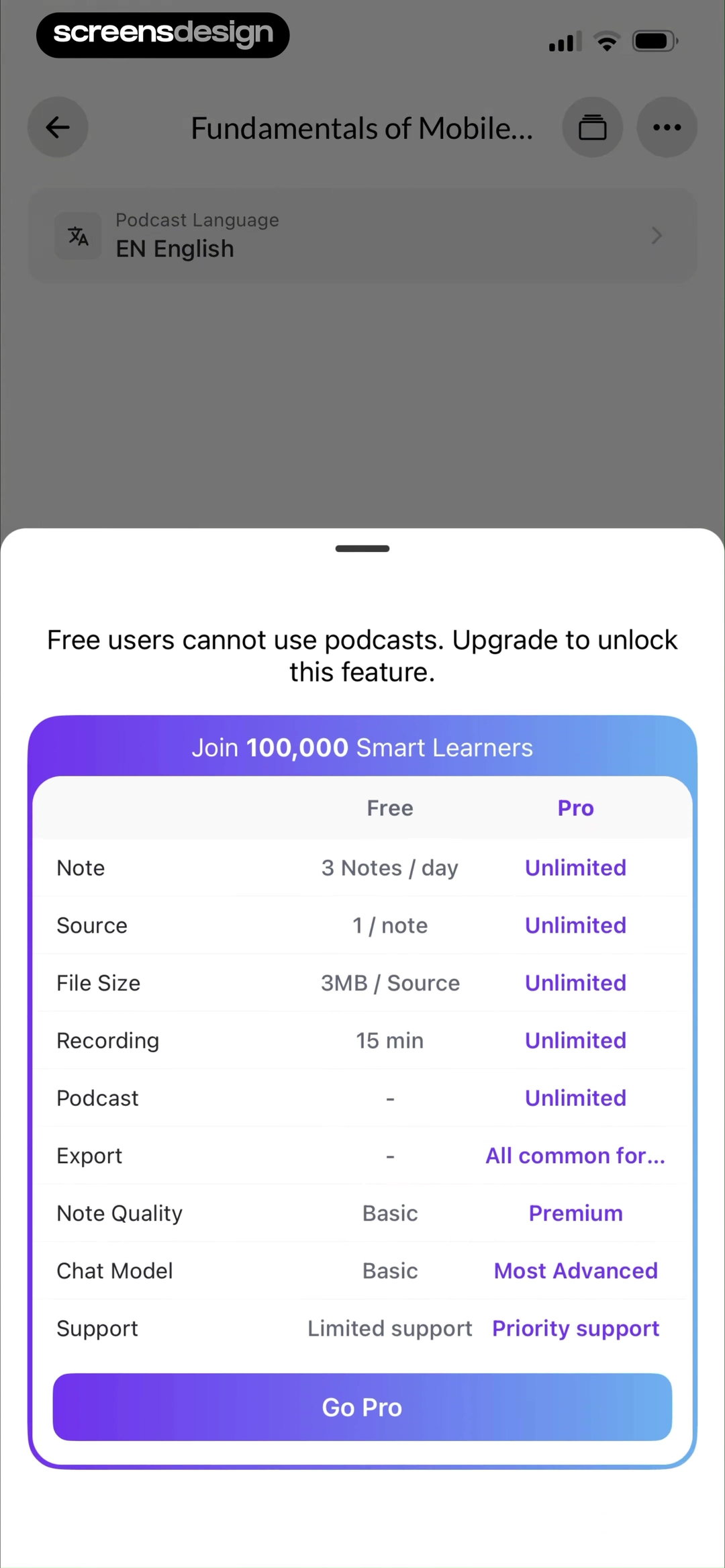
LingQ states that free users can create one playlist and that multiple playlists require Premium. ThetaWave says podcasts are unavailable to free users and places the gate beside a Free and Pro comparison.
Name the current count, limit, reset period, and next available time when applicable. Offer deletion or replacement when that is a legitimate free path. Do not make upgrading the only way to recover from an accidental duplicate.
Handle grandfathered limits, shared workspaces, offline creations, and server reconciliation. Limit errors should preserve the attempted object and prevent duplicate charges.
05. Fallback and exit
Keep the free route and dismissal understandable.
A gate should not turn navigation into a dead end.
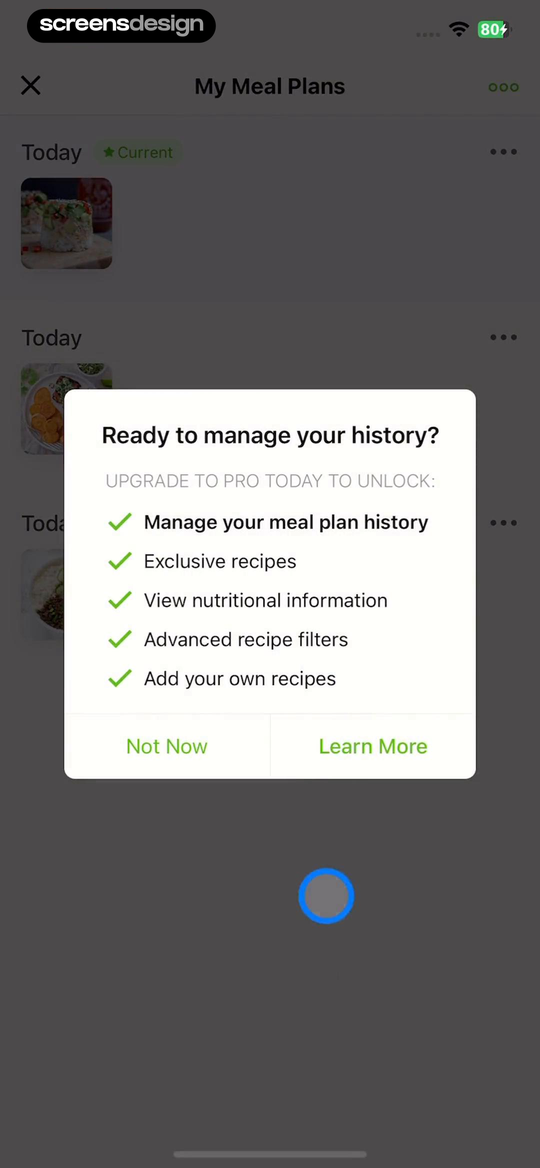
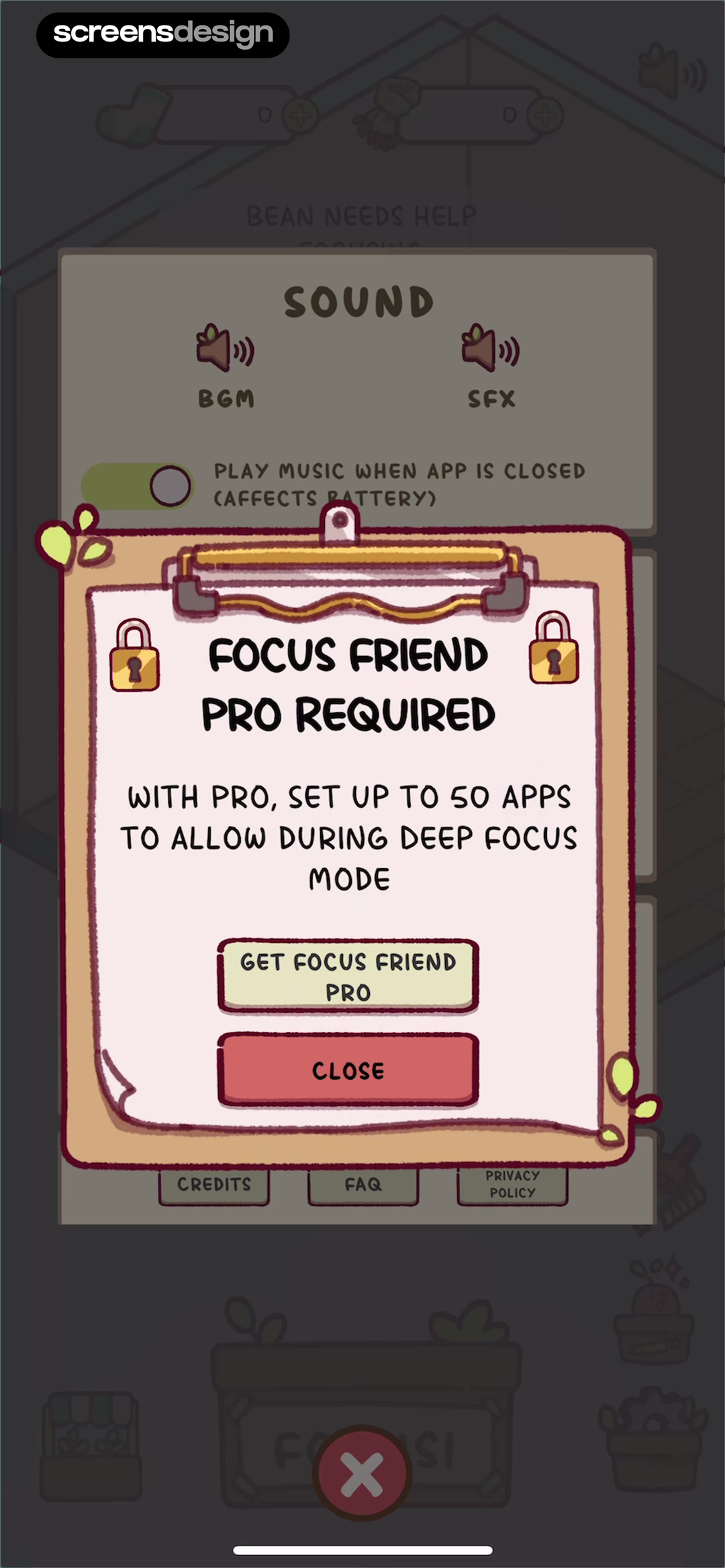
Mealime keeps meal-plan history visible behind a feature-specific upgrade explaining recipes, nutrition, filters, and custom recipes. Focus Friend states that Pro expands the allowed-app list during deep focus and provides Get Pro and Close.
Offer a clear Back, Close, Not now, or available free action. Return to the exact prior state. When the gate concerns a limit, show how the user can review or manage existing items.
Test screen-reader focus, back gestures, reduced motion, expired plans, restored purchase, and checkout interruption. ScreensDesign Pro can help teams compare gate, offer, purchase, dismissal, and resumed-task states across complete recordings.
Entitlement model
Write the gate from entitlement rules, not marketing copy.
A gate must accurately explain who can use the capability, what changes after upgrade, and how existing work behaves across devices and plans.
Create an entitlement matrix for plans, trials, roles, regions, platforms, legacy purchases, promotional access, and usage allowances. Pair each gated action with a reason code the interface can translate into specific copy. Reaching a monthly limit, lacking an organization role, using an unsupported region, and needing a higher plan are different problems and should not share one upgrade modal.
Choose the gate location according to reversibility. A locked navigation item can advertise a capability before work begins. An inline limit state fits a known quota. A confirmation belongs immediately before an irreversible paid action. Never allow substantial editing or data entry and reveal the gate only at save or export unless the work remains preserved and the limitation was clear earlier.
After entitlement changes, refresh access without requiring a restart. Handle restore purchase, pending transactions, grace periods, team invitations, plan downgrades, offline use, and stale caches. The screen should distinguish purchase failure from access synchronization failure and offer the correct recovery action.
Use the upsell examples for contextual value explanation and the paywall examples for plan comparison and purchase.
- Every gate maps to a tested entitlement or limit reason.
- The limitation appears before users invest work that could be lost.
- Free alternatives and preserved work remain available when truthful.
- Purchase, restore, team role, grace period, downgrade, and offline states refresh correctly.
- Gate exposure, upgrade view, purchase, restore, abandonment, and task completion are measured separately.
Quality assurance
Test gates as a product, design, and entitlement contract.
The visible message is correct only when the backend reason, cached access state, plan catalog, and recovery action agree.
Build fixtures for every entitlement reason and render the corresponding gate in component tests. Assert the capability name, available plan, preserved-work message, restore route, free alternative, and destination after access changes. Unknown reasons should fail safely rather than defaulting to a persuasive but inaccurate upgrade claim.
Exercise account switching, team-role changes, offline use, stale caches, plan downgrade, billing grace, refund, family sharing, purchase pending, restore failure, and entitlement arriving on another device. Confirm that access refreshes without duplicate payment and that a user cannot lose unsaved work while the state changes.
Monitor false gates shown to entitled users, paid actions attempted by ineligible users, restore success, support contacts, purchase reversal, repeated dismissal, and completion of the original task. Review these guardrails beside upgrade conversion so entitlement defects cannot look like effective monetization.
Review checklist
Test every gate as an entitlement state, not a static mockup.
Open each gated capability as free, trialing, paid, expired, restored, offline, purchase-pending, and legacy-plan accounts. Compare UI with the entitlement service.
Create work before triggering the gate, dismiss it, purchase, restore, downgrade, and exceed limits. Verify that projects, settings, results, and navigation survive every transition.
- The exact gated capability is named.
- The free baseline and paid change are understandable.
- Current count, limit, or reset period is visible where relevant.
- User work is preserved through dismissal and checkout.
- A safe Back, Close, or free route exists.
- Purchase resumes the selected action when appropriate.
- Entitlement state comes from the source of truth.
- Expired and restored plans update without stale gates.
Questions and answers
Mobile app feature gating questions
What is mobile app feature gating?
Feature gating limits a capability, quantity, model, quality level, history period, or workflow to a particular plan or entitlement.
Where should a feature gate appear?
Show it at the selected paid capability or a clear preview. Do not hide the boundary until after expensive work or irreversible setup.
What should a locked feature screen explain?
Explain the exact boundary, current free access, paid change, price route, preserved work, available fallback, and how to dismiss safely.
How should usage limits be gated?
Show current usage, total limit, reset period, and any free management action such as deleting or replacing an item. Preserve the attempted task.
Should paid features remain visible to free users?
They can remain discoverable when the label and preview are useful, but the interface should not make the free product look broken or fill every screen with locks.
Apps referenced in this page
Open the products behind the examples.
 MagnificFormerly Freepik
 TimellaTrack Habits & Block Apps
 InoreaderBuild your own newsfeed
 CozyAIPowered by Collov Labs
 LiroAuto Subtitles Generator
 PrecipLive Rain Radar Totals & Gauge
 LingQA Better Path to Fluency
 ThetaWave-AI Study NotesAI Notes, Mind Maps & Quiz
 Mealime Meal Plans & RecipesMeal Planner & Grocery List
 Focus Friend, by Hank GreenADHD-friendly Focus Timer
2,715 apps in the top charts.Ask them anything.
Search real app flows, compare the screens around each decision, and turn stronger references into your own product.