

 See the flow
  AI Song Generator: Mozart
A play button is positioned to the left of the waveform.
 See the flow
  Voice Recorder-Audio Memos Арр
The central area features a large, vertical waveform visualization with a blue playhead indicator and a timeline showing seconds (00:00, 00:01, 00:02).
 See the flow AI Song Generator: Mozart
A thin progress bar sits just below the waveform.
 See the flow
  Noxogy Sleep Tracker
The main content area shows a single audio recording entry labeled 'Recording 01', timestamped at '1:47 AM (10s)', accompanied by a waveform visualization, a play button, a favorite star icon, and a '...' menu icon.
 See the flow Noxogy Sleep Tracker
Top navigation bar, date header, list of audio recording cards, bottom action bar.
 See the flow
  Claude by Anthropic
At the bottom, there is a floating input area with a terracotta-colored background, featuring a close button, a voice recording waveform with a '0:02' timer, and an upward-pointing arrow button for sending messages.
 See the flow
  Bible Chat: Daily Devotional
The bottom section provides a media player interface with a pause button, audio waveform visualization, and a replay icon.
 See the flow
  AI Summary - Meeting Notes
The center of the screen is dominated by a real-time red audio waveform visualization, indicating that recording is currently in progress.
 See the flow Bible Chat: Daily Devotional
At the bottom, a media player control bar includes a waveform visualizer, a play button, and a replay/refresh icon.
 See the flow
  Deezer: Music Player, Podcast
In the center of the screen, there is a stylized white audio waveform graphic.
 See the flow
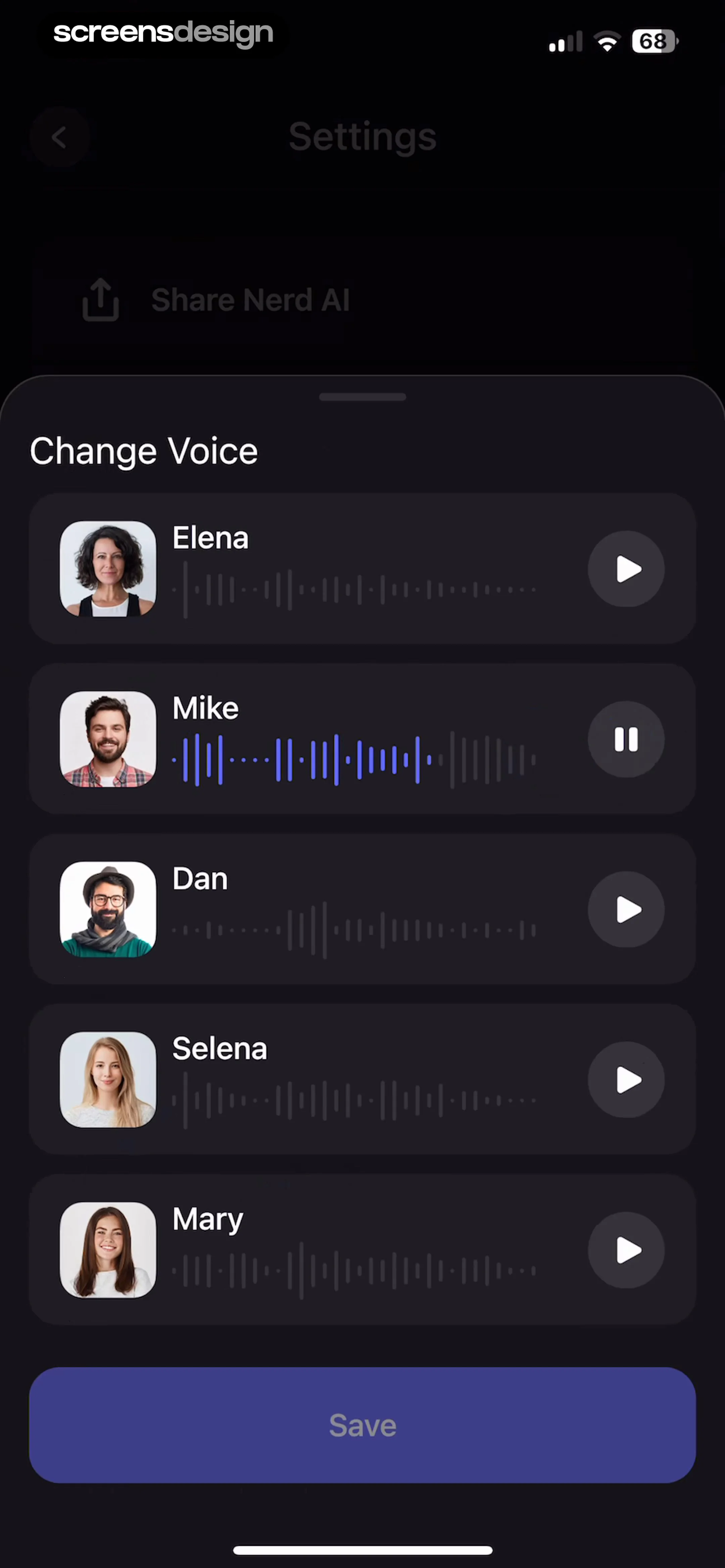
  Nerd AI - Math Problem Solver
The modal features a list of five distinct AI voice options, each represented by a circular avatar, a name (Elena, Mike, Dan, Selena, Mary), and a visual waveform representation of the voice.
 See the flow Voice Recorder-Audio Memos Арр
The background features a waveform visualization of the audio file, with playback controls at the bottom including a play button, skip-back/forward buttons, and a speed toggle.
 See the flow Noxogy Sleep Tracker
Header with date and navigation, followed by a status message, a tab switcher, a list of audio recordings, and a bottom navigation bar.
 See the flow
  SnoreLab : Record Your Snoring
Centered in the screen is an instructional card showing a waveform audio player with a highlighted pin icon and an orange arrow pointing to it, demonstrating how to pin a recording.
 See the flow Bible Chat: Daily Devotional
At the bottom, there is a playback control area with audio-related icons (waveform, play button, and refresh/loop), a share button, a 'Chat to learn more' input field with a chat bubble icon, and a forward arrow button to proceed.
 See the flow Voice Recorder-Audio Memos Арр
The background shows a waveform visualization of an audio recording titled 'Rec S 26 25 111826 a', with a blue playback scrubber line and editing tools (crop and effects icons) on the right.
 See the flow Voice Recorder-Audio Memos Арр
The central area features a large, empty waveform visualization space with a vertical blue playhead line and a horizontal timeline marked with time stamps (00:00, 00:01, 00:02).
 See the flow AI Summary - Meeting Notes
The top portion features a centered 'Note' header, while the middle section shows a visual waveform of the audio recording with a 'Paused' status indicator overlay.
 See the flow Bible Chat: Daily Devotional
Top progress bar, main text content area, central playback controls, and a bottom navigation bar.
 See the flow Voice Recorder-Audio Memos Арр
The middle section features a dynamic, vertical-bar waveform visualization representing the audio input, with a blue vertical playhead indicator positioned at the 00:05 mark.


