

 See the flow
  WeMoms - Pregnancy & Baby App
Top navigation bar, followed by three grouped list sections (Settings, Premium, Legal), and a bottom navigation bar.
 See the flow
  Fishbox - Smart Fishing App
A modal sheet containing a top map-style selection row followed by a vertical list of toggleable map layers.
 See the flow
  Noxogy Sleep Tracker
Top navigation bar with 'Done' button, followed by a preview area, then a list of selected items, and finally a list of available items.
 See the flow
  Plant Identifier, Care: Planty
The screen is a modal overlay with a header, a central icon, a settings section with a date picker, a toggle, two selection cards, and a bottom action button.
 See the flow
  Debatium - Couple Game Convo
Top logo, language selection card, settings list card, and bottom promotional card.
 See the flow
  Wallcraft – Wallpapers, live
Top navigation bar followed by two grouped list sections containing text links.
 See the flow
  Sky Tonight - Stargazing Guide
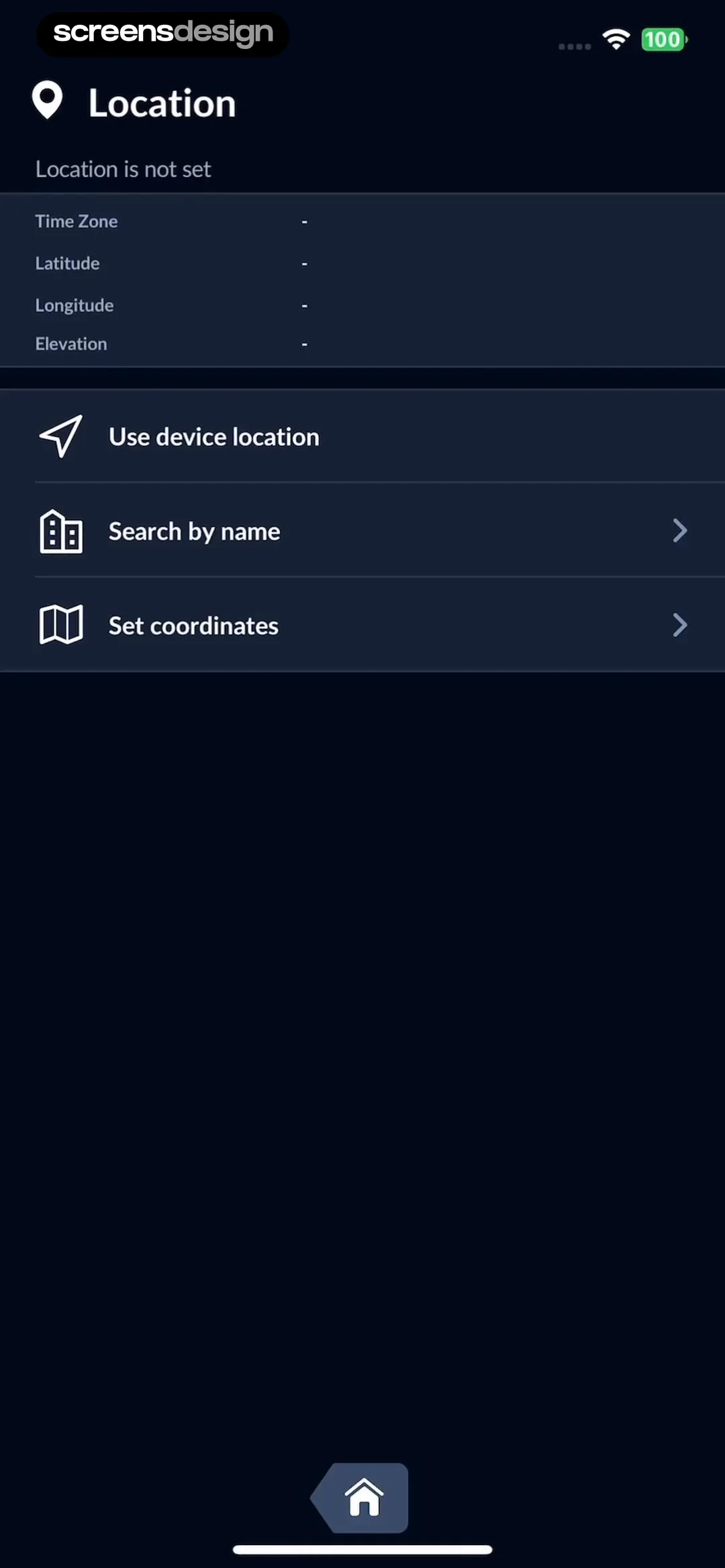
Header at the top, followed by a status summary block, then a list of three actionable buttons, and a bottom navigation icon.
 See the flow
  Expedia: Hotels, Flights, Cars
Top navigation bar, followed by a header text, two stacked interactive cards, and a bottom navigation bar.
 See the flow
  Hotels.com: Book hotels & more
Top navigation bar, followed by a header text, two brand selection cards, a secondary header text, one account support card, and a bottom navigation bar.
 See the flow
  Spoke Route Planner
Vertical list of settings grouped by headers, contained within a modal sheet.
 See the flow
  10K Runner, Couch to 10K Run
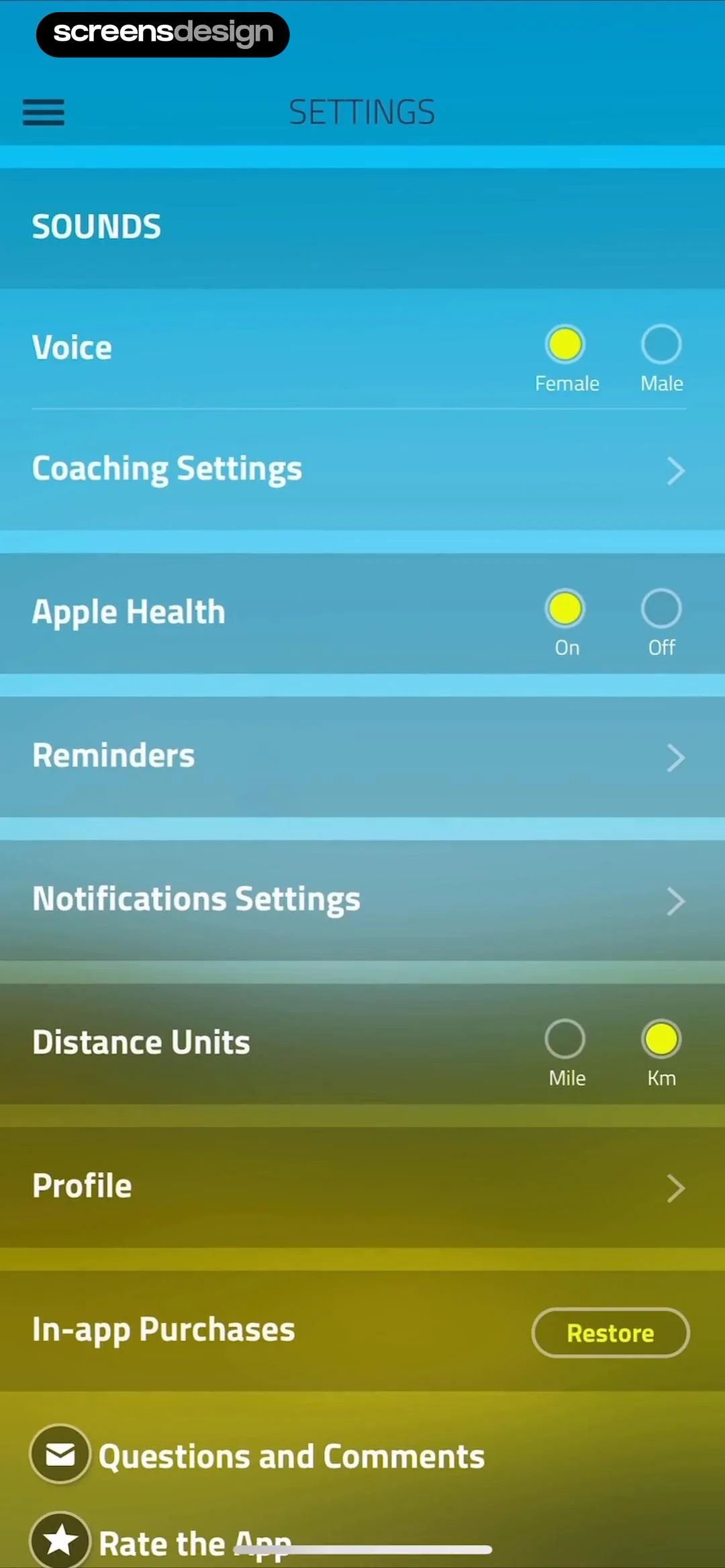
Top navigation bar with menu icon and title, followed by a vertical list of settings grouped by category, ending with support and rating links.
 See the flow
  Zumba - Dance Fitness Workout
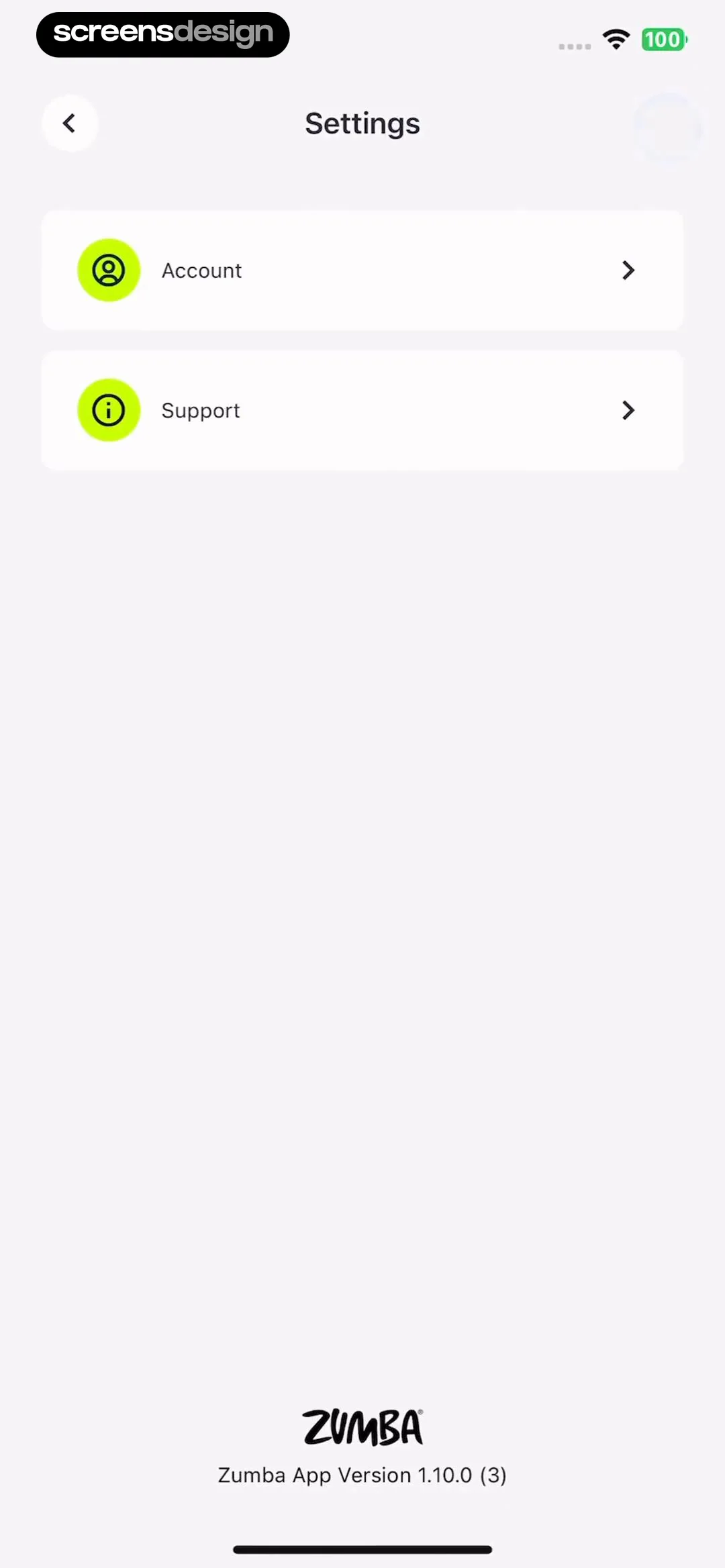
Top navigation bar, followed by a vertical list of two settings cards, with branding and version info at the bottom.
 See the flow
  ZEDGE™ Ringtones & Wallpapers
A header with a back button followed by a list of notification categories and a secondary section for profile-specific notifications.
 See the flow
  Budget app - spending tracker
Header with profile stats, followed by a premium upgrade banner, and a vertical list of settings options, with a bottom navigation bar.
 See the flow
  ScanAny-PDF Scanner App
Top navigation bar, followed by a promotional hero card, then two distinct list groups containing settings and support links.
 See the flow
  Pick Up Limes
Header followed by an informational card, then a vertical list of nutrient settings.
 See the flow
  CamScanning: AI Measure & Scan
A header with a back button and title, followed by a centered card containing a list of four navigation items.
 See the flow
  Everlook- Face & Body Editor
A header with a title and close button, followed by a large promotional card, then a vertical list of settings grouped by headers.
 See the flow
  Equalizer - Volume Booster EQ
Top navigation bar, followed by a settings list card, and a large promotional card at the bottom.
 See the flow
  GoodNovel - Booktok, Stories
Top navigation bar followed by a vertical list of settings options, with a large primary action button at the bottom.


