screensdesign

Mobile subscription flow examples

Nerd AI - Math Problem Solver: Subscribing to Plan

Open recorded flow
  1. Step 1 · 0:37

    Nerd AI - Math Problem Solver: Hero image at the top, followed by header text, a subscription details card, a trial toggle, a billing breakdown, and a large primary CTA button at the bottom.See the flow
    Nerd AI - Math Problem Solver

    Hero image at the top, followed by header text, a subscription details card, a trial toggle, a billing breakdown, and a large primary CTA button at the bottom.

  2. Step 2 · 0:42

    Nerd AI - Math Problem Solver: Top image, central mascot, subscription details card, trial toggle, billing timeline, primary CTA button, and footer links.See the flow
    Nerd AI - Math Problem Solver

    Top image, central mascot, subscription details card, trial toggle, billing timeline, primary CTA button, and footer links.

  3. Step 3 · 0:44

    Nerd AI - Math Problem Solver: The screen features a dark background with a centered white iOS system modal containing subscription details, followed by a bottom instruction area.See the flow
    Nerd AI - Math Problem Solver

    The screen features a dark background with a centered white iOS system modal containing subscription details, followed by a bottom instruction area.

  4. Step 4 · 0:49

    Nerd AI - Math Problem Solver: A central modal window sits over a dark background containing subscription details, a pricing breakdown, and a footer.See the flow
    Nerd AI - Math Problem Solver

    A central modal window sits over a dark background containing subscription details, a pricing breakdown, and a footer.

  5. Step 5 · 0:51

    Nerd AI - Math Problem Solver: A centered modal overlay on a dark background with a footer containing billing details and legal links.See the flow
    Nerd AI - Math Problem Solver

    A centered modal overlay on a dark background with a footer containing billing details and legal links.


Windy.app — Wind, Tides, Radar: Subscribe to Plan

Open recorded flow
  1. Step 1 · 1:26

    Windy.app — Wind, Tides, Radar: Top header with close button, central feature icons, pricing cards in the middle, and a large CTA button at the bottom.See the flow
    Windy.app — Wind, Tides, Radar

    Top header with close button, central feature icons, pricing cards in the middle, and a large CTA button at the bottom.

  2. Step 2 · 1:35

    Windy.app — Wind, Tides, Radar: Top close button, centered title, vertical timeline list, toggle switch, pricing text, and bottom CTA button.See the flow
    Windy.app — Wind, Tides, Radar

    Top close button, centered title, vertical timeline list, toggle switch, pricing text, and bottom CTA button.

  3. Step 3 · 1:43

    Windy.app — Wind, Tides, Radar: Top close button, header text, three feature icons, collapsible list of benefits, and a bottom subscription call-to-action card.See the flow
    Windy.app — Wind, Tides, Radar

    Top close button, header text, three feature icons, collapsible list of benefits, and a bottom subscription call-to-action card.

  4. Step 4 · 1:52

    Windy.app — Wind, Tides, Radar: The screen features a dark background with a vertical timeline, overlaid by a white, rounded-corner system modal at the bottom half of the screen.See the flow
    Windy.app — Wind, Tides, Radar

    The screen features a dark background with a vertical timeline, overlaid by a white, rounded-corner system modal at the bottom half of the screen.

  5. Step 5 · 1:58

    Windy.app — Wind, Tides, Radar: Top close button, header, vertical timeline steps, centered success modal, toggle switch, pricing text, and bottom CTA button.See the flow
    Windy.app — Wind, Tides, Radar

    Top close button, header, vertical timeline steps, centered success modal, toggle switch, pricing text, and bottom CTA button.

South China Morning Post: News: Subscribing to a Plan

Open recorded flow
  1. Step 1 · 0:14

    South China Morning Post: News: Top navigation with skip button, central lock icon, headline, benefit list, product mockup, primary CTA button, and bottom links.See the flow
    South China Morning Post: News

    Top navigation with skip button, central lock icon, headline, benefit list, product mockup, primary CTA button, and bottom links.

  2. Step 2 · 0:18

    South China Morning Post: News: A modal dialog centered over a subscription onboarding screen.See the flow
    South China Morning Post: News

    A modal dialog centered over a subscription onboarding screen.

  3. Step 3 · 0:29

    South China Morning Post: News: A centered modal window containing an app icon, title, promo code input field, and a bottom-aligned primary action button.See the flow
    South China Morning Post: News

    A centered modal window containing an app icon, title, promo code input field, and a bottom-aligned primary action button.

  4. Step 4 · 0:31

    South China Morning Post: News: The screen is a centered modal overlay with a header, a central subscription card, and a bottom action button.See the flow
    South China Morning Post: News

    The screen is a centered modal overlay with a header, a central subscription card, and a bottom action button.

  5. Step 5 · 0:36

    South China Morning Post: News: A centered modal overlay on top of a blurred background. The modal contains a header, subscription details, terms, account info, and a bottom confirmation instruction.See the flow
    South China Morning Post: News

    A centered modal overlay on top of a blurred background. The modal contains a header, subscription details, terms, account info, and a bottom confirmation instruction.

EveryDollar: Budget Management: Subscribing to Premium

Open recorded flow
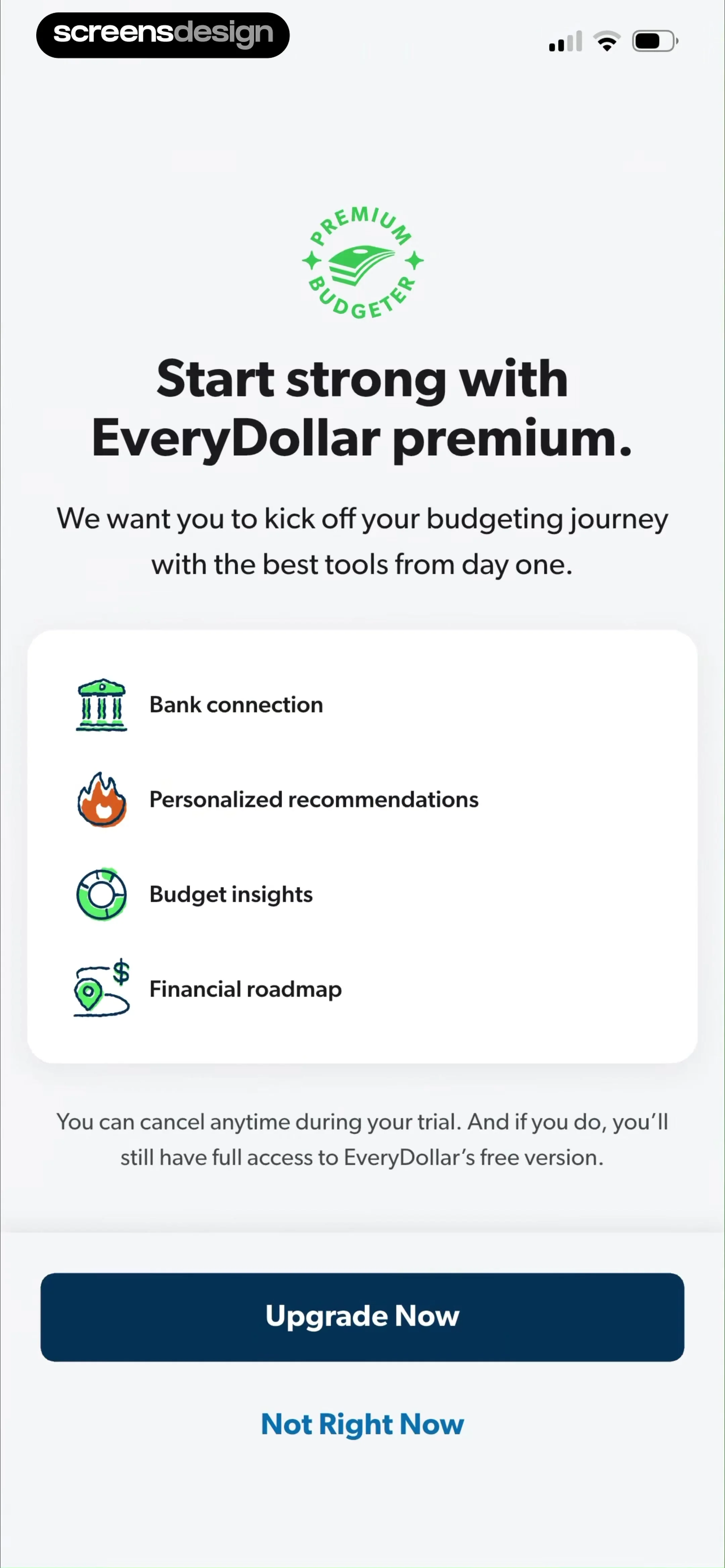
  1. Step 1 · 1:22

    EveryDollar: Budget Management: Top header with badge and text, central feature list card, bottom disclaimer text, and two bottom-aligned action buttons.See the flow
    EveryDollar: Budget Management

    Top header with badge and text, central feature list card, bottom disclaimer text, and two bottom-aligned action buttons.

  2. Step 2 · 1:24

    EveryDollar: Budget Management: Top back button, header text, list of benefits, two selectable plan cards, legal text, and bottom primary/secondary action buttons.See the flow
    EveryDollar: Budget Management

    Top back button, header text, list of benefits, two selectable plan cards, legal text, and bottom primary/secondary action buttons.

  3. Step 3 · 1:31

    EveryDollar: Budget Management: The screen consists of a background paywall page with a centered, floating iOS system modal for payment confirmation.See the flow
    EveryDollar: Budget Management

    The screen consists of a background paywall page with a centered, floating iOS system modal for payment confirmation.

  4. Step 4 · 1:36

    EveryDollar: Budget Management: Top back button, header text, list of benefits, subscription plan cards, footer button, and a centered success modal.See the flow
    EveryDollar: Budget Management

    Top back button, header text, list of benefits, subscription plan cards, footer button, and a centered success modal.

  5. Step 5 · 1:41

    EveryDollar: Budget Management: Centered content with an illustration at the top, followed by text, and a primary button at the bottom.See the flow
    EveryDollar: Budget Management

    Centered content with an illustration at the top, followed by text, and a primary button at the bottom.

Calorie Counter by Numify: Subscribing to Plan

Open recorded flow
  1. Step 1 · 6:13

    Calorie Counter by Numify: Top navigation with 'Restore', central headline and pricing, large central illustration, motivational text, and a bottom primary CTA button.See the flow
    Calorie Counter by Numify

    Top navigation with 'Restore', central headline and pricing, large central illustration, motivational text, and a bottom primary CTA button.

  2. Step 2 · 6:17

    Calorie Counter by Numify: A dark background with a centered system-level iOS subscription modal overlay.See the flow
    Calorie Counter by Numify

    A dark background with a centered system-level iOS subscription modal overlay.

  3. Step 3 · 6:25

    Calorie Counter by Numify: Top calendar strip, central calorie summary, list of tracking categories (Macros, Water, Breakfast), bottom input field, and bottom navigation bar.See the flow
    Calorie Counter by Numify

    Top calendar strip, central calorie summary, list of tracking categories (Macros, Water, Breakfast), bottom input field, and bottom navigation bar.

  4. Step 4 · 6:28

    Calorie Counter by Numify: Top calendar strip, central calorie summary, middle macro/log cards, bottom input field, and bottom navigation bar.See the flow
    Calorie Counter by Numify

    Top calendar strip, central calorie summary, middle macro/log cards, bottom input field, and bottom navigation bar.

  5. Step 5 · 6:39

    Calorie Counter by Numify: Top navigation, header text, feature list, three-column plan selection, and bottom primary CTA button.See the flow
    Calorie Counter by Numify

    Top navigation, header text, feature list, three-column plan selection, and bottom primary CTA button.

Found an example you like?See the whole story.