screensdesign

Mobile object identification flow examples

CamScanning: AI Measure & Scan: Identifying Objects

Open recorded flow
  1. Step 1 · 3:43

    CamScanning: AI Measure & Scan: Top header with mode selector, central camera viewfinder with overlay instructions, and a bottom control bar with primary scan button and secondary tools.See the flow
    CamScanning: AI Measure & Scan

    Top header with mode selector, central camera viewfinder with overlay instructions, and a bottom control bar with primary scan button and secondary tools.

  2. Step 2 · 3:46

    CamScanning: AI Measure & Scan: Top navigation bar, central square viewfinder, side capture button, bottom mode toggle.See the flow
    CamScanning: AI Measure & Scan

    Top navigation bar, central square viewfinder, side capture button, bottom mode toggle.

  3. Step 3 · 3:54

    CamScanning: AI Measure & Scan: Top navigation bar, central image preview with label, text description below, and bottom action bar.See the flow
    CamScanning: AI Measure & Scan

    Top navigation bar, central image preview with label, text description below, and bottom action bar.

  4. Step 4 · 4:07

    CamScanning: AI Measure & Scan: Top header with navigation, central viewfinder area with instructional text, and bottom control bar with shutter and secondary tools.See the flow
    CamScanning: AI Measure & Scan

    Top header with navigation, central viewfinder area with instructional text, and bottom control bar with shutter and secondary tools.

  5. Step 5 · 4:11

    CamScanning: AI Measure & Scan: Top navigation bar, central viewfinder area with scanning animation, and a bottom action toggle.See the flow
    CamScanning: AI Measure & Scan

    Top navigation bar, central viewfinder area with scanning animation, and a bottom action toggle.

  6. Step 6 · 4:12

    CamScanning: AI Measure & Scan: Top header with back button and title, followed by a large central card containing an image, similarity score, and detailed text, ending with a bottom action button.See the flow
    CamScanning: AI Measure & Scan

    Top header with back button and title, followed by a large central card containing an image, similarity score, and detailed text, ending with a bottom action button.

  7. Step 7 · 4:26

    CamScanning: AI Measure & Scan: A modal window centered on the screen with a title at the top, a large image preview in the middle, and action buttons at the bottom.See the flow
    CamScanning: AI Measure & Scan

    A modal window centered on the screen with a title at the top, a large image preview in the middle, and action buttons at the bottom.

  8. Step 8 · 4:30

    CamScanning: AI Measure & Scan: Top navigation bar, central camera scanning frame, bottom action button.See the flow
    CamScanning: AI Measure & Scan

    Top navigation bar, central camera scanning frame, bottom action button.

  9. Step 9 · 5:00

    CamScanning: AI Measure & Scan: Top navigation bar, central camera viewfinder with frame overlay, bottom control bar with primary shutter button and secondary tools.See the flow
    CamScanning: AI Measure & Scan

    Top navigation bar, central camera viewfinder with frame overlay, bottom control bar with primary shutter button and secondary tools.

  10. Step 10 · 5:03

    CamScanning: AI Measure & Scan: Top navigation bar, central scanning frame with camera feed, bottom control toggle.See the flow
    CamScanning: AI Measure & Scan

    Top navigation bar, central scanning frame with camera feed, bottom control toggle.

  11. Step 11 · 5:06

    CamScanning: AI Measure & Scan: Header with back button, central image, grid of four nutritional cards, two AI query buttons, and a bottom primary action button.See the flow
    CamScanning: AI Measure & Scan

    Header with back button, central image, grid of four nutritional cards, two AI query buttons, and a bottom primary action button.


Plant Identifier, Care: Planty: Identifying and saving a plant

Open recorded flow
  1. Step 1 · 3:46

    Plant Identifier, Care: Planty: Top navigation bar, central camera viewfinder with framing guides, bottom control panel with gallery, shutter, and flash buttons.See the flow
    Plant Identifier, Care: Planty

    Top navigation bar, central camera viewfinder with framing guides, bottom control panel with gallery, shutter, and flash buttons.

  2. Step 2 · 3:53

    Plant Identifier, Care: Planty: Top navigation bar with cancel and tab switcher, followed by a search bar, and a multi-column grid of photo thumbnails.See the flow
    Plant Identifier, Care: Planty

    Top navigation bar with cancel and tab switcher, followed by a search bar, and a multi-column grid of photo thumbnails.

  3. Step 3 · 4:14

    Plant Identifier, Care: Planty: The screen features a header, a large central card containing the plant image and details, and a bottom navigation/action area.See the flow
    Plant Identifier, Care: Planty

    The screen features a header, a large central card containing the plant image and details, and a bottom navigation/action area.

  4. Step 4 · 4:36

    Plant Identifier, Care: Planty: Top image carousel, middle grid of six care information cards, bottom text section, and a floating action bar at the very bottom.See the flow
    Plant Identifier, Care: Planty

    Top image carousel, middle grid of six care information cards, bottom text section, and a floating action bar at the very bottom.

  5. Step 5 · 4:50

    Plant Identifier, Care: Planty: Top navigation, success header, plant image card, instruction text, name input field, primary CTA button, and secondary text link.See the flow
    Plant Identifier, Care: Planty

    Top navigation, success header, plant image card, instruction text, name input field, primary CTA button, and secondary text link.

TCG Card Scanner & Value-Foloy: Scanning & Valuing a Card

Open recorded flow
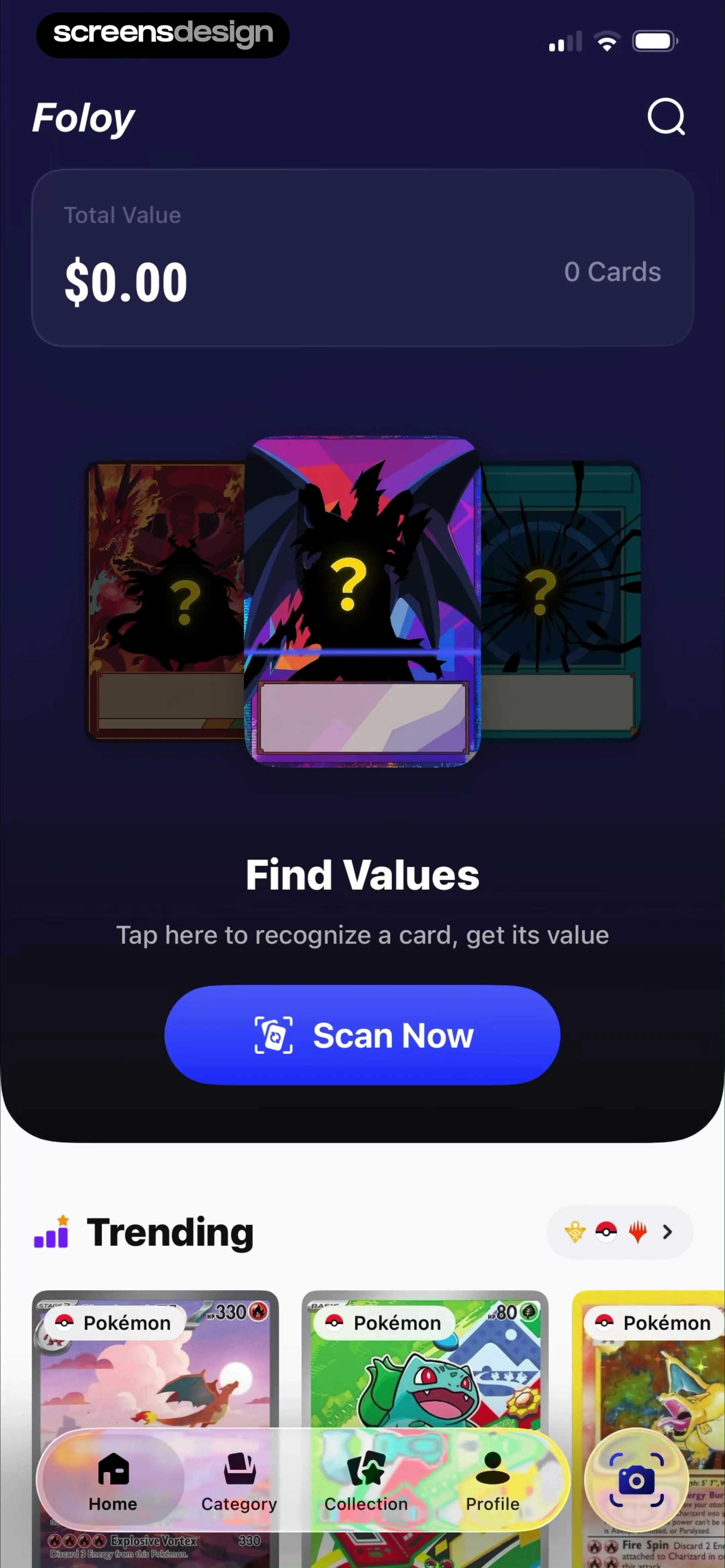
  1. Step 1 · 1:20

    TCG Card Scanner & Value-Foloy: Top header with search, total value summary card, central scan call-to-action, trending cards section, and a persistent bottom navigation bar.See the flow
    TCG Card Scanner & Value-Foloy

    Top header with search, total value summary card, central scan call-to-action, trending cards section, and a persistent bottom navigation bar.

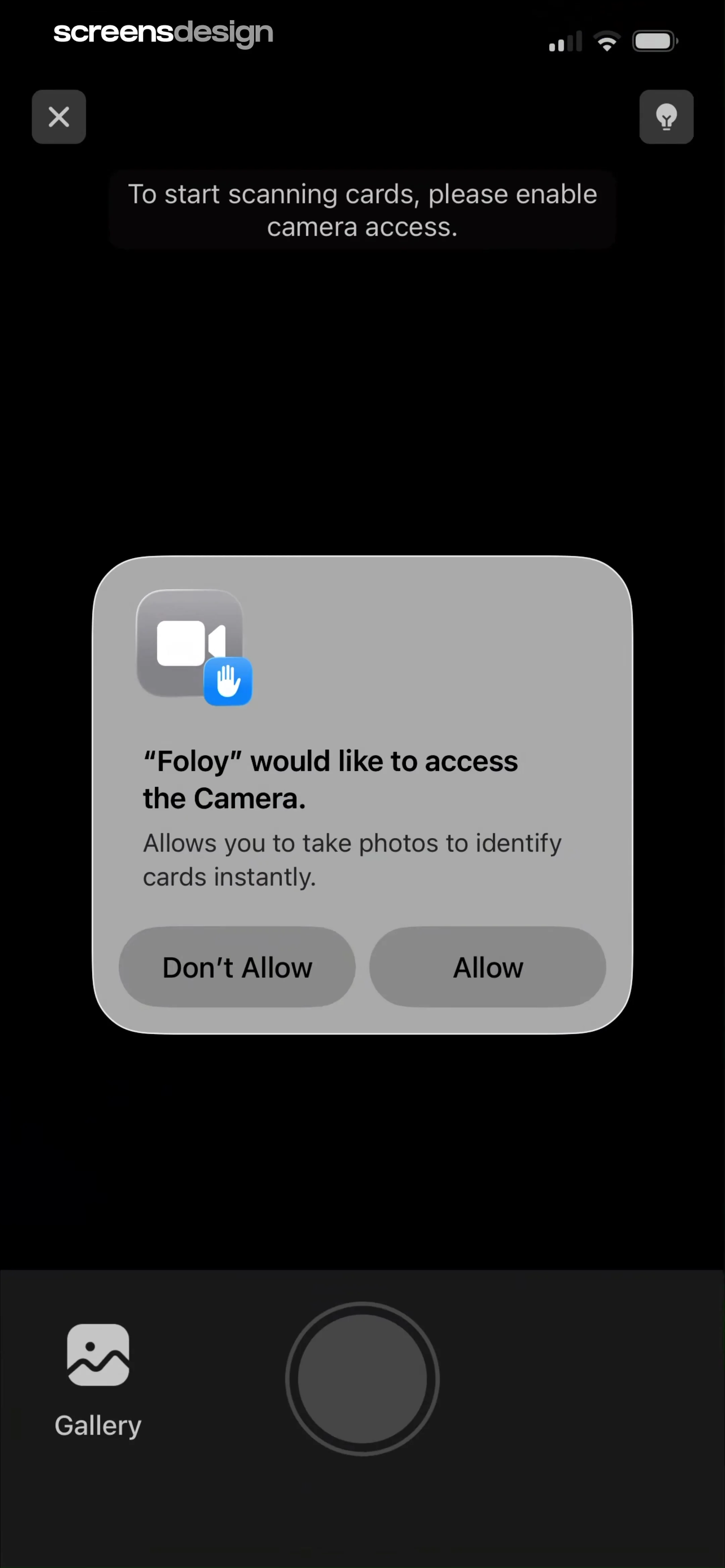
  2. Step 2 · 1:30

    TCG Card Scanner & Value-Foloy: A dark camera viewfinder background with a centered system permission modal and a bottom control bar.See the flow
    TCG Card Scanner & Value-Foloy

    A dark camera viewfinder background with a centered system permission modal and a bottom control bar.

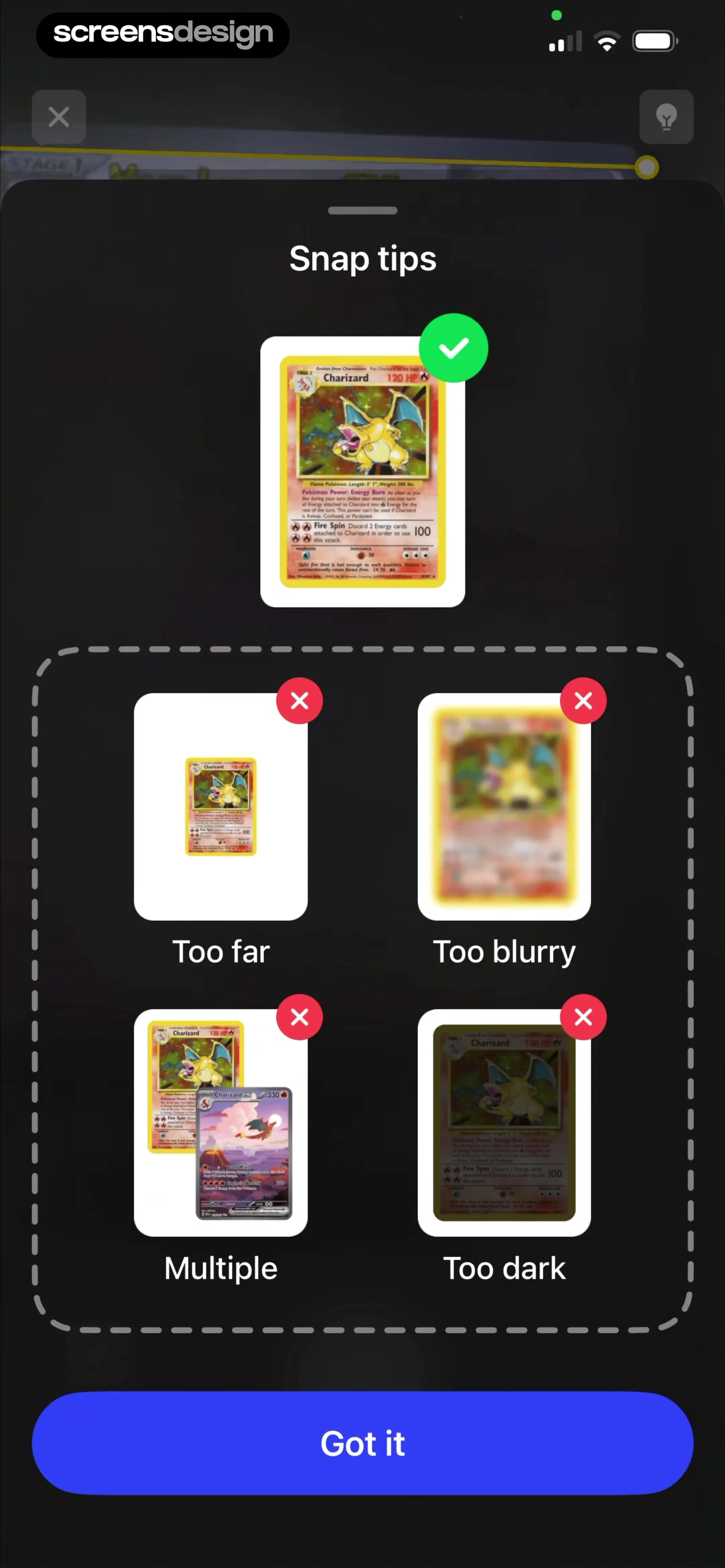
  3. Step 3 · 1:34

    TCG Card Scanner & Value-Foloy: A centered modal overlay containing a header, a 'good' example, a grid of 'bad' examples, and a bottom action button.See the flow
    TCG Card Scanner & Value-Foloy

    A centered modal overlay containing a header, a 'good' example, a grid of 'bad' examples, and a bottom action button.

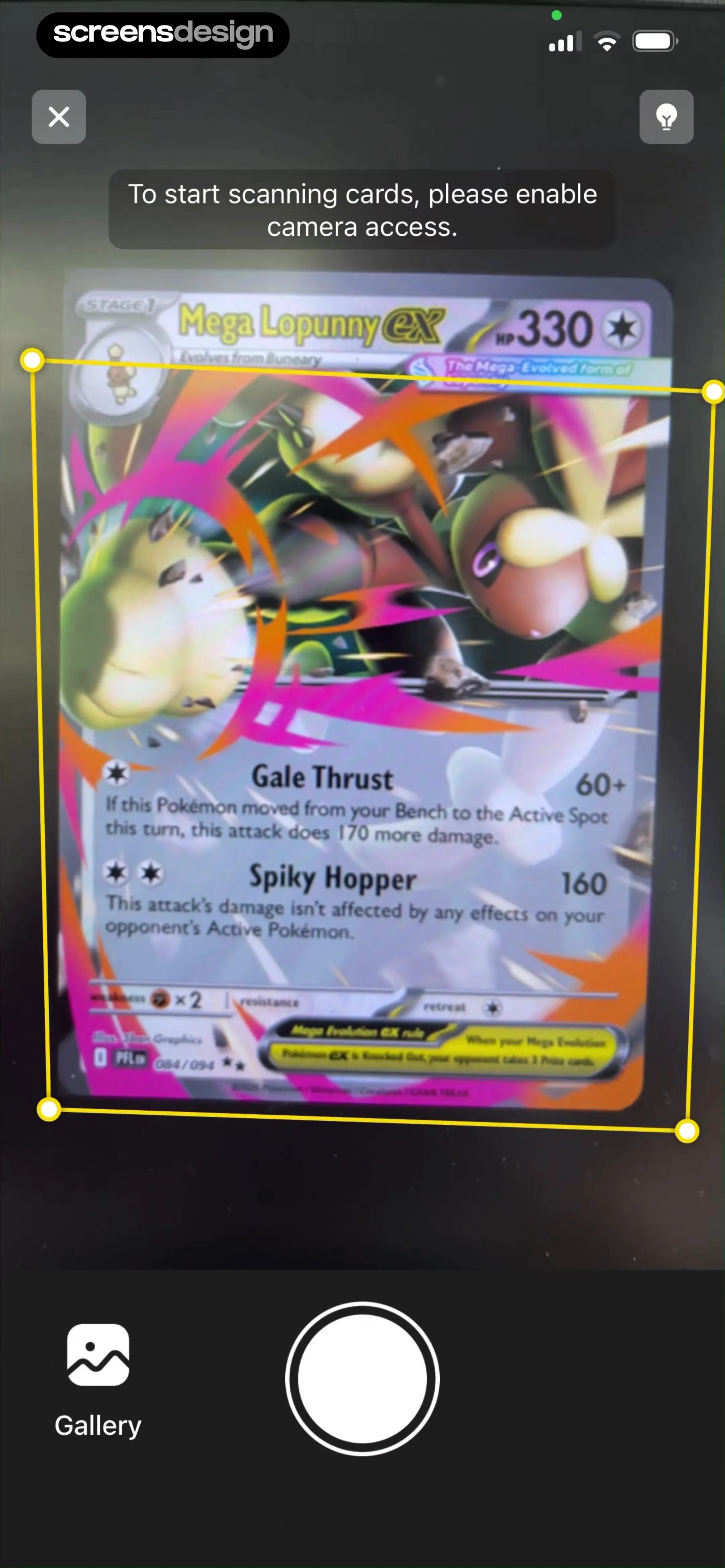
  4. Step 4 · 1:36

    TCG Card Scanner & Value-Foloy: Top bar with close and light controls, central camera viewfinder with frame overlay, bottom bar with gallery and shutter buttons.See the flow
    TCG Card Scanner & Value-Foloy

    Top bar with close and light controls, central camera viewfinder with frame overlay, bottom bar with gallery and shutter buttons.

  5. Step 5 · 1:40

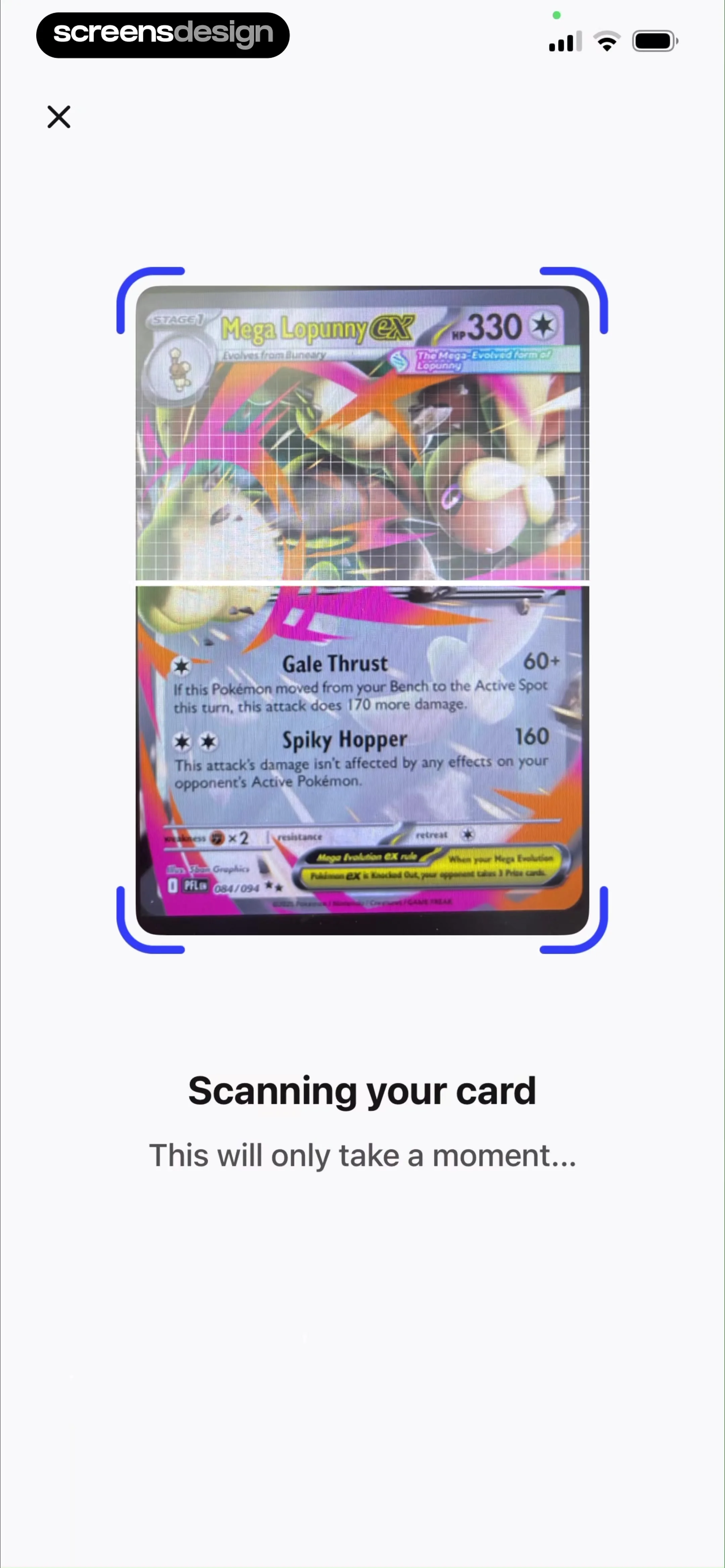
    TCG Card Scanner & Value-Foloy: Top navigation bar with close button, central camera viewfinder with scanning frame, and bottom text instructions.See the flow
    TCG Card Scanner & Value-Foloy

    Top navigation bar with close button, central camera viewfinder with scanning frame, and bottom text instructions.

  6. Step 6 · 1:50

    TCG Card Scanner & Value-Foloy: Top navigation, large card image, card details section with price and condition, bottom action bar.See the flow
    TCG Card Scanner & Value-Foloy

    Top navigation, large card image, card details section with price and condition, bottom action bar.

  7. Step 7 · 1:52

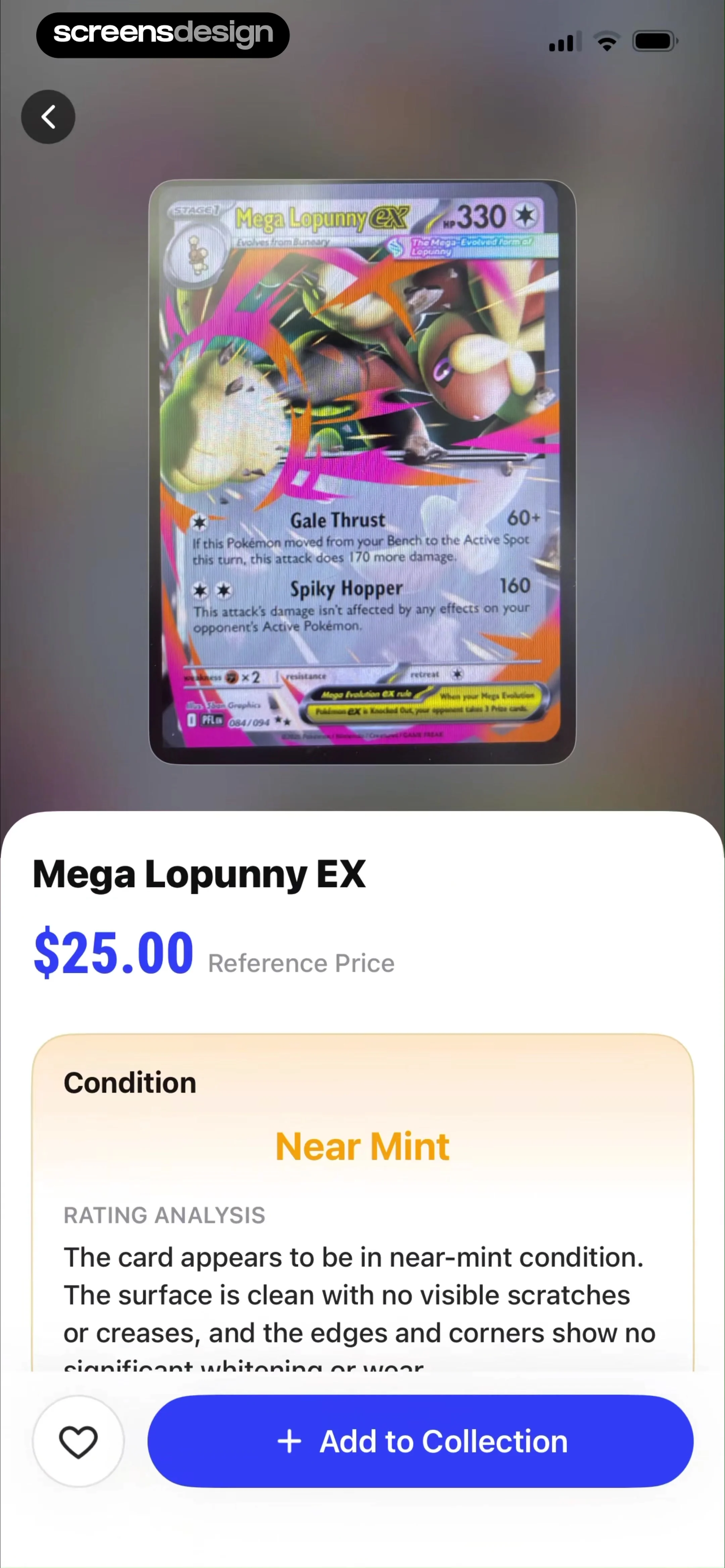
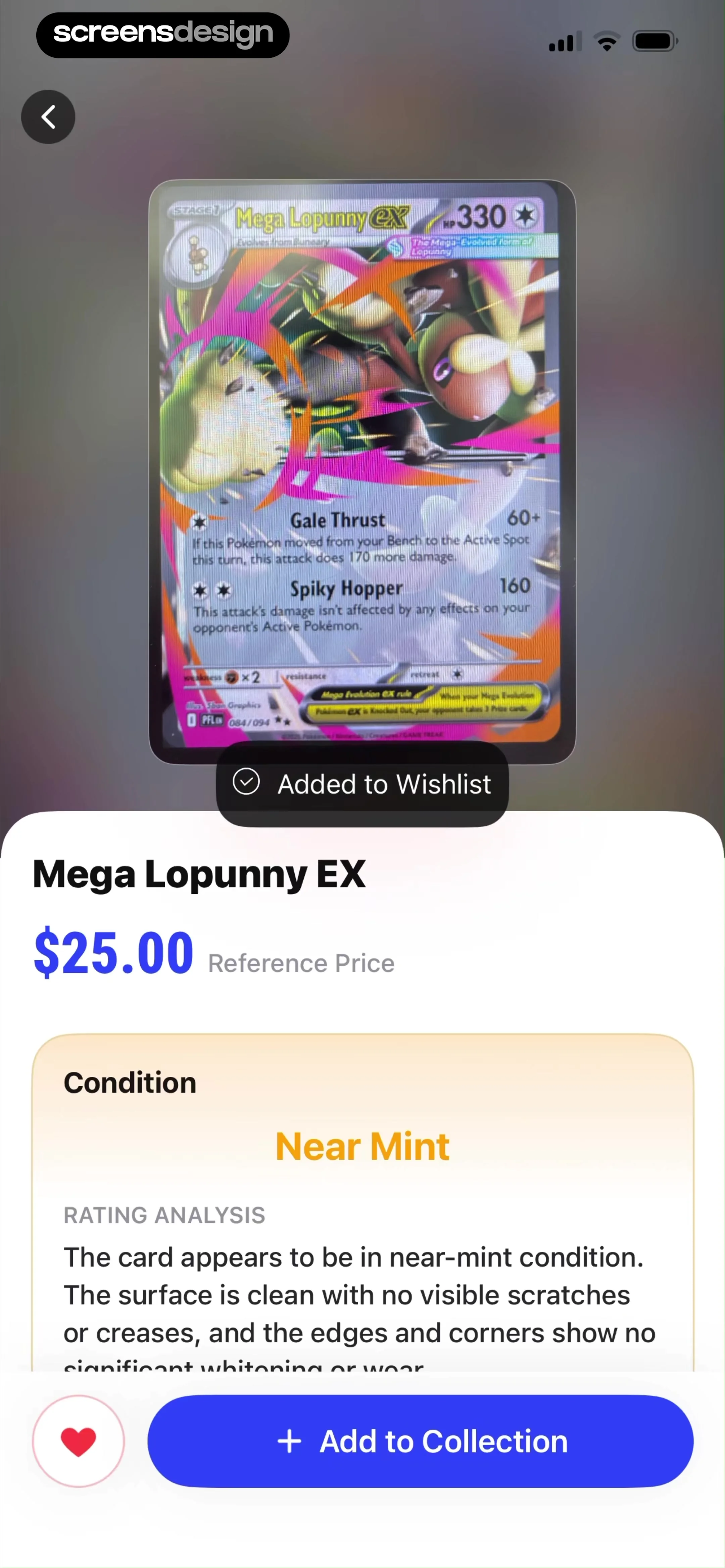
    TCG Card Scanner & Value-Foloy: Top back button, centered card image, bottom white sheet containing details, price, condition analysis, and action buttons.See the flow
    TCG Card Scanner & Value-Foloy

    Top back button, centered card image, bottom white sheet containing details, price, condition analysis, and action buttons.

  8. Step 8 · 1:57

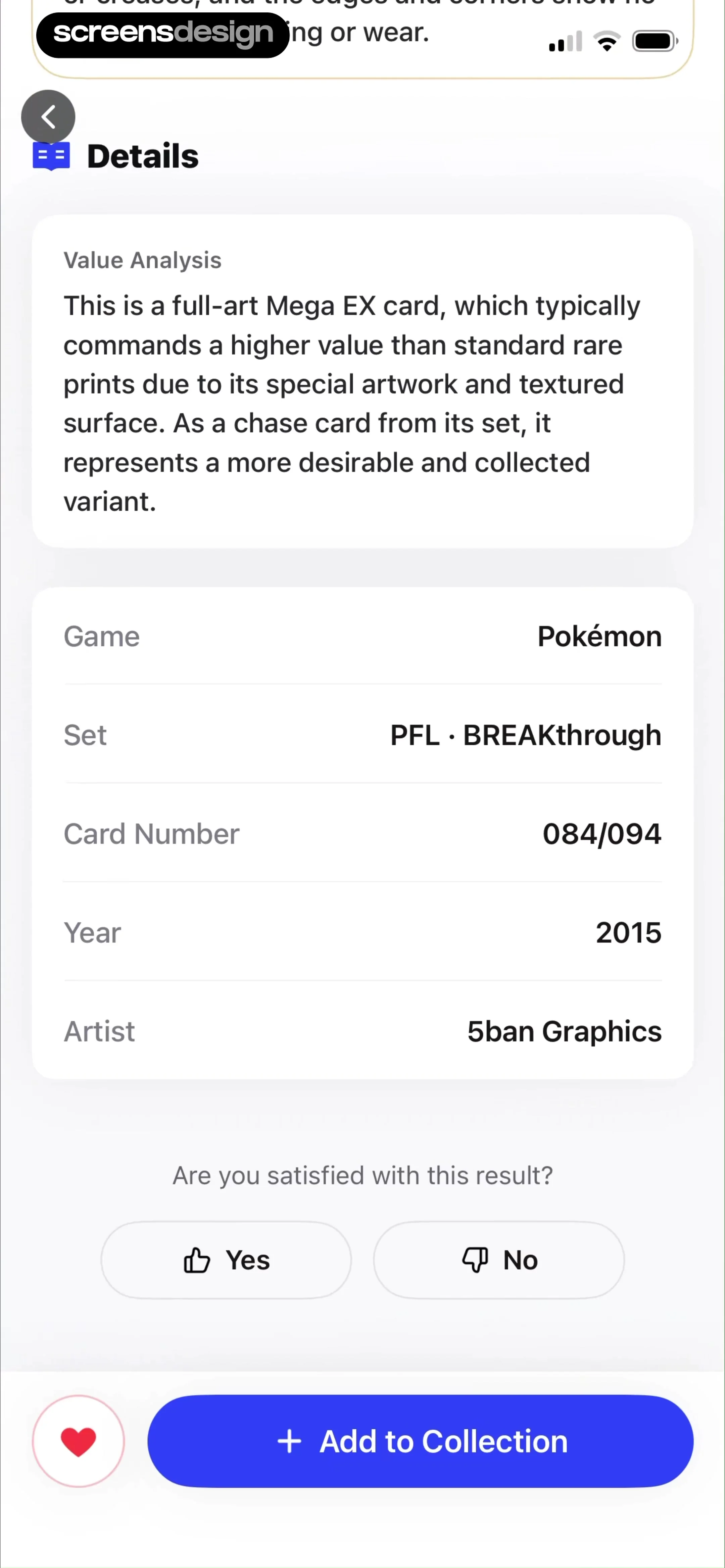
    TCG Card Scanner & Value-Foloy: Top navigation bar, followed by a value analysis card, a list of card metadata, a feedback prompt, and a bottom action bar.See the flow
    TCG Card Scanner & Value-Foloy

    Top navigation bar, followed by a value analysis card, a list of card metadata, a feedback prompt, and a bottom action bar.

Found an example you like?See the whole story.