screensdesign

Mobile help and support flow examples

Vivino: Drink The Right Wine: Using Customer Support Chat

Open recorded flow
  1. Step 1 · 13:49

    Vivino: Drink The Right Wine: Header with title, system message text, empty chat area, and bottom input field with keyboard.See the flow
    Vivino: Drink The Right Wine

    Header with title, system message text, empty chat area, and bottom input field with keyboard.

  2. Step 2 · 13:55

    Vivino: Drink The Right Wine: Header, system message, chat history, topic selection card, bottom input bar.See the flow
    Vivino: Drink The Right Wine

    Header, system message, chat history, topic selection card, bottom input bar.

  3. Step 3 · 14:03

    Vivino: Drink The Right Wine: Top navigation bar followed by a search bar and a vertical list of action buttons.See the flow
    Vivino: Drink The Right Wine

    Top navigation bar followed by a search bar and a vertical list of action buttons.

  4. Step 4 · 14:05

    Vivino: Drink The Right Wine: Top navigation bar with back button and title, followed by centered confirmation text, and two stacked action buttons at the bottom.See the flow
    Vivino: Drink The Right Wine

    Top navigation bar with back button and title, followed by centered confirmation text, and two stacked action buttons at the bottom.

1.1.1.1: Faster Internet: Browsing Help Center

Open recorded flow
  1. Step 1 · 1:39

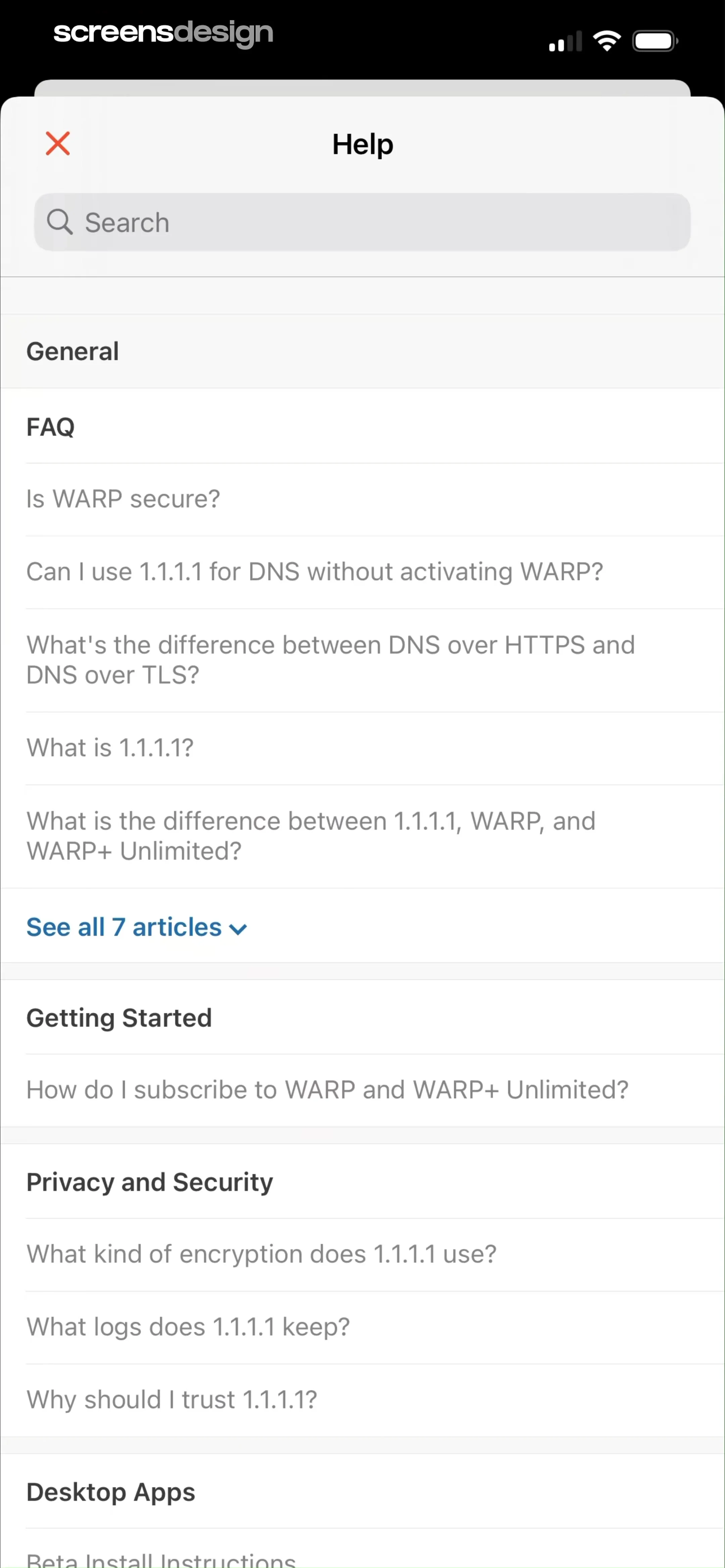
    1.1.1.1: Faster Internet: A modal window with a header containing a close button and title, a search input field, and a scrollable list of categorized help topics.See the flow
    1.1.1.1: Faster Internet

    A modal window with a header containing a close button and title, a search input field, and a scrollable list of categorized help topics.

  2. Step 2 · 1:47

    1.1.1.1: Faster Internet: Top navigation bar followed by a title, body text, and a metadata footer.See the flow
    1.1.1.1: Faster Internet

    Top navigation bar followed by a title, body text, and a metadata footer.

  3. Step 3 · 1:50

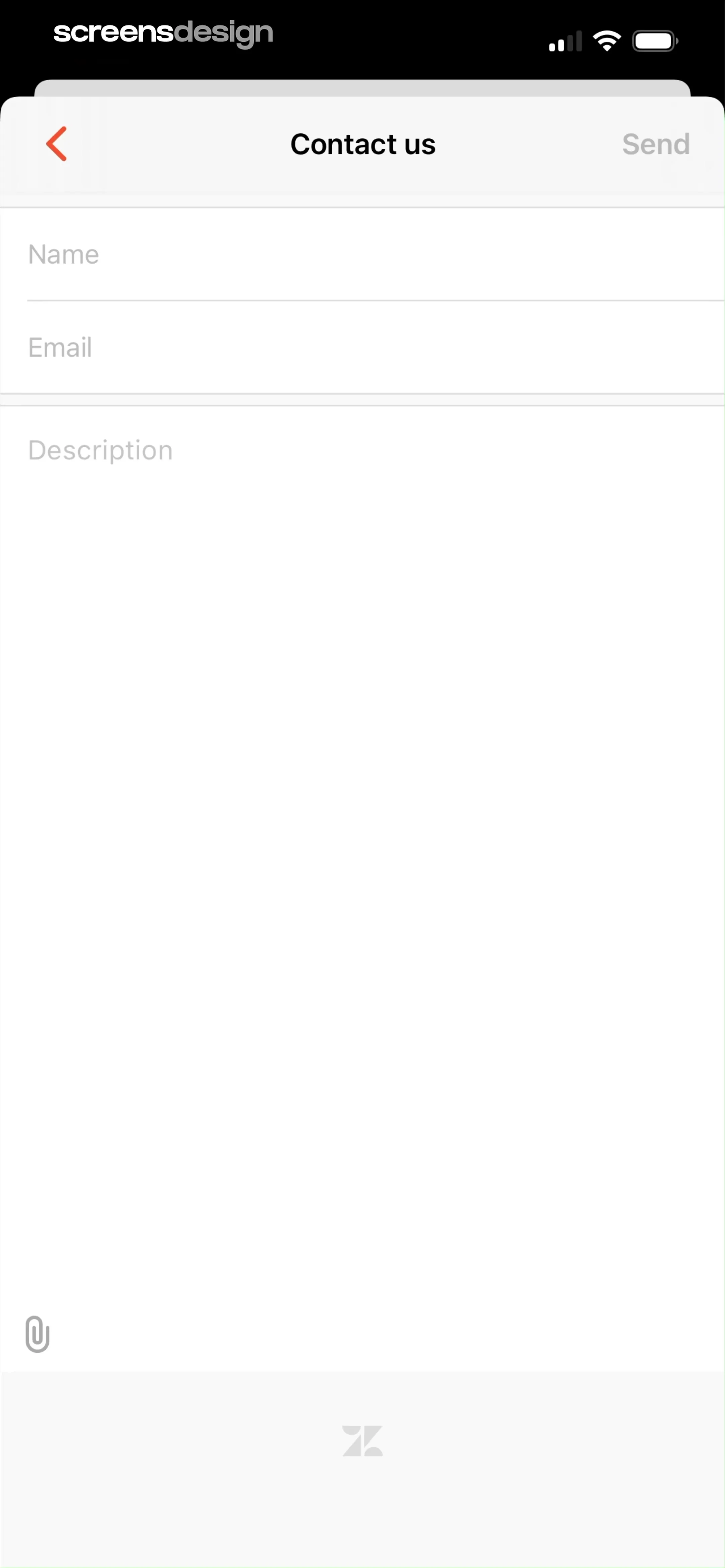
    1.1.1.1: Faster Internet: Top navigation bar followed by a vertical stack of input fields and a bottom footer logo.See the flow
    1.1.1.1: Faster Internet

    Top navigation bar followed by a vertical stack of input fields and a bottom footer logo.

HBX | Globally Curated Fashion: Accessing Help & Support

Open recorded flow
  1. Step 1 · 12:39

    HBX | Globally Curated Fashion: Top navigation bar, hero image with search input, content card below, and bottom navigation bar.See the flow
    HBX | Globally Curated Fashion

    Top navigation bar, hero image with search input, content card below, and bottom navigation bar.

  2. Step 2 · 12:45

    HBX | Globally Curated Fashion: Top navigation bar, followed by a secondary header, main content area with text, social links, and a persistent bottom navigation bar.See the flow
    HBX | Globally Curated Fashion

    Top navigation bar, followed by a secondary header, main content area with text, social links, and a persistent bottom navigation bar.

  3. Step 3 · 12:50

    HBX | Globally Curated Fashion: Header with navigation, followed by a dropdown category selector, the main article content, a feedback prompt, and a list of related articles, with a persistent bottom navigation bar.See the flow
    HBX | Globally Curated Fashion

    Header with navigation, followed by a dropdown category selector, the main article content, a feedback prompt, and a list of related articles, with a persistent bottom navigation bar.

  4. Step 4 · 13:03

    HBX | Globally Curated Fashion: Top navigation bar, followed by a chat conversation area, and a bottom input field with a persistent bottom navigation bar.See the flow
    HBX | Globally Curated Fashion

    Top navigation bar, followed by a chat conversation area, and a bottom input field with a persistent bottom navigation bar.

invideo AI: AI Video Generator: Accessing Help & Support

Open recorded flow
  1. Step 1 · 13:14

    invideo AI: AI Video Generator: Header with search bar followed by a vertical list of category cards.See the flow
    invideo AI: AI Video Generator

    Header with search bar followed by a vertical list of category cards.

  2. Step 2 · 13:21

    invideo AI: AI Video Generator: Top navigation bar followed by a header section with an icon and title, then a list of FAQ links inside a card container.See the flow
    invideo AI: AI Video Generator

    Top navigation bar followed by a header section with an icon and title, then a list of FAQ links inside a card container.

  3. Step 3 · 13:23

    invideo AI: AI Video Generator: Top navigation bar followed by breadcrumbs, article title, metadata, collapsible table of contents, descriptive text, and a highlighted information box.See the flow
    invideo AI: AI Video Generator

    Top navigation bar followed by breadcrumbs, article title, metadata, collapsible table of contents, descriptive text, and a highlighted information box.

  4. Step 4 · 13:27

    invideo AI: AI Video Generator: Top navigation bar, followed by a list of related articles, a feedback section, and a footer with logo and social links.See the flow
    invideo AI: AI Video Generator

    Top navigation bar, followed by a list of related articles, a feedback section, and a footer with logo and social links.

  5. Step 5 · 13:43

    invideo AI: AI Video Generator: Header with logo and close button, followed by a greeting, a message button, a search bar, a list of FAQ links, and external help links, with a bottom navigation bar.See the flow
    invideo AI: AI Video Generator

    Header with logo and close button, followed by a greeting, a message button, a search bar, a list of FAQ links, and external help links, with a bottom navigation bar.

  6. Step 6 · 13:46

    invideo AI: AI Video Generator: Top navigation bar, central chat message area, and bottom-aligned quick-reply buttons.See the flow
    invideo AI: AI Video Generator

    Top navigation bar, central chat message area, and bottom-aligned quick-reply buttons.

  7. Step 7 · 14:01

    invideo AI: AI Video Generator: Top navigation bar followed by a chat conversation area and a bottom input form card.See the flow
    invideo AI: AI Video Generator

    Top navigation bar followed by a chat conversation area and a bottom input form card.

  8. Step 8 · 14:10

    invideo AI: AI Video Generator: Top navigation bar followed by a chat message area and a two-field form at the bottom.See the flow
    invideo AI: AI Video Generator

    Top navigation bar followed by a chat message area and a two-field form at the bottom.

  9. Step 9 · 14:20

    invideo AI: AI Video Generator: Top navigation bar followed by user identification fields, chat history, and a bottom message input area with an active keyboard.See the flow
    invideo AI: AI Video Generator

    Top navigation bar followed by user identification fields, chat history, and a bottom message input area with an active keyboard.

Found an example you like?See the whole story.