VPN app onboarding
10 VPN App Onboarding Examples: Trust, Permissions and First Connection
A VPN onboarding flow succeeds when the user understands the promise, the data practice, the system configuration, and the difference between connected and merely open.
VPN apps ask users to route network activity through a service they have just installed. The operating system then presents a warning that traffic may be filtered or monitored. That wording can sound like the opposite of the product promise. Onboarding has to bridge the gap with plain explanations, verifiable privacy claims, and a connection state that cannot be mistaken for protection before setup is complete.
The core journey is not a slideshow followed by a large power button. It is a trust sequence: explain what the service changes, disclose the information the app collects, separate optional analytics from required connection data, prepare the person for the native configuration prompt, create the profile, select a sensible location, connect, and show enough status to verify what happened.
These ten recorded screens cover no-logs positioning, privacy controls, detailed collection notices, configuration prompts, multi-attempt setup, disconnected dashboards, and an active connection. They show useful interface patterns, but the presence of a privacy claim on screen is not proof that the service follows it. Product teams must align the copy with actual network architecture, policy, retention, and independent review.
01. Protection promise
Describe the user-visible change before discussing technology.
People need to know what Connect will do, which limits remain, and how the app will signal success.
Proton VPN opens with a two-step welcome, names private browsing and access as benefits, and states a certified no-logs position. NordVPN focuses on data choice, says browsing activity remains private regardless of the analytics selection, and offers Accept, Reject, and Customize. Each screen gives the user a concrete statement to evaluate rather than relying only on a shield illustration.
Write the promise at the level the product can support. A VPN changes the network route and public IP for covered traffic, but it does not make every account anonymous, remove malicious software, or guarantee access to every service. Explain whether all device traffic is included, whether local network devices remain reachable, and what happens when the tunnel disconnects.
Keep privacy controls separate from the primary connection. Optional analytics should have a real reject path and should not be presented as necessary for protection. If the service has independent audits or an open-source client, link the evidence without turning onboarding into a certification wall. The main action should advance the setup, not force agreement to unrelated tracking.


02. Data disclosure
Separate required service data from optional measurement.
A long privacy notice becomes useful only when readers can map each item to a purpose and a choice.
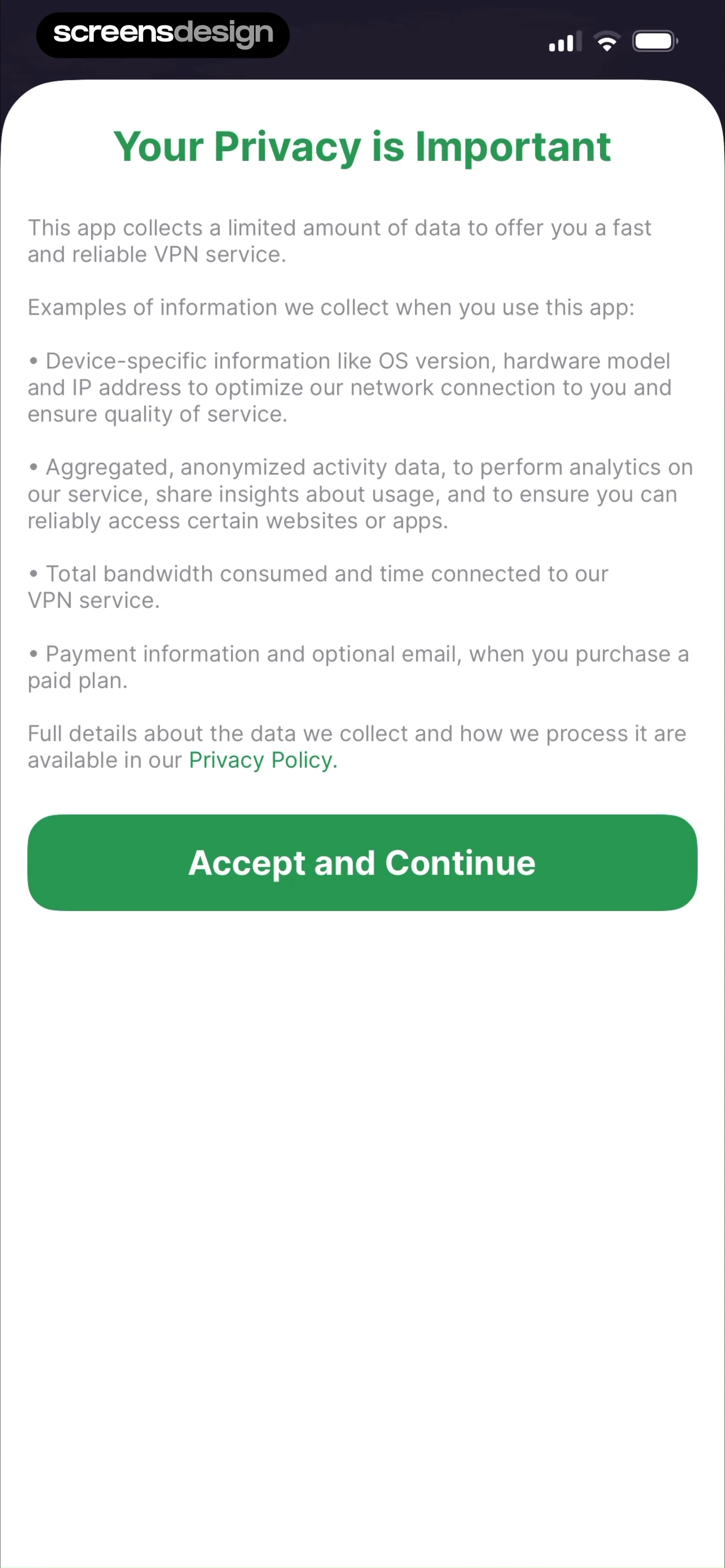
Fast VPN Proxy lists device information, aggregated activity, bandwidth, connection time, payment details, and optional email under Your Privacy is Important. Windscribe structures its notice around signup, service use, connected state, and what it does not do. Both make the scope visible inside the product rather than hiding the entire answer behind a policy link.
Break the disclosure into categories that match system behavior: account, diagnostics, billing, abuse prevention, connection metadata, and browsing activity. For each, state purpose, retention, association with identity, and whether it can be disabled. Avoid saying anonymous when a stable device identifier or account can reconnect the record to a person.
The legal policy still matters, but onboarding should give the material answer. Provide access to settings later and keep consent history. When practices change, show what changed before requesting a new choice. A generic Agree and continue action should not cover optional advertising, service terms, and a system configuration all at once.

03. System configuration
Prepare the native VPN prompt with the same language it uses.
The in-app explanation should arrive immediately before the operating-system request and explain why the warning appears.
Private Internet Access tells users that it needs access to VPN profiles, says a prompt will appear, and instructs them to allow configuration. Private VPN Proxy shows the disconnected dashboard underneath the native request to add VPN configurations. The system warning says network activity may be filtered or monitored, so the product has to explain that this is standard platform language for creating the tunnel.
Do not trigger the prompt on launch. Let the user understand the product, select a connection or accept a recommended location, and then tap a setup action. The explanation should name VPN configurations, state that the system prompt comes next, and describe what denying it means. Avoid visual tricks that make Don’t Allow look unavailable.
After denial, return to a stable disconnected state with a clear Try Again action and settings guidance when required. Preserve account, location, and trial state. Detect when a configuration already exists, when another profile conflicts, and when device policy prevents changes. Do not loop the user through the same explanation without identifying the obstacle.


04. Permission sequence
Do not stack unrelated permissions around the trust moment.
Tracking, local network, notifications, and VPN configuration are separate decisions with separate consequences.
VeePN’s welcome screen is shown beneath an App Tracking Transparency request, and a following variant asks for local-network access. Surfshark’s setup screen combines a VPN explanation, selected fastest location, native configuration prompt, progress, attempt count, cancel, and Skip VPN. The screens demonstrate how quickly setup can accumulate system and product decisions.
Sequence only what the first connection requires. VPN configuration is essential to the core task. Advertising tracking is not. Local-network access may support device discovery or connectivity behavior, but the explanation must describe that exact function and the denied experience. Notification permission can wait until alerts or connection status create a recognizable reason.
Keep the setup screen visible and truthful when a native prompt covers it. If the user declines, stop progress and explain the resulting state. Attempt counters are useful only when they correspond to real retries and lead to diagnostics. Cancel and skip actions should state whether the person can still browse the app, choose a server, or use another protection feature.


05. Connection state
Make disconnected, connecting, protected, paused, and failed unmistakable.
The home screen is part of onboarding because it proves whether the promised protection became real.
Stealth VPN shows Servers, a zeroed timer, Disconnected, and the native configuration request on one screen. Surfshark’s connected view says Connected and safe, then shows elapsed time, VPN IP address, uploaded and downloaded data, protocol, kill switch, auto-connect, selected location, Disconnect, and Pause. The contrast gives users a clear before and after state.
Use text, color, iconography, and control labels together. A green map pin by itself is not enough. Connecting needs progress and a cancel option. Paused needs an expiry time and a Resume action. Reconnecting should explain whether traffic is blocked by a kill switch or temporarily using the normal connection. A failed state should name the likely cause and offer server change, protocol change, retry, or support.
Show details in layers. The primary status and location belong at the top, while protocol and traffic information can be secondary. Do not display a new public IP as a guarantee that every request is private. When the app returns from background, refresh status from the system tunnel rather than reusing a stale protected state.


06. Implementation
Build setup around the operating system’s tunnel state.
The interface should reflect the real profile and connection, even after backgrounding, device restart, network change, or account expiry.
Model profile absent, permission pending, profile installed, connecting, connected, reconnecting, paused, disconnected by user, failed, and blocked by policy. Store desired server and protocol separately from actual tunnel state. On launch and foreground, reconcile the UI with the operating system before showing protected language.
Handle Wi-Fi to cellular handoff, captive portals, airplane mode, unavailable servers, authentication expiry, subscription expiry, protocol failure, configuration removal, device limits, and competing VPN profiles. Preserve diagnostics that help support without logging browsing activity. Error copy should offer the narrowest safe recovery action rather than a generic Something went wrong.
Entitlement checks should not make protection status ambiguous. If a plan expires while connected, explain when the tunnel will close and whether a free location remains. Restore purchase and sign-in should be accessible from the blocked state. Never show a fake connection animation while waiting for payment or account creation.
07. Validation
Measure first protection and durable understanding.
Permission acceptance is useful only when the tunnel connects and users can later recognize its state.
Track privacy-notice completion, configuration prompt shown, allow or deny outcome, profile creation, first connection attempt, time to connected, retry, server change, and first successful protected session. Distinguish cancellation from technical failure. Pair the funnel with tests asking users to identify whether they are protected, which server is active, and what Pause will do.
Monitor connection success by network type, region, protocol, operating-system version, and app version. Guardrails include crash rate, battery impact, reconnect loops, stale status, support contacts, and users who believe they are protected while the tunnel is inactive. Do not collect destination domains merely to improve product analytics.
Test claims and copy whenever service architecture changes. Privacy comprehension, configuration success, and recovery should be reviewed alongside conversion. A lower prompt-acceptance rate can be healthy if clearer disclosure prevents people from granting a permission they did not understand.
08. Review checklist
Review trust, setup, status, and recovery as one flow.
Test the first connection under realistic network, permission, subscription, and device-policy conditions.
Run onboarding with tracking rejected, configuration denied, local-network access denied, no account, an expired account, an existing profile, a competing VPN, a captive portal, and a server that fails. Background and restart the app in every connection state.
Verify copy against engineering and legal behavior. Then test large text, VoiceOver, reduced motion, color-blind conditions, and one-handed use. Protection cannot depend on a subtle color change or animation.
- The opening promise states what the VPN changes and what it does not guarantee.
- Required connection data and optional analytics are described separately.
- Reject and Customize choices are genuine and do not block core protection.
- The app prepares users for the native VPN configuration wording.
- Tracking, local-network, notification, and VPN permissions are not bundled.
- Denied, conflicting, removed, and policy-blocked profiles have specific recovery.
- Disconnected, connecting, protected, paused, reconnecting, and failed states are distinct.
- Foreground and restart states are reconciled with the operating-system tunnel.
- Trial, expiry, sign-in, restore, and device-limit states do not fake protection.
- Status remains understandable without color, motion, or precise vision.
Questions and answers
VPN app onboarding questions
Why does iOS say a VPN may filter or monitor traffic?
The operating system uses standard language when an app requests permission to add a VPN configuration. Prepare users for that wording, explain that the profile creates the tunnel, and describe the service’s actual logging and retention practices separately.
When should a VPN app request configuration permission?
Request it after the user understands the service and initiates setup or a connection. Show an in-app explanation immediately before the native prompt and provide a stable disconnected state if permission is denied.
What should the connected screen show?
Show an explicit connected label, selected location, elapsed time, and the primary Disconnect or Pause action. Protocol, VPN address, traffic, kill switch, and auto-connect can appear as secondary verification details.
Should a VPN request tracking permission during onboarding?
Advertising tracking is not required to create the VPN tunnel. Treat it as an independent optional choice, explain its real purpose, and do not place it where users may confuse it with protection.
How should connection failure be designed?
Name the state and offer relevant actions such as retry, change server, change protocol, check the network, repair the profile, sign in, or contact support. State whether normal traffic is continuing or blocked by a kill switch.
Which VPN onboarding metric matters most?
First successful protected connection is more meaningful than opening the app or accepting a prompt. Pair it with comprehension and false-protection guardrails so the interface does not optimize clicks while leaving status misunderstood.
Apps referenced in this page
Open the products behind the examples.
 Proton VPN: Fast & SecureSafe and unlimited proxy
 NordVPN: VPN Fast & SecureSafe & Quick VPN, Best Privacy
 VPN - Fast VPN ProxySchool VPN & WiFi security
 VPN Windscribe: Fast & SecurePrivate Internet & WiFi Proxy
 VPN by Private Internet AccessBest IP Location Changer, Safe
 Private VPN Proxy - Easy StartVPN for home, school, office
 Secure VPN Super Proxy | VeePNExpress Speed | Adblock Master
 Surfshark VPN: Fast & SecureUnlimited Devices, Safe Wifi
 Stealth VPN & Secure ProxyBypass Borders
2,805 apps in the top charts.Ask them anything.
Compare recorded VPN setup and connection screens, then inspect how real apps sequence privacy language, system permission, server choice, and status.