Running app screen design examples
10 Running App Screen Design Examples
Planning, live exercise, and post-run reflection need different information density, interaction, and safety assumptions.
A running app may plan training, record outdoor activity, coach pace, navigate a route, analyze performance, support beginners, or connect athletes socially. Those jobs create distinct screens around one workout.
Before a run, the user needs today’s session, readiness, route, equipment, and a clear start. During the run, glanceability, audio or haptic guidance, GPS confidence, safety, and large controls dominate. Afterward, summary and recovery replace live control.
Metrics such as pace, distance, time, heart rate, elevation, cadence, and training load are only useful when units, freshness, accuracy, and context are clear. More numbers can reduce understanding during motion.
The recorded examples below span beginner trackers, adaptive training plans, coaching, route maps, and run summaries. They show how products allocate attention across the workout life cycle.
01. Training plan
Make today’s workout and its purpose easy to recognize.
Athletes need to know what to do, why it belongs today, and how to adapt when life changes.
Running Trainer: Tracker&Coach presents “Running Plans” with “Couch to 5K” visible in the same state. Campus Coach-Running & Trail frames the related decision through “IN PREPARATION” and “DEVELOP MY ENDURANCE”. The pair makes how running products present structured sessions, plan progress, and coaching context. concrete in recorded products, but it does not establish which treatment performs better.
Show workout type, duration or distance, target intensity, warm-up, recovery, and place in the plan. Explain adaptive changes instead of silently rewriting the schedule. Keep reschedule, substitute, and rest decisions visible without making every day feel like failure.
Version plans and workout prescriptions, record adaptation reasons, preserve completed history, and separate coach recommendations from immutable activity records.


02. Pre-run start
Confirm recording, route, sensors, and safety before motion.
The start action should not hide missing GPS, wrong units, or an unavailable device connection.
Runna: Running Plans & Coach presents “Week 1/6” with “Today's workouts” visible in the same state. Running Walking Tracker Goals frames the related decision through “YOUR WORKOUT” and “Workout 1/33”. The pair makes how pre-run screens can focus on one start action while exposing essential readiness. concrete in recorded products, but it does not establish which treatment performs better.
Show selected workout or route, GPS status, audio cues, connected sensors, music or coaching, and privacy only when relevant. Let users start with reduced accuracy when policy permits, but explain it. Make accidental starts and pocket taps easy to undo.
Create a session before recording begins, snapshot configuration, and handle permission or sensor repair without losing the workout. Do not block indoor activity on outdoor GPS.


03. Live run
Prioritize glanceable metrics and large safe controls.
During movement, interaction time and visual attention should be minimal.
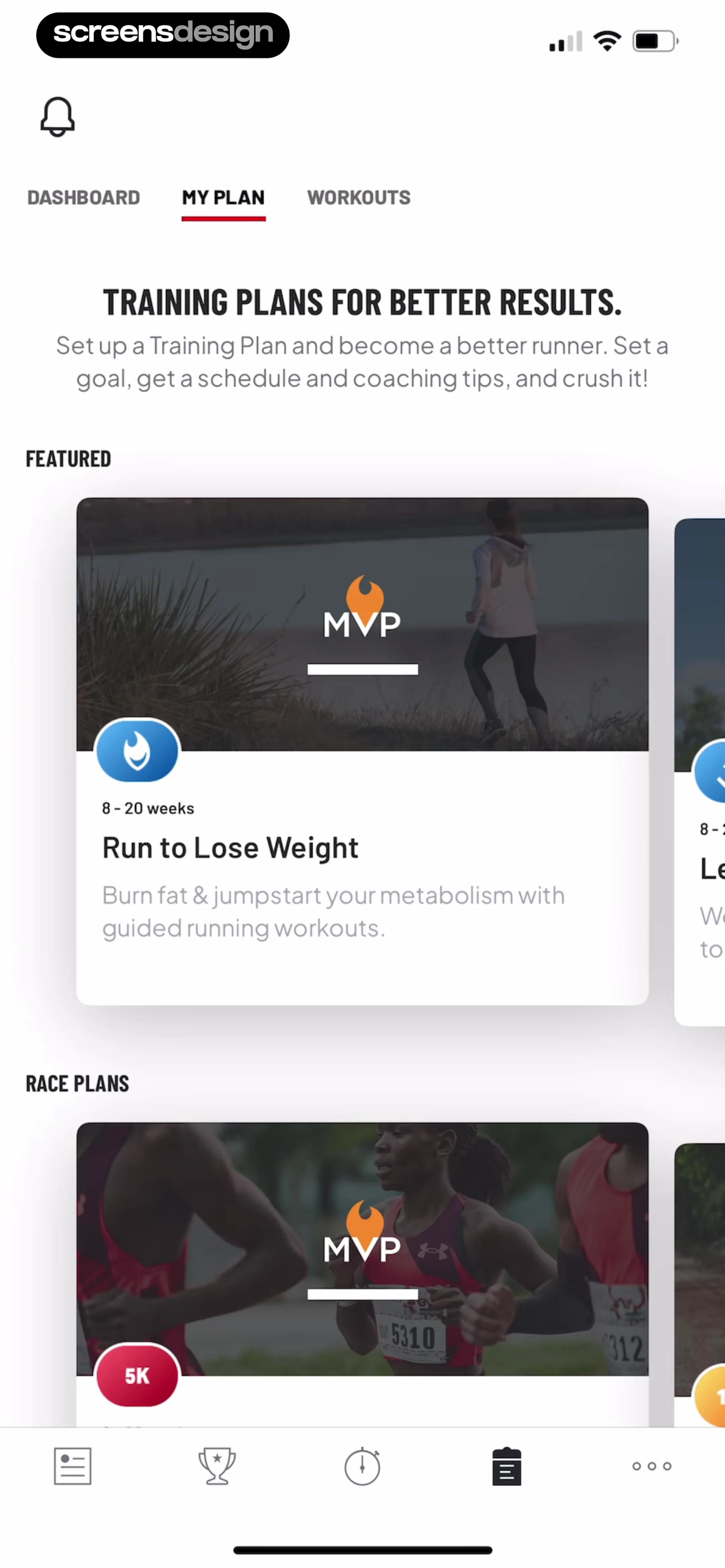
Map My Run GPS Running Tracker presents “DASHBOARD” with “MY PLAN” visible in the same state. Coopah: The Run Coaching App frames the related decision through “Connect device” and “PACE”. The pair makes how live tracking surfaces can choose a small metric set instead of presenting the full analytics dashboard. concrete in recorded products, but it does not establish which treatment performs better.
Use high-contrast large values, stable positions, explicit units, and audio or haptic cues. Make pause, resume, lap, and finish deliberate with protection against accidental taps. Adapt display for always-on screens and low light. Avoid tiny map gestures during motion.
Treat GPS points, sensor samples, derived metrics, and displayed aggregates separately. Buffer offline, mark low-confidence data, and recover after backgrounding, calls, or device lock.

04. Route and navigation
Show position, direction, and route confidence without false precision.
A line on a map is only helpful when the runner can tell whether they are on course.
ASICS Runkeeper-Run Tracker presents “Training” with “Guided Workouts” visible in the same state. RunMotion - Running Coach frames the related decision through “Cutback week” and “4 weeks until your next goal”. The pair makes how route-based products combine map context with distance, turn guidance, and live status. concrete in recorded products, but it does not establish which treatment performs better.
Keep current position and intended route distinct, orient predictably, and show off-route recovery rather than silently snapping. Provide downloadable maps for weak coverage and audio turns where safe. Preserve workout controls without hiding them behind the map.
Store route geometry, matched position, raw position, accuracy, and navigation state. Handle tunnels, urban canyons, battery-saving updates, and permission changes without corrupting the activity.


05. Summary and progress
Turn the completed run into an understandable record and next decision.
The finish screen should confirm saving before inviting comparison or sharing.
Run With Hal presents “Your Plan” with “Planned This Week” visible in the same state. Map My Walk: Walking Tracker frames the related decision through “DASHBOARD” and “MY PLAN”. The pair makes how post-run products combine headline achievement, route, splits, effort, and plan progress. concrete in recorded products, but it does not establish which treatment performs better.
Lead with the metrics relevant to the workout goal, then allow deeper splits and charts. Let users correct activity type, privacy, and perceived effort. Explain how the run affects the plan or personal best. Keep sharing optional and preview what location data will be exposed.
Finalize uploads idempotently, reconcile watch and phone records, detect duplicates, version edits, and preserve original sensor data. Apply privacy zones and audience rules server-side to every shared route.


Implementation
Build the workout as a durable session across device and network interruptions.
A dependable running-app screen needs a shared contract across the interface, backend, analytics, accessibility, and support.
Define plan workout, live session, device, permissions, GPS and sensor sources, route, samples, derived metrics, pause intervals, cues, completion, sync, edits, privacy, and sharing. Preserve raw and derived data with versioned algorithms.
Design planned, ready, acquiring GPS, paused, active, off-route, interrupted, completed, syncing, edited, discarded, offline, and sensor-unavailable states before polishing the default path. Preserve valid work and navigation context, make repeatable mutations idempotent, and return typed outcomes that map to reviewed product language rather than raw technical messages.
Test Dynamic Type, VoiceOver, keyboard focus, switch control, reduced motion, contrast, touch targets, localization, right-to-left layout, and long content. Dense data and visual hierarchy must remain understandable without color, gesture memory, or animation.
Review privacy, security, and entitlement at the data layer. Minimize sensitive fields, enforce audience and access on the server, avoid private payloads in analytics, and explain externally visible or irreversible consequences before confirmation.
Name the user’s job
Explain why this running-app screen appears and what object, plan, or decision it controls.
Represent reality
Distinguish planned, ready, active, paused, completed, syncing, and failed states so the interface never invents a false success.
Clarify the result
Make one primary action dominant, accurately labeled, and safe from accidental repetition.
Preserve the journey
After success, cancellation, or repair, restore the exact task and context that led here.
Measurement
Measure reliable recording and useful next decisions.
Measure the real user outcome and its quality, not only a tap or screen view.
Track plan view, workout selection, readiness, GPS acquisition, start, pause, resume, lap, finish, save, discard, sync, route deviation, cue use, summary view, edit, plan completion, share, and next-session return. Use stable state names and safe identifiers, never raw health, location, payment, recipient, or private content.
Monitor start-to-save success, accidental pauses, GPS wait and low-confidence time, battery impact, duplicate activities, sync failures, edited distance, route correction, summary comprehension, plan adherence, and safety support. Do not equate app-recorded activity with improved health without appropriate evidence.
Combine quantitative events with moderated research, support cases, accessibility testing, and replayed failures. Define guardrails before launch so a faster or higher-converting path does not conceal more mistakes, weak downstream engagement, privacy concerns, refunds, or abandonment.
Review checklist
Review the run in motion, offline, and across devices.
Review the complete experience with realistic data and interruptions.
Test GPS delay, backgrounding, phone lock, calls, tunnels, watch sync, low battery, route deviation, pause mistakes, and privacy before sharing.
- The running-app screen explains the current task and object in plain language.
- One primary action dominates and its consequence is accurately labeled.
- Secondary actions remain available without competing with the main decision.
- Initial, loading, partial, success, empty, stale, offline, and error states are deliberate.
- Back and close preserve the context that opened the screen.
- Validation and errors appear beside the relevant control with a recovery action.
- Repeated taps and ambiguous timeouts cannot duplicate consequential work.
- Sensitive data is minimized in the interface, storage, logs, and analytics.
- Large text and assistive technology preserve reading and focus order.
- Localization, units, time zones, and right-to-left layout are tested where relevant.
- The pattern is reviewed inside its full journey, not as an isolated screenshot.
- Recorded examples are adapted to the product’s own audience, data, and constraints.
Questions and answers
Running app design questions
What should a running app show before a workout?
Show the selected workout or route, target, GPS and sensor readiness, essential cue and privacy settings, and one clear Start action.
Which metrics belong on the live run screen?
Use the smallest set required for the workout goal, often elapsed time, distance, current or average pace, and target context. Keep positions stable and units explicit.
How should GPS uncertainty be handled?
Show acquisition and low-confidence states honestly, let eligible workouts continue with reduced accuracy, buffer data, and avoid presenting snapped routes or pace as more precise than the source.
What controls need protection during a run?
Pause, finish, discard, lap, and route changes need large reachable controls and safeguards against accidental taps, especially on locked, wet, or moving devices.
What belongs in a post-run summary?
Confirm saving, show goal-relevant headline metrics, route and splits, allow corrections and effort notes, explain plan impact, and preview privacy before sharing.
Which running app metrics matter?
Measure reliable start-to-save, GPS and sensor quality, pause mistakes, sync and duplicate issues, summary use, plan continuation, and safe sharing rather than screen views alone.
Apps referenced in this page
Open the products behind the examples.
 Running Trainer: Tracker&CoachRun Coach: 5K & 10K Runner
 Campus Coach-Running & TrailPace, Trail, and Road Plans
 Runna: Running Plans & Coach5k to Marathon Training
 Running Walking Tracker GoalsRun, Walk & Jog Mile Distance
 Map My Run GPS Running Tracker5K 10K, Half Marathon Training
 Coopah: The Run Coaching App5K, 10K, Half & Marathon Coach
 ASICS Runkeeper-Run TrackerRunning App and Training Plans
 RunMotion - Running CoachAdaptive Training Plan & Tips
 Run With HalCoach-Led Run Plans
 Map My Walk: Walking TrackerGPS Step Counter, Weight Loss
2,805 apps in the top charts.Ask them anything.
Compare recorded running app screens and use ScreensDesign Pro to ask how leading fitness products handle the exact workout, metric, route, and coaching decisions in your app.