Task priorities: explain the selected level
Flags and colors can mark urgency, importance or a queue position. A useful priority control makes its meaning, current selection and effect on the list clear.
A red flag can mean urgent, important, blocked or simply remembered for later. A number can rank tasks in either direction. The priority picker has to define the meaning, not assume the icon is universal. Start with the actual consequence in your product: a visual marker, a sorting value, a scheduling input or an escalation rule. Those are not interchangeable.
Keep priority separate from due date and status. A low-priority task can still have a near deadline; an urgent task can remain unstarted. The ten recorded screens below show how products expose the choice. They do not prove which hierarchy improves productivity or how a scheduling engine uses the selected value. Treat the implementation recommendations as decisions to test in your own task model.
For the resulting list behavior, consult the filter and sort examples. This article focuses on assigning the value before that list is filtered or ordered.
Choose labels with an understandable order
TickTick shows High, Medium, Low and No Priority with distinct flags. Linear uses No priority, Urgent, High, Medium and Low, with different icon shapes. The different vocabularies are not cosmetic: Urgent can suggest a deadline implication that High does not. A product should explain a level in the language its users apply to real work.
Use a small ordered set when people need a quick distinction, and add descriptions only where levels are otherwise ambiguous. Do not manufacture extra levels to make a picker feel sophisticated. If a team can customize names, keep a stable underlying identity and expose the order clearly. Renaming High to Critical should not create an unrelated value or silently change historical reporting.
Test the set with realistic conflicts: a high-impact task due next month and a small task due today. If people cannot decide because importance and urgency are mixed, a single priority field may be the wrong abstraction. It can still be a useful user-defined ordering signal, provided the interface does not promise that it captures every reason a task should be done next.


Distinguish an unset value from the lowest level
ClickUp’s sheet offers Urgent, High, Normal and Low, followed by Clear. Focus To-Do includes No Priority as a labeled option beside the other levels. These patterns address the same need through different actions: returning a task to an unclassified state. Neither should be confused with assigning a real low-priority value.
Represent no selection explicitly in storage and in the UI. If the lowest level is also the default, explain that rule rather than showing an empty field that later becomes a colored level. Clear should affect only priority. It should not erase due dates, flags or a manual position unless the user deliberately requested that broader reset.
Defaults can be remembered per person or project, but do not disguise an inherited default as a deliberate task choice. On a shared task, consider whether a project policy can override the value. When a policy changes, tell users what moved. The crucial outcome is that someone can distinguish untriaged work from work intentionally judged less important, including in exports and search results.


Keep the task intact while choosing
HelloHabit opens its priority menu above a Send Emails task composer, with date and other task controls still visible. Focus Keeper shows a similar menu above the keyboard while Task 1 is being entered. A small metadata choice should not make users lose the words they were writing or reset the rest of the task form.
Maintain the text selection and draft state when the picker opens. On return, place focus somewhere predictable and preserve the keyboard state when useful. If the menu is staged, Cancel should restore the earlier value without deleting the title. If selection applies immediately, return a visible summary beside the task so the change is not known only from a momentary menu highlight.
At large text sizes, a row of compact icons may collapse into indistinguishable targets. Give each choice a readable label, sufficient target area and a programmatic selected state. Screen-reader announcements should include the level, not just flag. Keyboard navigation should move through the choices without also submitting the task, and dismissing the sheet should not activate the control beneath it.


Show which action actually saves the choice
Motion’s Priority sheet includes Done and marks Medium with a check. Todoist’s task composer displays Priority 1 through Priority 4 in an open menu. The numbers are compact, but the product still needs a shared understanding of which direction means more important. The visible menu alone cannot establish whether the task has been saved to the backend.
Define the transaction boundary. A task can have a pending priority inside an unsaved composer even when the sheet itself closes successfully. Show that value in the composer and commit it with the task. For an existing task, either apply immediately with reliable feedback or stage changes behind an explicit save action. Avoid a sequence of Done buttons whose scopes cannot be distinguished.
When persistence fails, retain the intended value and explain whether it is pending or reverted. Do not show a high-priority flag in the list while a reopened detail view says no priority without an error. Associate an update with a stable task and version so a delayed response cannot apply to a different task after fast navigation. Test two devices changing the same priority and state how a conflict is resolved.


Explain what changes beyond the badge
Evernote places High, Medium and Low in the task form while keeping Flagged as a separate setting. Tiimo displays groups for HIGH, MEDIUM, LOW and general TO-DO. The first demonstrates independent metadata; the second demonstrates a list organized around priority. Do not assume a flag and a level are the same merely because both can draw attention.
If choosing a level moves the task, show where it went and keep a route to it. In a filtered list, a changed task may legitimately disappear, but silence looks like deletion. If priority affects automated scheduling, describe that relationship without promising a precise time the scheduler cannot guarantee. Preserve explicit due dates and show any scheduling conflict separately.
Date and time choices deserve their own scheduling UI. Test assignment in a sorted list, a filtered list and an offline session. Ask people to predict the next state before they tap. Track misclassification, repeated reversals and lost-task reports. A faster selection time is not enough if the chosen level means something different to each collaborator.

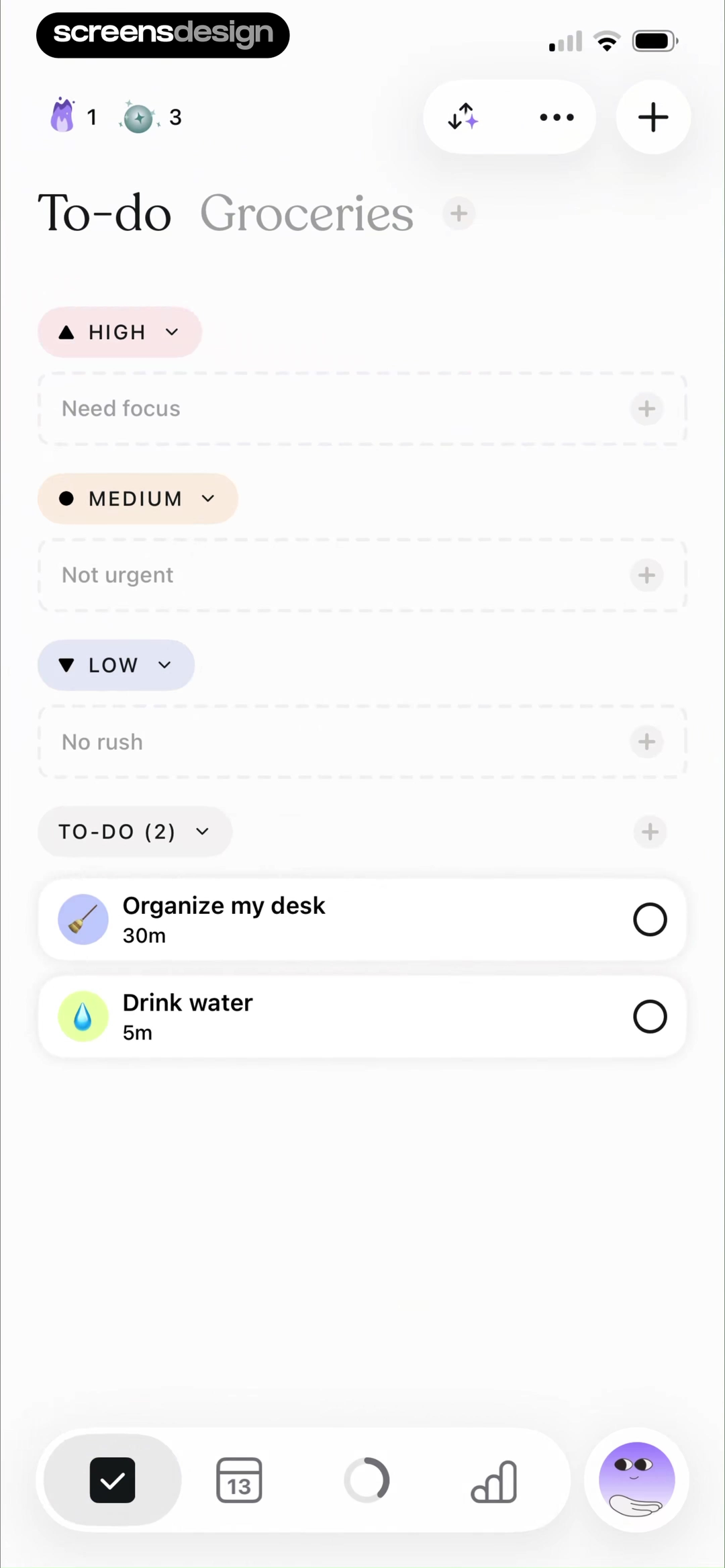
Test a level change in a constrained view
Use a view filtered to High priority and change one task to Low. The correct result may be that the task leaves the view, but the person still needs confirmation and a way to locate it. Test an explicit action such as View task or Undo that retains the updated identity. Do not insert a permanent duplicate into the old group simply to prevent the row from disappearing.
Then apply the same change while offline and while a collaborator changes the value. Define whether the product queues, rejects or reconciles the update. Show a pending state only if the queue actually survives the supported interruption. A flag rendered optimistically is not a server receipt, and a repeated tap should not create several conflicting writes that arrive out of order.
In research, ask people to compare two tasks with different deadlines and priority values. Their explanation should match the intended model. If they expect High to schedule a time automatically but the product only changes a badge, revise the wording. Evaluate the chosen meaning and resulting behavior together rather than treating selection speed as the entire success criterion.
Validate priority from picker to list
Use these checks on a working build, not only on the polished reference state.
- Explain whether priority means importance, urgency, user order or a scheduling input.
- Keep no priority distinct from the lowest deliberate level and define the default.
- Retain task text, date, project and focus when the menu opens and closes.
- Make every level understandable without color or an unexplained numeric direction.
- Distinguish saving the picker’s choice from saving a new task.
- Explain where a task goes when a changed priority moves it out of the current view.
- Test delayed saves, conflicting edits, filtered lists and large accessibility text.
Questions and answers
Questions worth resolving before shipping
Should priority levels be numbers or words?
Use the vocabulary your users can interpret consistently. Numbers are compact but need a clearly established direction; words can still be ambiguous when urgency and importance are mixed. Test real decisions rather than assuming either representation is universally clearer.
Is No Priority the same as Low?
It does not have to be. No Priority can mean unclassified, while Low records an intentional judgment. Keep them separate when triage or shared reporting depends on the distinction. If your product treats them as the same value, make that default explicit.
Should priority automatically reschedule a task?
Only when that is an intentional and explained scheduling rule. A visual priority flag alone does not imply consent to move a calendar event or change a deadline. Show the affected scope and any conflict, and allow the person to inspect the resulting schedule.
Apps referenced in this page
Open the products behind the examples.
 TickTick:To-Do List & CalendarTask remind, planner,countdown
 Linear MobilePlan and build your product
 ClickUp: Tasks, Chat, Docs, AI#1 AI Workspace & Agents
 Focus To-Do: Focus Timer&TasksPomodoro timer for work&study
 HelloHabit - Habit TrackerTasks, Routines, & Streaks
 Focus Keeper - Pomodoro TimerADHD Organizer & Productivity
 Motion: Tasks & AI SchedulingA.I. Time and Project Manager
 Todoist: To Do List & CalendarTask manager & Reminders
 Evernote: AI Notes & NotebookTasks, memo & lists organizer
 Tiimo: To-Do List PlannerSchedule Structured Daily Task
2,805 apps in the top charts.Ask them anything.
Compare real priority menus and their list contexts with ScreensDesign Pro. Use the examples to define levels, defaults and save behavior that people can understand in your own task app.