Google Gemini: Using Voice and Live Mode
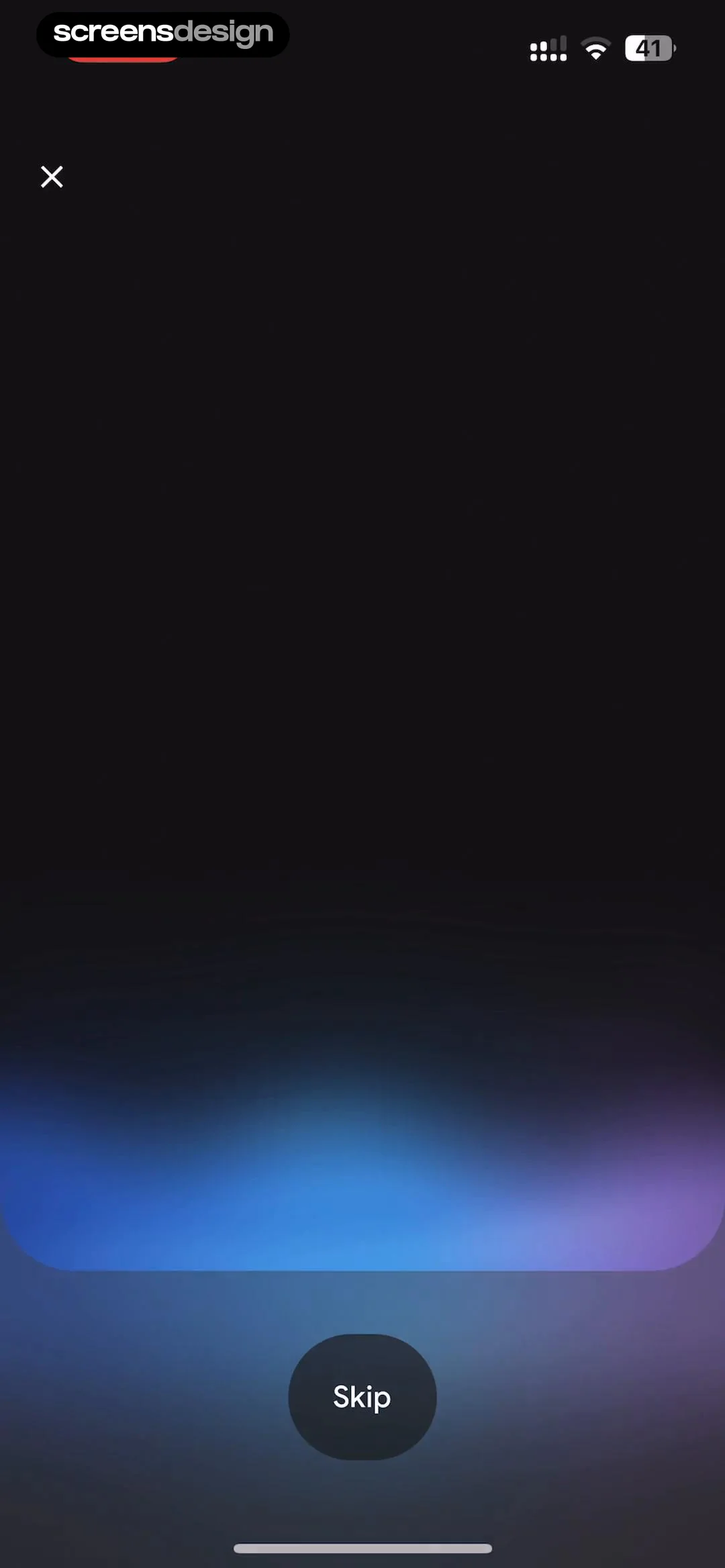
Step 1 · 5:32
 See the flow
  Google Gemini
A dark, gradient-filled background with a top-left close button and a bottom-center skip button.
Step 2 · 5:43
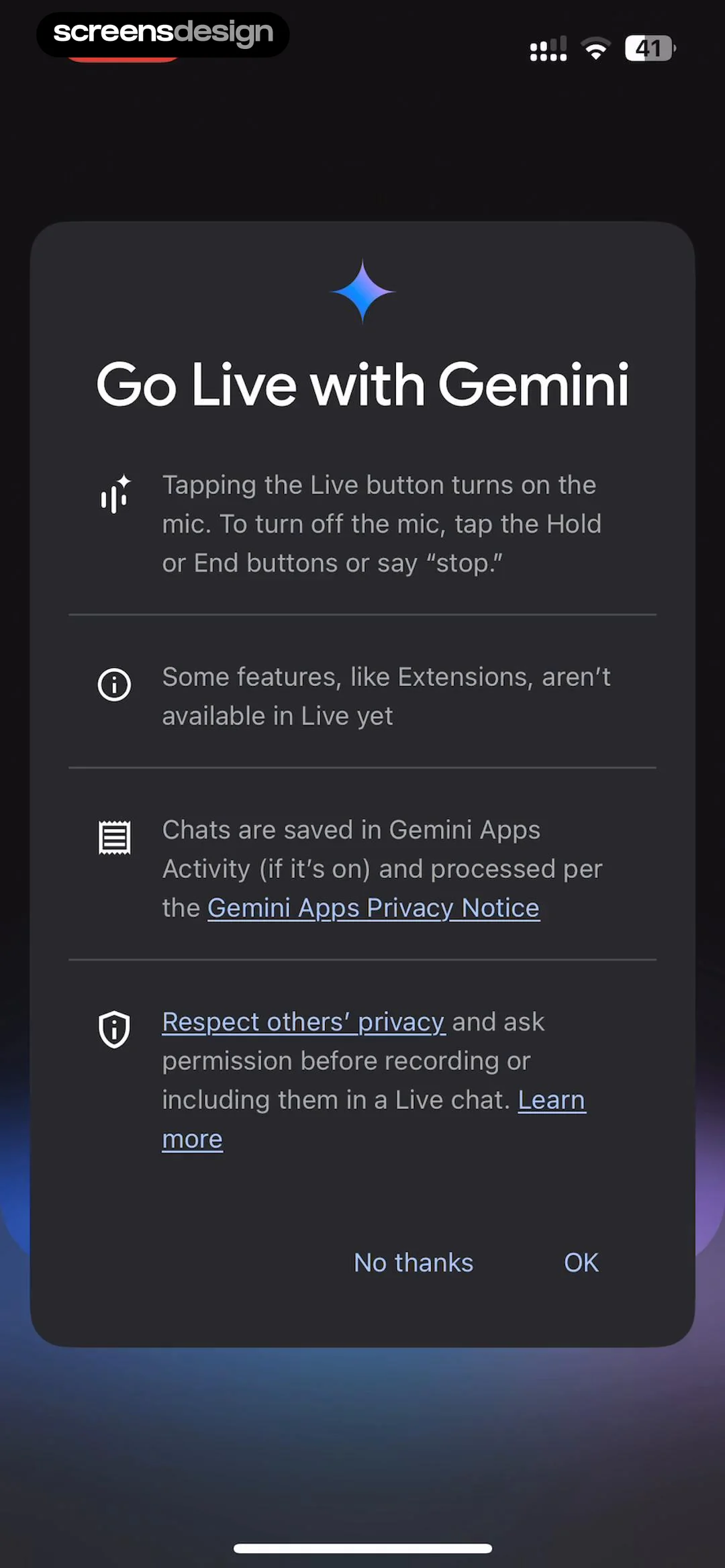 See the flow Google Gemini
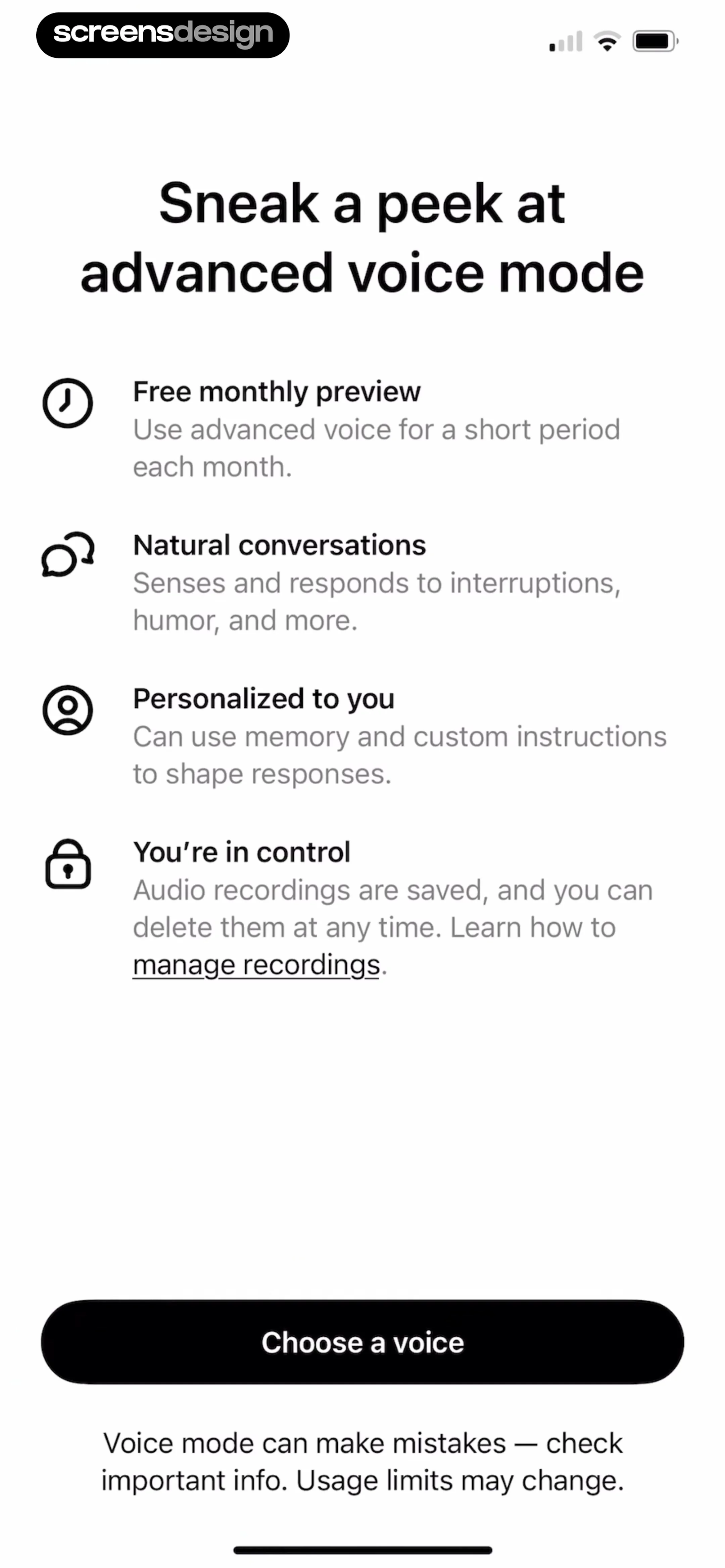
A centered modal card containing a header icon, title, four bulleted text blocks, and two bottom-aligned action buttons.
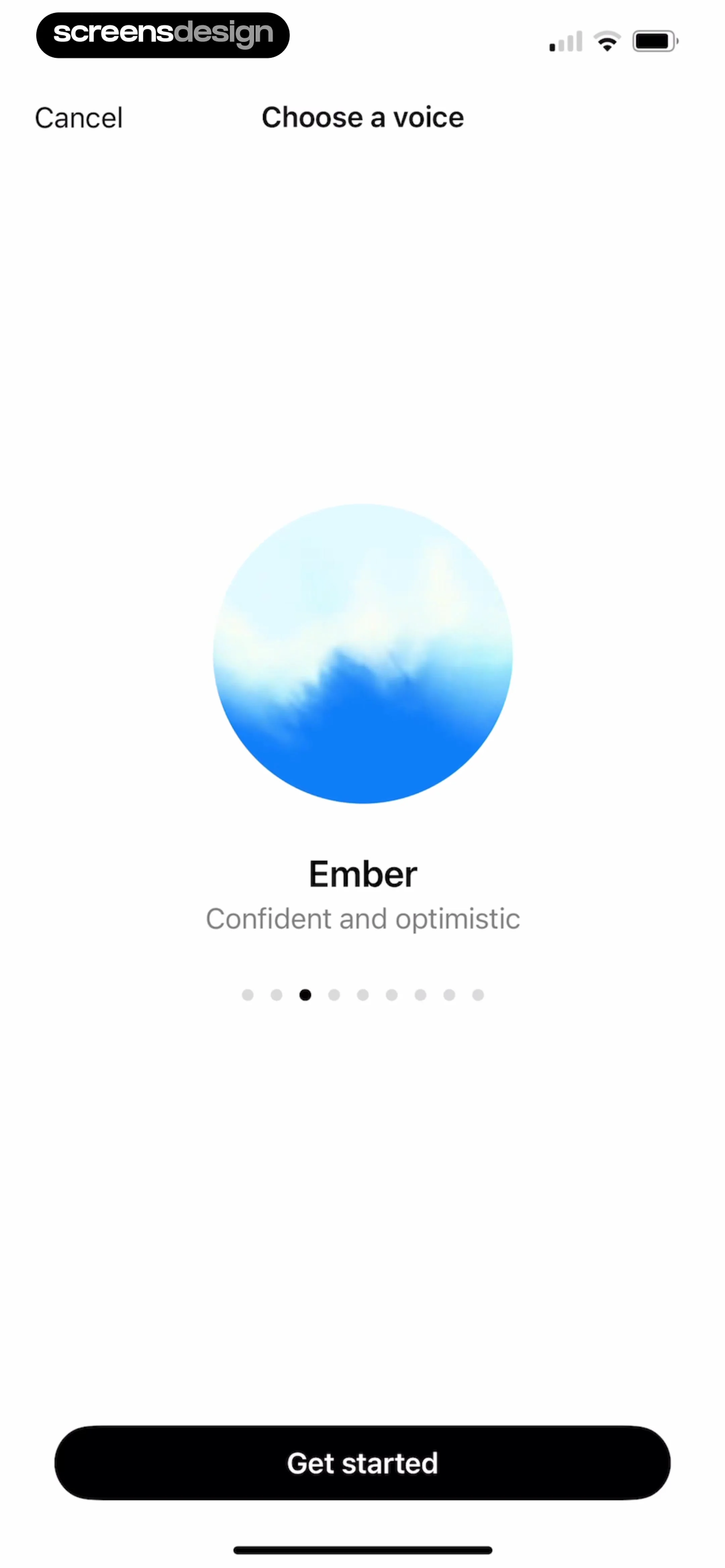
Step 3 · 5:49
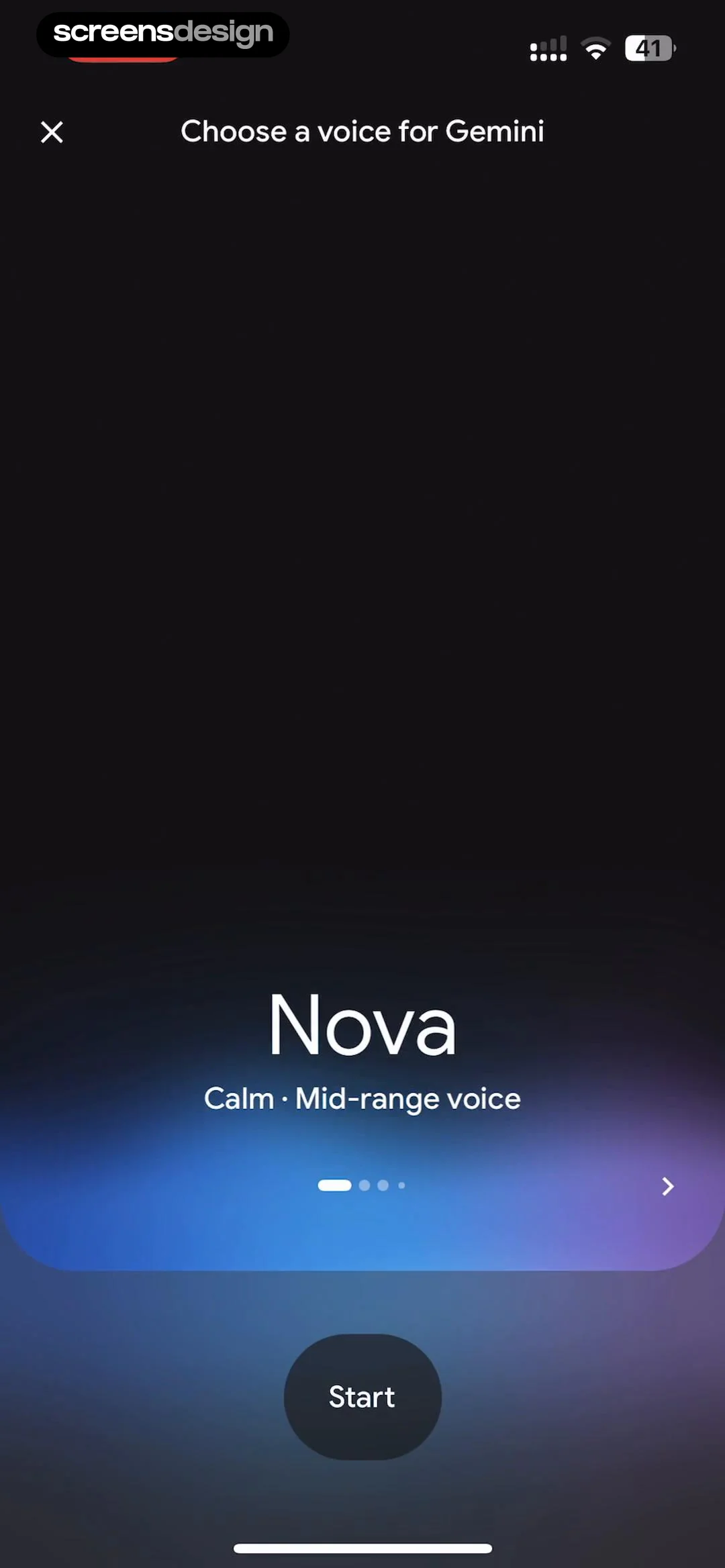 See the flow Google Gemini
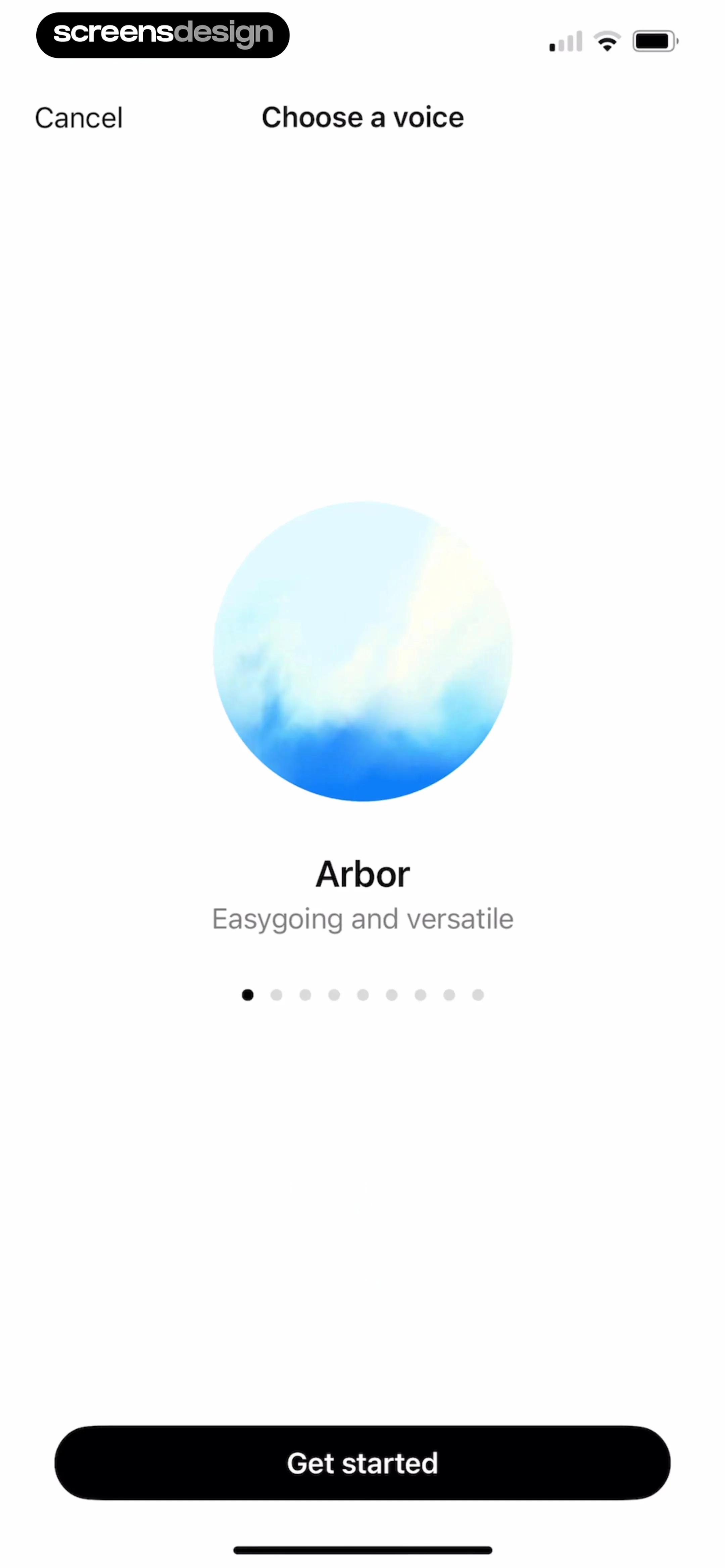
Top navigation bar, central voice profile display with pagination, and a bottom primary action button.
Step 4 · 5:56
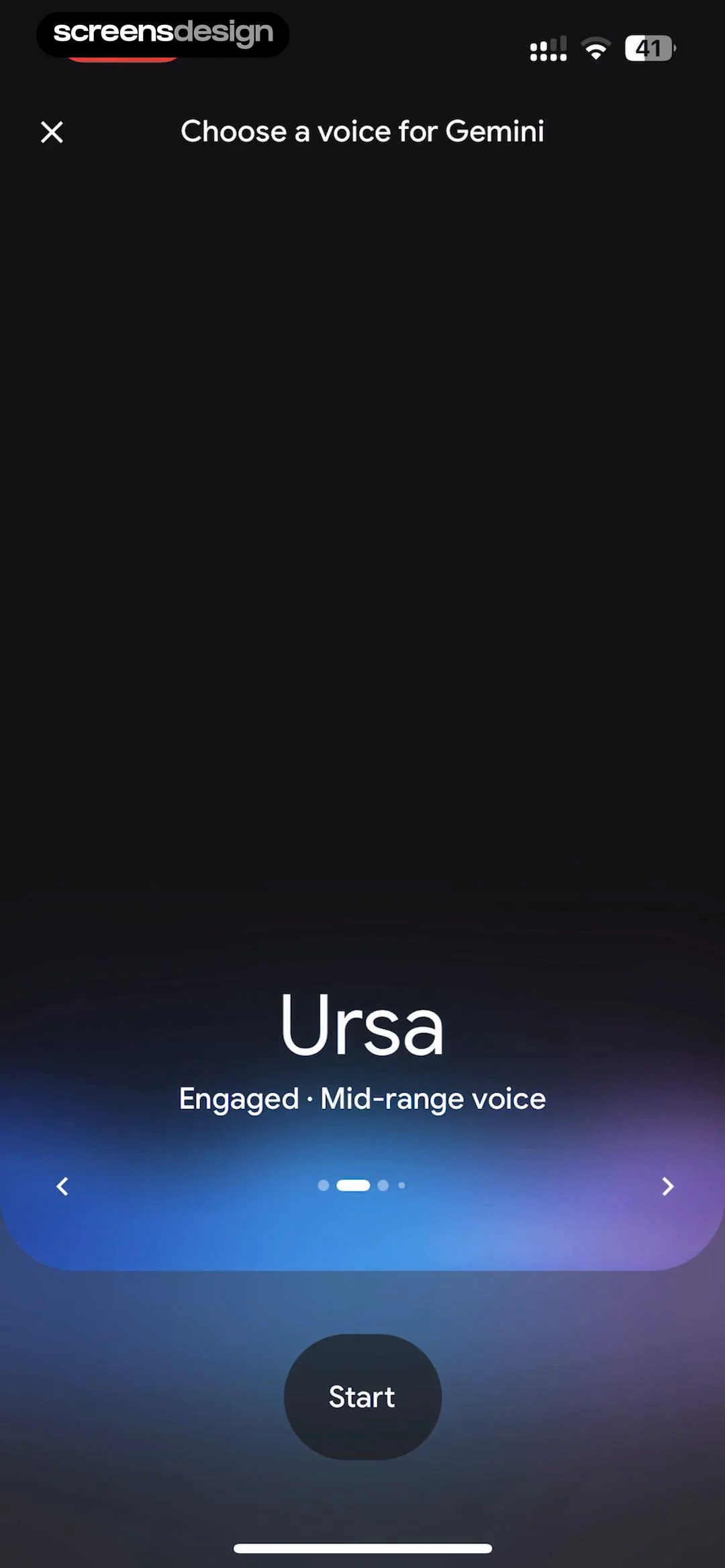 See the flow Google Gemini
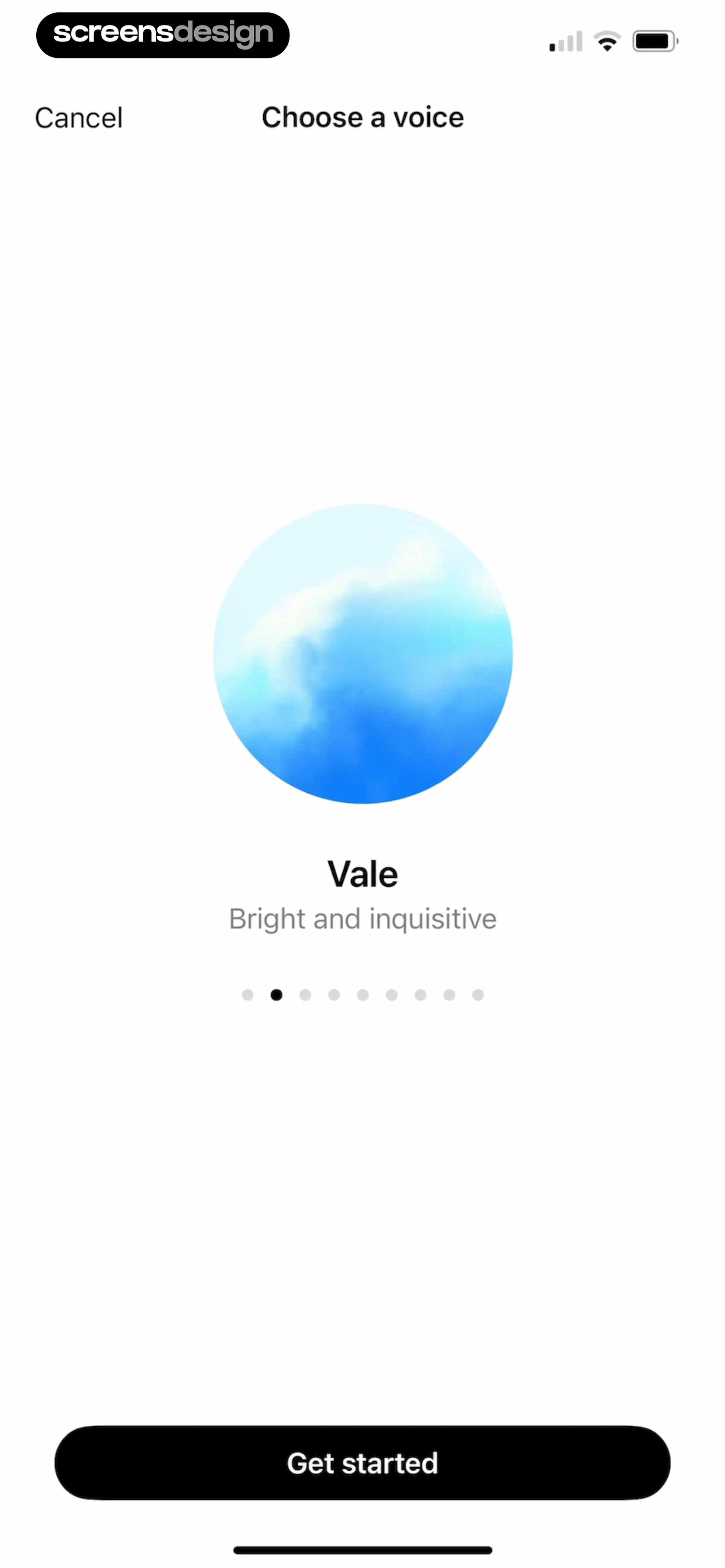
Top header with close button and title, central voice display area with carousel controls, and a bottom primary action button.
Step 5 · 6:07
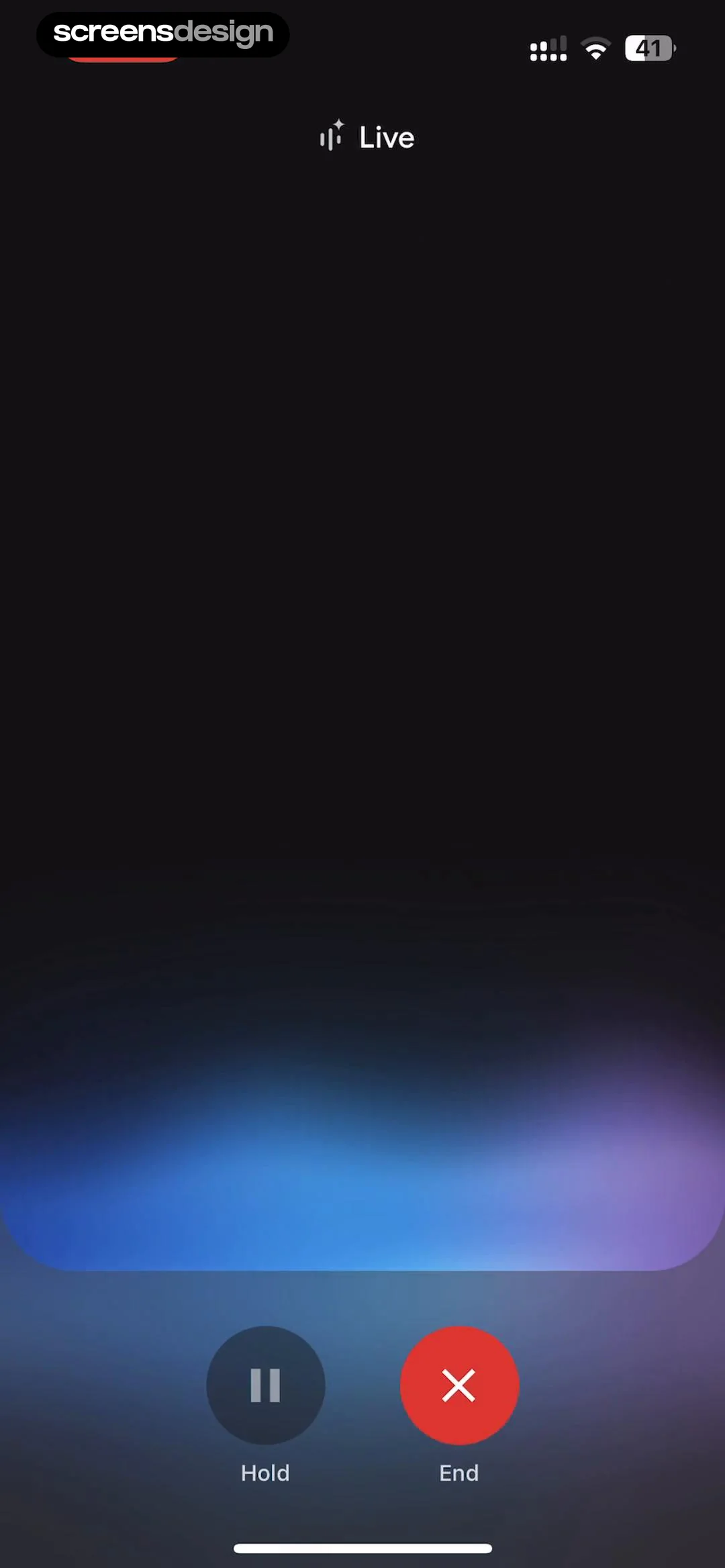 See the flow Google Gemini
Top status indicator, central dark gradient background, bottom control row with two circular buttons.
Step 6 · 6:17
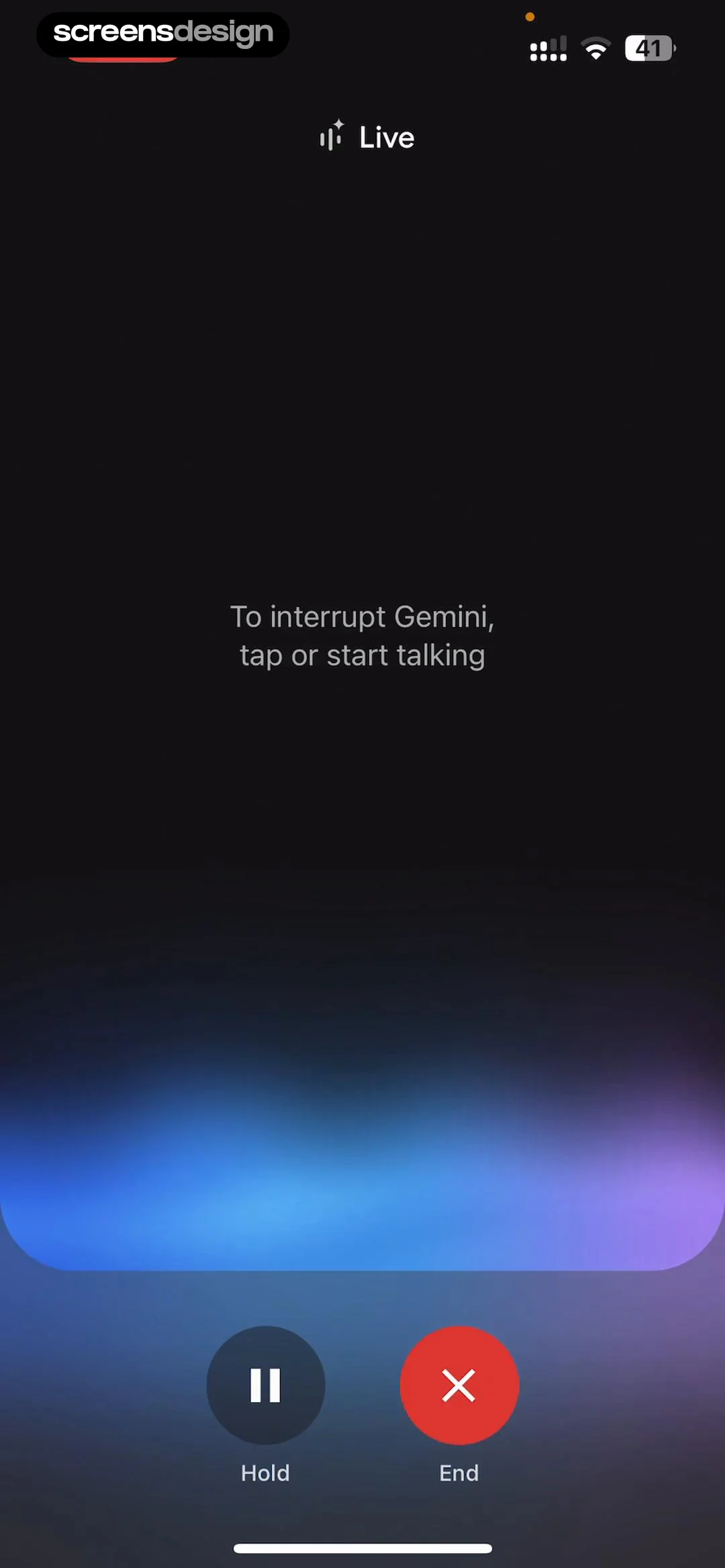 See the flow Google Gemini
Top status indicator, central instructional text, and bottom control buttons.
Step 7 · 6:29
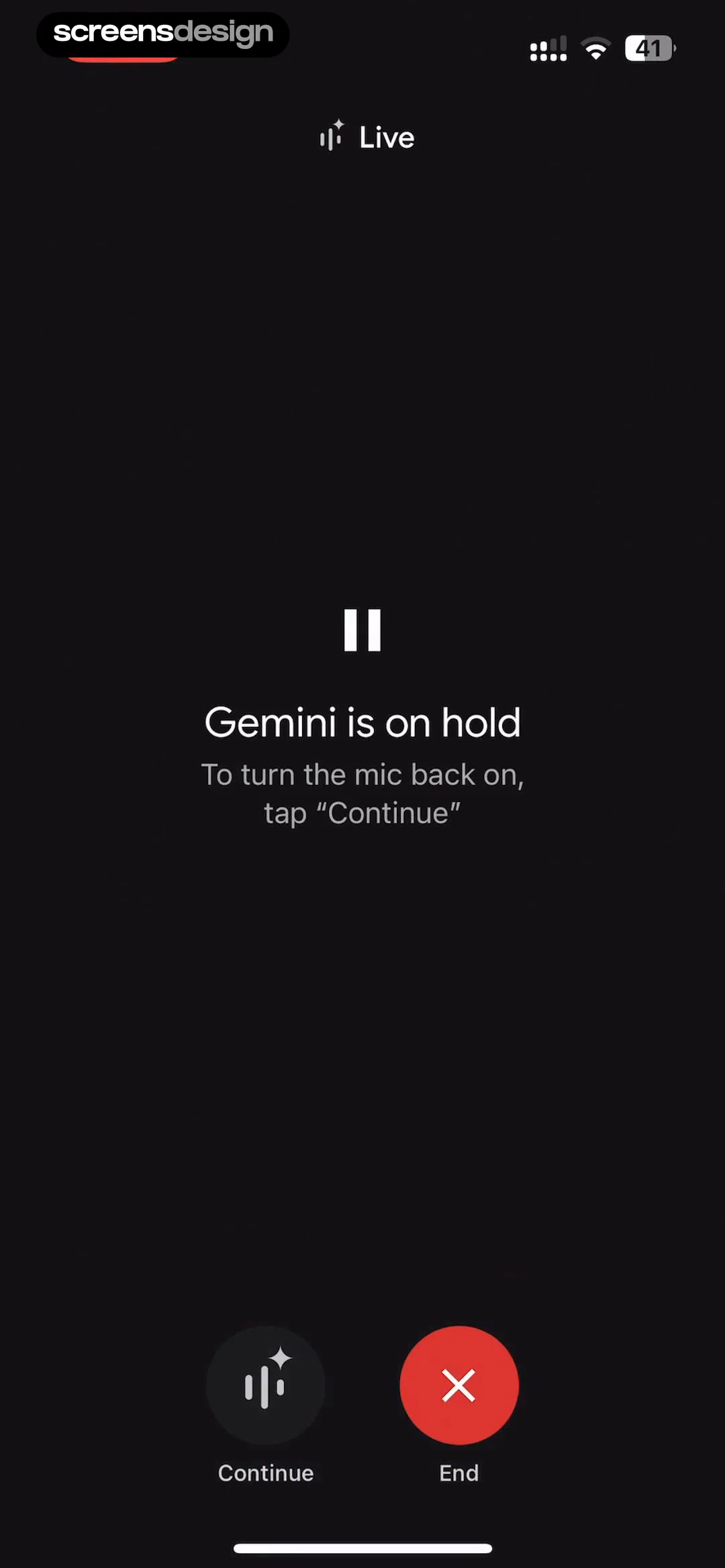 See the flow Google Gemini
Centered text and icons with two primary action buttons at the bottom.
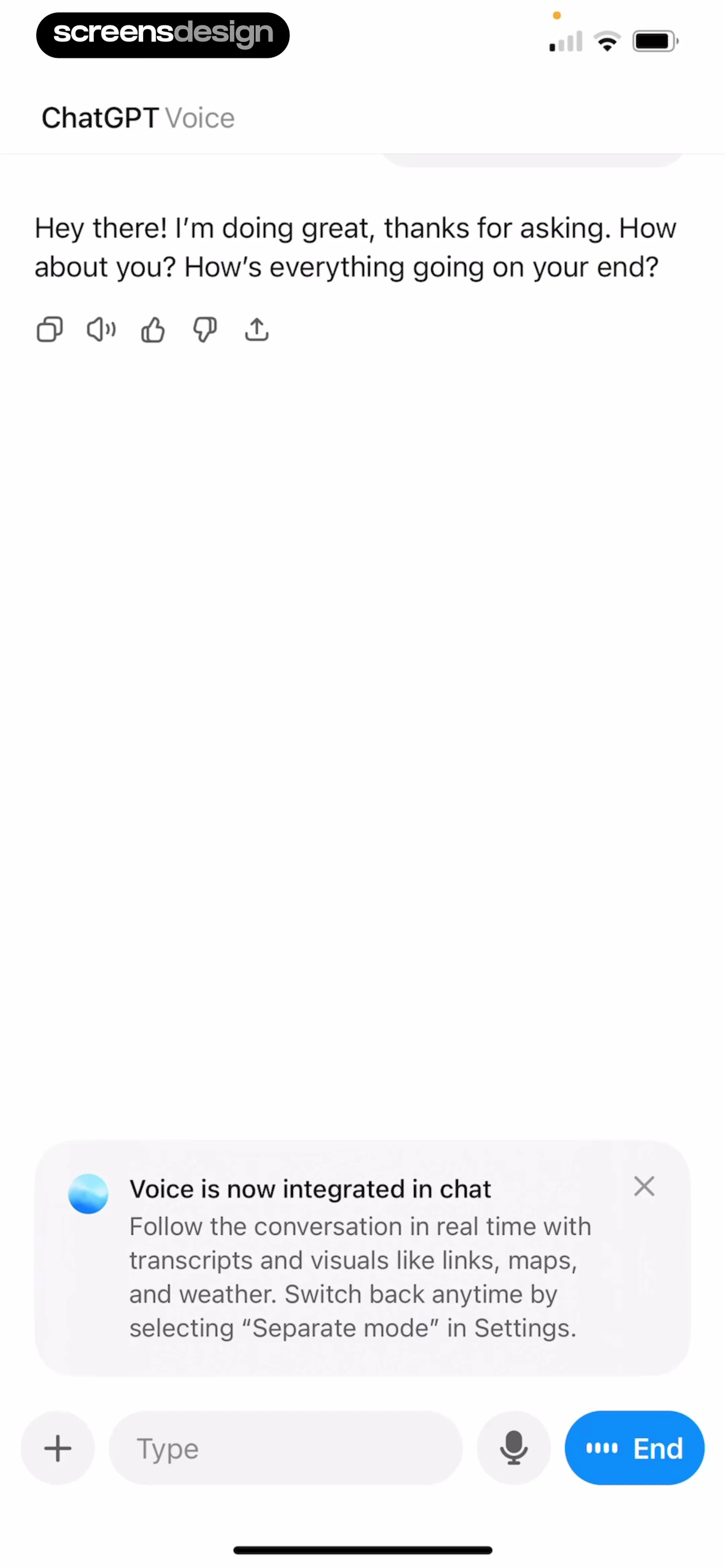
Step 8 · 6:37
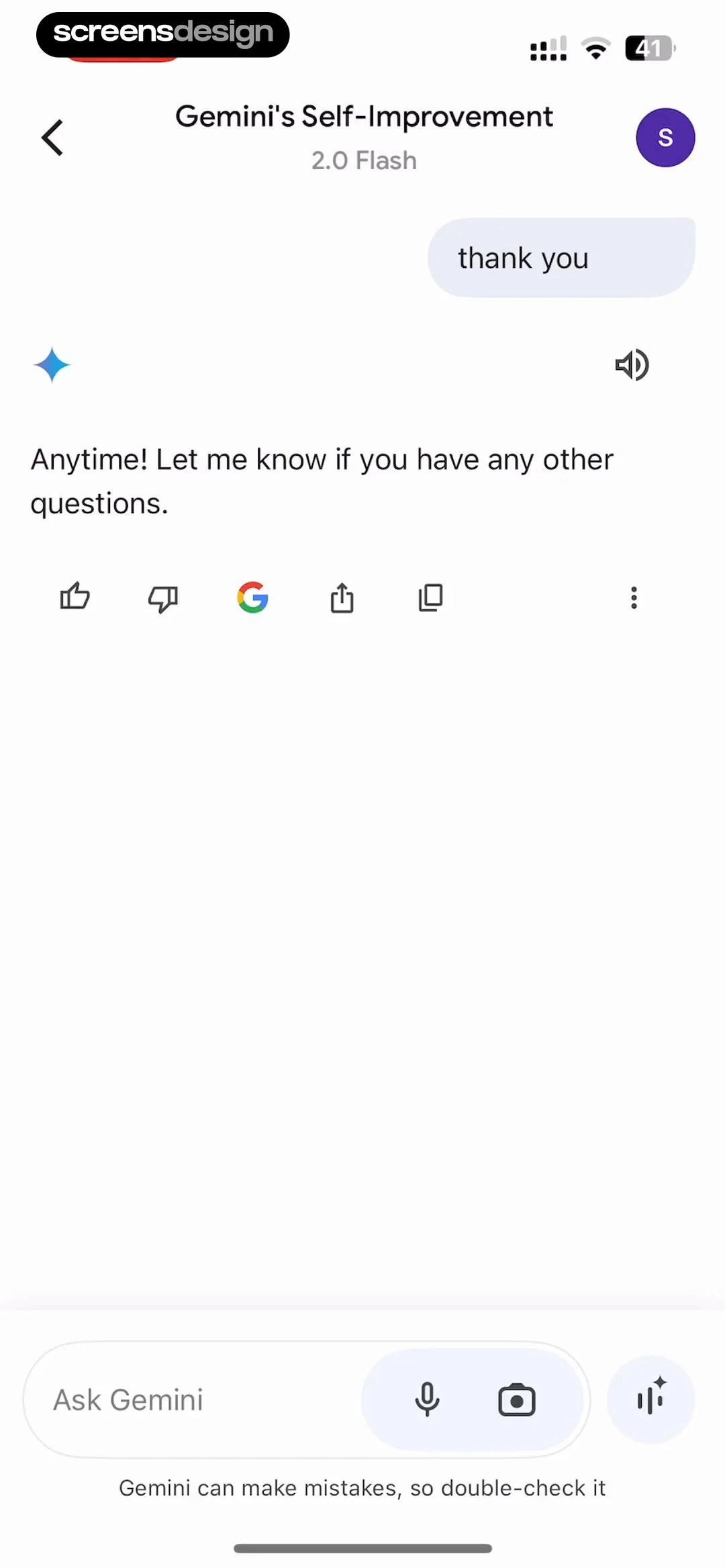 See the flow Google Gemini
Header with title, chat history in the center, and a fixed input bar at the bottom.